
This add-on feature gives admins a powerful way to manage and forecast schedule-level profit & loss by assigning custom expenses and tracking projected income.
💡 Contact us to enable this Add On feature or to request a demo.
🚀 Feature Overview
With this feature, admins can:
-
Create unlimited expense lookup items
-
Assign them to schedules with specific costs and quantities
-
View forecasted profit based on expected income vs expenses
-
Monitor real-time income as bookings are made
🔧 Setup Steps
1. Add Expense Items to Your Account
Create reusable expense items once.
-
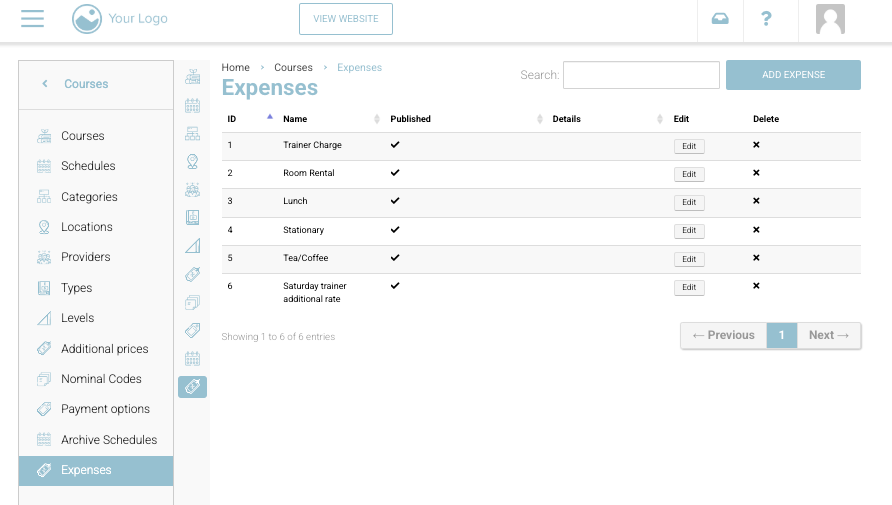
Navigate to: Courses > Expenses (left menu tab)
-
Click + Add Expense
-
Enter a name for the expense item (e.g., Instructor Fee, Venue Hire, Equipment Rental)
-
Save – this item is now available across all schedules
📅 Using Expenses on a Schedule
2. Create or Edit a Schedule
When creating or editing a schedule, fill in the basic information
-
Date, Time, Location
-
Capacity
-
Price per Person
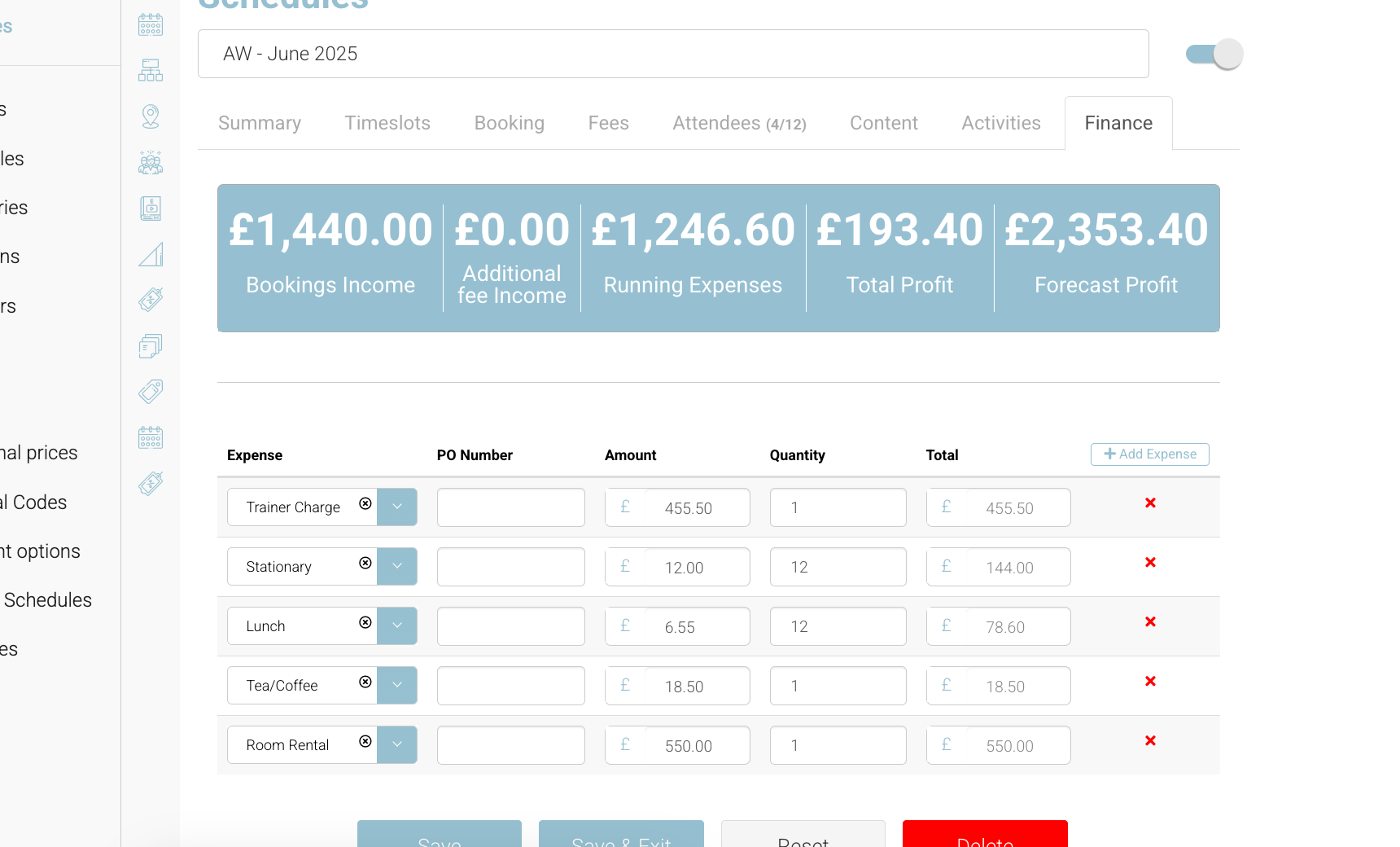
You’ll now see a Finance tab with forecasted metrics.
📊 Finance Tab Breakdown
The Finance tab displays the following:
-
Bookings Income = Booking income + Additional fee items - VAT
-
Additional Fee Income = Additional fee items - Schedule cost - VAT
-
Running Expenses = Sum of all assigned expense items
-
Total Profit = Bookings income - Running Expenses
-
Forecast Profit = Forecast Income (Capacity × Price per person) - Running Expenses
3. Add Expense Items to a Schedule
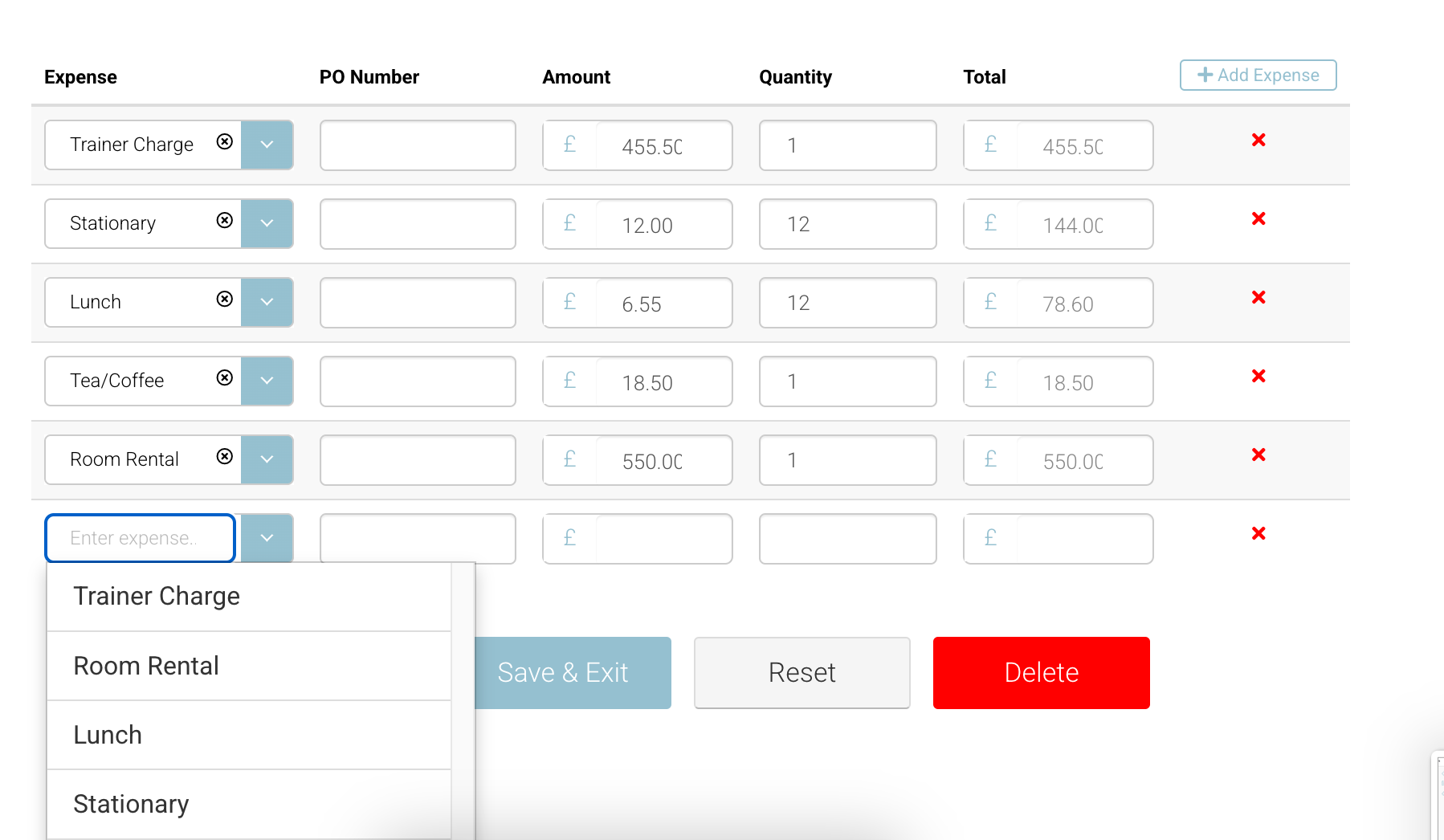
Scroll down below the stats to the Expenses Table:
-
Click + Add Expense
-
From the dropdown, select a previously created expense item
-
(Optional) Enter a PO number – this is a free-text field from your accounting software
Note: This is for reference only and not linked to CourseCo
-
Enter the Amount (Ex VAT) and Qty
-
The Total (Ex VAT) will auto-calculate
-
Save – the Running Expenses and Forecast Profit stats will update in real-time
💡 You can add and edit as many expenses as needed to reflect changes or refine forecasts.
💰 Live Booking Impact
As bookings are made:
-
The Booking Income stat updates dynamically
-
This includes base price income (Ex VAT) and any additional items (if applicable)
➕ Using with Additional Fees
If you also have the Additional Fee Add-On Feature enabled:
-
The finance tab will break out additional item income separately
-
See the Additional Fee Add-On User Guide for more details