Overview
Each contact in your system can have a login role, which determines the type of access they have when logging into your platform (e.g. Student, Trainer, or Org rep).
If a contact’s role changes over time (for example, from Org Rep to Student), admins can update this directly from the Contacts area.
Steps to Edit a Contact’s Role
-
Go to Contacts
-
Open the Contacts section from the left-hand menu.
-
On the Contacts list screen, you’ll see a Role column showing each contact’s assigned login role.
-
If the Role field is blank, the contact does not currently have a login.
-
-
Select the Contact
-
Click on the contact’s name to open their profile.
-
-
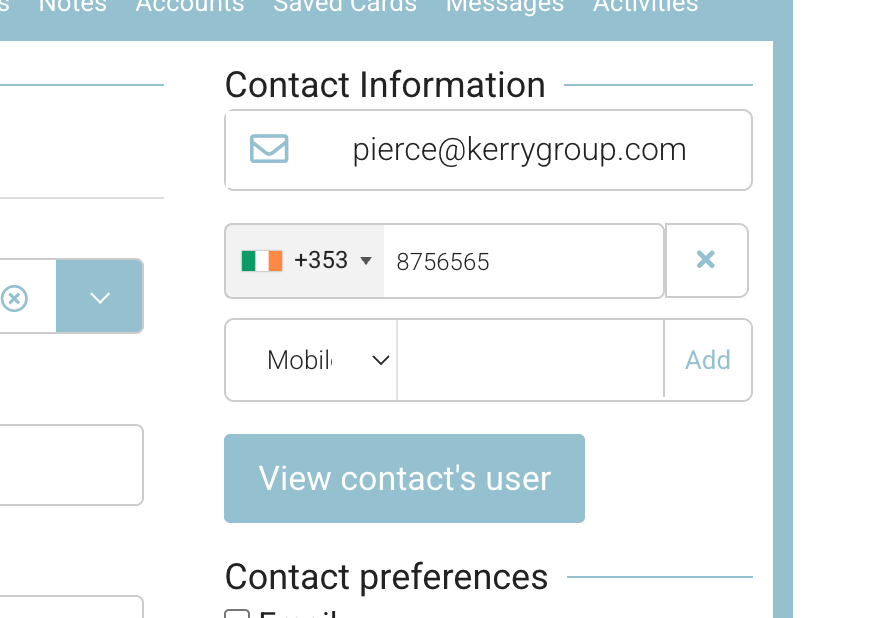
View the Linked User
-
Click the View User button to open their login account details.
-
-
Edit the User Role
-
On the next screen, select Edit.
-
From the Role Group dropdown, choose the new role for this contact.
-
Available options:
-
Student
-
Trainer
-
Org Rep
-
-
-
-
Save Changes
-
Click Save to apply the updated role.
-
The new role will now appear in the Role column on the Contacts list.
-
Notes
-
If a contact has no linked user, no role will be displayed.
-
You can only edit the role if the contact already has a login created.
-
Updating the role will adjust their access permissions across the platform accordingly.