
Global Organisation Representative access is an add-on feature and must be configured for your platform before use.
Once enabled, admin will see:
-
A new contact type: Global Org Rep
-
A new invite option: Global Org Rep
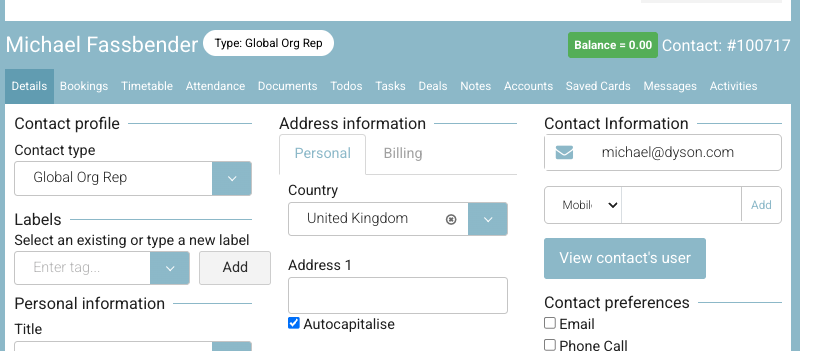
Editing an Existing Contact
If a contact already exists and needs Global Org Rep access:
-
Navigate to Contacts
-
Open the relevant contact
-
Edit the contact type - this is on the contact profile
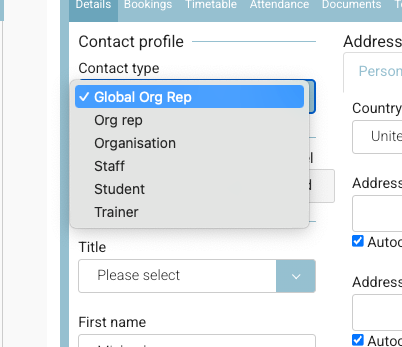
Contacts - edit contact type -
Select View User Status
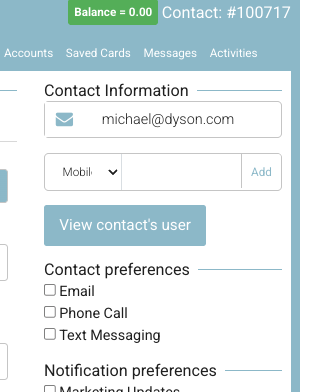
-
Click Edit
-
In the popup, change the role to Global Org Rep
-
Save changes
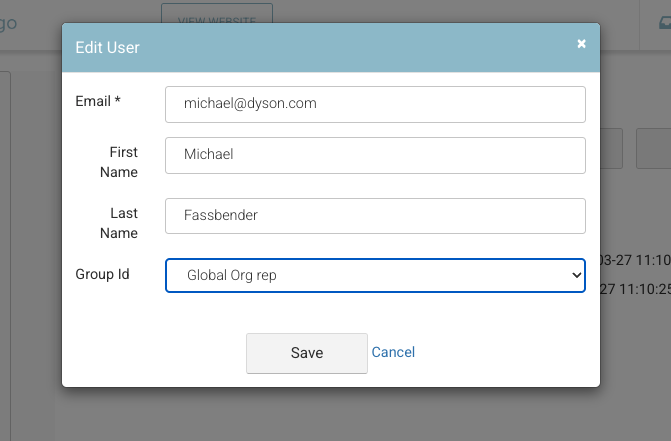
If the user already has login access, this will update their permissions.
On their next login, they will see the global, organisation-wide view.
Creating a New Global Org Rep
When adding a new contact:
-
Navigate to Contacts > Add New
-
Enter contact details
-
Set Contact Type to Global Org Rep
-
Save the contact
Inviting the User to Login
To provide access:
-
Open the contact
-
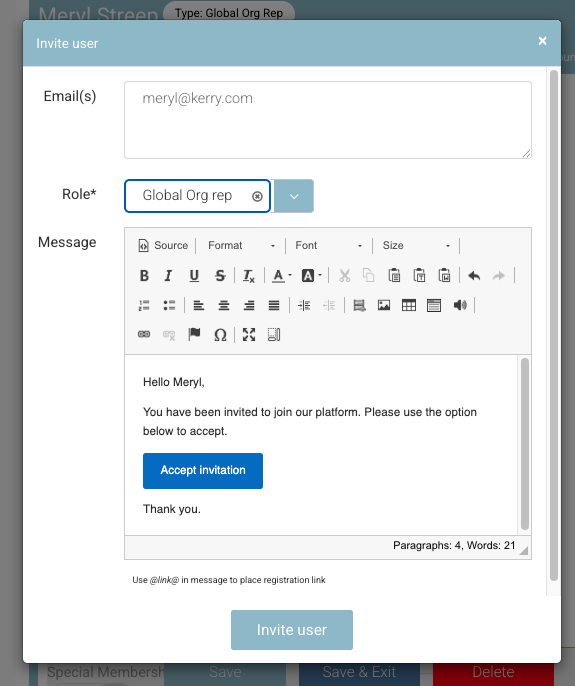
Select Invite to Login
-
From the dropdown, choose Global Org Rep
-
Send invite
The user will receive login details and, once logged in, will have full organisation visibility.
Important Notes
-
This feature is not enabled by default
-
It must be configured as part of your setup
-
Access should be limited to trusted users (e.g. training managers, senior staff) due to full visibility across the organisation
See user guide here for more information on the global org rep Features