
As an admin, you can add your ‘notes' to your contacts if you want to save any pointer about the contact. For example, as an admin, I want to add a note on one of my contacts to keep records. To do that, follow these steps:
-
Log In as an admin
-
Go to Contacts Plugin in the left menu
-
Search and select the contact you want to add a note on
-
In the contact details, go to notes text box
-
Add your ‘Add a new note’ in the given text area
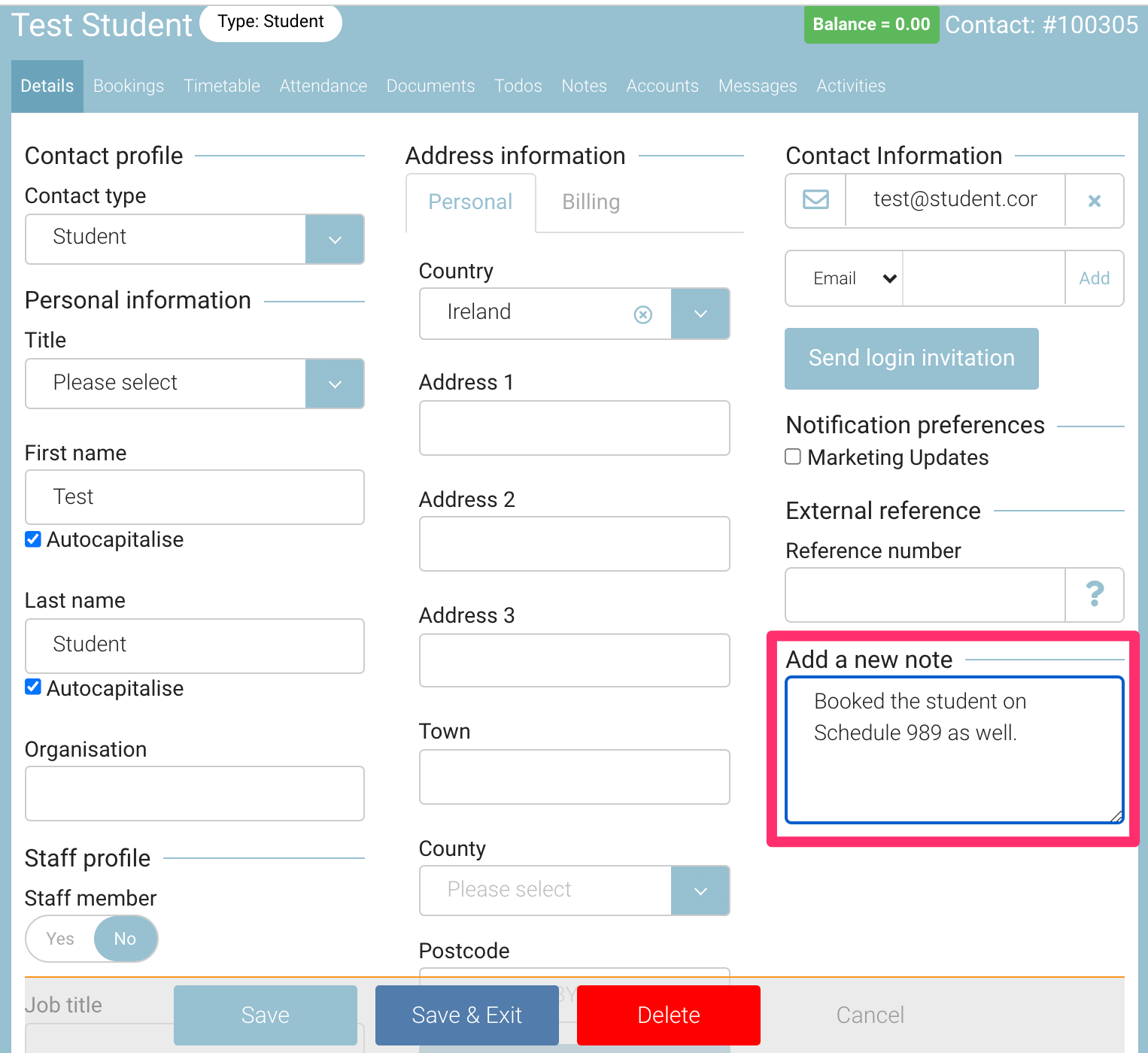
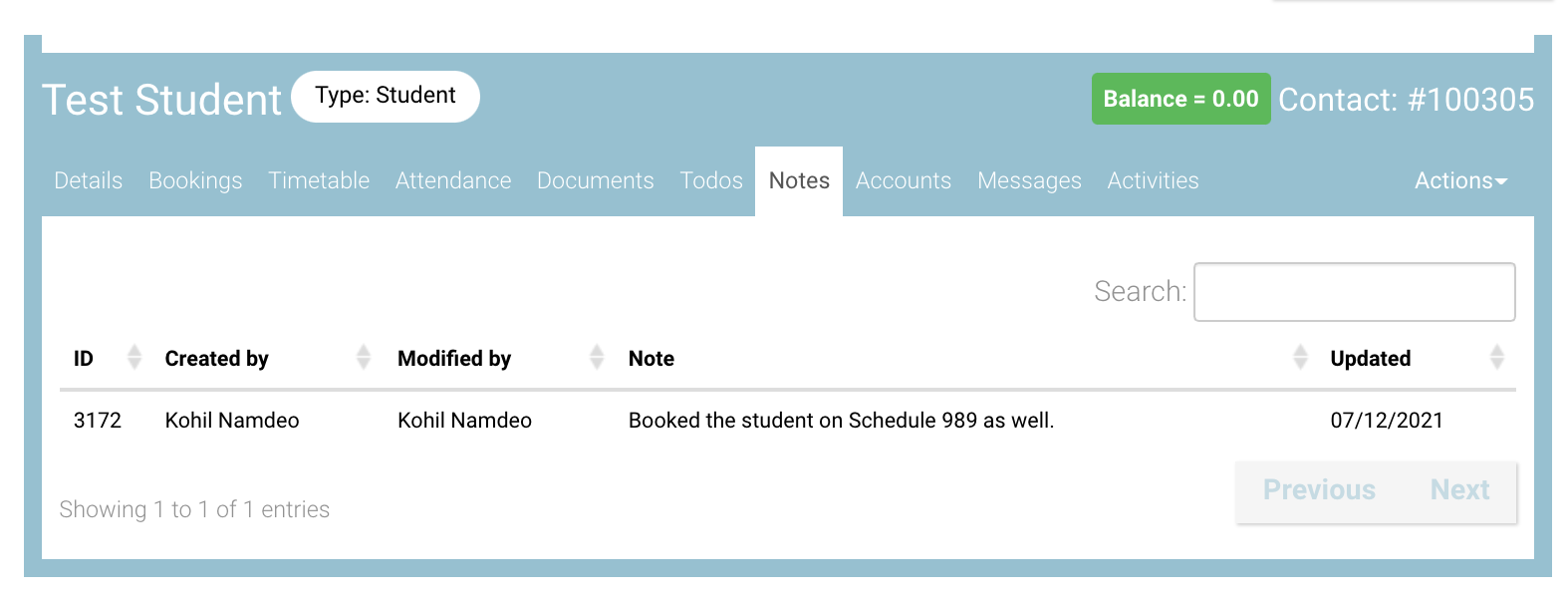
The note will disappear from the ‘Details’ tab and saved in ‘Notes’ tab. Please see the image below for your reference
-
Click on ‘Save’ button
-
To view the saved note, click on ‘Notes’ Tab on contact details form
General Note:
As an admin, you can add a general note for a contact. To add a general note, please follow the steps:
-
Log In as an admin
-
Go to ‘contacts’ in the left menu
-
Select the contact you want to add new general note to
-
Click on ‘Notes’ tab on the contact details
-
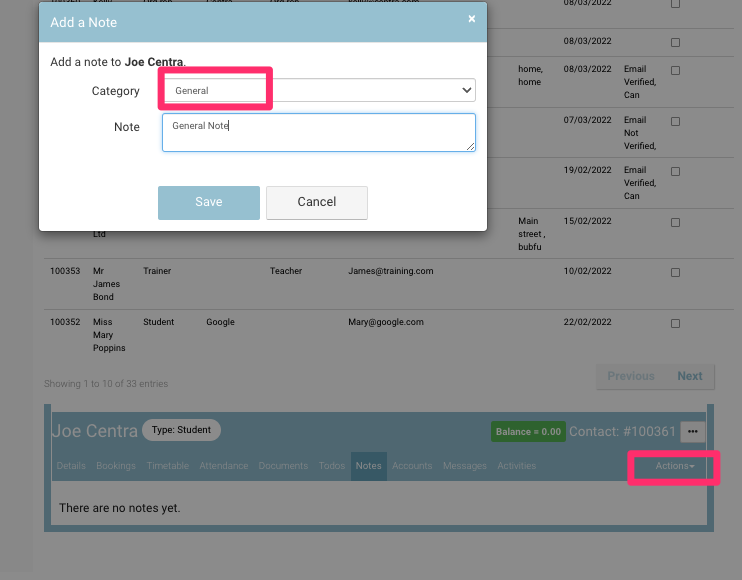
Click on Actions
-
In the dialog select note type as General from the dropdown
-
Add your General Note text
-
Click Save
Outcome: Your general note will be added on contact
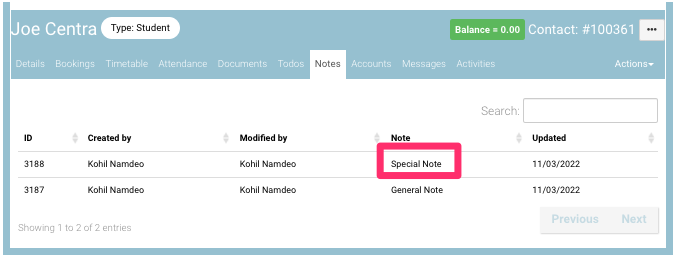
Please see the image for your reference for added general note:
Special Note:
As an admin, you can add a special note for a contact. To add a special note, please follow the steps:
-
Log In as an admin
-
Go to ‘contacts’ in the left menu
-
Select the contact you want to add new special note to
-
Click on ‘Notes’ tab on the contact details
-
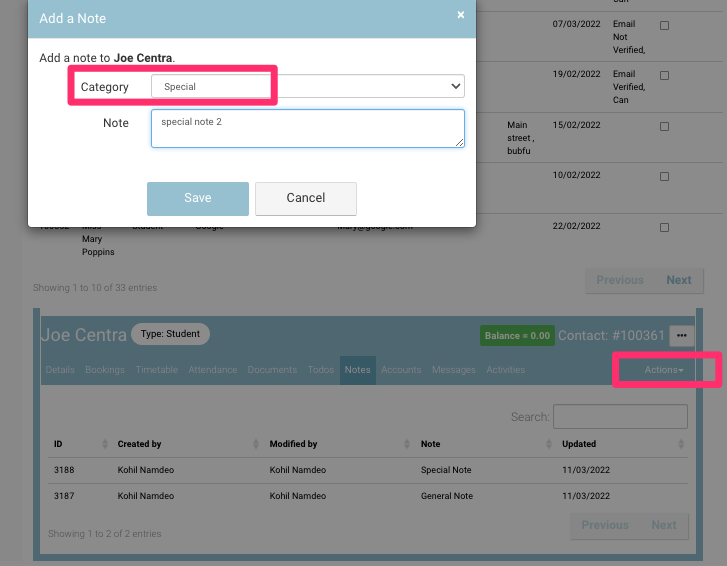
Click on Actions
-
In the dialog select note type as Special from the dropdown
-
Add your Special Note text
-
Click Save
Outcome: Your general note will be added on contact and it will populate in the ‘Course Plan’ Report
Please see the image for your reference for added Special note: