
Creating a Trainer contact
-
This guide explains how to create a trainer contact so they can be assigned to schedules.
When to Use This
Use this when adding a new trainer to your system so they can be selected when creating schedules.
Steps to Create a Trainer Contact
-
Log in as an admin
-
From the left menu, select Contacts
-
Click New Contact
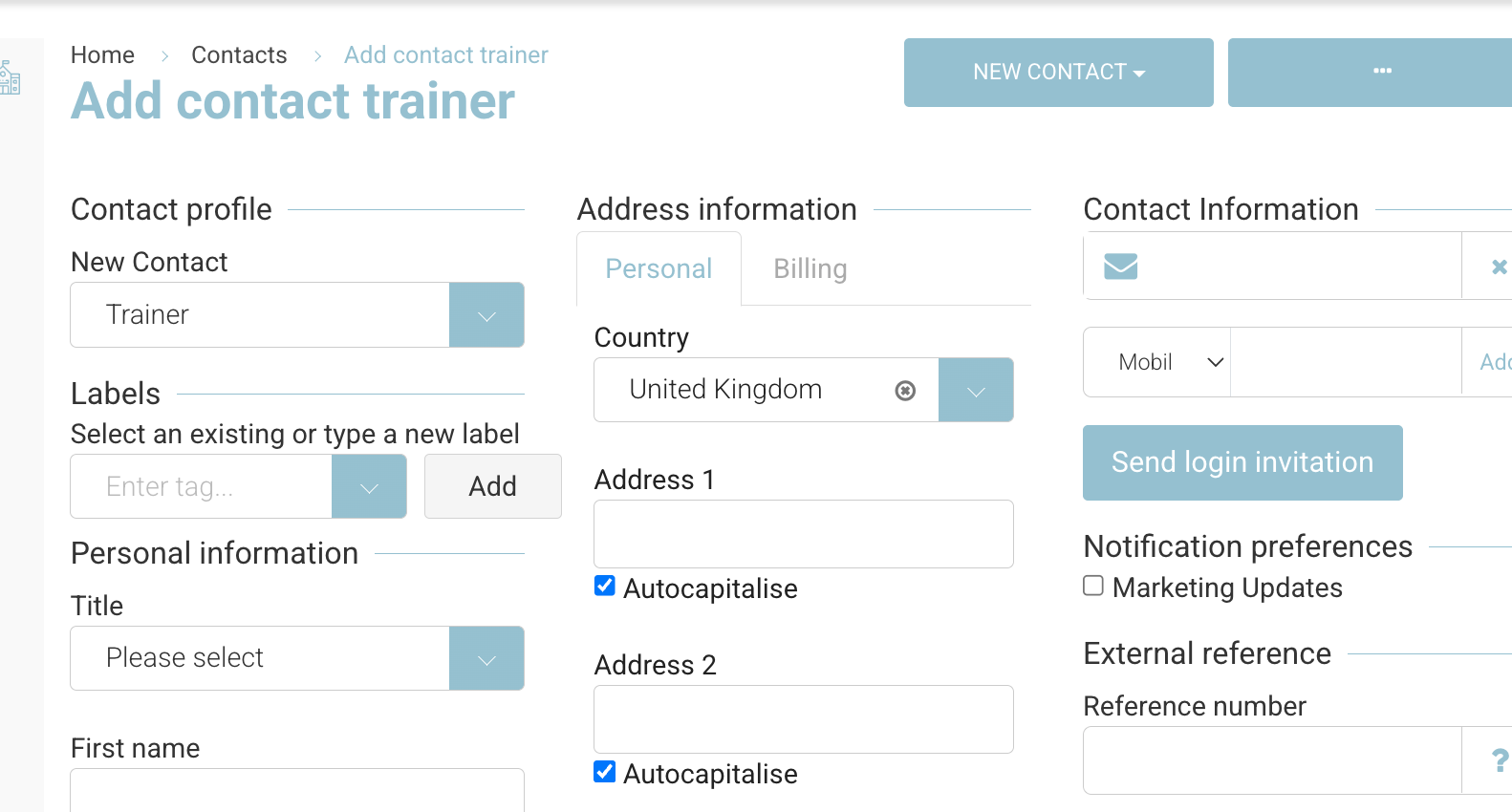
Enter Contact Details
-
Set Contact Type to Trainer
-
Enter:
-
First Name
-
Last Name
-
Email Address
-
-
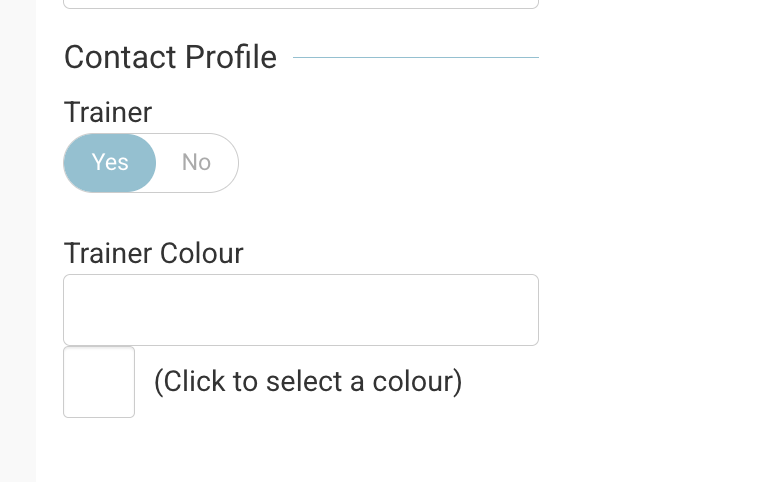
Set Contact Profile – Trainer to Yes (This is the important bit!)
-
optional - add a trainer colour so it displays on the timetable with this colour. Full user guide here
-
-
Click Save
What Happens Next
-
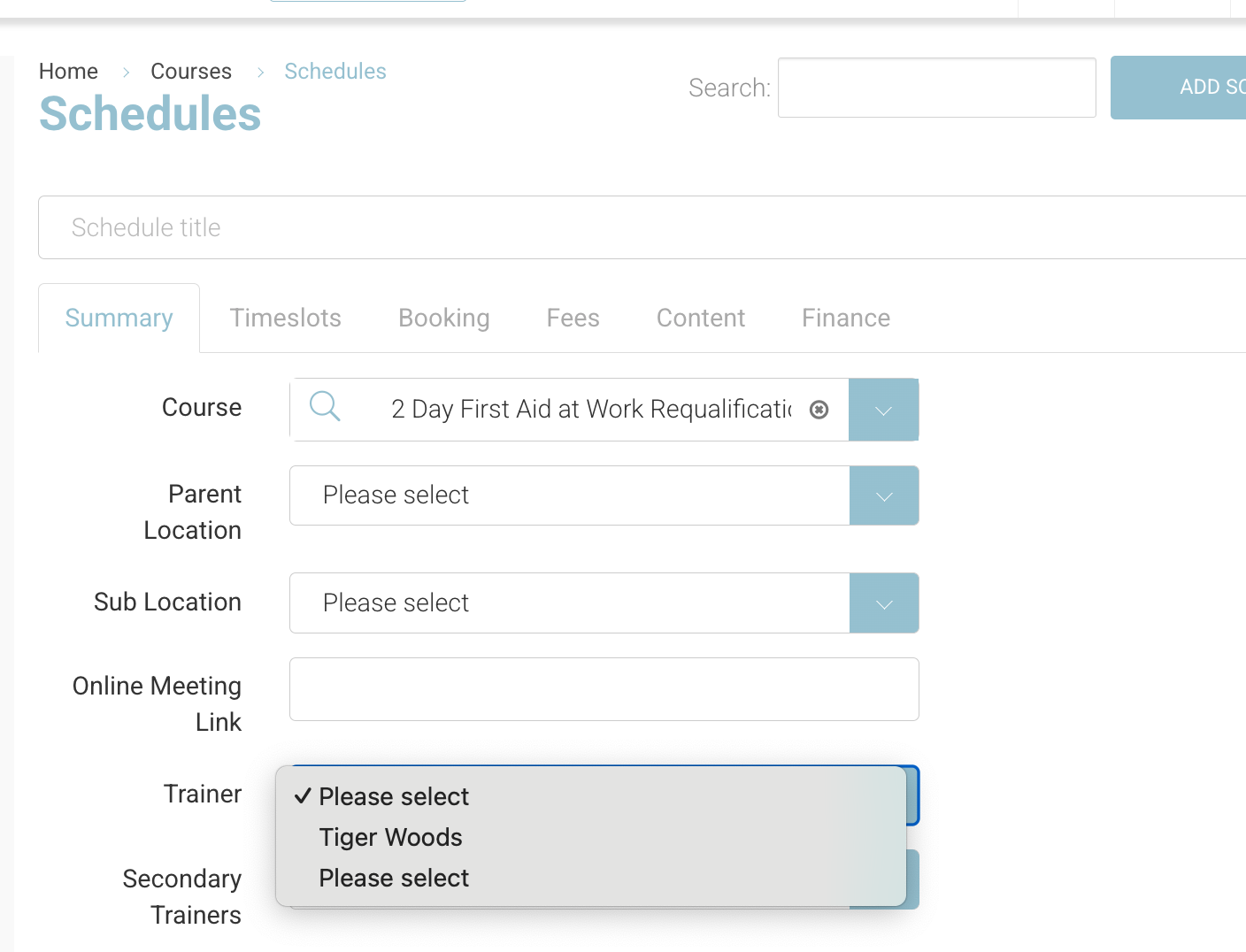
The contact is now available in the Trainer dropdown when creating schedules
-
They can be assigned to timeslots and timetables
Important Notes
-
If a trainer does not appear in the dropdown when creating a schedule, check:
-
Contact Type = Trainer
-
Contact Profile – Trainer = Yes
-
-
You can update an existing contact to a trainer by editing their contact type and profile
Recommended Tips
-
Use a valid email address if the trainer will need communication from the system
-
Keep naming consistent to make trainers easy to find in dropdowns
-
Set up trainers before creating schedules to avoid delays