
Uploading a document to a contacts file
-
Login as an admin
-
Go to the contacts plugin
-
Search and select your contact
-
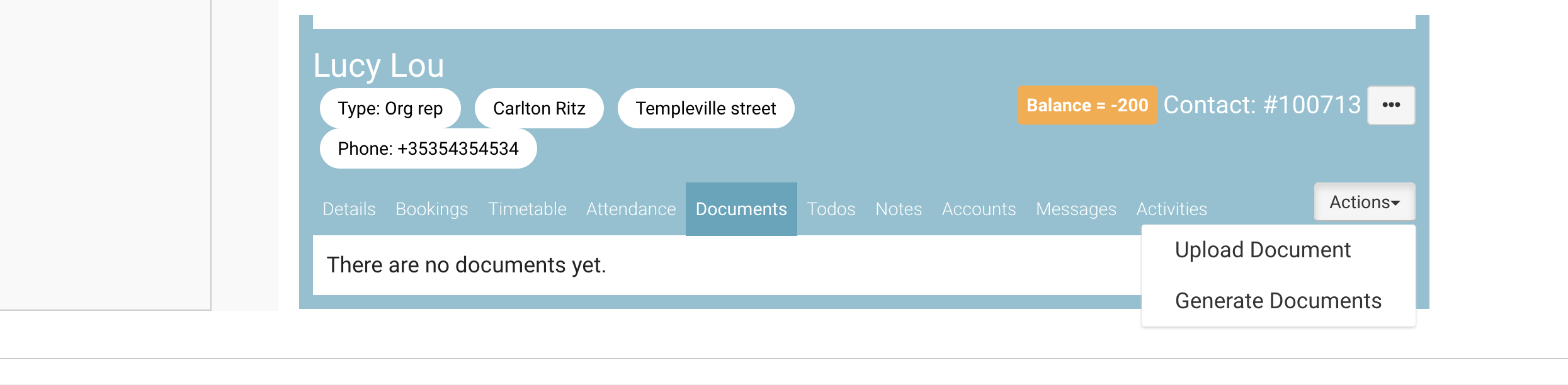
Navigate to the Documents tab on the contact
-
Select the Actions button
-
In the dropdown select Upload Document
-
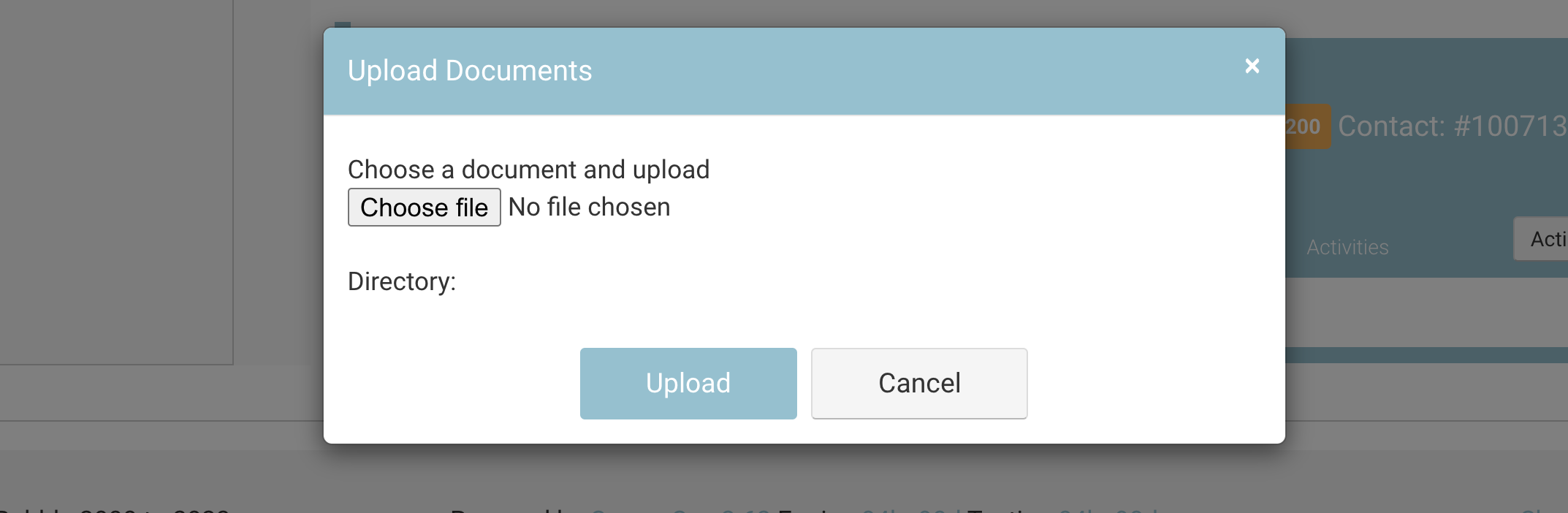
Search your computer
-
Select the file
-
Save
Deleting a document on a contacts file
-
While on the contacts file,
-
Navigate to the documents tab on a contact
-
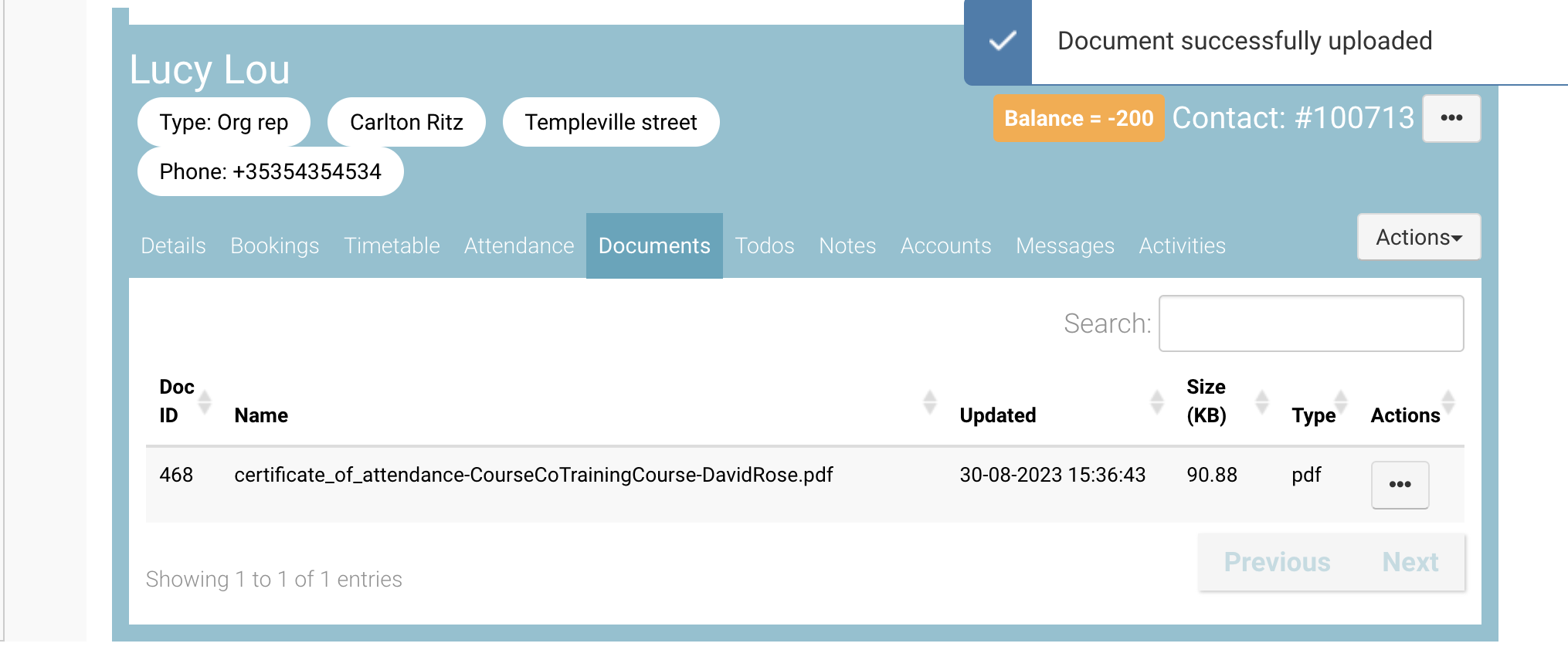
Review the documents saved on file
-
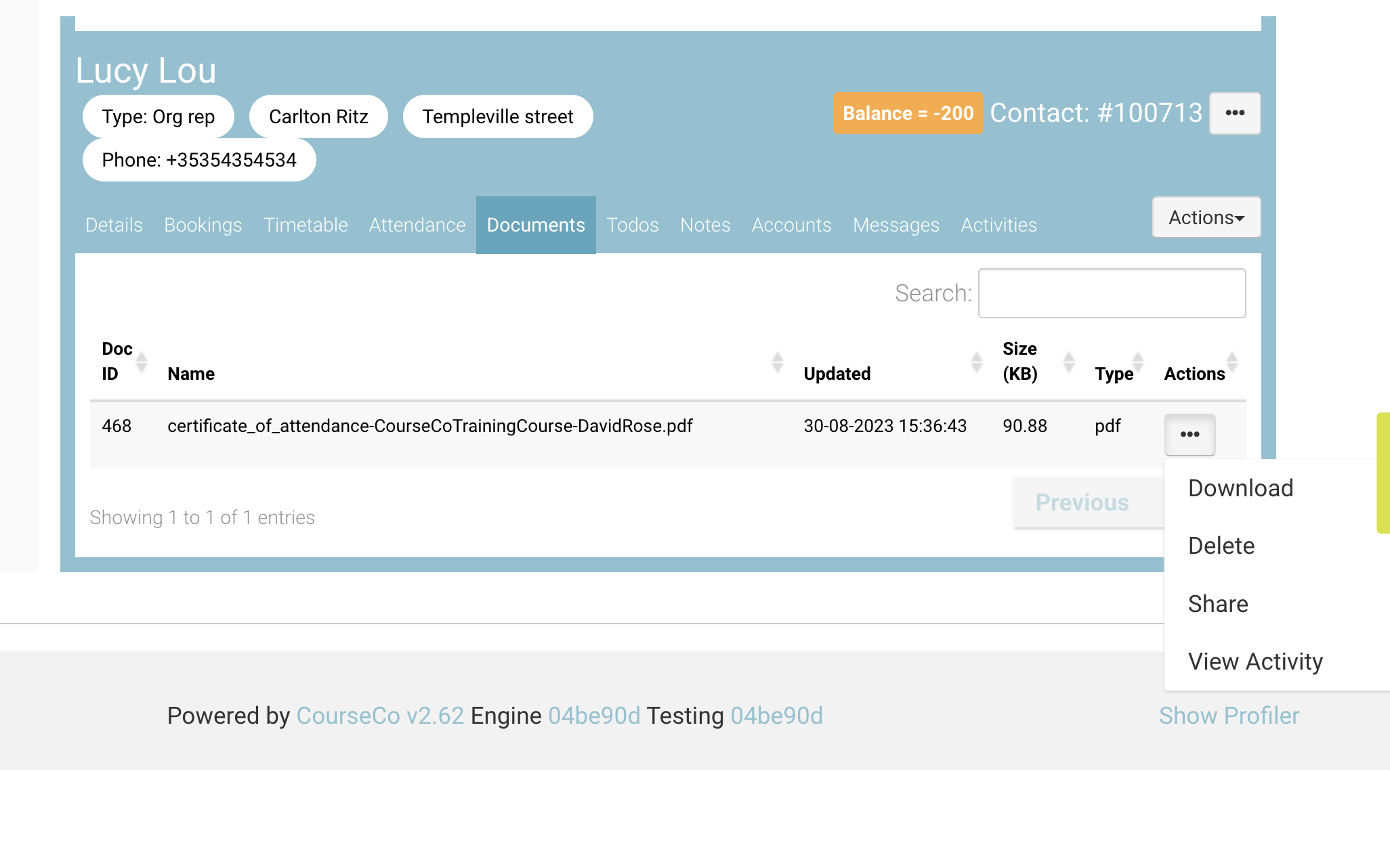
Select the Actions column > 3 dots
-
From the dropdown, select Delete
Outcome:
-
The file is no longer saved to the contacts
-
IF the file was shared with the contact in the documents, this will also be removed from their portal
Sharing a document eg Cert to a contacts portal
-
While on the contacts file,
-
Navigate to the documents tab on a contact
-
Ensure the file has been generated
-
-
On the file, select the actions column, 3 dots.
-
From the options, select Share
-
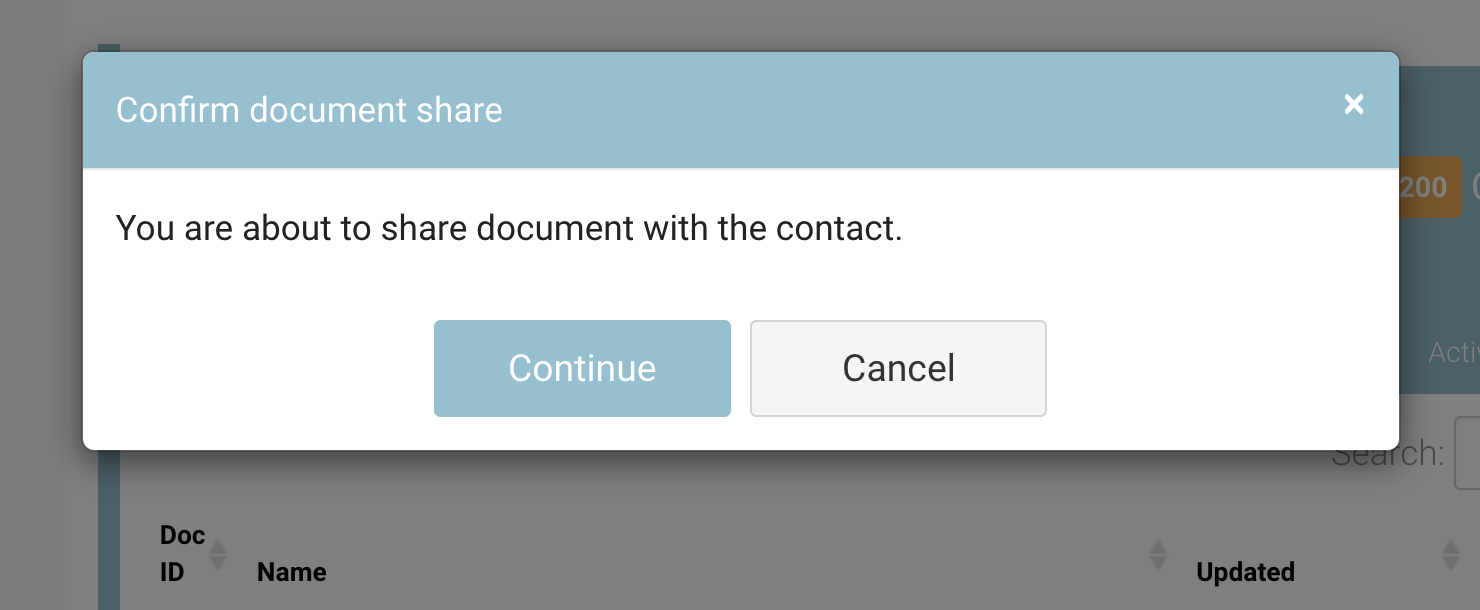
You will receive a soft warning to confirm you want to share the file.
-
Select Continue
-
Outcome:
-
The file to the portal of the contact
-
Contact can login, open Profile > documents to access the file
-
IF the contact has not been invited yet, the file will be available when they login.
-
The SHARE option won’t display in the dropdown for previously shared files.