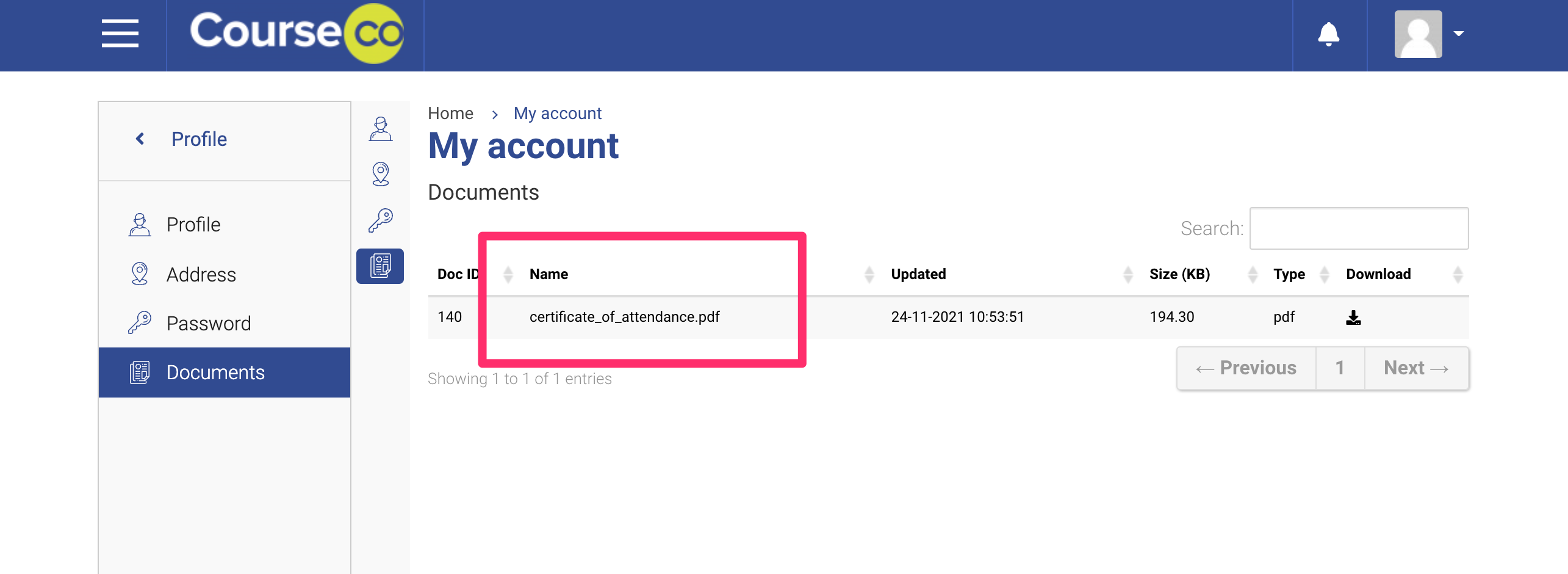
With CourseCo’s share document feature, you can manually generate a certificate / document and share it with the concerned contact. To share a document to the contacts portal. When the contact logins, they can see their shared documents via Profile > Documents. please follow these steps:
Did you know you can share any document with any contact. For example, you can share a document with a trainer contact, Org reps or other admins.
*Folder sharing/zip sharing has not yet been developed on the platform.
-
Log In as an Admin
-
In contacts plugin, search and select the contact you want to share the document with
-
Go to Documents tab on the contact
Make sure you have manually generated a document and saved it on the user contact. Additionally, see our user guide for the same: https://help.courseco.co/kb/Generating-Attendance-Certificate-Manually.2544828525.html
4. On the file, select the actions column, 3 dots.
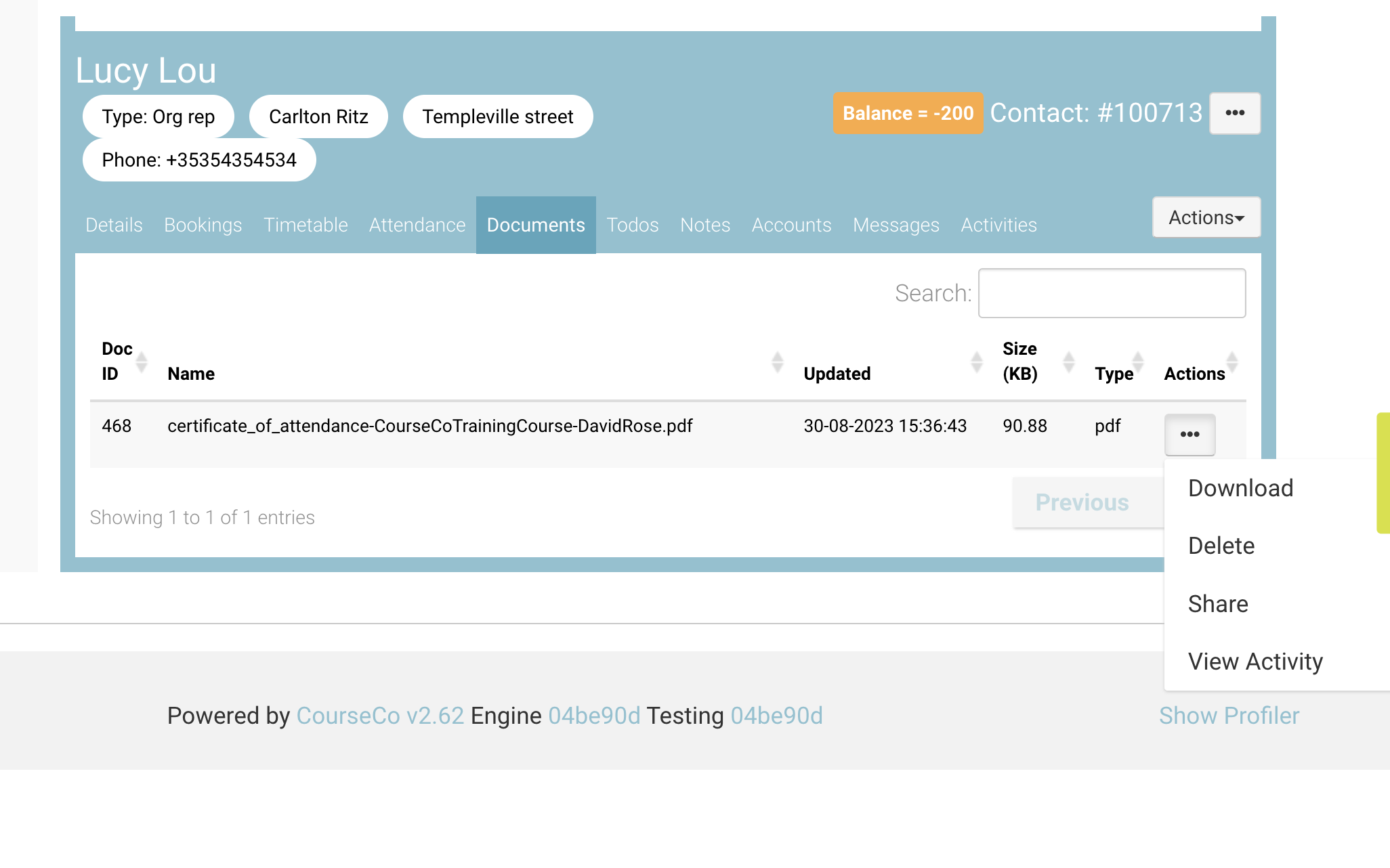
5. Select SHARE button from the dropdown
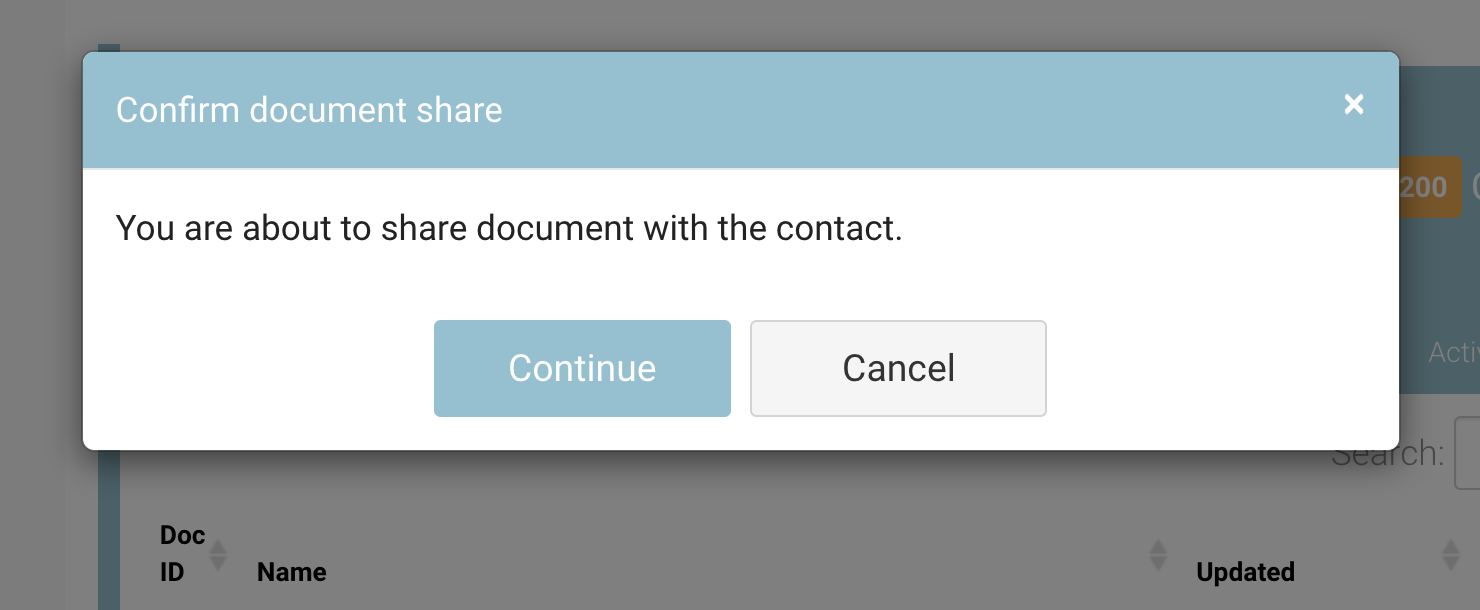
6. Click on ‘Continue’ button to share the document with the contact
Outcome:
-
The document will be shared to your contact portal
-
They can see it in their portal when they login.
-
The contact can access the document when they login and select the left menu Profile> Documents