
Creating an Organisation contact
-
Go to the website
-
Log in as an admin
-
In profile picture dropdown, select ‘My account’
-
In left menu, select ‘Contacts’
-
In contacts, click New contact
-
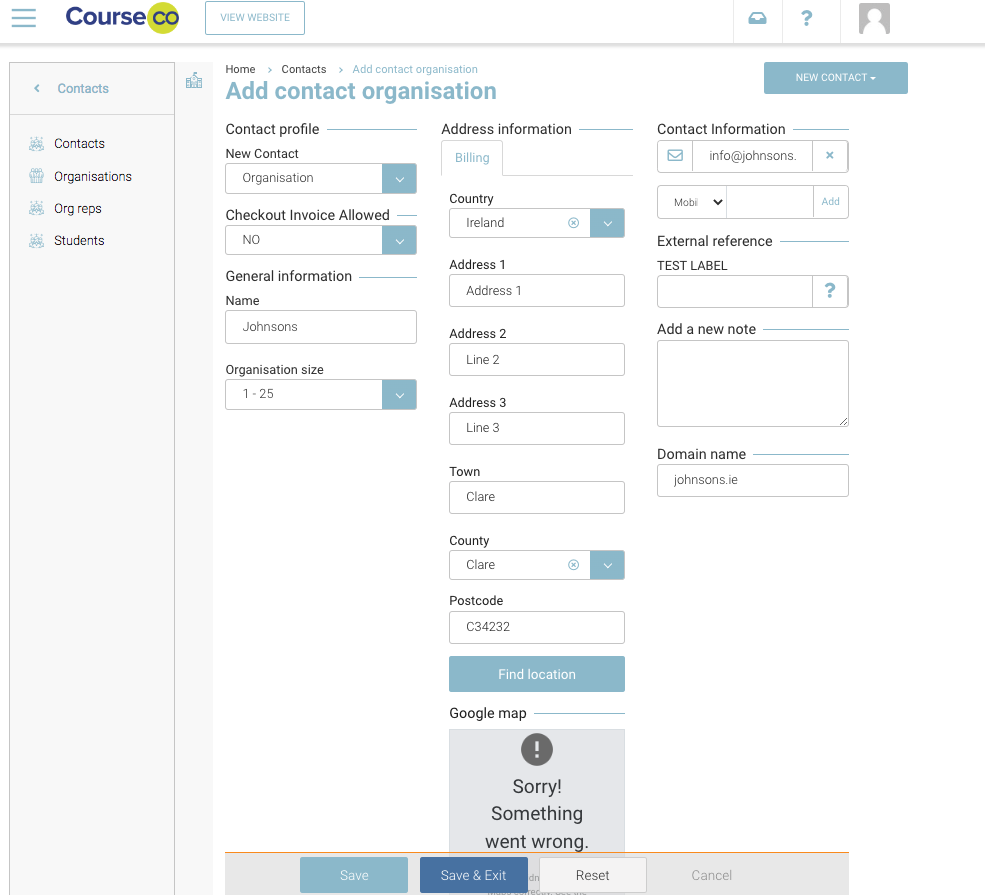
Select contact type as Organisation from dropdown
-
In contact details, input name, billing address and contact information of the organisation
-
Click Save to save the organisation contact
Creating an Org Rep contact
-
Go to the website
-
Log in as an admin
-
In profile picture dropdown, select ‘My account’
-
In left menu, select ‘Contacts’
-
In contacts, click New contact
-
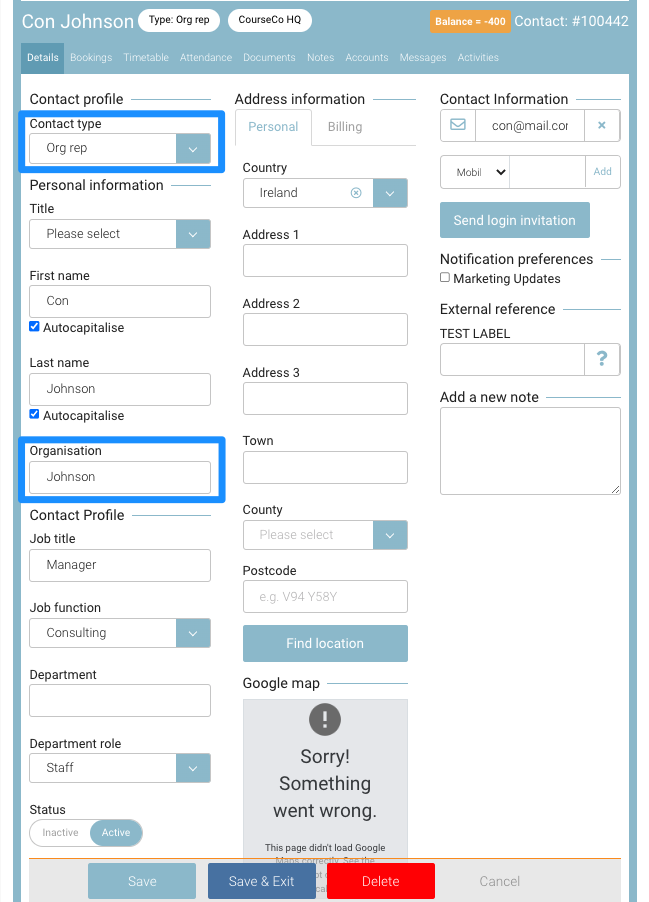
Select contact type as Org rep from dropdown
-
In contact details, input First name, last name, email address
-
In organisation input, search and select the organisation from dropdown
-
Click Save to save the org rep contact
Creating a Student contact
-
Go to the website
-
Log in as an admin
-
In profile picture dropdown, select ‘My account’
-
In left menu, select ‘Contacts’
-
In contacts, click New contact
-
Select contact type as Student from dropdown
-
In contact details, input First name, last name, email address
-
Click Save to save the contact
Creating a Trainer contact
-
Go to the website
-
Log in as an admin
-
In profile picture dropdown, select ‘My account’
-
In left menu, select ‘Contacts’
-
In contacts, click New contact
-
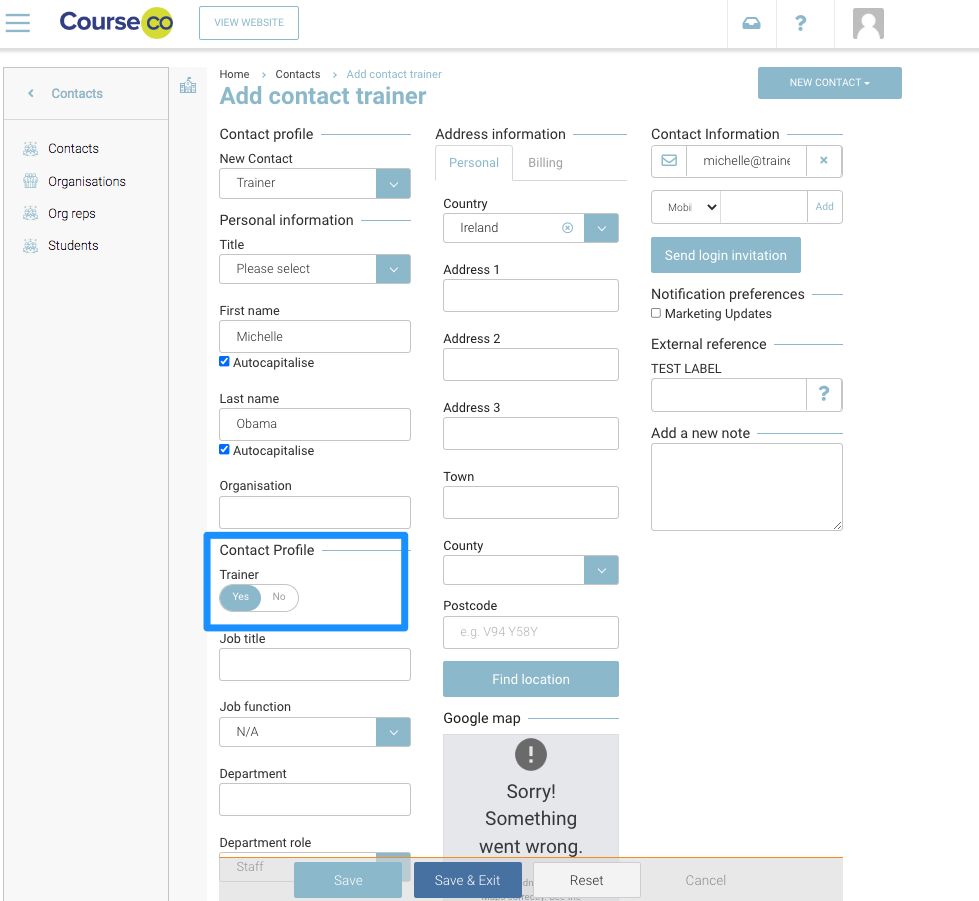
Select contact type as Trainer from dropdown
-
In contact details, input First name, last name, email address
-
Turn ON ‘Contact profile - Trainer’ as YES
-
Click Save to save the contact
Editing/Deleting a Contact
You can edit the details of contacts such as profile details, personal information, address details, bookings, timetable, and so on.
-
On the Contacts page, click the contact that you want to edit/delete.
-
All the details of the contact will be rendered editable.
-
Edit the values of required fields and click Save. The contact details will be updated.
-
To delete the contact, click Delete. A confirmation dialog will be displayed.
-
Click Delete to delete the contact
-
You can not delete a contact who has active bookings. To delete such contacts, cancel the contact from the booking and then delete the contact.
-
You can not delete a contact that has been invited to log in to the system and is pending email verification.