
Private Link to a schedule is a unique feature provided by CourseCo. This private is not published on your website but visible to you in your back-office. You can also send this private link to the selected clients that you want.
To create a private link for your course, follow these simple steps given below:
-
Navigate to the website
-
Log In as an admin
-
Click on Courses Plugin to create a schedule with unique link
-
Click on Schedules
-
Click on New schedule on top right of the screen
-
Enter the title of the schedule
-
In the Summary tab > Select the course, Subject, Location, Staff, Delivery mode and Learning mode just as you would set it for a regular schedule
-
Add a summary and description for the schedule
-
In the Timeslot tab> Click and select the date for the schedule as you want
-
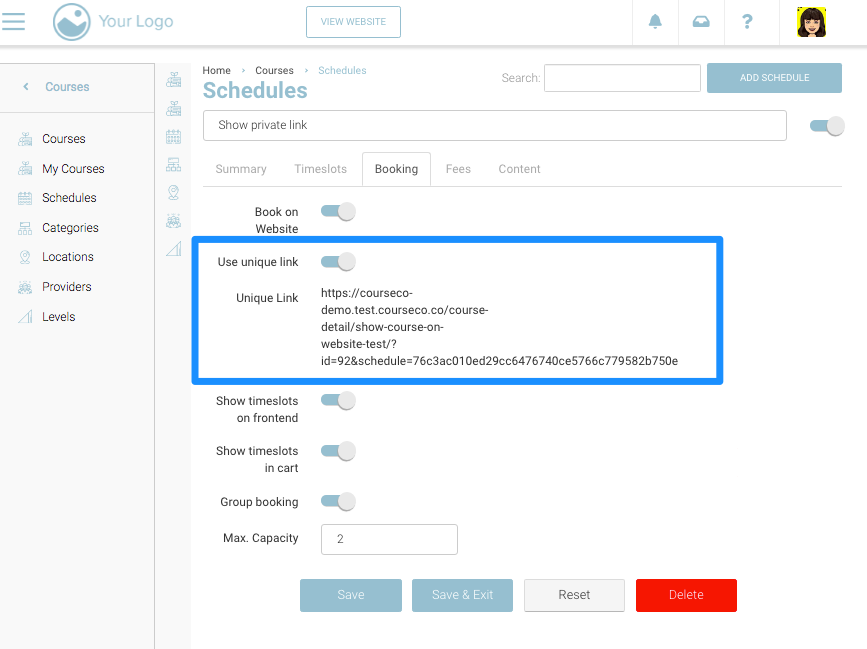
In the Bookings tab> Turn ON the setting for Book on Website
-
Turn ON the setting for Use Unique Link
-
A unique link for the schedule will appear
-
In the Fees tab, enter the amount and mode of payment as per your preferences
-
In the Content tab, add content and study material if you wish to
-
Click on the Save button
Outcomes-
-
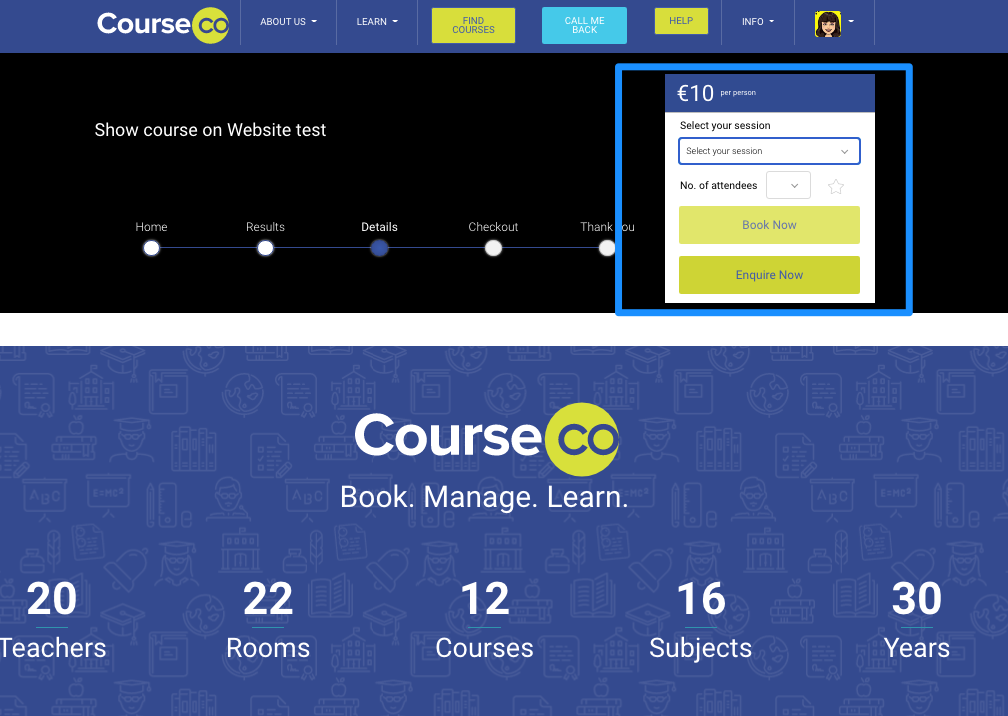
A unique private link for the schedule will be created
-
The schedule will not be available to everyone
-
The Admin can share the schedule link to preferred contacts
-
Contact can use the link and buy the course