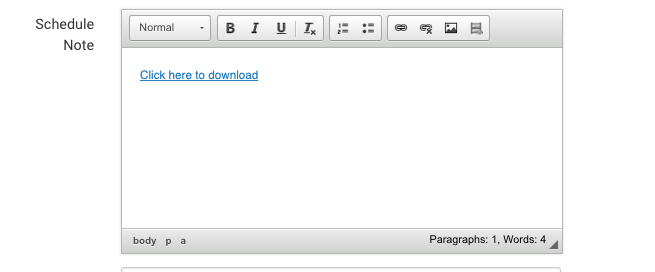
NOTE. You can add this Note feature while creating schedules.
The Schedule note information can be populated in confirmation emails and reminder emails.
Benefits
-
add custom notes for the schedule
-
Link PDF documents
-
Add all joining instructions here
To add a note to your schedule, follow these simple steps given below:
-
Log In as an Admin
-
Navigate to the plugin Courses and select Schedules
-
Select the schedule that you want to add the note to
-
In the Summary tab, navigate to the Notes text editor
-
Enter the Notes that you want the lead booker to see in the Notes Text editor concerning the schedule
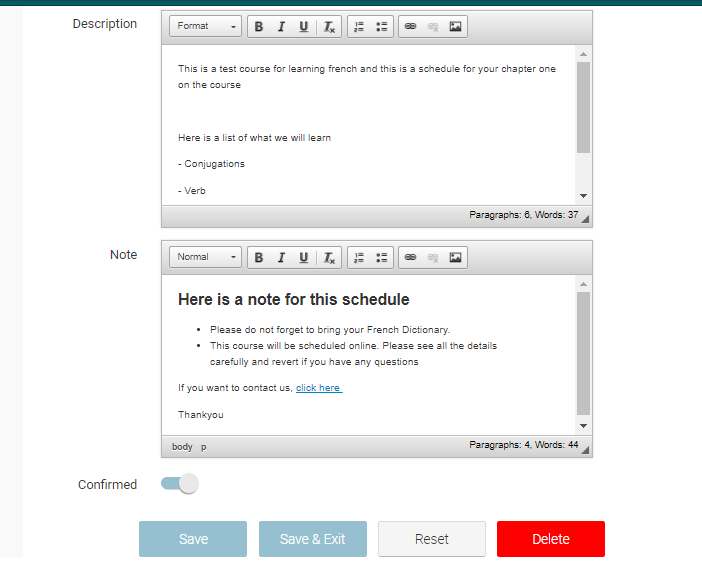
You can style your Notes as you want by adding bullet points, images and links
-
Click Save
You can also add these Notes while creating a new schedule. To create a new schedule, please visit https://help.courseco.co/kb/Creating-Schedules.2223374611.html
Outcome:
-
The Notes will be saved on the schedule
-
IF @schedulenote@ is applied to your booking confirmation / reminder email the note will populate in the emails
We also have schedule note 2 and schedule note 3 - contact us if you feel you need more note inputs for different triggers.
Adding an attachment eg PDF file to the schedule note
-
Upload your document
-
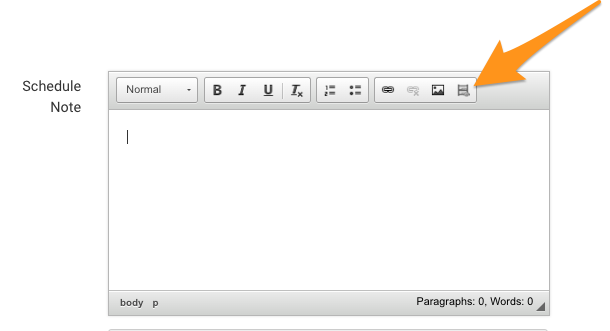
Using the schedule note input, select the right icon, (looks like a shelf)
-
Drag and drop your file - outcome: your file is now uploaded
-
-
Link your document
-
Highlight the text like ‘Click here to download’
-
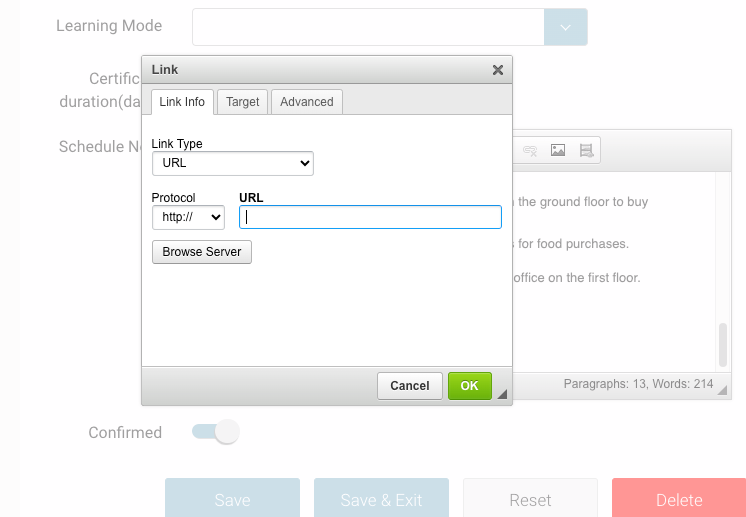
Once highlighted, select the Chain icon
-
In the popup, select Browse server
-
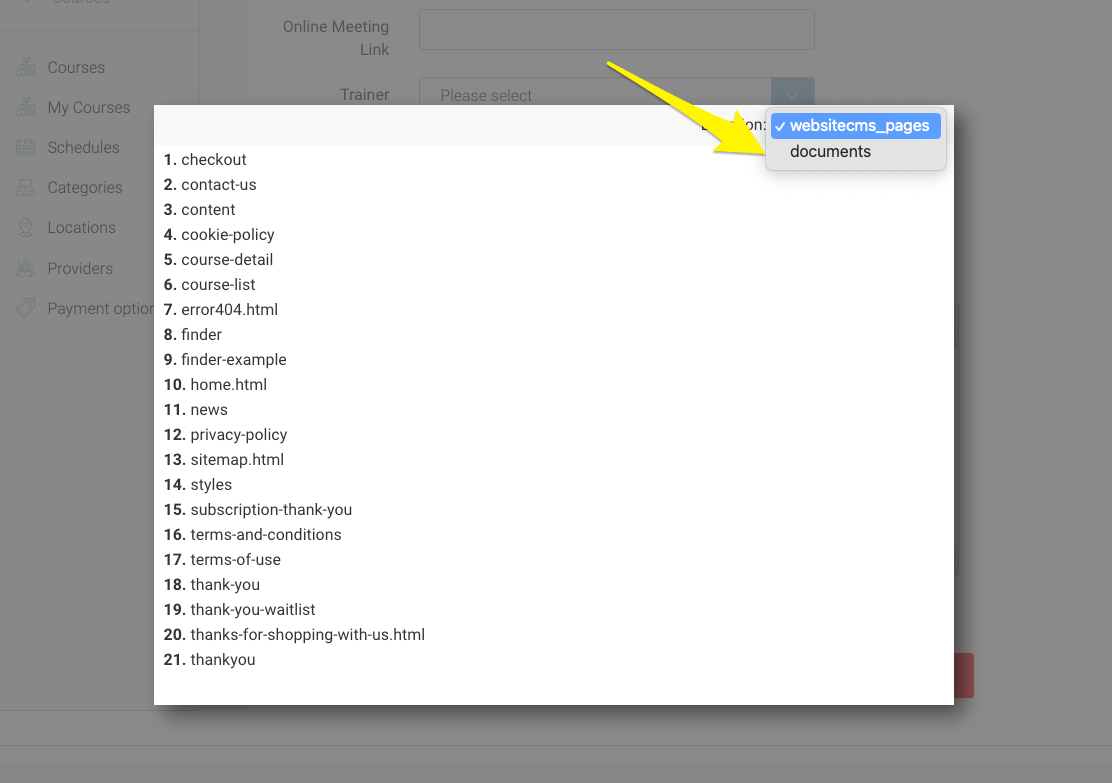
You will firstly be presented with pages
-
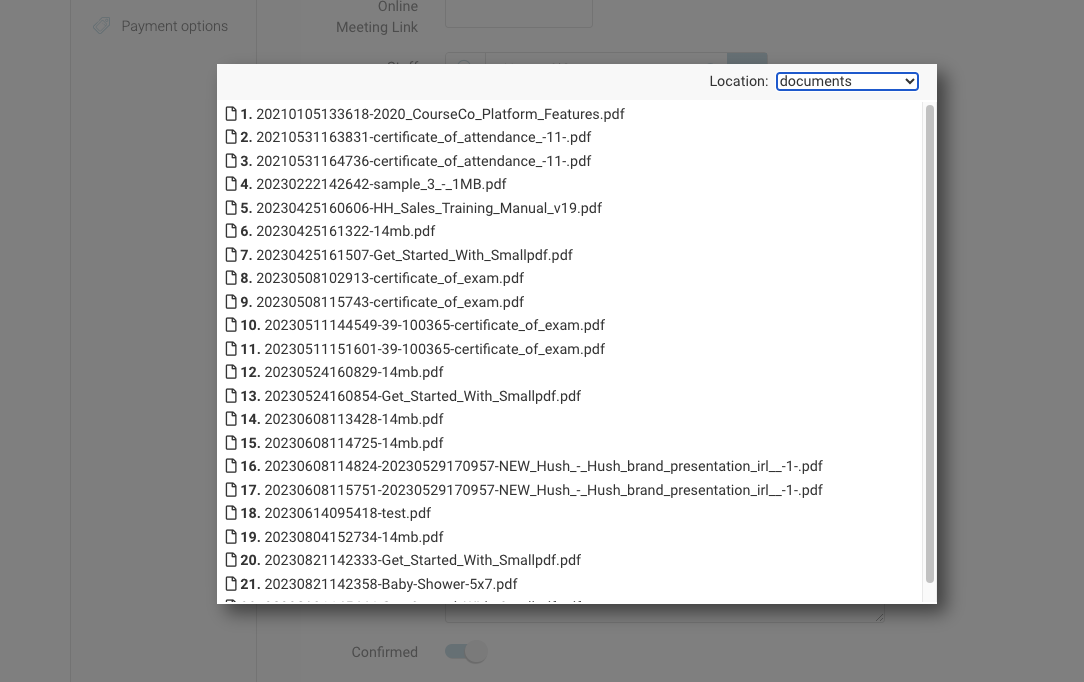
Navigate to the top right and change folder to Documents
-
Select the document
-
Outcome: your text is linked with the attached document.