
This guide explains how administrators can configure schedules that do not show a duration on the website and instead display “Next Intake – [Month]”.
This setup is ideal for university-style programmes, year-long courses, or intakes with flexible timelines.
1. When the admin enables Hide Duration of Course, CourseCo:
-
Removes the “Duration” display from the website.
-
Shows the schedule as Next Intake – {Month}, using the start date month (e.g., “Next Intake – January”).
-
Uses Registration Start and Registration End dates to control when the schedule appears on the website.
-
Allows the schedule to stay published even if the real start date is far into the future, until registration closes.
-
If registration dates are not entered, CourseCo automatically uses:
-
Registration start: Today
-
Registration end: Today + 1 year
How to Configure a “Next Intake” Schedule
Follow the normal flow for creating a schedule, with a few additional fields.
Step 1: Add Schedule Details
Go to Add Schedule and enter the standard information:
-
Course name
-
Location
-
Trainer (optional)
-
Delivery mode (Classroom, Online, Blended)
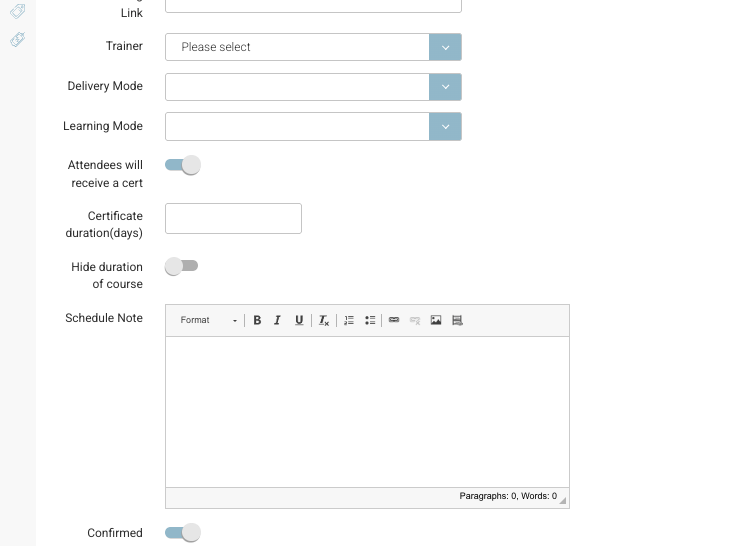
Toggle On: “Hide Duration of Course”
A new toggle will appear:
Hide Duration of Course → Turn ON
This tells the system to remove duration from the website and replace it with Next Intake.
Step 2: Add Start & End Dates (Flexible)
You must still enter a Start Date because CourseCo uses it to determine the Intake Month.
-
Start date is often not meaningful to admins for long programmes — pick the approximate intake month.
-
End date can be any time in the future (e.g., 12–18 months later).
Example:
-
Start Date: 11 January 2026
-
End Date: 11 June 2027
Only the month of the start date will be shown publicly.
Step 3: Configure Booking Settings
Go to the Booking tab.
Set Book on Web → Yes.
Because Hide Duration is enabled, two additional fields appear:
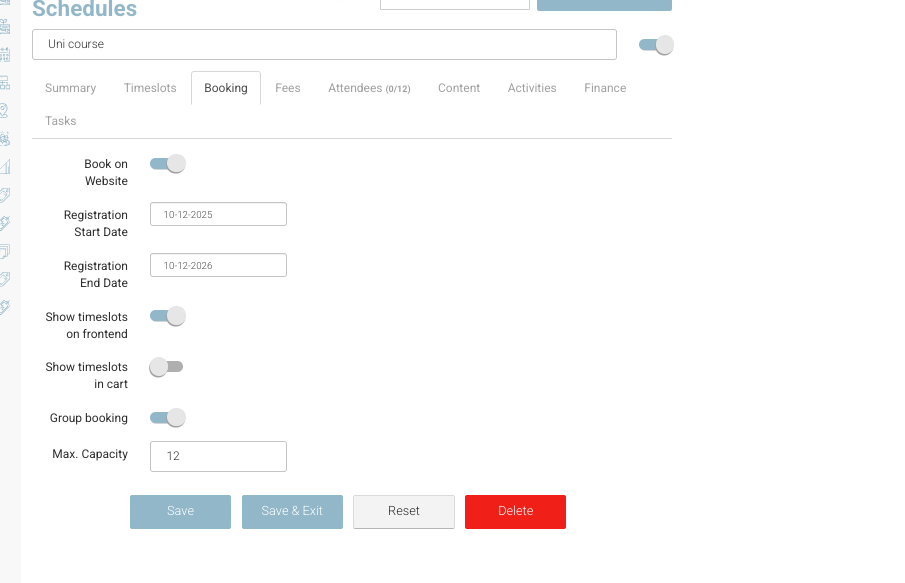
Registration Start Date
Date from which this schedule is visible and bookable online.
(E.g., 1 September 2025)
Registration End Date
Date on which applications close.
(E.g., 10 January 2026)
These dates control website visibility:
-
The schedule remains published from Registration Start → Registration End.
-
It does not disappear automatically based on the schedule’s Start Date.
-
After the Registration End Date passes, the schedule is automatically removed from the website (unless a session start date triggers removal earlier).
If you don’t enter registration dates
CourseCo defaults to:
-
Registration Start = date schedule was created
-
Registration End = 1 year after creation date
This ensures the schedule still displays even without admin input.
Step 4: Add Capacity and Pricing
Add the usual:
-
Maximum capacity
-
Total price for the programme
These behave exactly like standard schedules.
3. How It Displays on the Website
When used with Hide Duration of Course, the website shows:
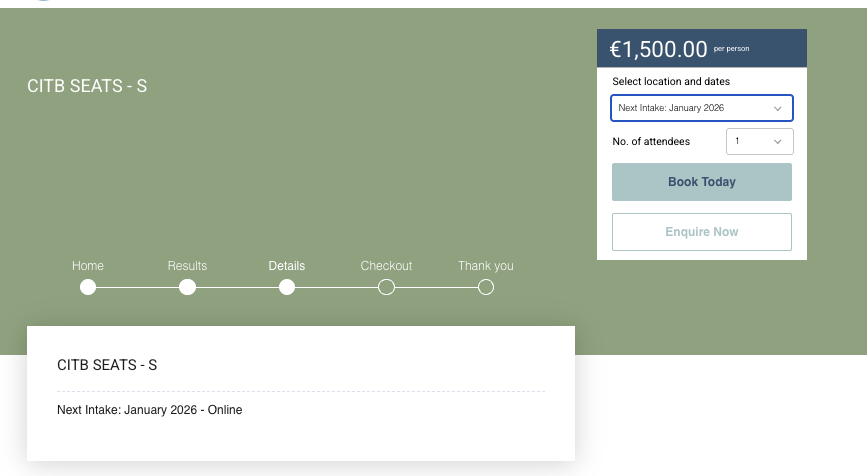
Course List Page
-
No duration
-
Displays: Next Intake – {Month}
-
e.g., “Next Intake – January”
-
Course Detail Page
-
Same behaviour:
Next Intake – January -
Registration open/close dates determine whether this schedule appears.
Key Notes
-
Only the month of the start date is used.
-
Duration is fully hidden.
-
Schedule is visible only within the Registration window (or default window).