Precondition
You must have an existing quote created.
Steps
-
Open the booking that contains the quote.
-
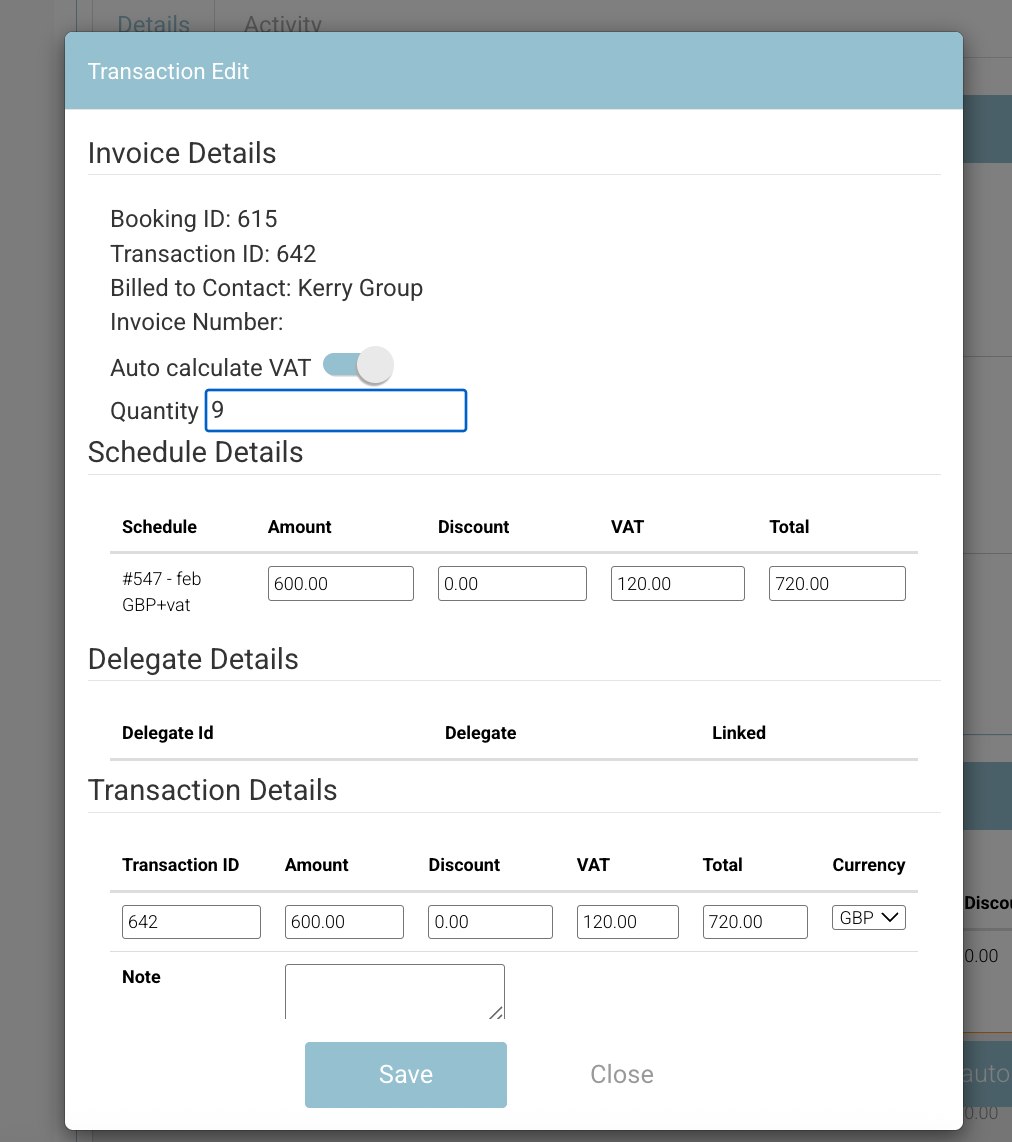
On the Edit Booking screen, select Edit Transaction.
-
In the popup, edit the quantity.
Note: Be mindful of remaining space, as quotes do not check capacity. -
Edit the cost.
Note: By default, the cost will not be changed automatically. The admin must manually adjust it. -
Select Save.
-
Swap names or add new contacts on the quote booking, following the same process used for swapping names on a booking.
Re-triggering the Sales Quote email and attached document (if applicable to you)
-
On the booking, select Run automation
-
From the popup, select the automation titled ‘create Sales Quote document’
-
Select RUN
Outcome
The quote document will be generated, this will then kick off the automation to send the updated sales quote document via email.
Alternatively, you can manually generate the quote via the contacts documents tab and manually email the updated quote.