
This user guide is applicable to CourseCo users who have delegate allocation add on - see here for details on delegate allocation
When to Use This
Use this when:
-
A booking was created with too many spaces
-
Delegate names were not assigned (empty/pending spaces)
-
You need to free up capacity on the schedule
-
You need to correct the booking quantity
Important to Understand (Read First)
-
Pending spaces still hold capacity on the schedule
-
Cancelling them will:
-
Reduce booking quantity
-
Increase available spaces on the schedule
-
-
If the booking is charged per delegate:
-
A credit note may be generated when spaces are removed
-
This step directly impacts capacity and financial records, so it should be done carefully.
Steps to Cancel Pending Spaces
-
Log in as an admin
-
Navigate to Bookings
-
Search and open the relevant booking
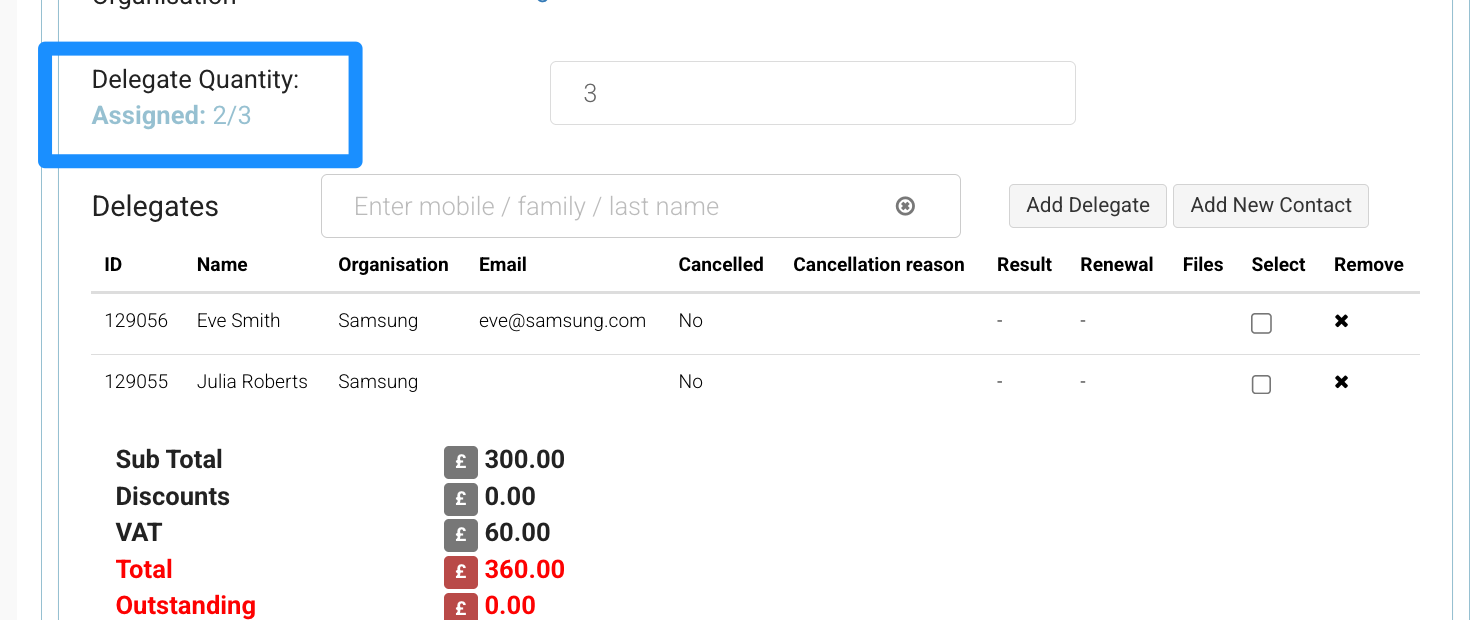
Cancel the Pending Space
-
Select Cancel Delegate
-
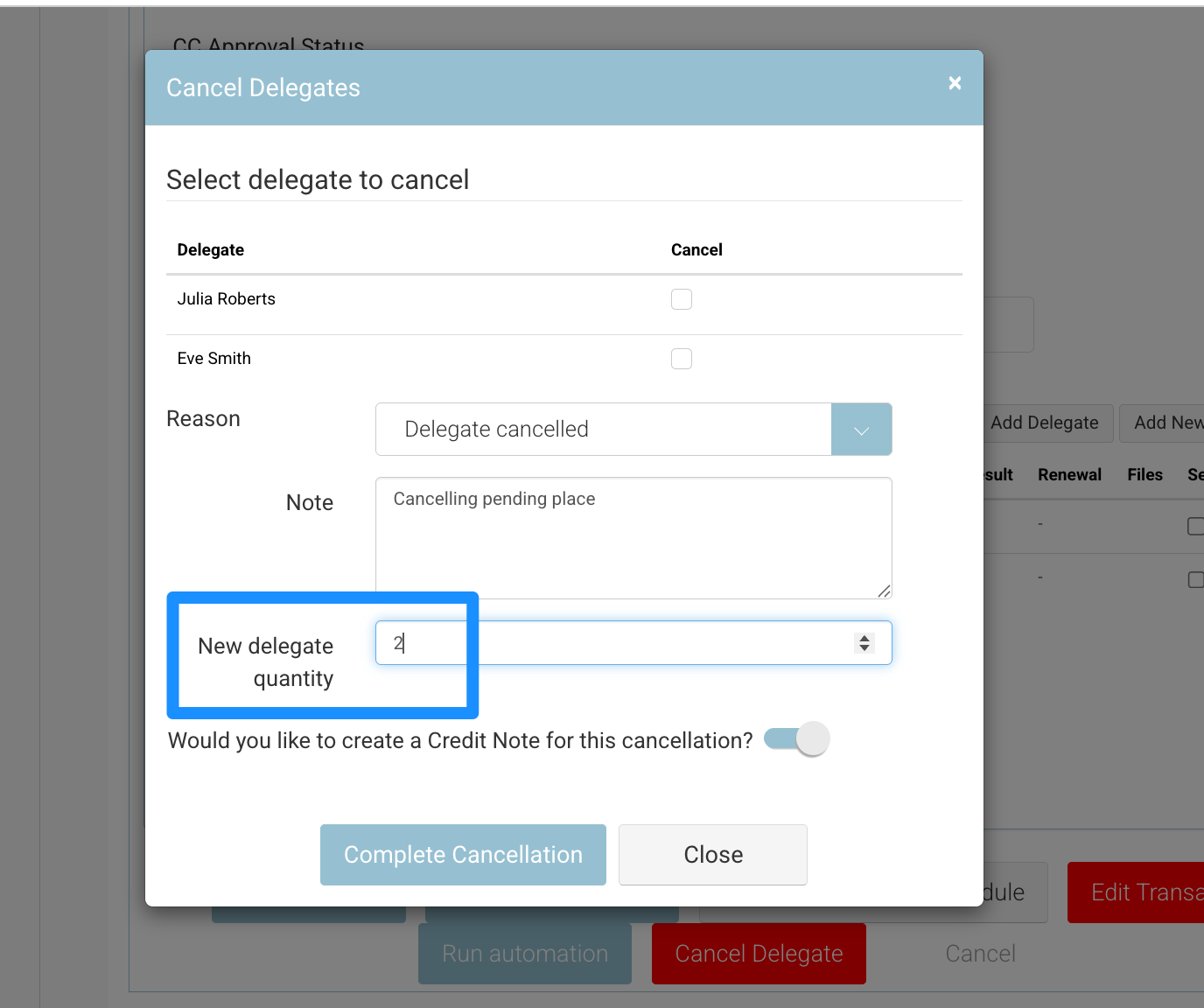
On the popup Review the Pop-Up (Critical Step)
This pop-up will:
-
Show that you are reducing the number of delegates
-
Highlight that the booking quantity will be updated
-
Indicate if a credit note will be created (if applicable)
👉 You must review this carefully before confirming
-
Click Confirm / Remove to proceed
Save the Booking
-
Click Save
What Happens Next
-
Booking quantity is reduced
-
Schedule capacity is updated (space becomes available)
-
If applicable:
-
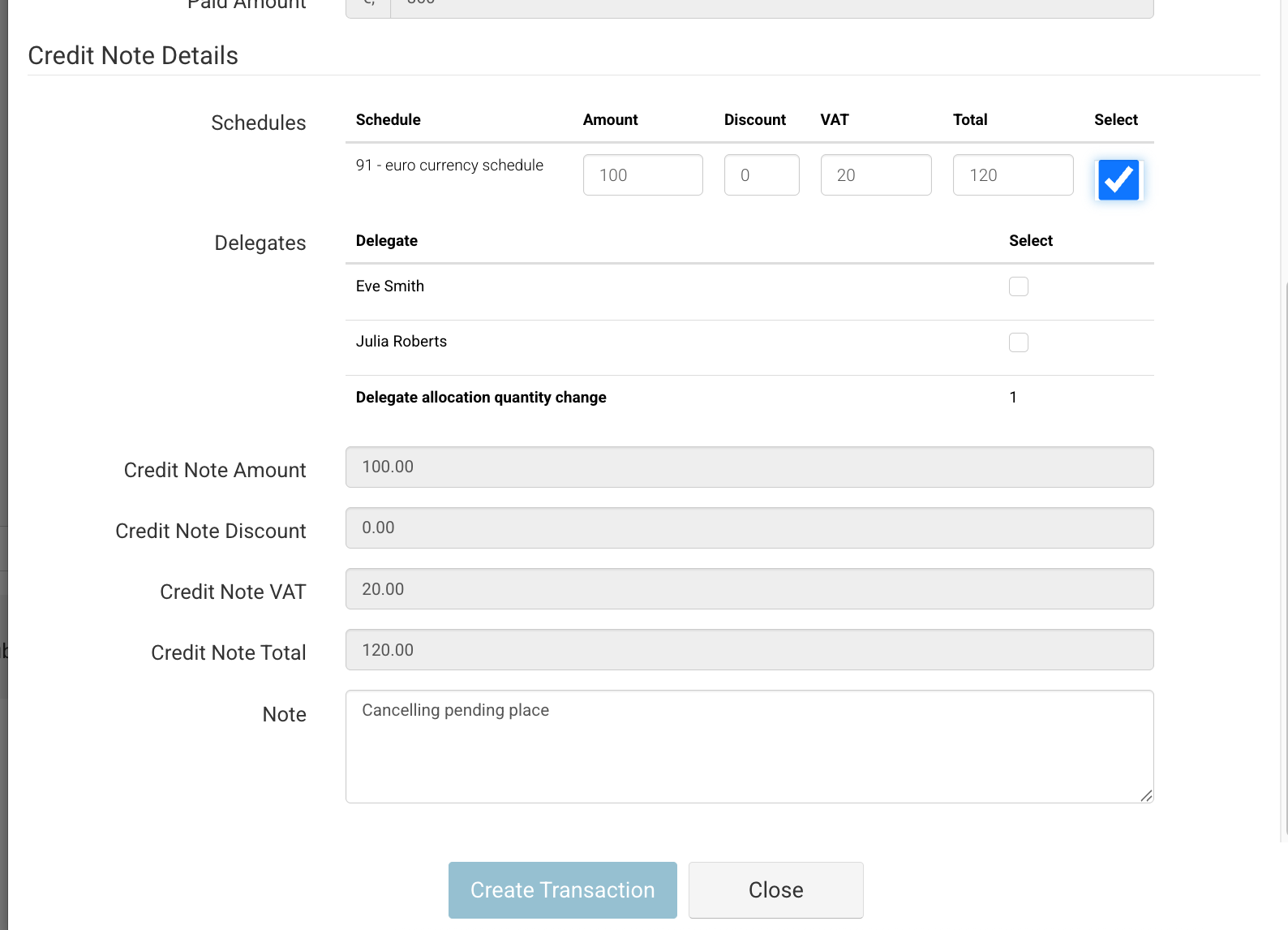
A credit note is created
-
Financial records are updated
-
Important Notes
-
This action affects both:
-
Availability (capacity)
-
Finance (if per-delegate pricing applies)
-
-
If using in-company / fixed fee bookings this action is N/A, as:
-
No price change will occur
-
No credit note will be generated
-
-
Removing pending spaces is not just “clean-up”—it is a booking change
Recommended Tips
-
Always review the pop-up before confirming
-
Only remove spaces you are sure are not required
-
Clean up pending spaces early to avoid capacity issues
-
Be cautious when working with paid bookings to avoid unintended credit notes