
This guide explains how to create and manage an in-company (private) booking where you charge a fixed fee for the schedule, regardless of the number of delegates.
When to Use This
Use this when:
-
You are delivering private training to one organisation
-
You charge a day rate / fixed price
-
Delegate numbers may change without affecting price
Important to Know
-
The schedule must have Charge per Delegate = OFF
-
Price remains the same even if delegates are added or removed
-
This is typically used for in-company / private training
Creating an In-Company Booking (Back Office)
-
Log in as an admin
-
Navigate to Bookings
-
Click Add Booking
Enter Booking Details
-
Set Booking Type to:
Organisation Booking for Multiple Delegates -
Enter:
-
Organisation Name
-
Lead Booker
-
-
Add delegates:
-
Enter Delegate Name
-
Click Add Delegate
-
Repeat as needed
-
If unknown, you can proceed with just the lead booker
-
Select Schedule & Review Payment
-
Search and select the schedule
Important - ensure your schedule is ‘Charge Per Delegate = OFF’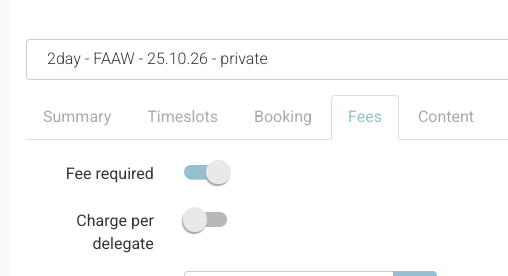
Schedule | charge per delegate off -
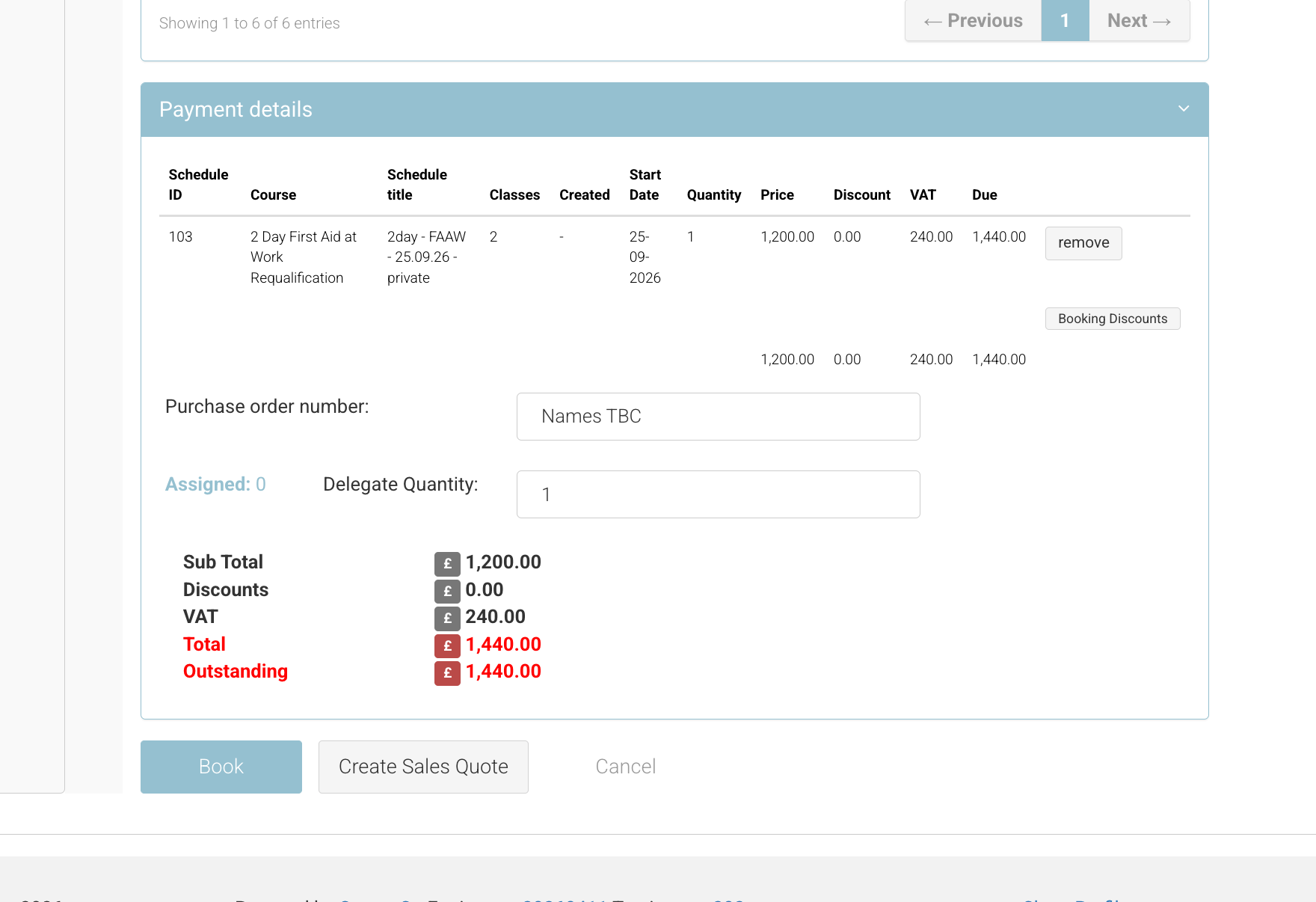
In Payment Details, review the total price
-
This should reflect a fixed fee (not per delegate)
-
-
Add PO / Invoice Number (optional, can be added later)
Tip - will not trigger emails if no PO added.
Complete Booking
-
Click Book Now
What Happens Next
-
The booking is created for the organisation
-
Any number of delegates can be added or removed
-
Price will not change
-
A confirmation email is triggered when a PO number is added/updated
Adding Delegates to a In-Company Booking
-
Navigate to Bookings
-
Search and open the relevant booking
-
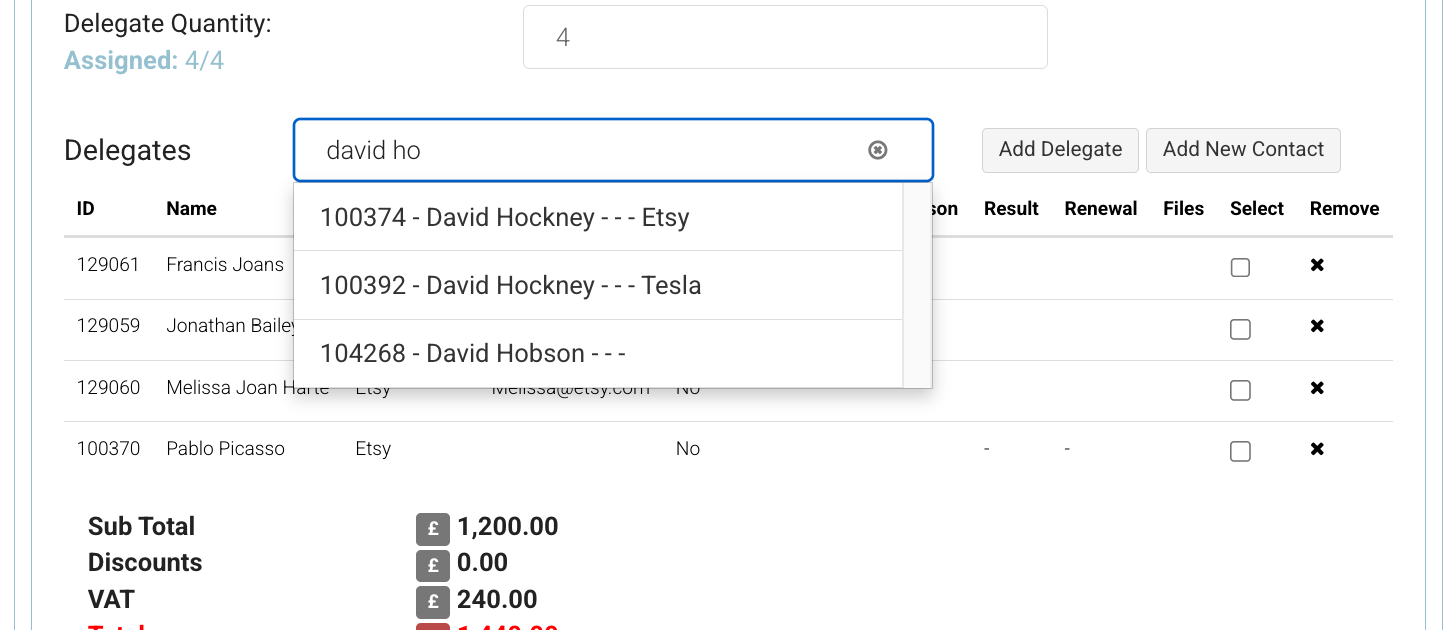
Select add new contact if they do not exist
-
Existing contact - enter their name into the delegate box and select add delegate
Note: The delegate search, search's all contacts, not just contacts linked to the bookings organisation
Removing Delegates from an In-Company Booking
-
Navigate to Bookings
-
Search and open the relevant booking
-
Locate the delegate list
-
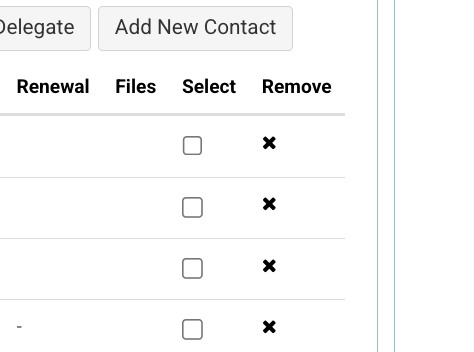
Click Remove beside the delegate
-
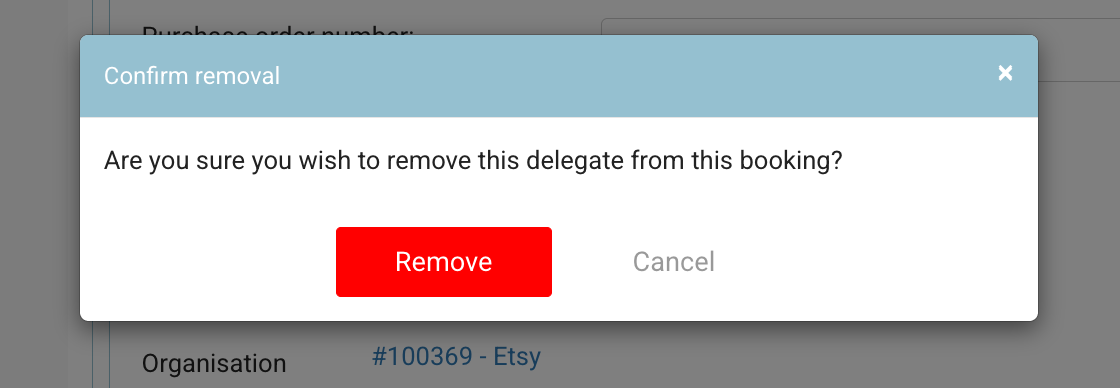
Confirm the removal
-
Click Save
Note: this is not a cancellation. It is a removal only, it will not trigger cancellation emails
Important (Emails & Delegates)
-
Adding or removing delegates does not trigger any emails
-
To send or resend a booking confirmation to a delegate:
-
Use Run Automation on the booking
-
On the Run Automation popup, select your template eg Student backoffice booking confirmation
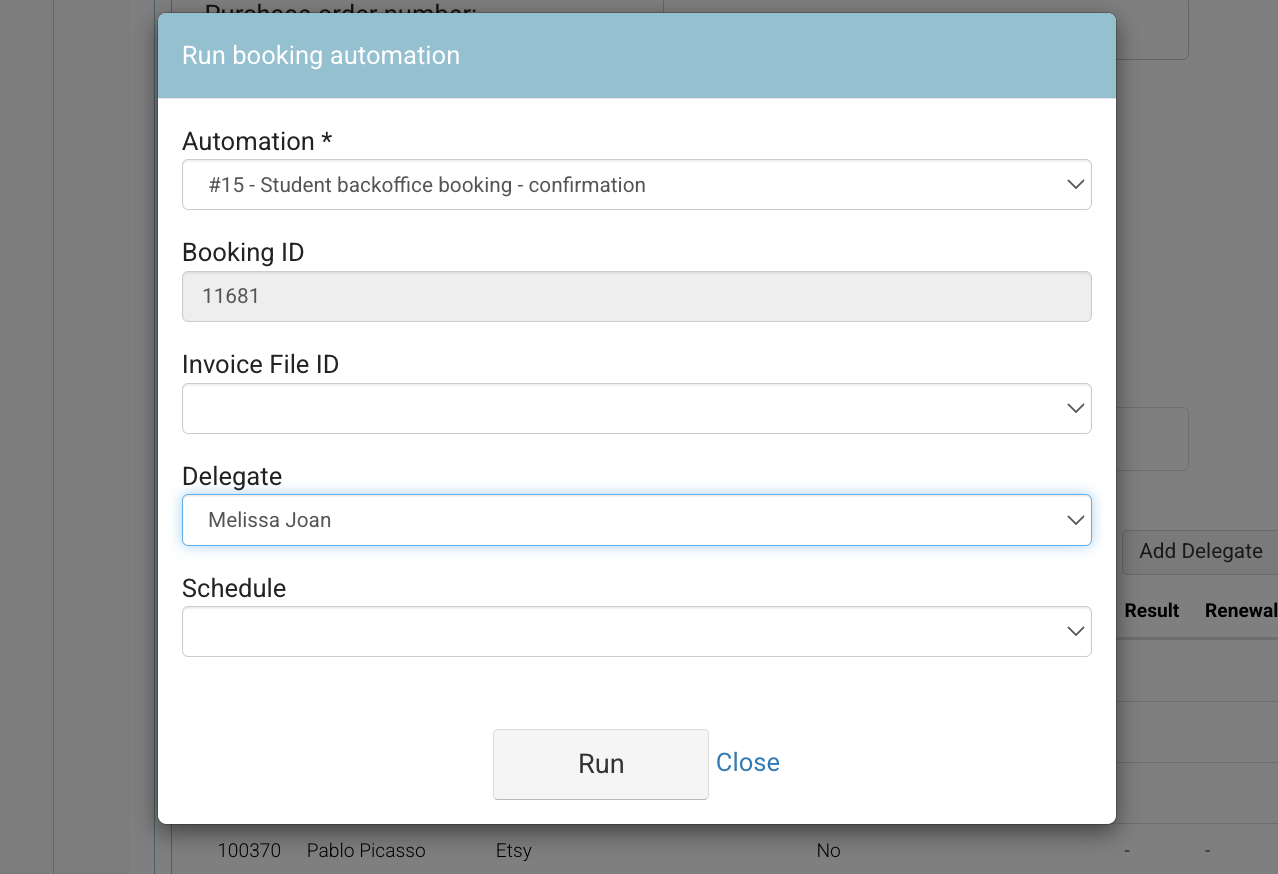
Run automation | selection window -
Select the delegate name or leave blank if you want to send to all delegates on the booking
-
Select schedule (if multi-buy booking - leave blank if only 1)
-
Run
-
-
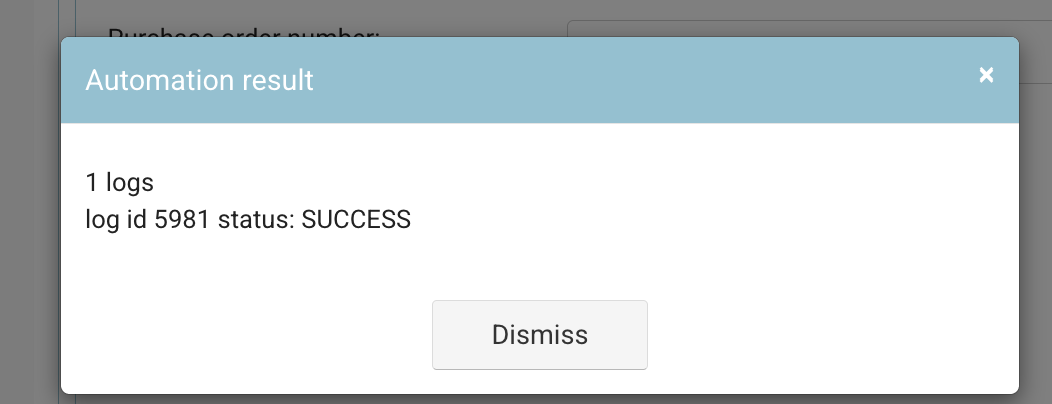
Run Automation | Success alert
-
Note: you will receive FAIL if you attempted to trigger an email not applicable to the booking
Outcome
-
Delegate is removed from the booking
-
Booking is updated successfully
-
No change to total price (fixed fee remains)
-
No emails triggered
Important Notes
-
If pricing changes when adding/removing delegates, check:
-
Charge per Delegate is OFF on the schedule
-
-
Always confirm pricing before completing the booking
-
Delegate names can be updated later if not known at time of booking
Recommended Tips
-
Use this booking type for all private/company training
-
Add a PO number to trigger confirmation emails where required
-
Keep delegate lists updated before the course start date