
This is a new feature and can be enabled on your platform. Please open a support ticket to enable this free update! ⭐
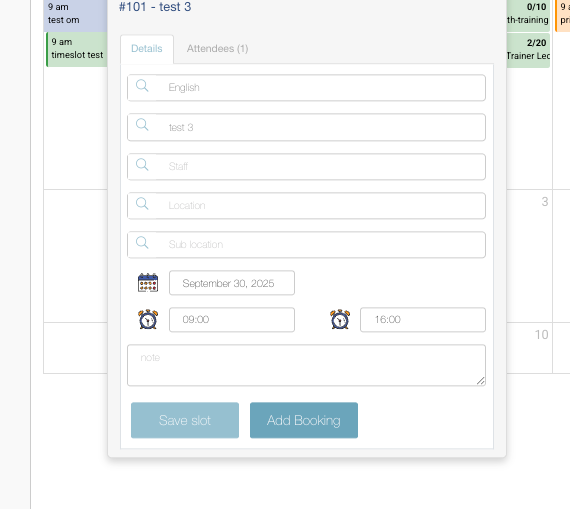
The Add Booking option from the Timetable makes it easier for admins to create bookings directly from the calendar view.
How It Works
-
Navigate to Timetable.
-
Select a timeslot on the calendar.
-
Click Add Booking.
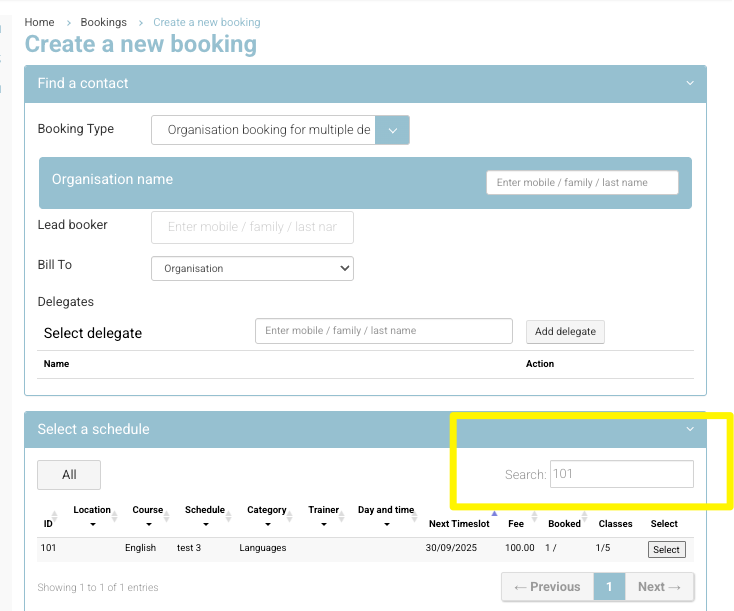
This will open the Create Booking screen with the Schedule ID already pre-entered and automatically filtered in the schedule dropdown.
Completing the Booking
On the Create Booking screen:
-
The Schedule field is pre-populated based on the selected timeslot.
-
Admin must select:
-
Organisation
-
Booker/Delegate
-
-
Complete the booking as usual and confirm.
Notes & Tips
-
Past Timeslots:
If the selected timeslot is in the past, the schedule will not display by default because the dropdown is filtered to upcoming schedules only.-
To proceed, adjust the schedule filter to include past schedules.
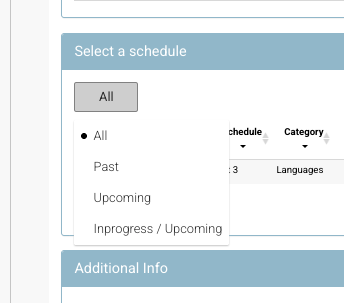
Schedule search - change filter
-
-
Schedule ID Matching:
The system searches using the Schedule ID.-
Be mindful that other columns may display a close match.
-
In most cases, the correct schedule will auto-populate.
-