
Admin | Creating a Member Discount
When you sign up to CourseCo, we will discuss the discount options that best suit your business. These discounts are typically configured by CourseCo during setup to ensure they are created correctly.
If, after going live, you require an additional Member Discount, you can request that CourseCo install this for you using your priority support time.
We highly recommend asking our support team to install member discounts to ensure they are configured correctly. However, if you are confident creating discounts yourself, this guide outlines how to create a standard Member Discount.
Important
If a member discount is configured incorrectly and you require CourseCo support to resolve it, a support budget will be required.Note: If CourseCo deems the issue an error in functionality, it will be fixed free of charge.
What is a Member Discount?
A Member Discount works the same way as a standard discount, with two key differences:
-
The Member Discount toggle must be enabled during discount setup
-
No coupon code is added
Once configured, the discount is automatically applied when:
-
The booking contact belongs to an organisation
-
That organisation is marked as Member at the contact/organisation level.
No action is required by the booker to apply the discount.
How to Create a Member Discount
1. Log in as Admin
2. Open Bookings
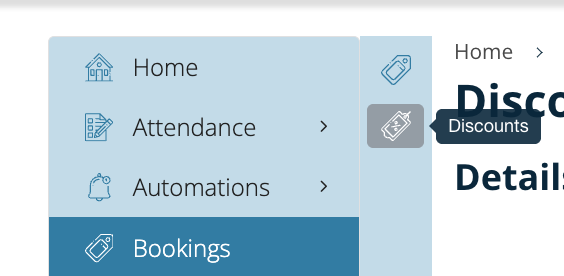
3. Navigate to Discounts
Select the Discounts icon and click Add Discount (top right).
4. Discount Details
-
Title – Name of your discount (e.g. 10% Member Discount)
-
Summary – Short explanation of the discount
5. Courses / Schedules
Select the course or category the member discount should apply to.
Tip: Leaving this empty applies the discount to all courses/categories, but this can cause conflicts with other discounts.
We strongly recommend one of the following approaches:
-
Always select the specific course/category for each discount
-
Or never select a course/category and allow all discounts to apply globally
Be consistent across all discounts.

6. Discount Amount
Configure the discount values as follows:
-
Input 1 – Percentage (%) or Fixed amount (£/€)
-
Input 2 – Regular discount (currently the supported option)
-
Input 3 – Select:
-
For cart total or
-
For each schedule
-
Important behaviour:
-
For each schedule
The discount applies per schedule. When adding the discount as an admin, you must select each schedule individually. -
For cart total
The discount is applied once, based on the total booking value.
Choose the option that best suits your pricing requirements.
-
Input 4 – Enter the discount amount (e.g.
10= 10% or £/€10)
7. Member Discount Toggle (Required)
Enable the Member Discount toggle.
This is what differentiates a member discount from a standard coupon-based discount.
⚠️ Do not add a Coupon Code
Member discounts must not have a coupon code. They are applied automatically when eligibility criteria are met.
8. Optional Conditions
You may optionally configure:
-
Cart total From / To – Minimum or maximum cart value
-
Min / Max number of items in cart – For multi-buy conditions
Leave these fields blank if not required.
9. Validation & Publishing
-
Valid From / Valid To – Required
-
Publish – Enabled by default (disable if not ready)
-
Publish on Web – Toggle off if the discount should only apply to backoffice bookings
-
Archive – Use after expiry if you want to hide the discount but keep it for reporting
Do not delete expired discounts if reporting is required.
Outcome & Testing
Once saved, you should:
-
Test the discount with a booking contact linked to a Member organisation
-
Confirm the discount auto-applies correctly
-
Validate calculations for cart total vs per schedule behaviour
Support
If you have queries, please contact support@courseco.co.
Member discount queries and configuration assistance require a support budget.
The above configuration is fully supported by CourseCo. Any errors in functionality will be fixed free of charge.
Discount configurations outside of this guide may not be supported and will be assessed on a case-by-case basis.