
You can create back-office bookings and apply discounts before completing the booking so that the contact receives a reduced cost. You can either apply discounts using coupons or apply custom discounts to bookings.
Applying Discount Coupon to a Booking
-
Log in to CourseCo as Admin.
-
Navigate to the Bookings module.
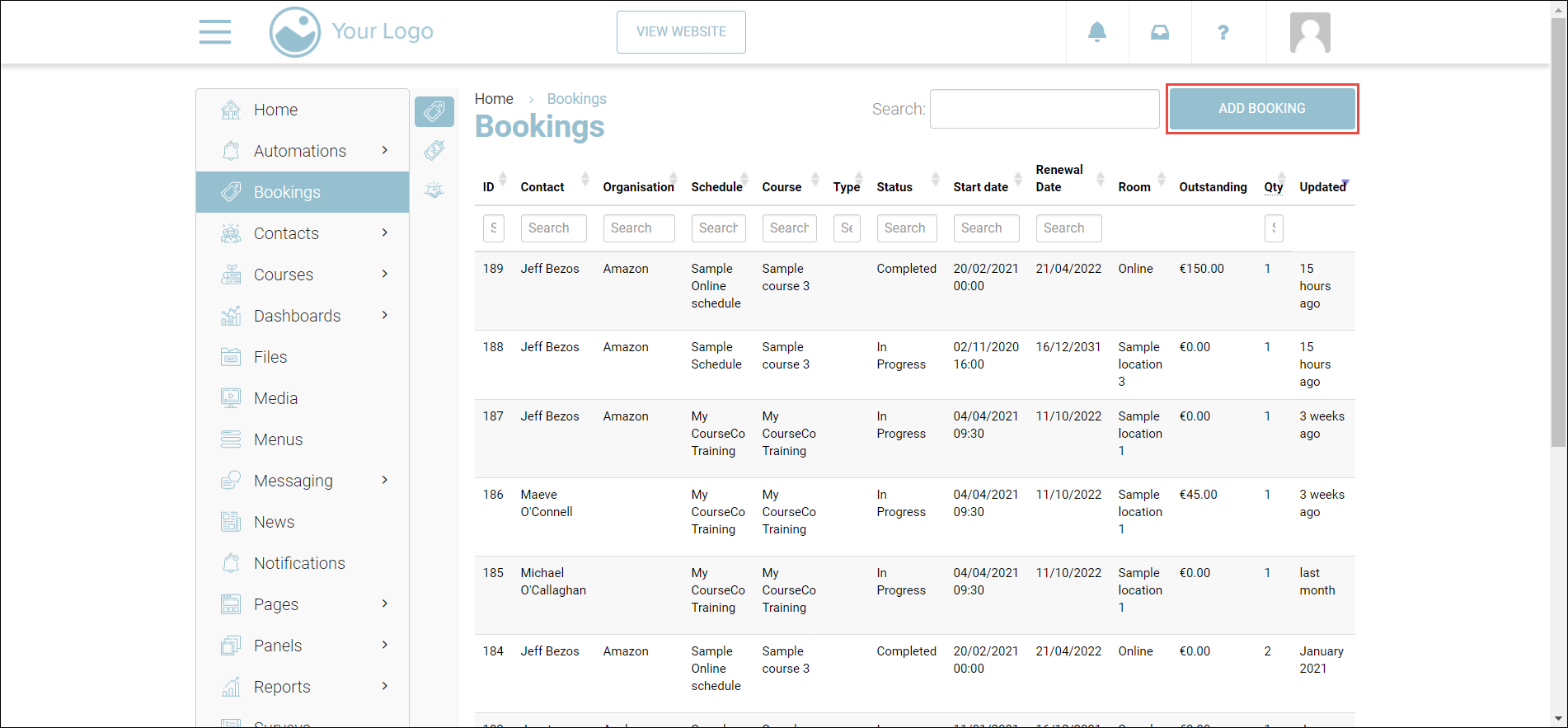
The bookings page will be displayed.
-
Click ADD BOOKING.
The Create a new booking page will be displayed.
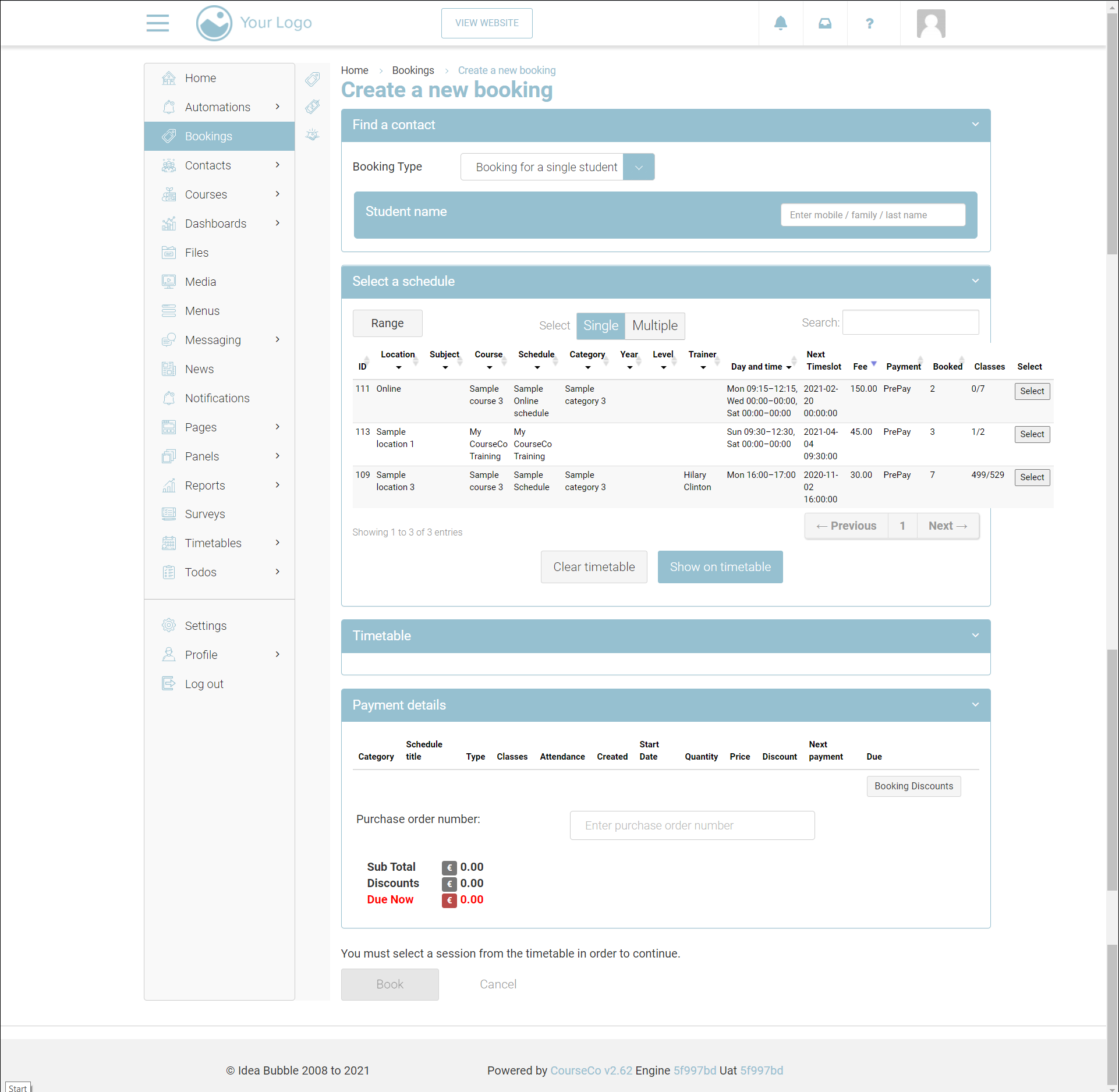
To complete the booking process, refer to https://ideabubble.atlassian.net/wiki/spaces/TP/pages/2223538555/Back+Office+Bookings#Creating-a-Back-Office-Group-Booking
-
Check the payment information to ensure the correct category, schedule title, type, classes, and so on.
-
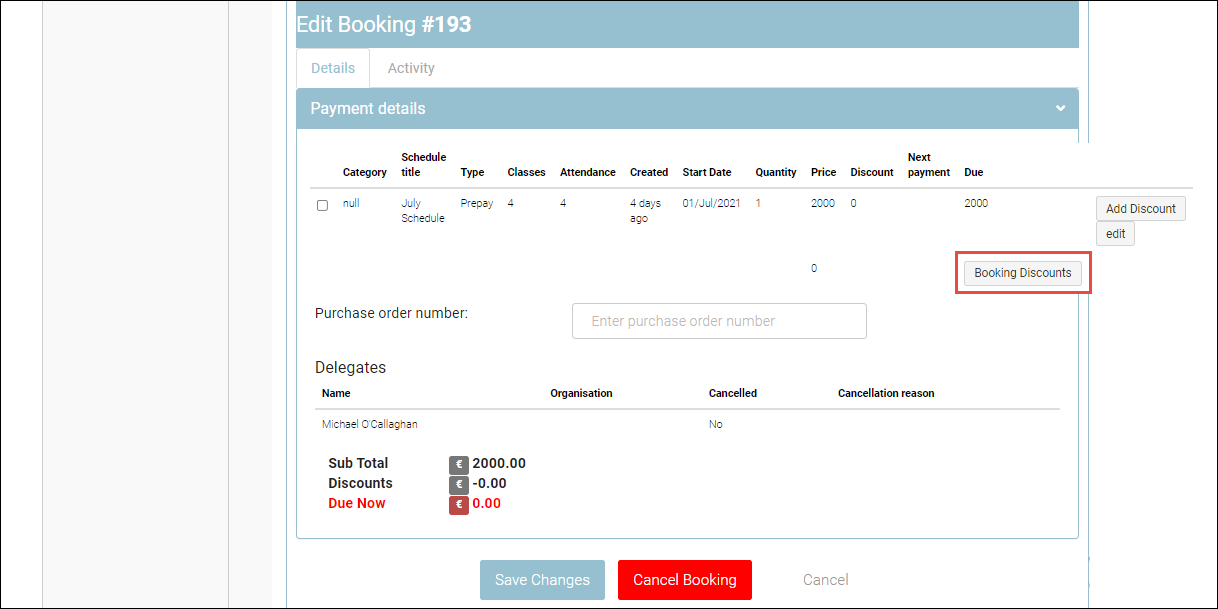
Scroll down to the Payment details section.
-
Click Booking Discounts.
The dialog to add a discount will be displayed.
-
In the coupon code input, enter a valid coupon code and click Add Coupon.
The Price, Discounts, and Sub Total of your booking will be displayed.
-
Click Apply Discounts.
-
You will be redirected to the Payment details section.
-
Review your payment details.
-
Enter the PO number or the EFT reference number.
-
Click Book Now
Outcomes:
-
The discount will be applied to the total amount of booking.
-
The total amount of booking will be reduced.
Applying Custom Discount to a Booking
-
Log in to CourseCo as Admin.
-
Navigate to the Bookings module.
The bookings page will be displayed.
-
Click ADD BOOKING.
The Create a new booking page will be displayed.
To complete the booking process, refer to https://ideabubble.atlassian.net/wiki/spaces/TP/pages/2223538555/Back+Office+Bookings#Creating-a-Back-Office-Group-Booking
-
Check the payment information to ensure the correct category, schedule title, type, classes, and so on.
-
Scroll down to the Payment details section.
-
Click Booking Discounts.
The dialog to add a discount will be displayed.
-
Enter the custom discount amount and click Apply.
The Discounts (€) and Sub Total (€) fields will be calculated and displayed.
-
Click Apply Discounts.
You will be redirected to the Payment details section.
-
Review your payment details.
-
Enter the PO number or the EFT reference number.
-
Click Book Now
Outcomes:
-
The discount will be applied to the total amount of booking.
-
The total amount of booking will be reduced.