
This guide explains the new booking feature that lets an admin create a new contact directly from the booking flow. The new contact is added to the booking immediately and linked to the booking’s organisation, removing the need to leave the booking screen to create the contact first.
What this feature does
Admins can add a brand-new contact while creating a booking. Once saved, that contact is attached to the booking and linked to the organisation selected on the booking.
Overview
Previously, if a required contact did not already exist, admins often had to leave the booking journey, create the contact elsewhere, then return to complete the booking. The new feature streamlines this process by allowing contact creation inside the booking flow.
This is especially useful when:
-
an organisation contact is new and does not yet exist in the system
-
an admin is creating a booking quickly and wants to avoid switching screens
-
the booking needs an additional delegate or contact that should also belong to the selected organisation
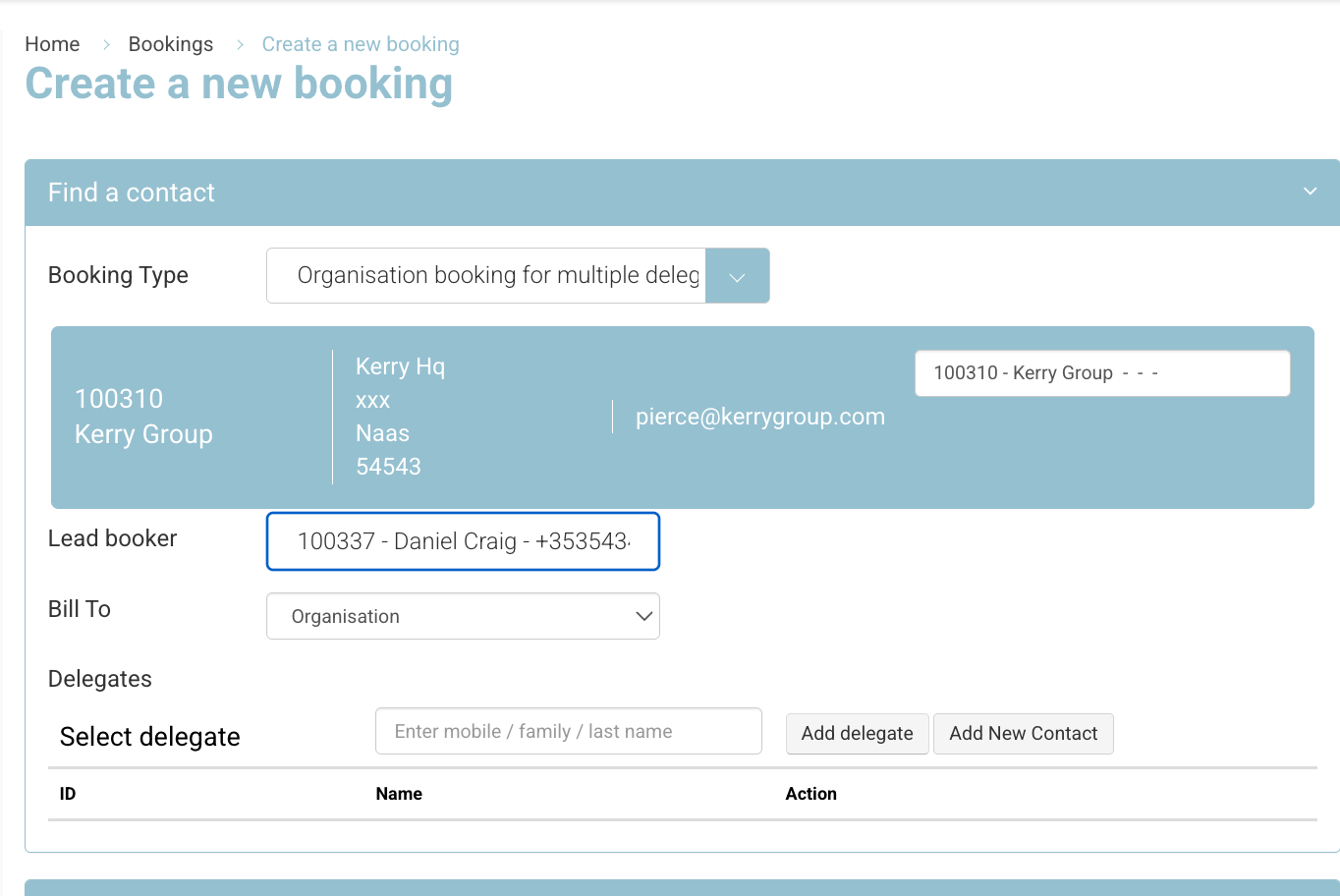
How it works
When creating a booking in the admin area, you can open the add contact option from the booking screen and enter the details for a new person. After saving:
-
the contact is created in the system
-
the contact is linked to the organisation selected on the booking
-
the contact is added to the booking without leaving the page
A new contact created from the booking flow becomes both a booking contact and an organisation-linked contact.
Step-by-step instructions
-
Open the admin booking flow and start creating a booking.
-
Select the relevant course, schedule, and organisation as normal.
-
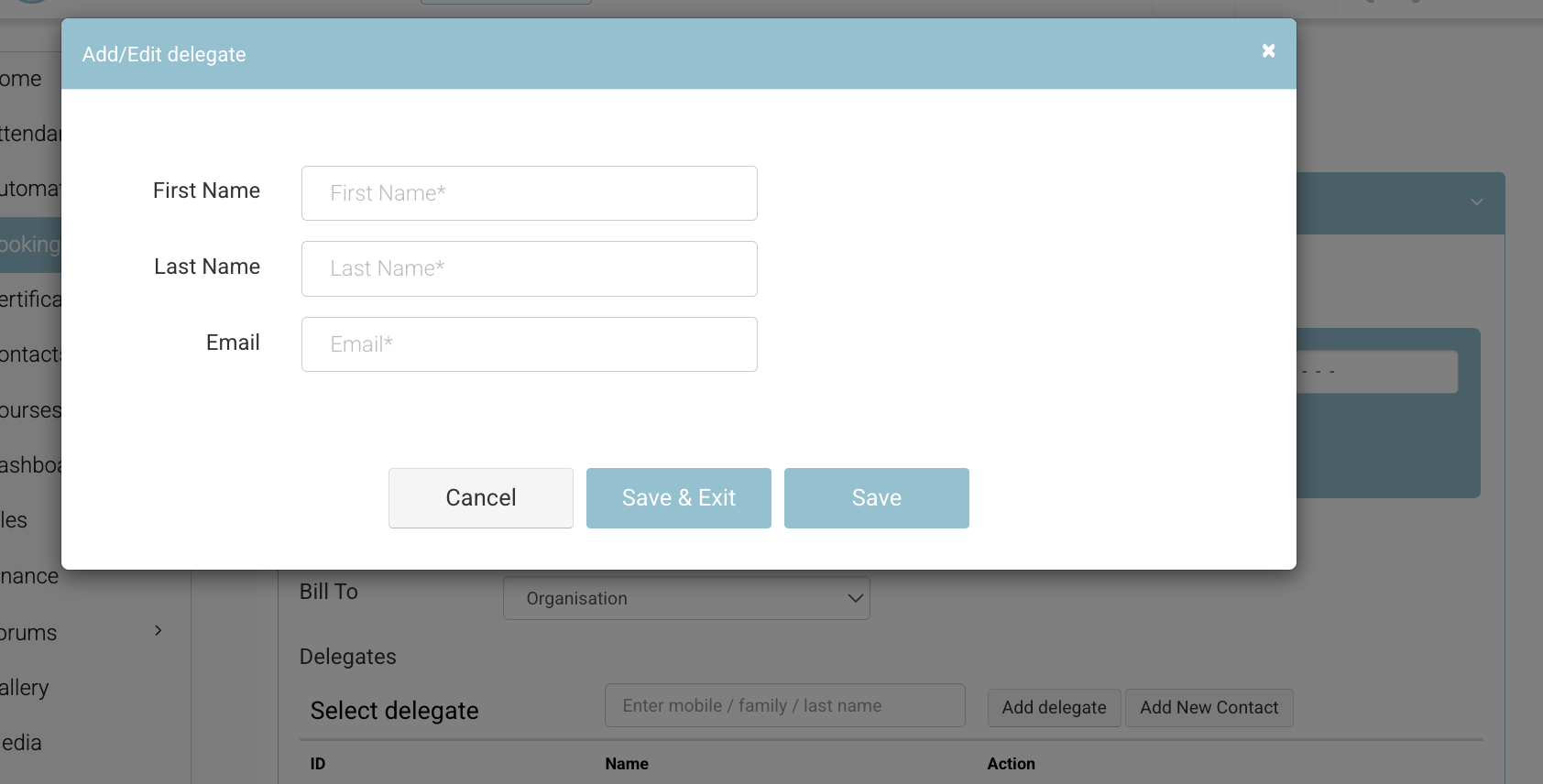
In the contacts or delegates area, choose the option to Add New Contact.
-
Enter the new contact’s details.
-
Save or Save and exist
-
Save will keep you on the window, with the option to keep adding more contacts
-
Save and Exits, adds the contact and exists the screen
-
-
Confirm the contact now appears on the booking.
-
Complete and save the booking.
What information to enter
The exact fields visible may depend on your configuration, but admins should expect to provide core contact details such as:
-
first name
-
last name
-
email address, if required by your site settings
At minimum, name fields must be completed correctly for the contact to be created successfully.
Duplicate detection to assist Admin
When an admin saves a new contact from the booking flow, the system checks whether another contact with the same first name and last name already exists and is linked to the booking’s organisation.
If a possible duplicate is found, the admin sees a soft warning before the contact is saved. This warning is intended to help the admin double-check whether the person already exists for that organisation.
The admin can then choose one of the following options:
-
Use Existing — use the matching existing contact instead of creating a new contact. The existing contact is added to the booking.
-
Create New Anyway — continue creating a separate new contact with the entered details. The new contact is added to the booking and linked to the booking’s organisation.
-
Cancel / go back — return to the contact entry screen to review or change the details before saving.
Note: Duplicate name detection is based on matching first name and last name for contacts linked to the selected organisation. Duplicate email detection is handled separately and may block saving if the email already belongs to an existing contact.
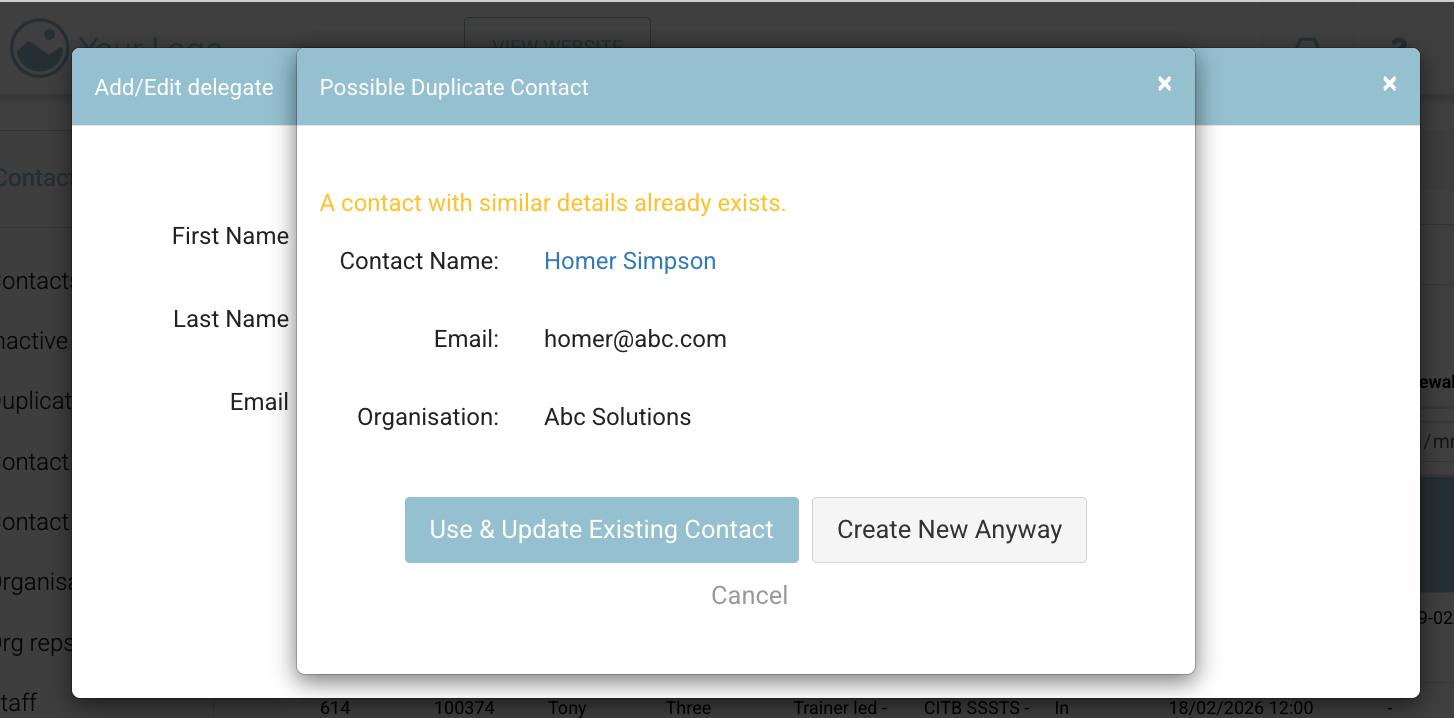
Alert: Duplicate detection is not enabled in the main contacts table. You will be alerted of duplicates based on only.
When to use this feature
-
Creating a new organisation booking and the contact does not already exist
-
Adding a first-time delegate during booking creation
-
Reducing admin effort by keeping the whole action inside one workflow
-
Ensuring the new person is immediately connected to the organisation record
Summary
The new feature helps admins create bookings faster by allowing contact creation inside the booking journey. A newly created contact is added to the booking and linked to the selected organisation in the same process. This reduces extra navigation, improves data flow, and makes booking administration more efficient.
Related references