
CourseCo allows you to cancel individual delegates or full bookings, with control over whether a Journal / credit note transaction is created.
When to Use This
Use this when:
-
One or more delegates can no longer attend
-
You need to remove them from the booking
-
You need to decide whether a refund / financial adjustment is required
-
IF money has already been made a credit will be applied to the payer account
-
IF payment has not been made, the created credit note will write off the outstanding balance.
Important to Understand
-
You can cancel:
-
Single delegates
-
Multiple delegates
-
-
You control whether to:
-
Create a journal / credit note
-
OR make no financial adjustment
-
-
By default:
-
“Create Journal Transaction” is ON (unless requested to disable)
-
Cancel a Delegate (No Financial Adjustment)
Use this when no refund or price change is required.
Steps
-
Log in as an admin
-
Open the relevant Booking
-
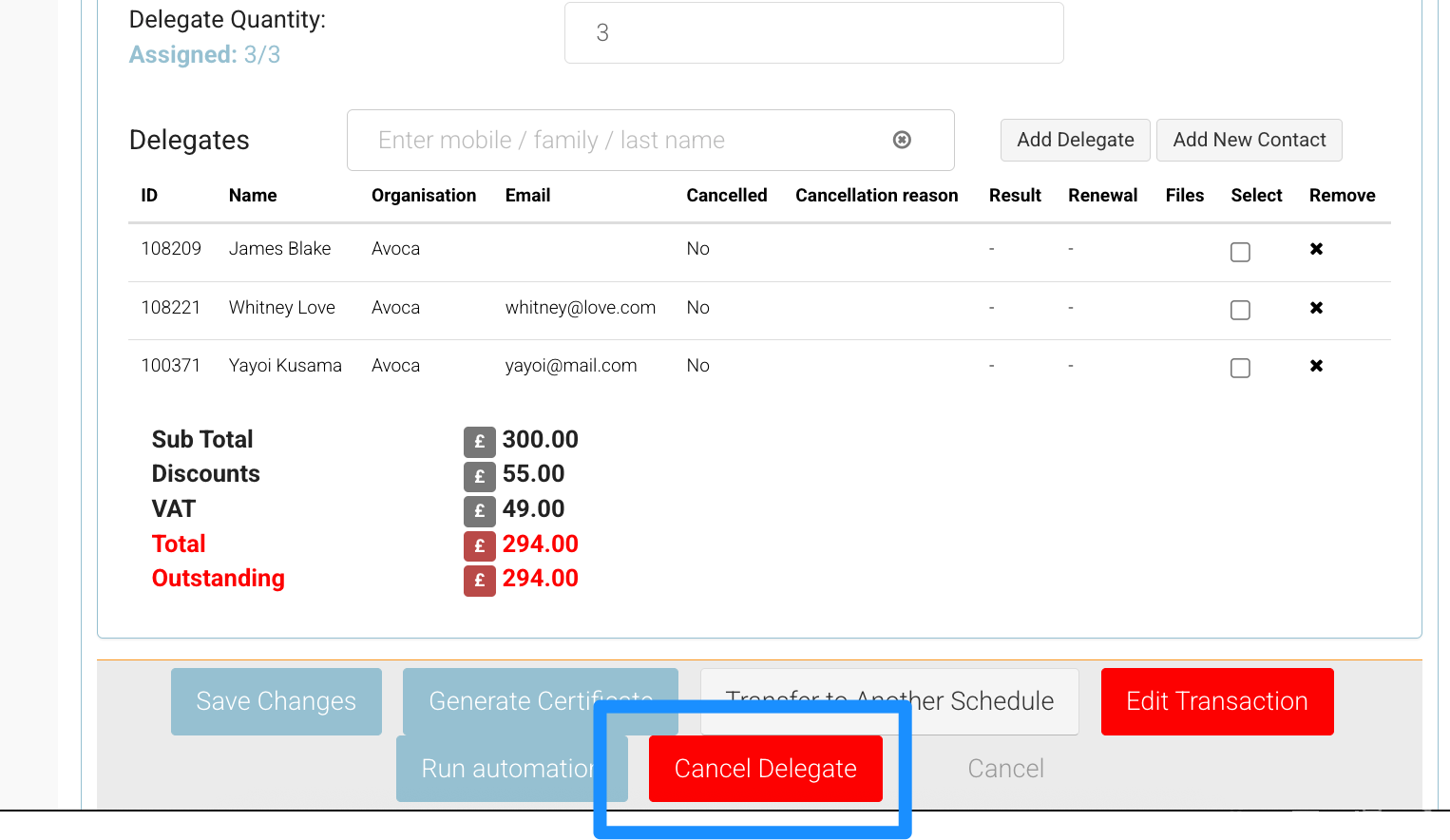
In Payment Details, click Cancel Delegate (red button)
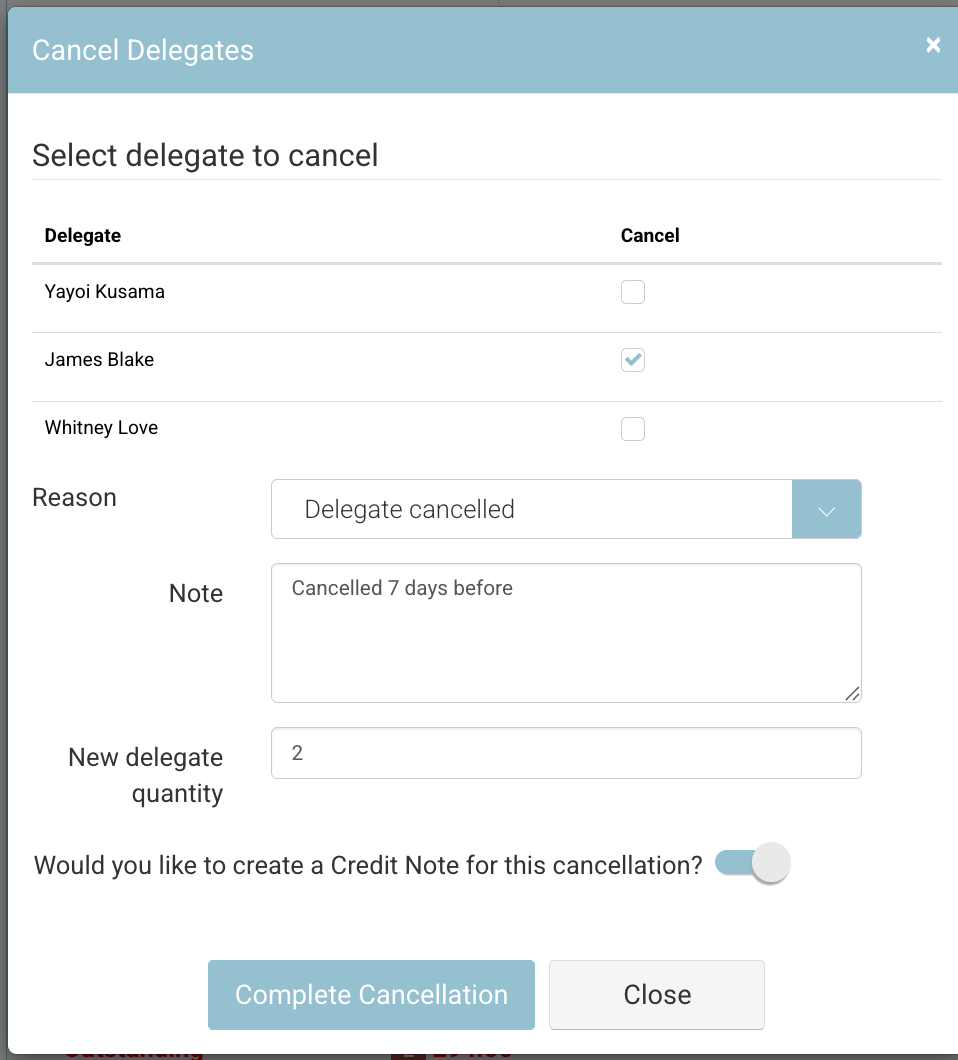
Cancellation Pop-Up
-
In the pop-up:
-
Select the delegate(s) to cancel
-
Add a Reason Code (e.g. “Delegate cancelled”)
-
Add a Note (optional)
-
-
Toggle Create Journal Transaction = OFF
-
Click Complete Cancellation
Outcome
-
Delegate(s) are removed from the booking
-
Delegate(s) are removed from the schedule
-
Cancellation email is sent (if configured)
-
No change to booking value
-
No credit note created
Cancel a Delegate WITH Credit Note (Journal Transaction)
Use this when you need to refund or adjust the booking value.
Steps
Follow the same steps as above, but:
-
Leave Create Journal Transaction = ON
-
Click Complete Cancellation
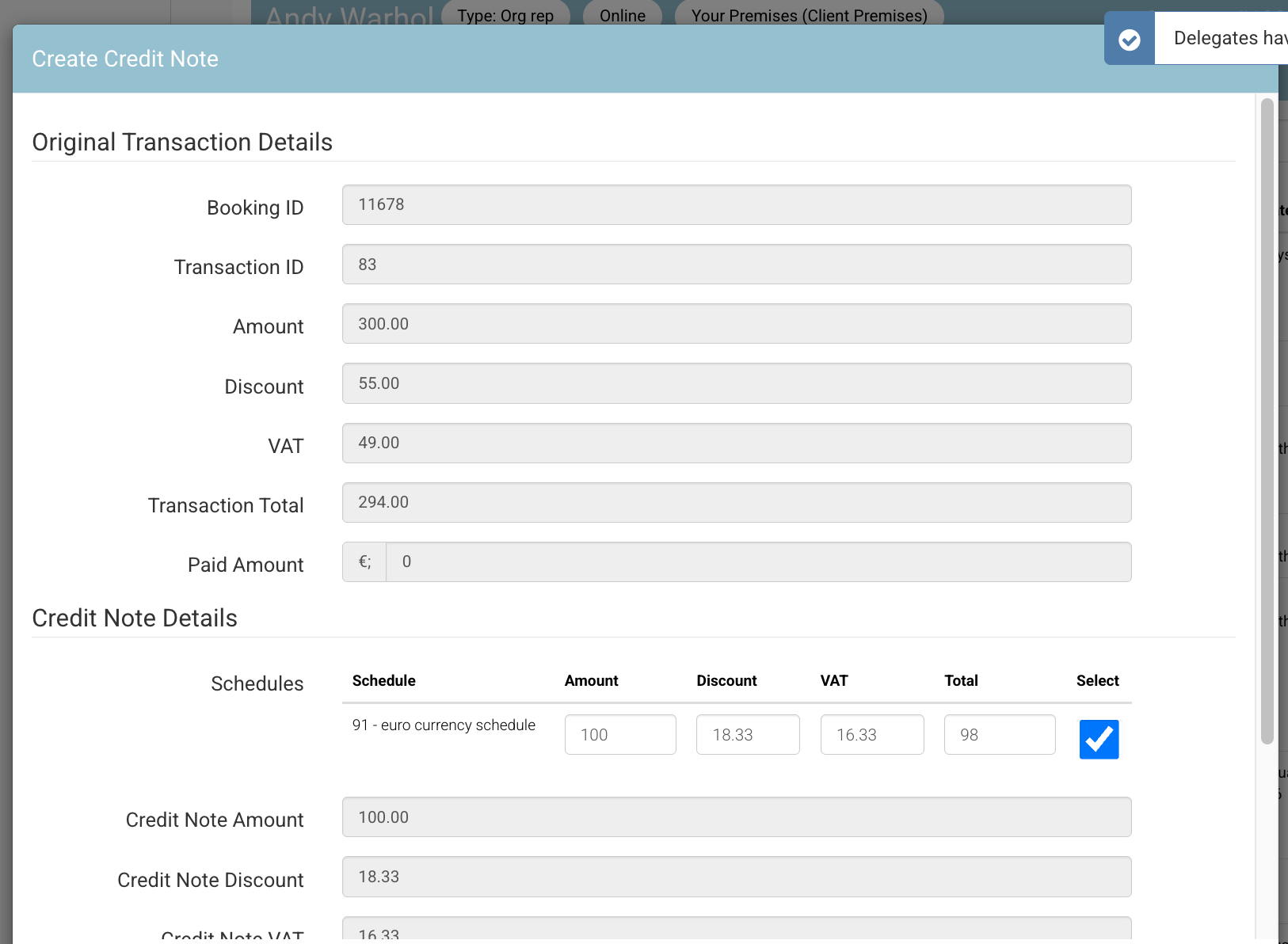
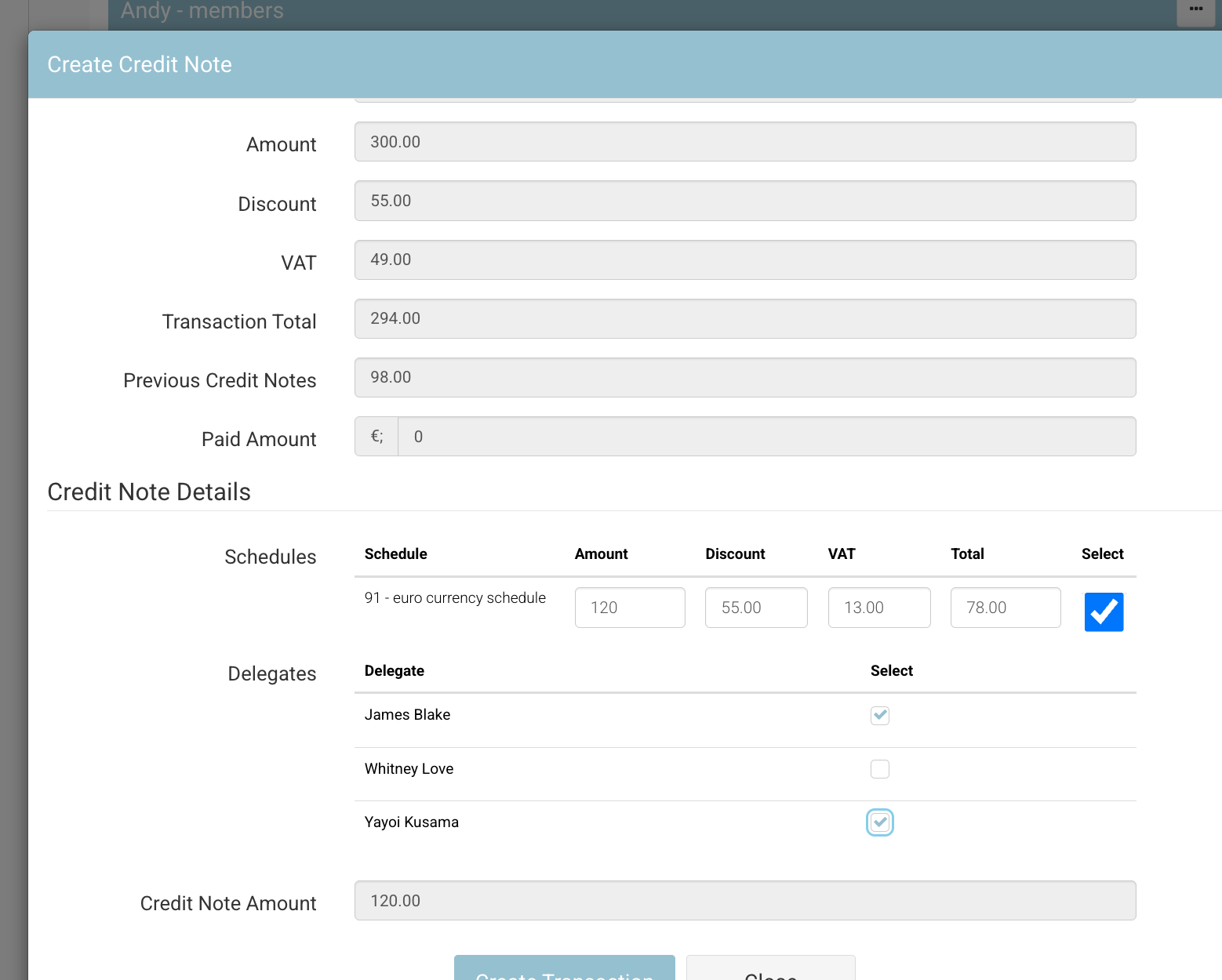
Create Journal / Credit Note Window
You will be redirected to the Create Journal Transaction screen.
Review & Edit Transaction
-
Original Transaction Details
Displays the original booking value -
Journal Amount (Auto-Populated)
-
System calculates expected refund
-
Example:
-
2 delegates @ £100 each = £200
-
Cancel 1 delegate → £100 auto-filled
-
-
-
You can:
-
Edit the Amount if needed (e.g. partial refund)
-
VAT and discount values update automatically
-
-
Review the read-only breakdown carefully
Complete the Transaction
-
Click Create Transaction
Outcome
-
Booking value is updated
-
A “Journal Cancel Booking” transaction is created
-
Outstanding balance is adjusted
-
You can now generate a Credit Note document
Create a Journal Later (After Cancellation)
Use this when:
-
You cancelled a delegate earlier
-
You did not yet confirm the refund amount
Steps
-
Navigate to the Contact or Booking
-
Open the Accounts tab on the Payer account
-
Locate the original booking transaction
-
Select Actions > Create Credit Note
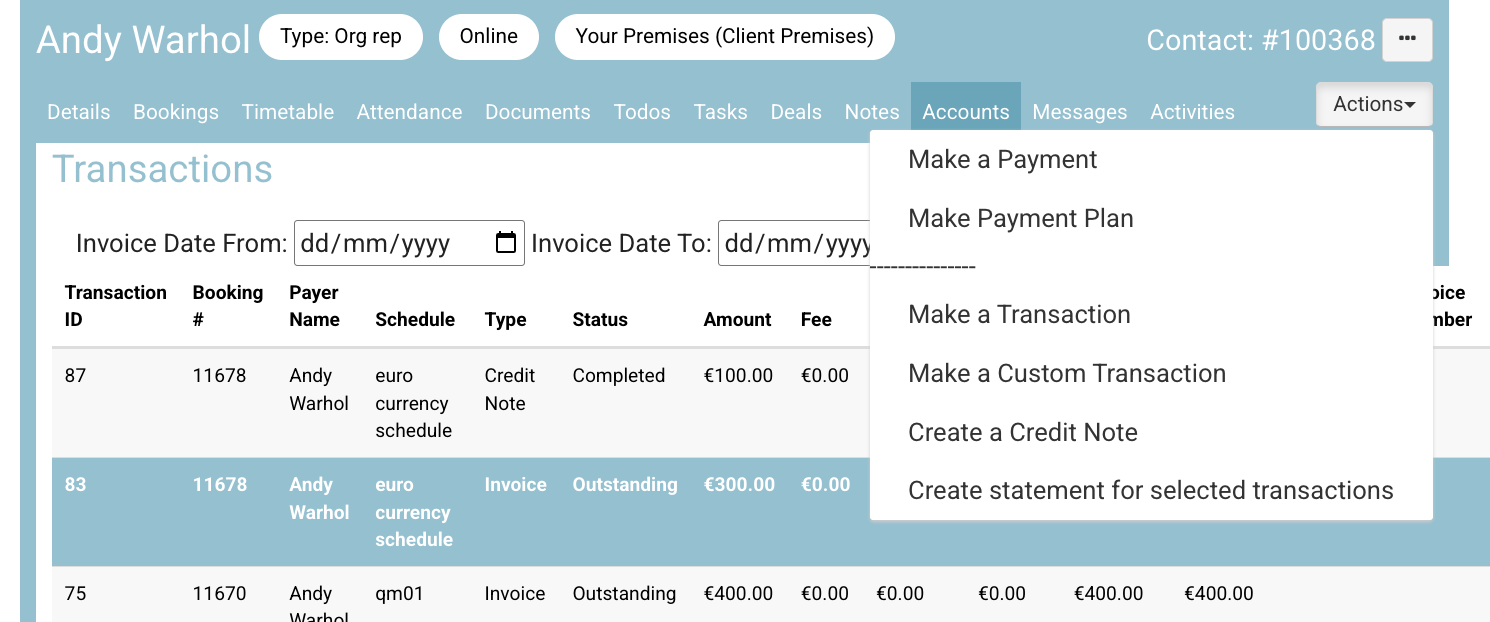
Complete Journal
-
Edit the Amount as needed
-
Review the breakdown
-
Add a note
-
Click Create Transaction
Outcome
-
Journal transaction is created
-
Outstanding balance is updated
Generate a Credit Note Document
Once a journal / credit note transaction exists:
-
Navigate to the Documents tab (on the payer contact)
-
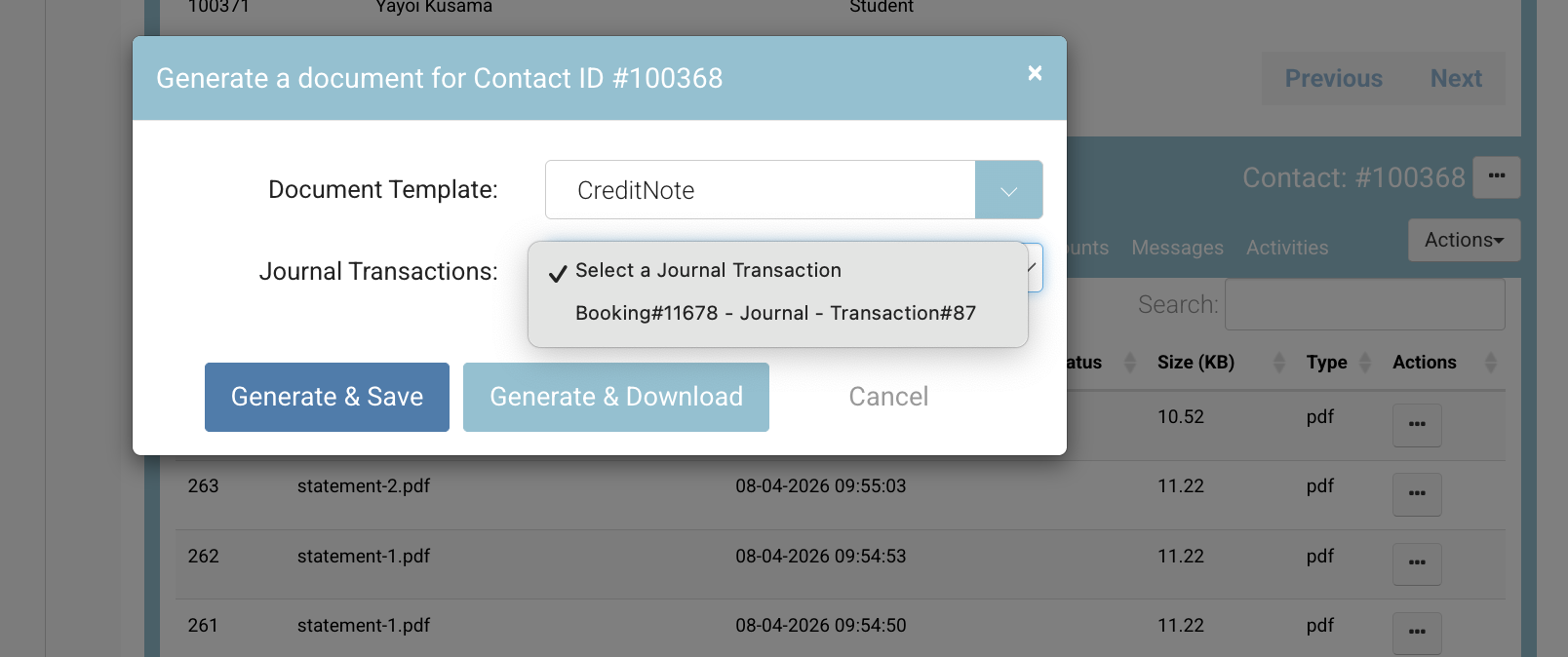
Click Actions > Generate Document
-
Select:
-
Template = Credit Note
-
Transaction = Journal Transactions + select the applicable transaction id
-
-
Click Generate & Download
Note: IF you transaction does not appear in the dropdown, you are not on the payer account, or you didn’t created a credit note.
Outcome
-
Credit note is generated
-
Saved against the transaction
-
Can be downloaded anytime
Important Notes
-
Cancelling a delegate in a multi-buy booking removes them from all linked schedules
-
Cancellation emails are only sent if configured
-
Always review the journal breakdown before creating the transaction
-
This process directly impacts financial records and reporting
Recommended Tips
-
Turn OFF journal creation if no refund is required
-
Use partial refunds where needed by editing the amount
-
Always double-check VAT and totals before confirming
-
Generate and send credit notes promptly after creating the transaction