
Overview
The Bookings Tags feature allows Admins to attach customizable labels (tags) to any booking in your system. This is a great way to flag bookings for follow-up actions, internal workflows, or notes to your team.
💡 This is an add-on feature. To enable it, please contact us for pricing and activation.
🔑 Key Features
-
Custom Tags: Add meaningful labels such as “To Be Invoiced,” “Pending Certs,” “Needs Review,” etc.
-
Editable Anytime: Tags can be added, removed, or updated at any stage of the booking lifecycle.
-
Internal Use Only: Tags are visible to Admins but not to bookers or learners.
🛠 How to Use Bookings Tags
1. Enable the Feature
Contact our support team to enable the Bookings Tags add-on for your account. Once enabled, you’ll see new tagging options in your bookings interface.
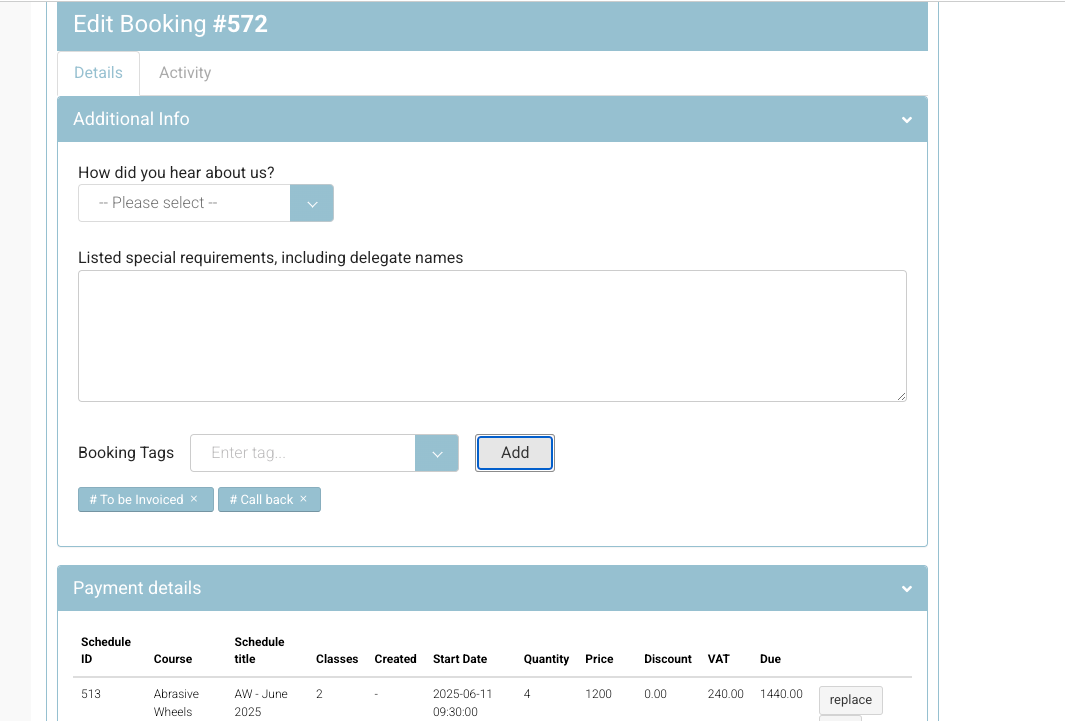
2. Add or Edit Tags on a Booking
-
Go to Bookings from your admin dashboard.
-
Select the booking you’d like to tag.
-
Click Edit Booking.
-
In the Tags section, type to create or select a tag.
-
Save your changes. Tags can be added, edited, or removed at any time.
3. Manage All Tags
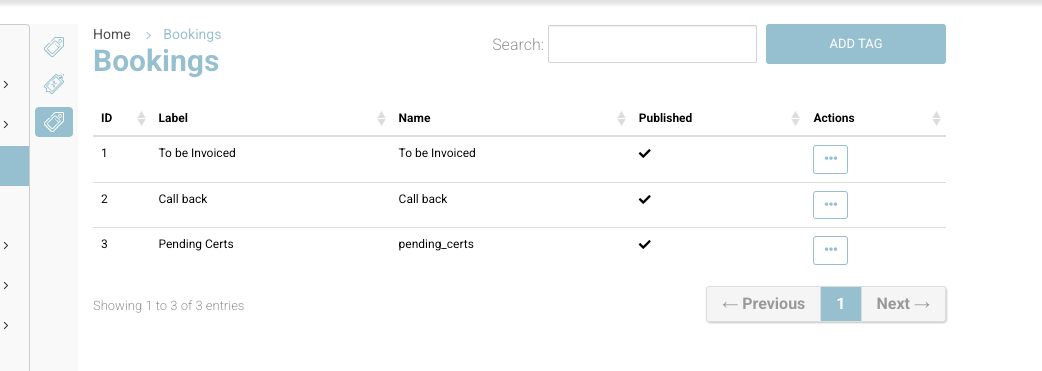
-
Go to the Bookings area.
-
On the Bookings list screen, look between the list and the left-hand menu – you’ll see a tag icon.
-
Click the tag icon to:
-
View all tags that have been created
-
Add new tags
-
Edit or delete existing tags
-
4. Filter Bookings by Tag
-
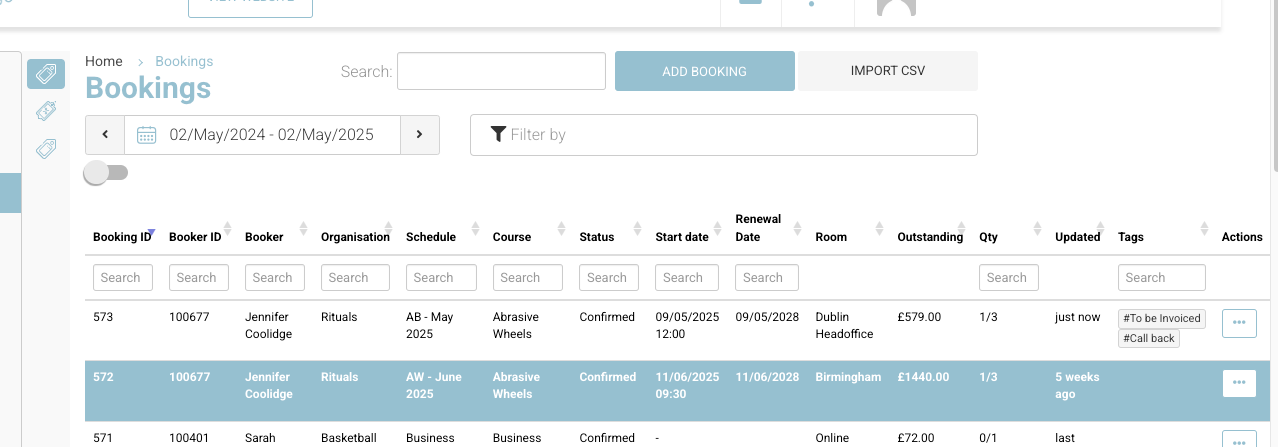
On the Bookings list screen, you’ll find a Tags column at the far right.
-
Use this column to filter the list by specific tags and quickly identify related bookings.
📝 Use Case Examples
-
“To Be Invoiced” – flag bookings pending billing
-
“Pending Certs” – track bookings awaiting certificates
-
“Follow Up Needed” – identify bookings that need admin attention
-
“Requires Manager Review” – mark bookings needing approval
📩 Need Help?
Reach out to your account manager or support team for:
-
Enabling the feature
-
Help with setup and tagging best practices
-
Pricing details