In some cases, the bookings generated invoice may need an edited address i.e. the booker needs the invoice to stat a different address. Now, as admin you have the ability to edit the billing address on a booking and re-generate the invoice with the edited address.
Currently, when you create a booking, the billing address is the organisation/individual’s billing address at the time the booking was made.
How to view the billing address for the booking
Once you have made a booking and re-opened the booking in edit mode, you will see the billing address
-
Open the booking
-
Navigate to the ‘Billing Address’ section
-
View the address populating.
-
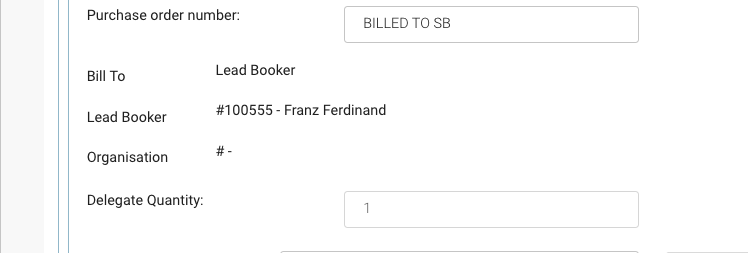
Scroll down to the ‘Bill To’ section to see how the booking was billed / the org rep/organisation it was billed to.
Edited billing address is against the booking and does not edit the existing organisations billing address.
How to edit the billing address for the booking
-
Open the booking
-
Navigate to the ‘Billing Address’ section
-
Edit the address lines
-
Save booking.
Outcome:
-
The billing address lines have been edited for that booking only.
-
The invoice can be manually generated again and it will populate the updated address
-
The booking is no longer against the organisation, it has no organisation as the address was edited.
Follow the user guide here to manually generate a invoice
The ‘billed to’ section will now read - in the organisation section, this is because its no longer ‘billed to' that organisation, its been billed to an edited address