
Use this guide to manually record a payment as an admin in CourseCo, which updates the payment status of a booking.
✅ When to Use This
-
A payment has been received outside the system (e.g., via bank transfer or cash), and you want to update the record manually.
🔸 Step-by-Step Instructions
1. Open the Booking
-
Go to Bookings.
-
Locate and select the relevant booking.
2. Navigate to the Contact’s Accounts Tab
-
Within the booking, click on the contact’s name (usually the booker).
-
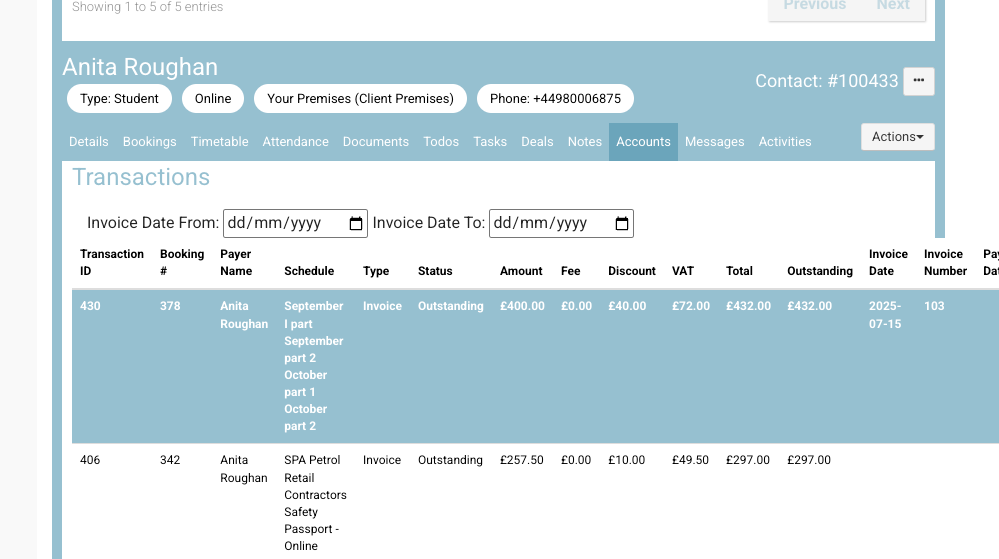
Select the ‘Accounts’ tab.
💡 If the transaction is billed to an organisation, click into the organization contact instead, and go to its Accounts tab.
3. Find the Transaction
-
In the Accounts tab, locate the relevant transaction.
-
Click to select the transaction.
4. Open Payment Options
-
Click the ‘Actions’ button (top-right).
-
Choose ‘Make a Payment’ from the dropdown.
5. Fill in the Payment Details
-
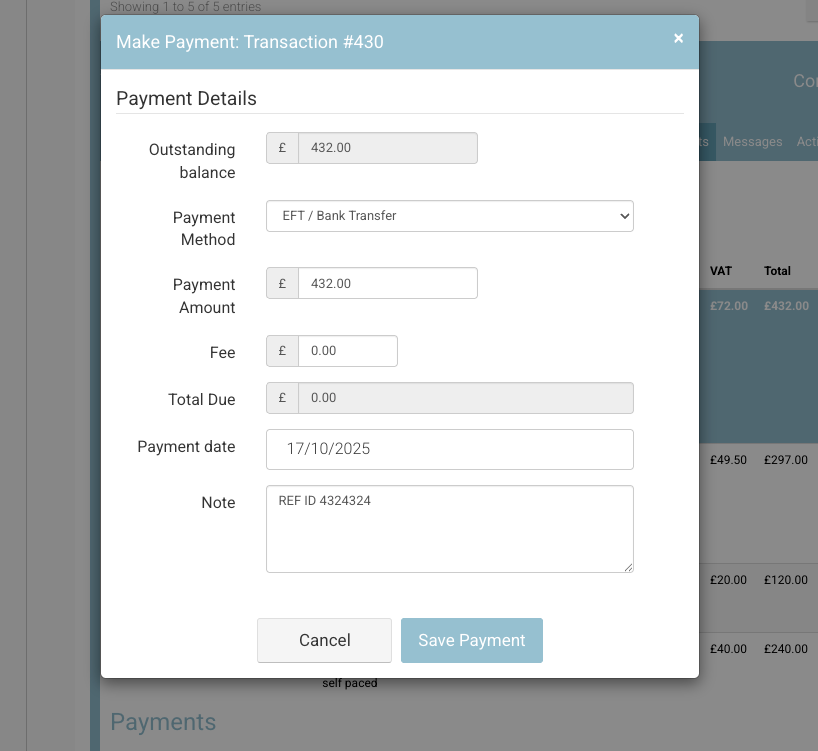
A pop-up will open showing the balance.
Complete the following fields:
-
Payment Method: Select a label such as Cash, EFT/Bank Transfer, Card, etc.
This is just for reference and does not affect the system behavior.
-
Payment Amount:
By default, this will match the outstanding balance. Edit it if a partial payment was received. -
Payment Date:
Set the date the payment was received. -
Note (optional):
Add any relevant comments (e.g., "Paid in office", "EFT from Jane Doe").
-
6. Save the Payment
-
Click Save Payment.
🧾 A payment record is now attached to the transaction, and the S&A balance will be updated.