
Create a Credit Note Transaction, e.g. after the delegate was cancelled, you didn’t create during the cancellation stage
You may have already cancelled the delegate but opted to not create a journal transaction as the refund value was not confirmed yet.
-
Login as Admin
-
Search and select the contact or booking you need to update
-
While on the contact/booking, navigate to the accounts tab for the contact
-
Select the original booking transaction (the journal will be against this booking/tx)
-
Select Actions > Create a Credit Note
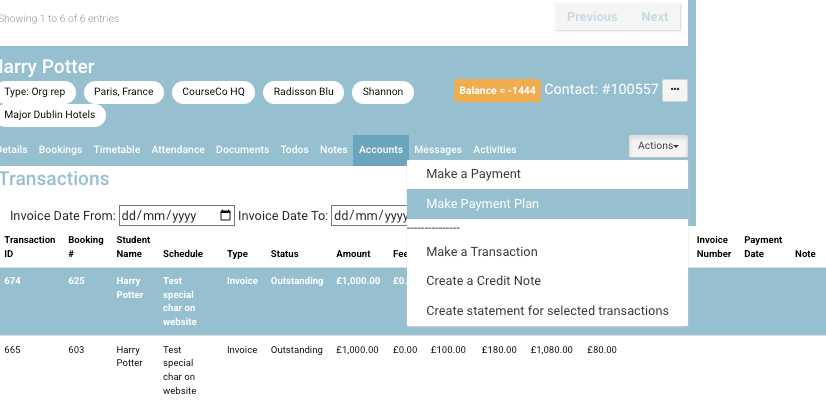
Actions - Create a credit note -
On the popup, you will see the original booking tx (transaction) information
-
Within the Credit note details section, it will pre populate the original transaction amount
-
Edit the Credit details to the applicable amount and tick the box.
-
Review the read only section to ensure the breakdown is correct, add a note
-
Select Create Transaction
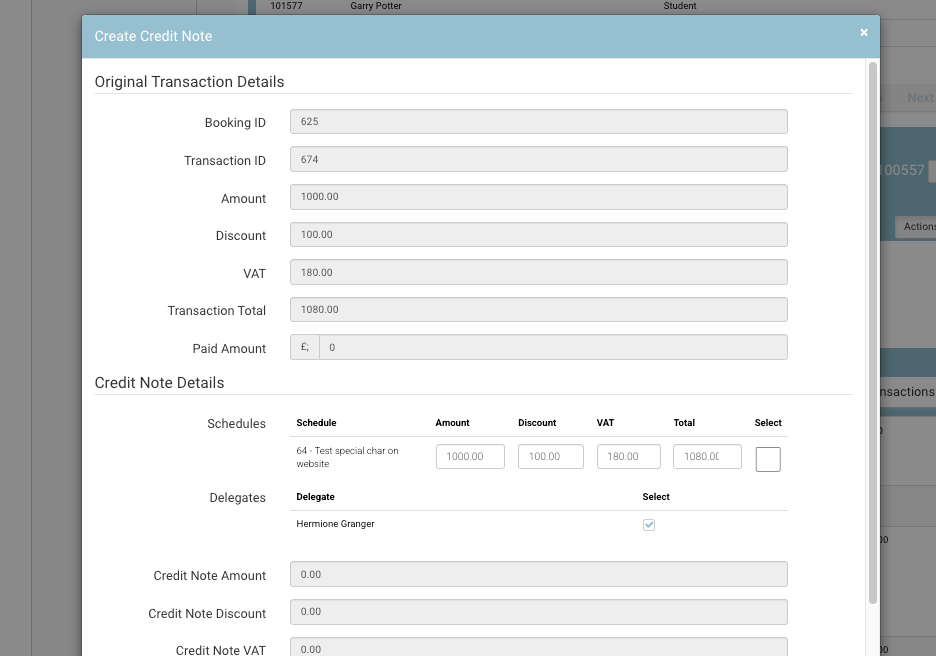
Create Credit Note window
Outcome:
-
The credit note Transaction is created
-
The original outstanding balance is updated
-
You created available credit IF their was a paid amount on the original transaction.
-
You may have created a Credit on the account and now can Make a payment on an outstanding transaction using that credit available
