
Adding an Invoice Note to a Transaction
This guide explains how an admin can add a note to a booking transaction so the note can appear on the generated invoice.
Overview
Admins can add transaction-specific text in the Invoice Note box when editing a transaction. When the invoice is generated, this note can be populated on the invoice using the following invoice template tag:
-
@transactioninvoicenote@
Option 1: Add an invoice note from the booking
-
Open the applicable booking.
-
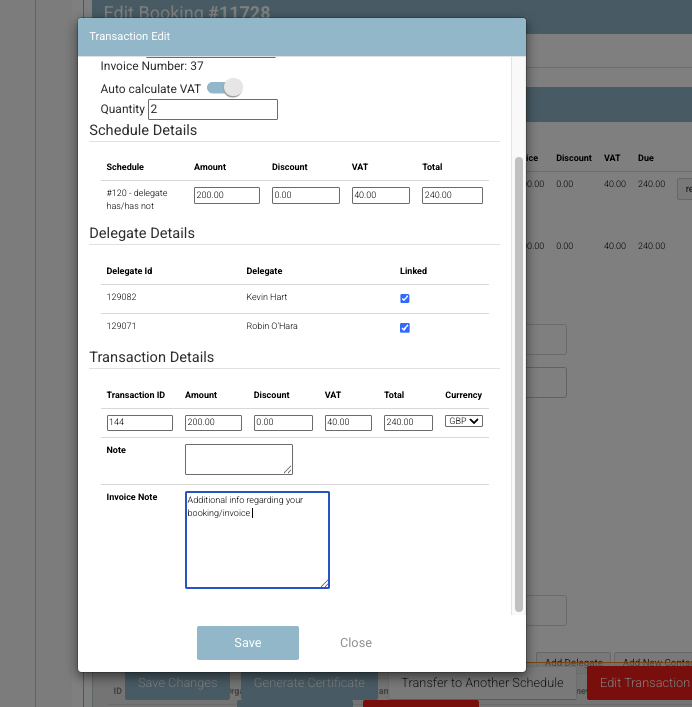
Select Edit Transaction for the transaction you want to update.
-
Find the Invoice Note box.
-
Enter the text you want to appear on the invoice for this transaction.
-
Save your changes.
-
Generate the invoice. If the invoice template includes the required tag, the note will populate on the invoice.
Option 2: Add an invoice note from the contact account
-
Open the applicable contact record.
-
Go to the Accounts tab.
-
Find the applicable transaction.
-
Select Edit on that transaction.
-
Enter the required text in the Invoice Note box.
-
Save your changes.
-
Generate the invoice. If the invoice template includes the required tag, the note will populate on the invoice.
Important template note
The @transactioninvoicenote@ tag is not applied to invoice templates by default. Please open a support ticket to request that your invoice template is updated with this tag. Please include the position of the note also
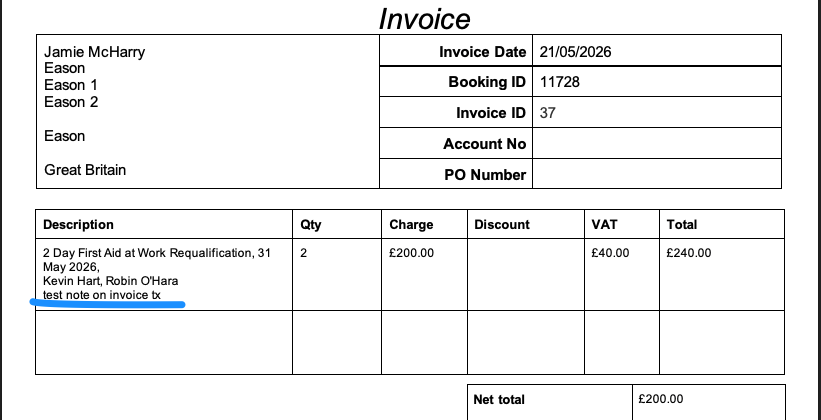
Tip: regenerate the invoice if the note was edited. If your invoices auto-generate, avoid adding a PO before editing the transaction. Instead, edit the transaction first, then add the PO to generate the invoice with the note.