
This guide explains how an administrator can delete a credit note when a booking does not yet have a generated invoice document. Cleaning up duplicate or unnecessary credit notes before invoicing helps ensure that each booking has one correct price and one invoice when the invoice is generated.
Important: Deleting a credit note is an internal business decision. Before deleting one, confirm that the credit note is no longer required and consider whether editing it is more appropriate for audit tracking.
When to delete a credit note advice
Administrators typically delete a credit note when the booking has not yet generated an invoice document and the credit note would create multiple credit notes for the same booking. This allows the transaction to be corrected before invoicing.
-
Remove duplicate or incorrect credit notes.
-
Clean up the transaction before issuing the invoice.
-
Ensure the booking has one correct price and one invoice when invoicing takes place.
-
Prevent unnecessary credit notes from being generated for the same booking.
Before you begin
- Confirm that you are working on the correct booking and transaction.
- Check whether an invoice document has been generated.
- Identify whether the credit note is duplicated, incorrect, or no longer needed.
- Review internal audit or finance requirements before removing the record.
Delete a credit note
-
Open the relevant booking.
-
Select View Transaction
-
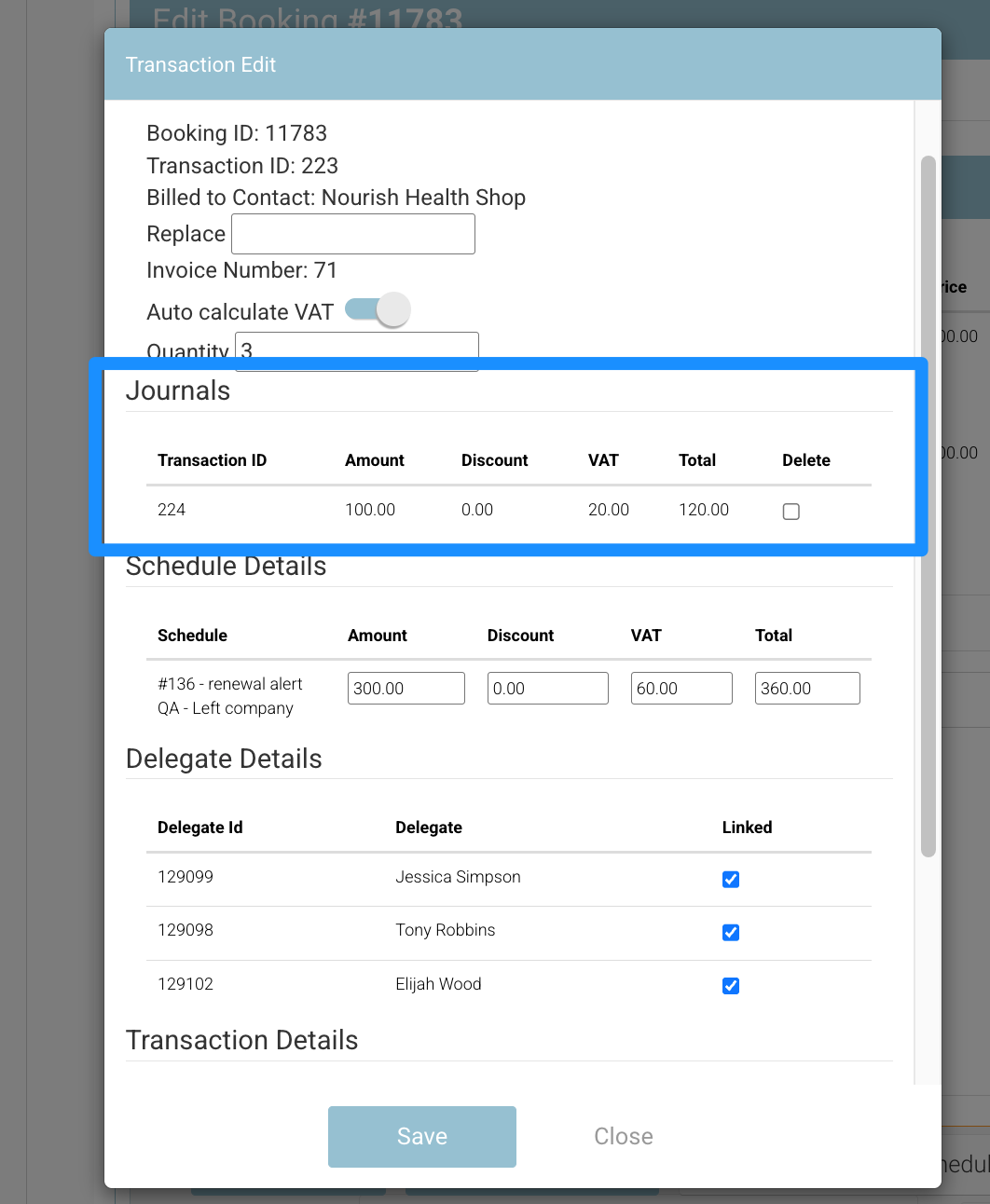
Review the journal associated with the booking and select the journal that needs to be removed.
-
Confirm that the credit note is not required for the final transaction. If the credit note contains information that should be retained for audit purposes, edit it instead of deleting it.
-
Select Delete.
-
Select Save
If the booking has not generated an invoice document, deleting an unnecessary credit note before invoicing helps keep the transaction clean and supports one correct price and one invoice for the booking.
After deletion
-
Refresh or reopen the transaction.
-
Confirm that the deleted credit note no longer appears.
-
Check that the transaction contains the correct price now, you may need to edit the original transcation
-
Verify that no duplicate credit notes remain for the booking.
-
Proceed with invoice generation when the transaction is ready.
Credit notes with invoice documents
Administrators can still delete a credit note after an invoice document and a credit note document have been generated. However, this should be treated as an internal process rather than a routine cleanup action.
Before deleting a credit note with related documents, consider the audit impact. Keeping the credit note or editing it may provide a clearer record of what happened than deleting it.
Edit a credit note transaction
If a credit note transaction needs correcting rather than removing, edit the transaction before generating the invoice. This helps ensure the payer account, transaction details, price, and final invoice information are accurate.
-
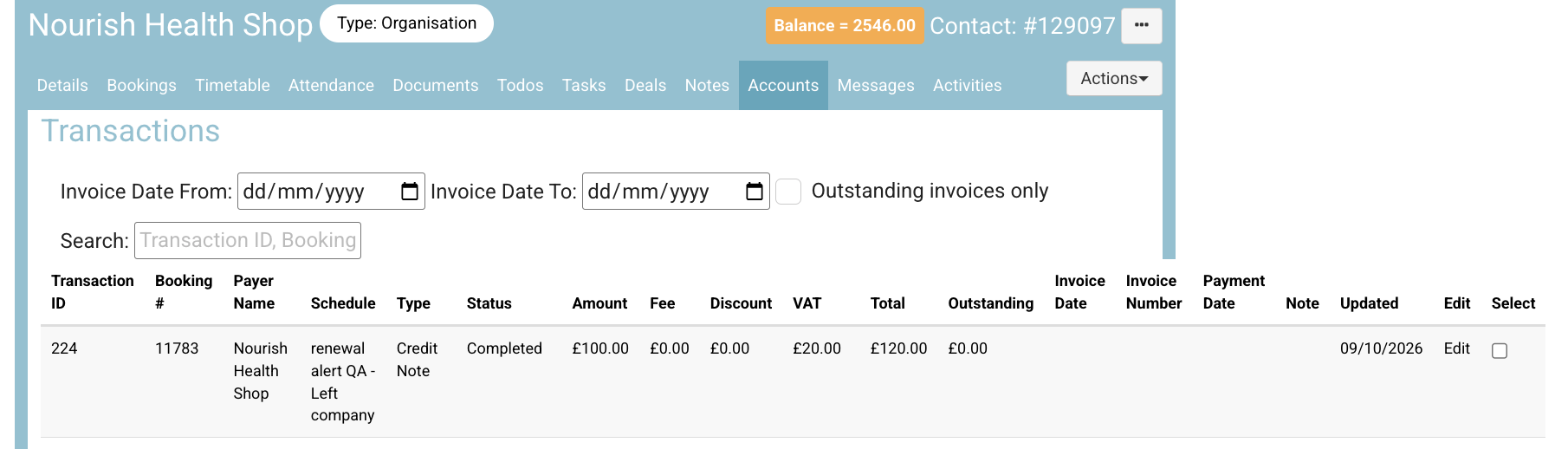
Open the contact record for the person or organisation who is the payer of the transaction.
-
Select the Accounts tab.
-
Find the relevant transaction in the account history.
-
Select Edit for the transaction.
-
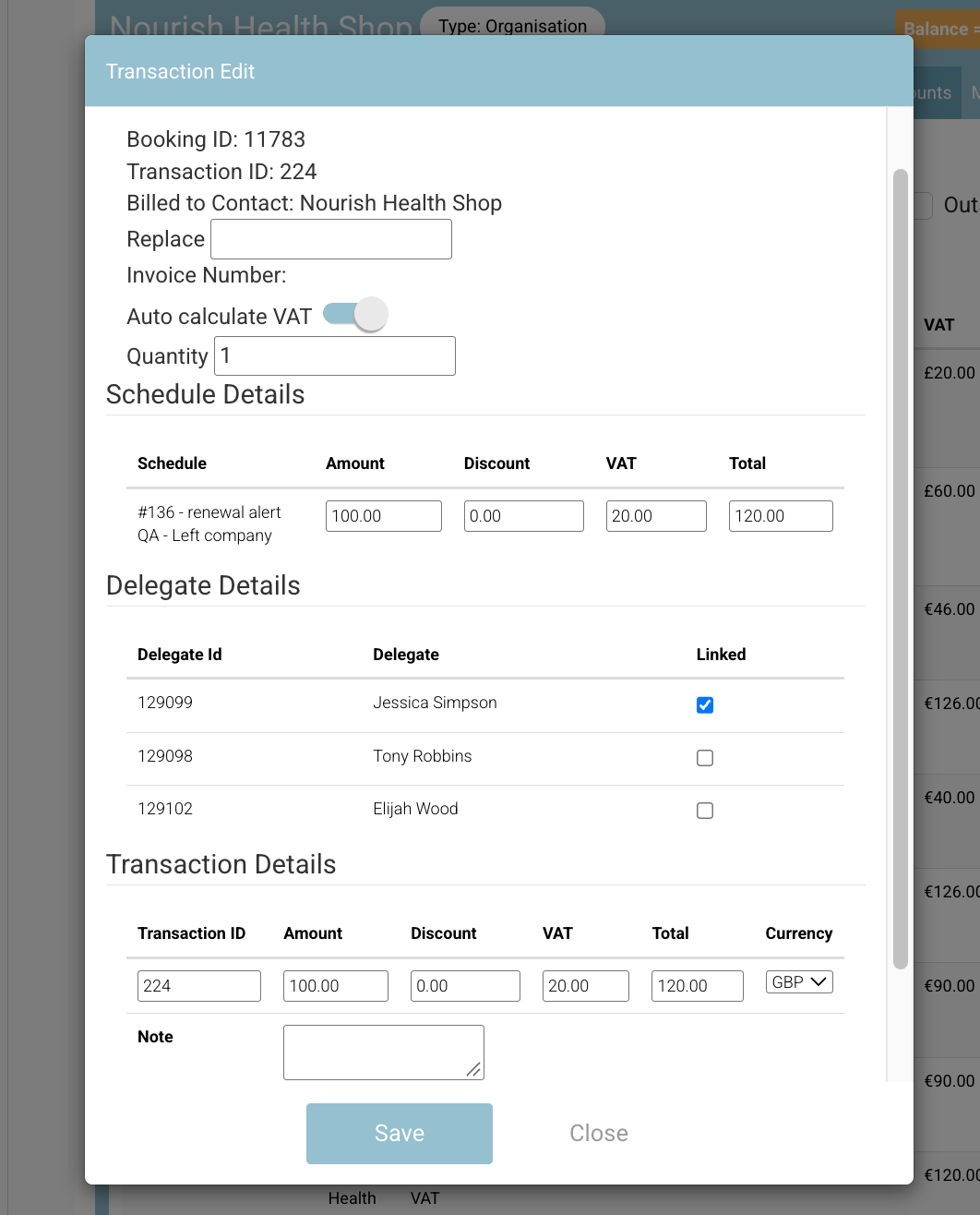
On the edit form, update the required field or fields.
-
Select Save.
After saving, review the transaction again to confirm the updated value is correct before generating or reissuing any invoice-related documents.
Good practice
Use deletion to correct genuine duplicates or errors before invoicing. When a record explains a financial adjustment, preserve the audit trail whenever possible by retaining or editing the credit note instead.