
Once a credit note has been created on a booking, you can manually generate and download the credit note document (PDF). This is typically used when you need to email the document directly to a client or resend it..
See user guide on creating credit note transaction - here
When to use this
-
A booking has been cancelled after invoicing
-
A partial or full refund is required
-
An invoice was raised incorrectly and needs reversing
Steps to Generate a Credit Note Document
-
The booking already has a credit note
-
Open the contact with the credit note assigned to them (typically the organisation or the booker contact file)
-
Check the contacts > accounts tab to confirm this
-
-
Select Documents > Actions
-
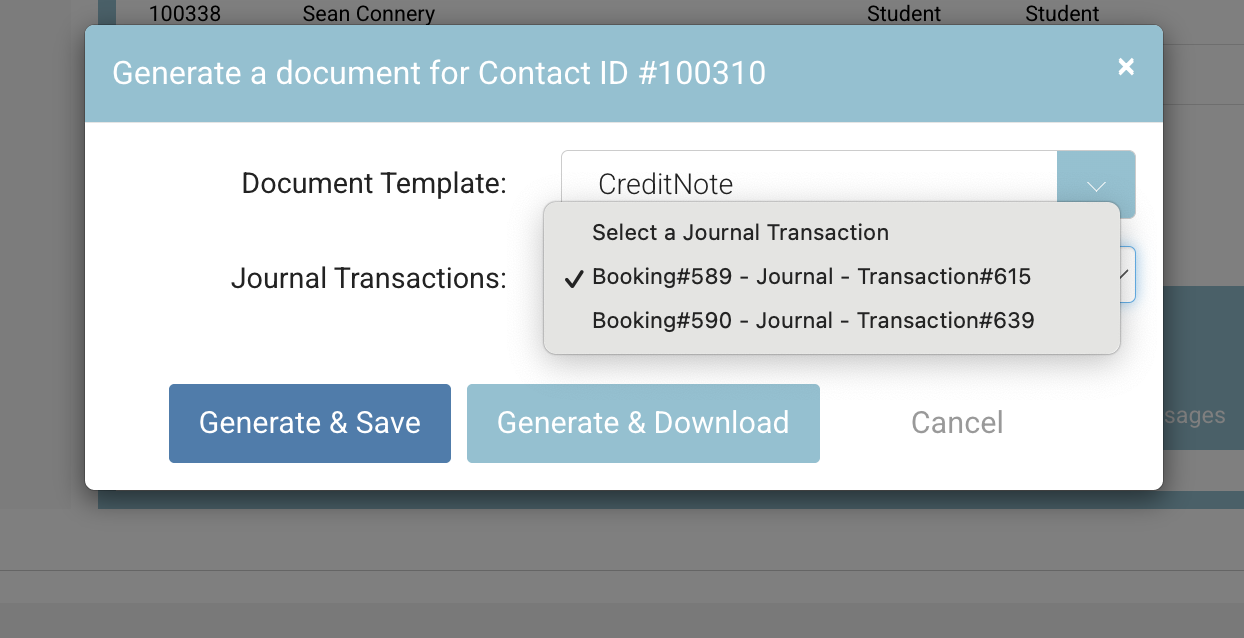
Select Generate document and select ‘Credit Note’ from the dropdown.
-
From the transactions dropdown select the applicable credit note transaction
-
Only credit notes will appear here.
-
-
Generate and download.
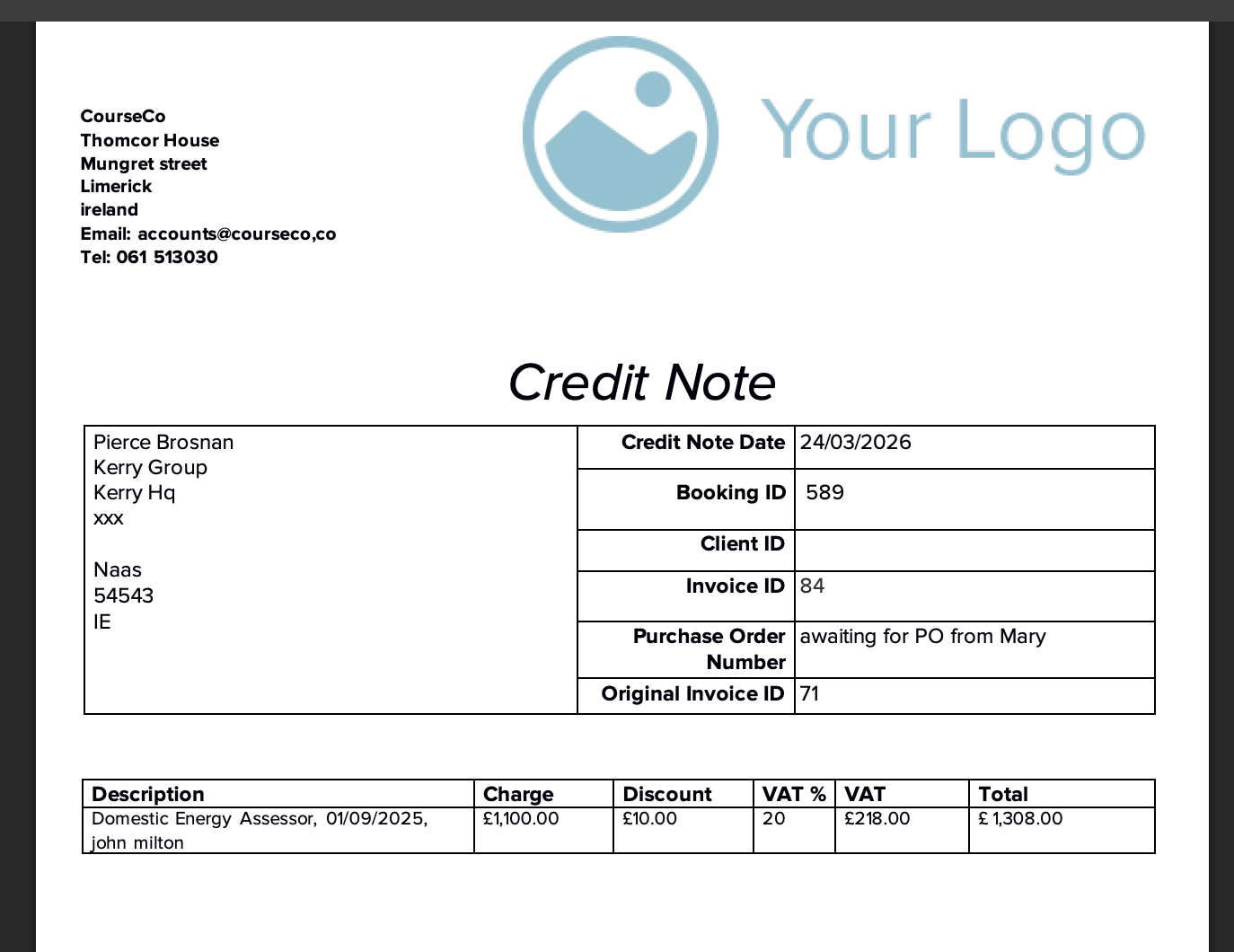
After Creation
-
The credit note will appear under the documents tab
-
It can be downloaded as a PDF if required
-
You may need to trigger any relevant automations (e.g. sending to client) or manually emailing client if automation has not been configured
-
The credit note document will be attached to the transaction in the Finance feature
Important Notes
-
Credit notes should always relate to an existing invoice
-
Avoid deleting invoices—use credit notes to maintain an audit trail
-
Double-check amounts before generating, especially for partial credits
-
If financial integrations are in place, confirm sync status after creation