
Below is a suggested guide on setting up your Locations and Sub-locations and the benefits of this approach.
The below approach is if you plan on adding a lot of Locations onto CourseCo. If this is not the case for you i.e. you’re only adding a handful, we suggest following the basic Add location options - see user guide here
Benefits of organising your Locations using the below approach
-
Add a Parent location and multiple sub locations, helps when creating the schedule and setting the location eg Parent location = Tesco (General), Sub-location = Tesco London Office or Tesco Northern Ireland.
-
Your automated emails will be configured to take on the sub-location address eg Tesco Northern Ireland and not the Parent location.
This needs to be confirmed with your CRM lead as this change affects your automated emails
Creating a Location, Sub-location and assigning it to a schedule / view for the automated emails.
The below process is useful when a Parent location has a lot of Sub-locations
Adding a Parent Location eg Tesco (General)
-
Login as Admin
-
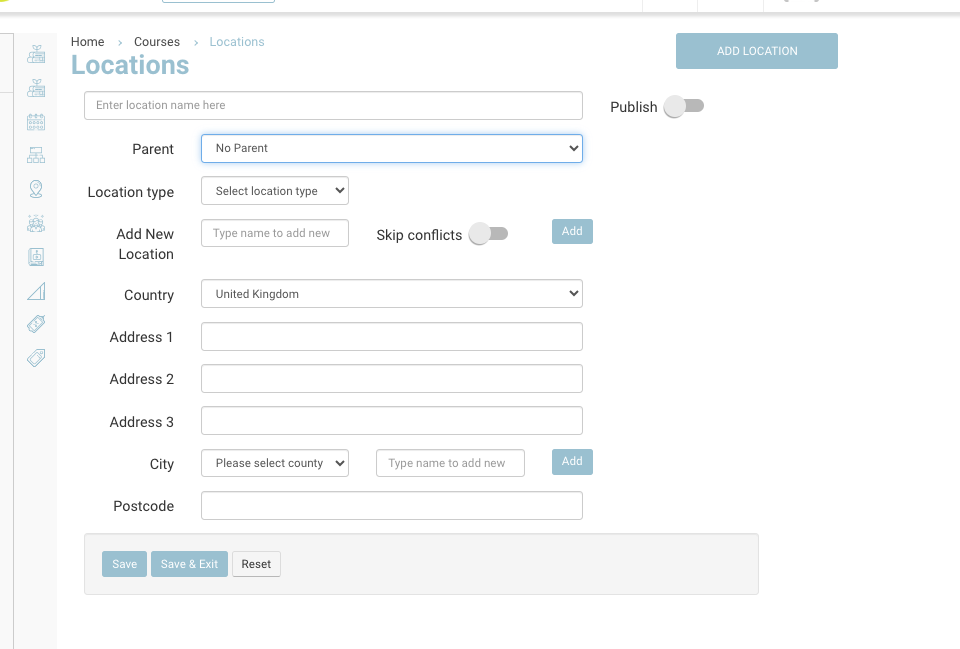
Open Courses > Add location
-
Enter the location title eg Tesco (General)
-
Publish (Yes)
-
From the dropdown select eg General Region
If 'general region' has not an option in the list, let us know and we will add for you.
-
Leave address line1-3 / general address empty (As you will not be using this address for your automated emails)
-
Save
Outcome: You have added a primary location.
Adding a Sub-Location eg Tesco Northern Ireland
-
Open Courses > Add location
-
Enter the title of the location eg Tesco Northern Ireland
-
Parent Input - select eg Tesco (General)
-
Enter the address 1-3 and postcode for this sub-location
-
Save
Outcome: You have added a sub location, linked to a parent location. When automated emails are sent (and sub location is assigned to the schedule) this address will be populated in confirmation emails.
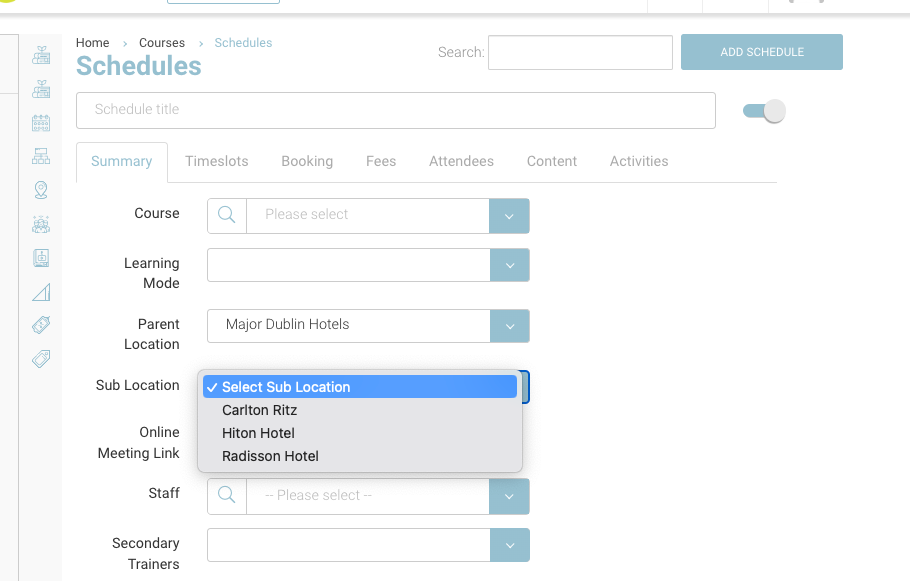
Creating a schedule and easily assigning Parent and sub-location
-
Login as Admin
-
Open the courses > schedules and add a schedule
-
Complete the standard steps for creating a schedule
-
-
Summary
-
Parent location select eg Tesco from the list of location
-
Sub-location, review the dropdown and select the applicable sub location
-
-
Save the schedule
Outcome:
-
Finding your Sub location was easy, as you had already refined your results by Parent Location.
-
Admin can see the Sub location linked to the parent location only.
-
Automated emails will see the address for the Sub-location only.
Automated emails | Available mail merge tags for emails
Parent location address lines
-
@location@
-
@locationcounty@ (Irish Counties)
-
@locationpostcode@
-
@address1@
-
@address2@
-
@address3@
Sub location address lines
-
@sublocationaddressline1@
-
@sublocationaddressline2@
-
@sublocationaddressline3@
-
@sublocationpostcode@
-
@sublocationcounty@ (Irish Counties)
-
@sublocationcity@
-
@sublocationcountry@