Courses | Accessing SEO options per course
-
Login as admin
-
Open courses and select a course
-
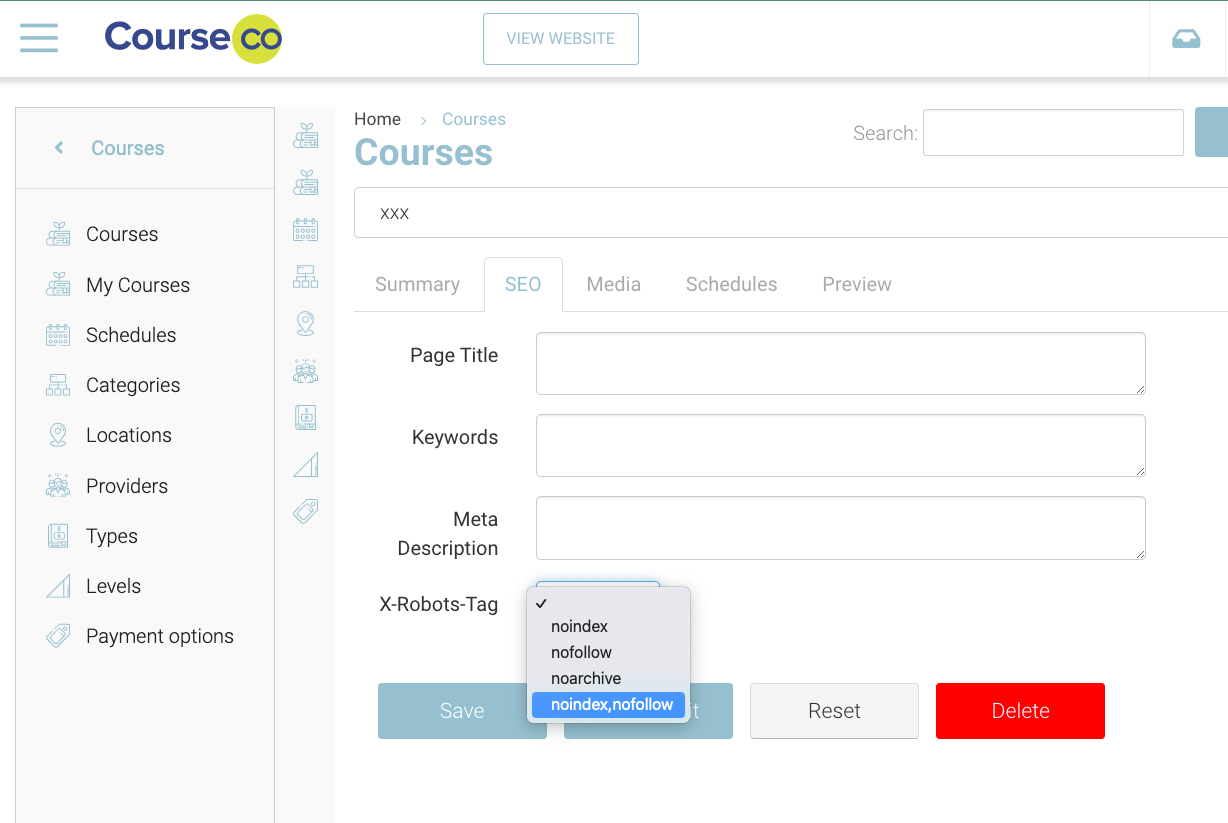
Select the SEO tab, review the options
-
Page Title - enter the page title here
-
Keywords - enter in your keywords here, using commas inbetween each phrase
-
Meta Description - enter the short summary here
-
X-Robots-Tag - leave blank if you want google to scrawl your site. Follow the below steps if you do not want this course to appear in searches
-
Courses | How to exclude courses from appearing in SEO searches
You may want to create client specific courses that are not crawled by google.
You will need to edit each course and update the setup to stop google crawling.
Turn off SEO on Courses
-
Login as Admin
-
Open Courses Plugin
-
Select a course
-
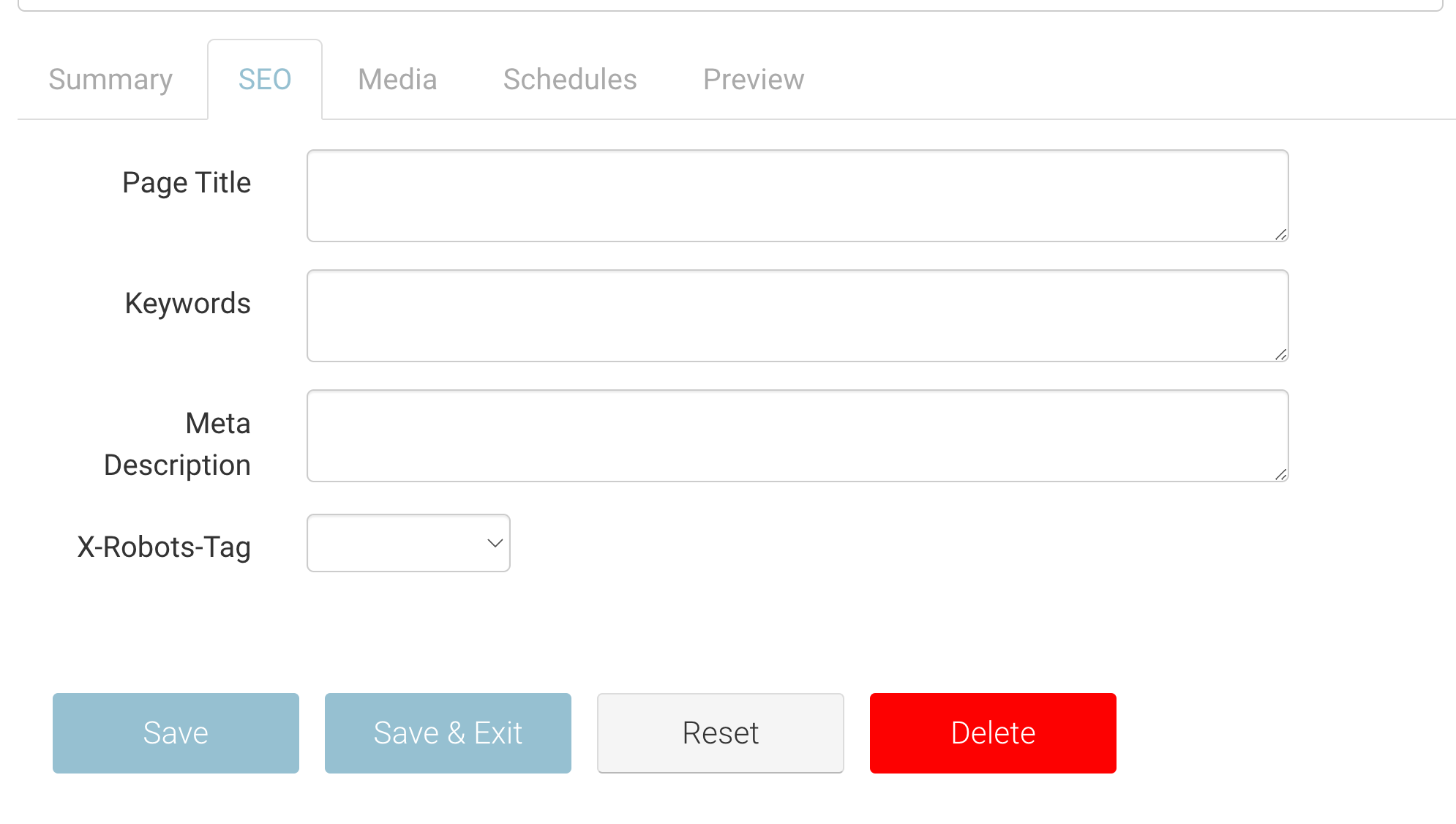
Select the SEO tab
-
On the ‘X-Robots-Tag’ select ‘No Index, No follow’ from the dropdown
-
Save course
Outcome:
The course will not be visible by Search Engines.
This update may take approx a week to update via google