
You can add unlimited locations to the platform. These locations are used for your schedules location.
You can add Primary locations (Building/hotel) and sub-locations (Room 1)
Adding a Primary Location
-
Login as admin
-
Select Courses on the left menu
-
Select Locations on the sub-menu
-
Select Add Location
-
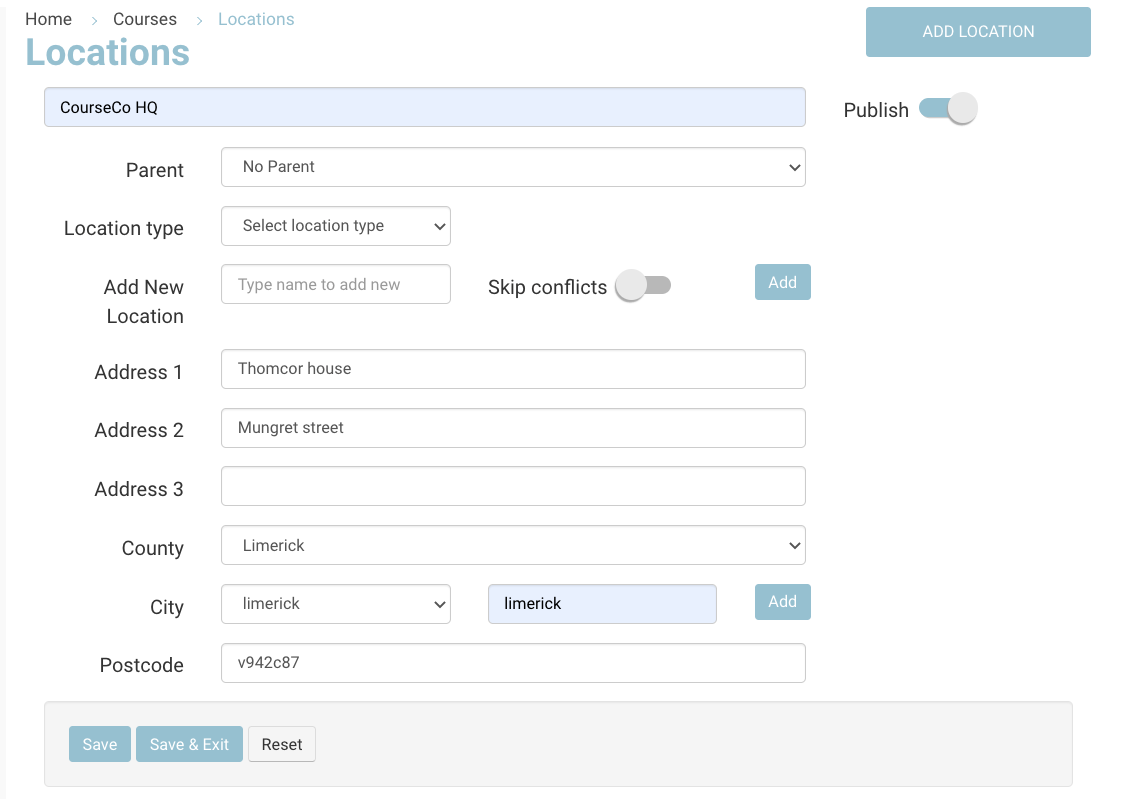
Enter the Location title eg CourseCo HQ
-
Leave Parent input blank
-
Enter the location type eg Building
-
Add the full address
This address can be populated into confirmation & reminder emails
9. Save
Outcome:
-
This location will be available to select when creating a schedule
-
Your website will display this filter on the course list/course detail page
-
The address can be populated in automated emails
Adding a Sub-Location
-
Login as admin
-
Select Courses on the left menu
-
Select Locations on the sub-menu
-
Select Add Location
-
Enter title eg Room 1
-
In parent input, select CourseCo HQ from the dropdown
-
Select Location type eg room
-
Save
Outcome:
-
This sub-location will be available to select when creating a schedule
-
The sublocation name can be populated in automated emails
-
The student timetable displays this sub-location
Adding the location Online
By default, your project already has an online location added
-
Login as admin
-
Select Courses on the left menu
-
Select Add Location
-
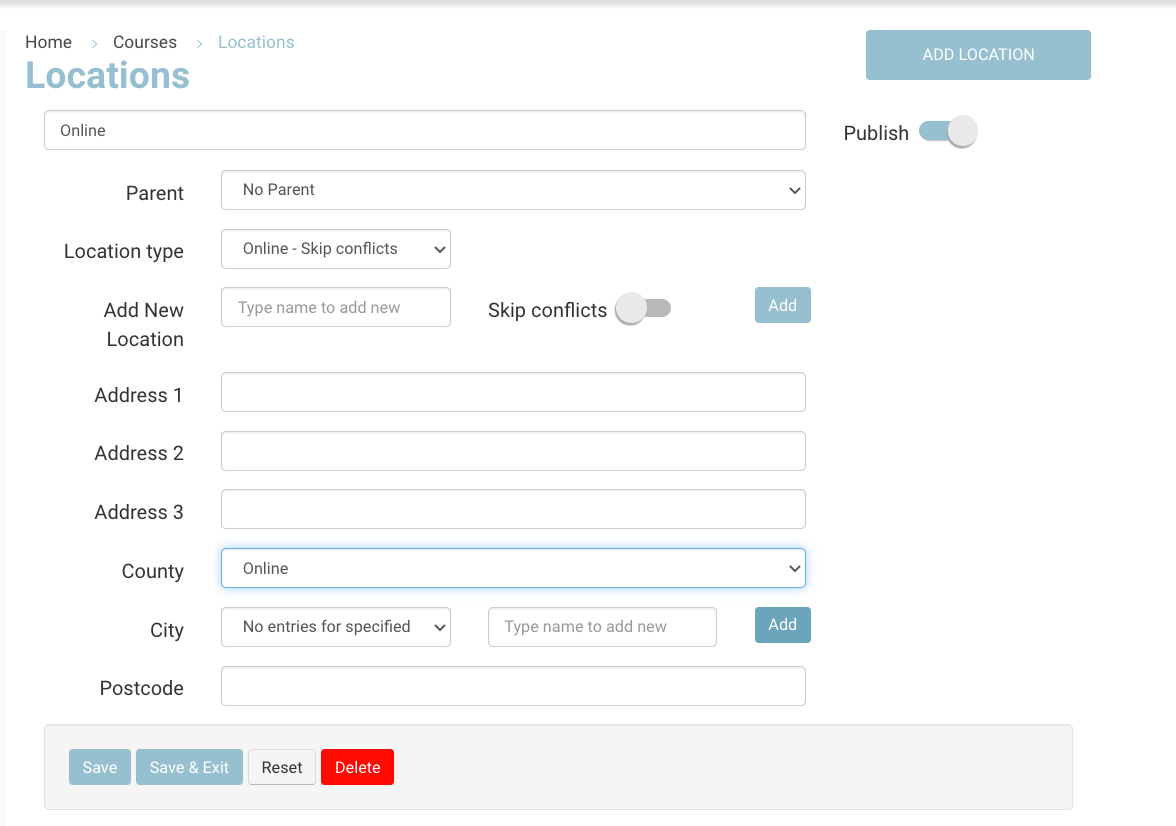
Enter title eg Online
-
Leave parent location blank
-
Select Location type eg online - skip conflicts
Skip conflicts relates to Timetable planner conflicts - see here for more details on conflicting locations
7. Leave address lines blank
8. In the county, select Online from the dropdown
9. Save
Outcome:
-
This location will be available to select when creating a schedule
-
Your website will display this filter on the course list/course detail page