Uploading your Images to the platform
-
Login as Admin
-
Open the left menu Media
-
Select Upload or drag and drop the image
-
On the preset popup, select Preset ‘Course Featured Image’
The preset is configured to a Square by default, so please size your image to be square before uploading for best quality
Outcome: this image is now saved to the media folder and can be applied to a course
Assigning an Image to a Course
Ensure you have uploaded your image to the media folder first
-
Login as Admin
-
Go to Courses > select a course
-
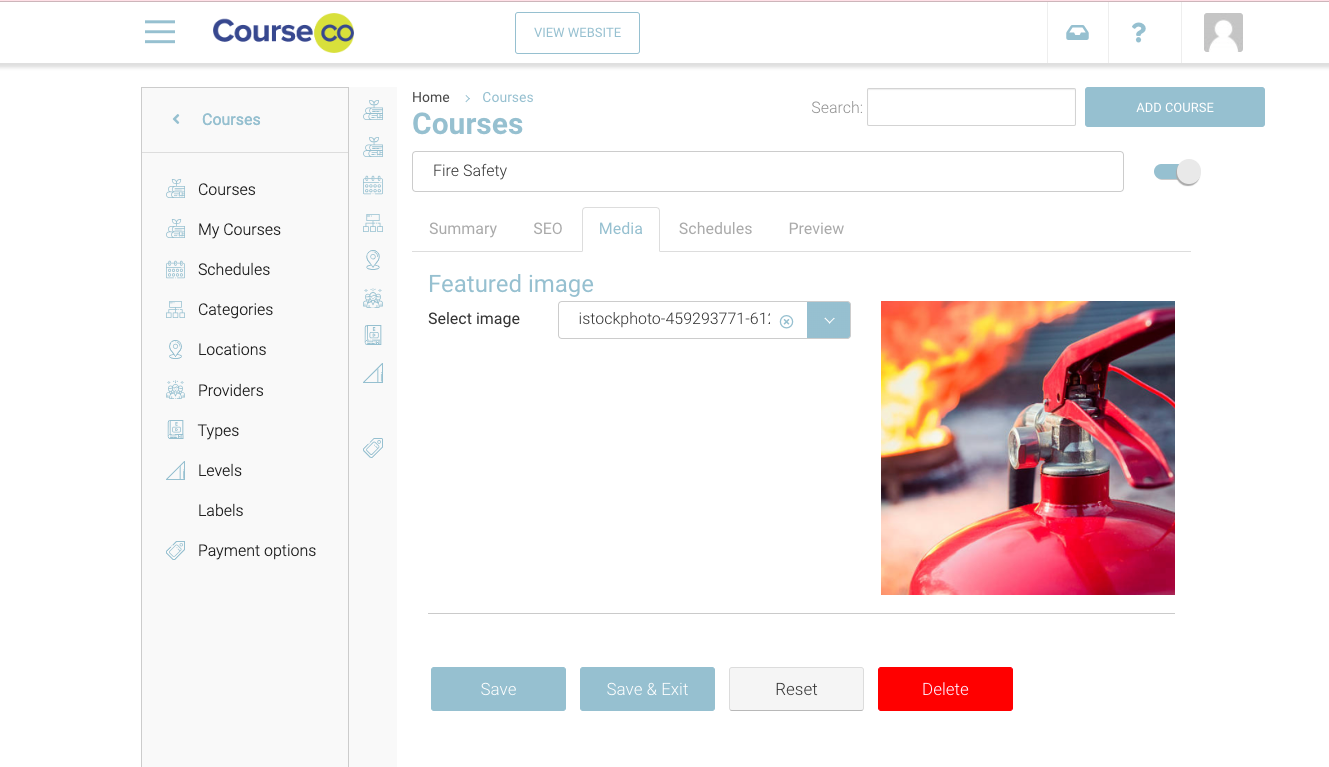
Navigate to the Media Tab
-
Within the ‘Featured image’ section, please expand the dropdown
-
Select the specific image
-
Save course
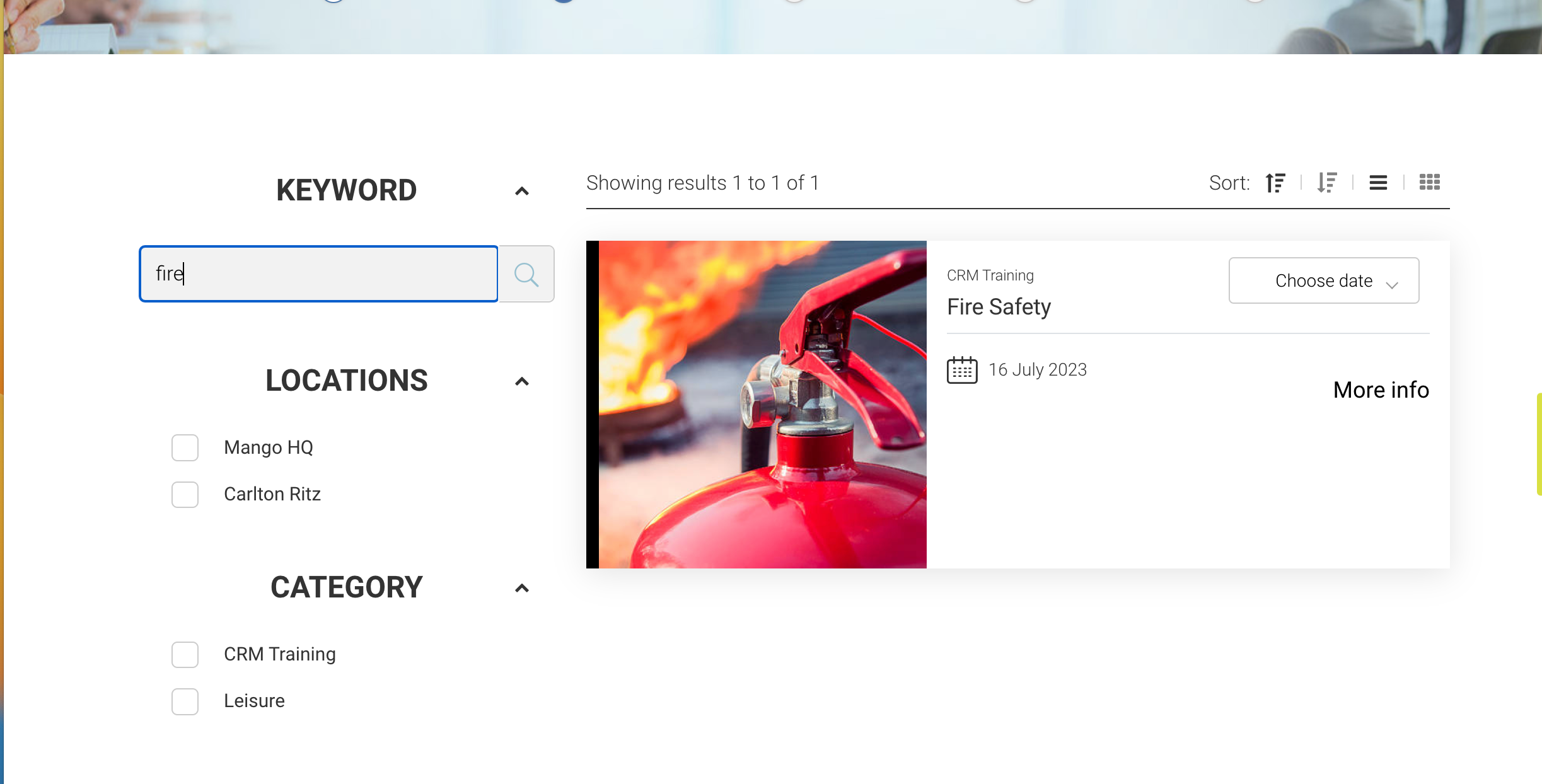
Outcome: The image has now been saved to the course and is displayed on the course-list page