
This guide explains how to create and manage lookup values used when setting up courses, including Levels, Categories, and Providers (Accreditation Bodies).
When to Use This
Use this when setting up your system or adding new options that will be selected when creating courses.
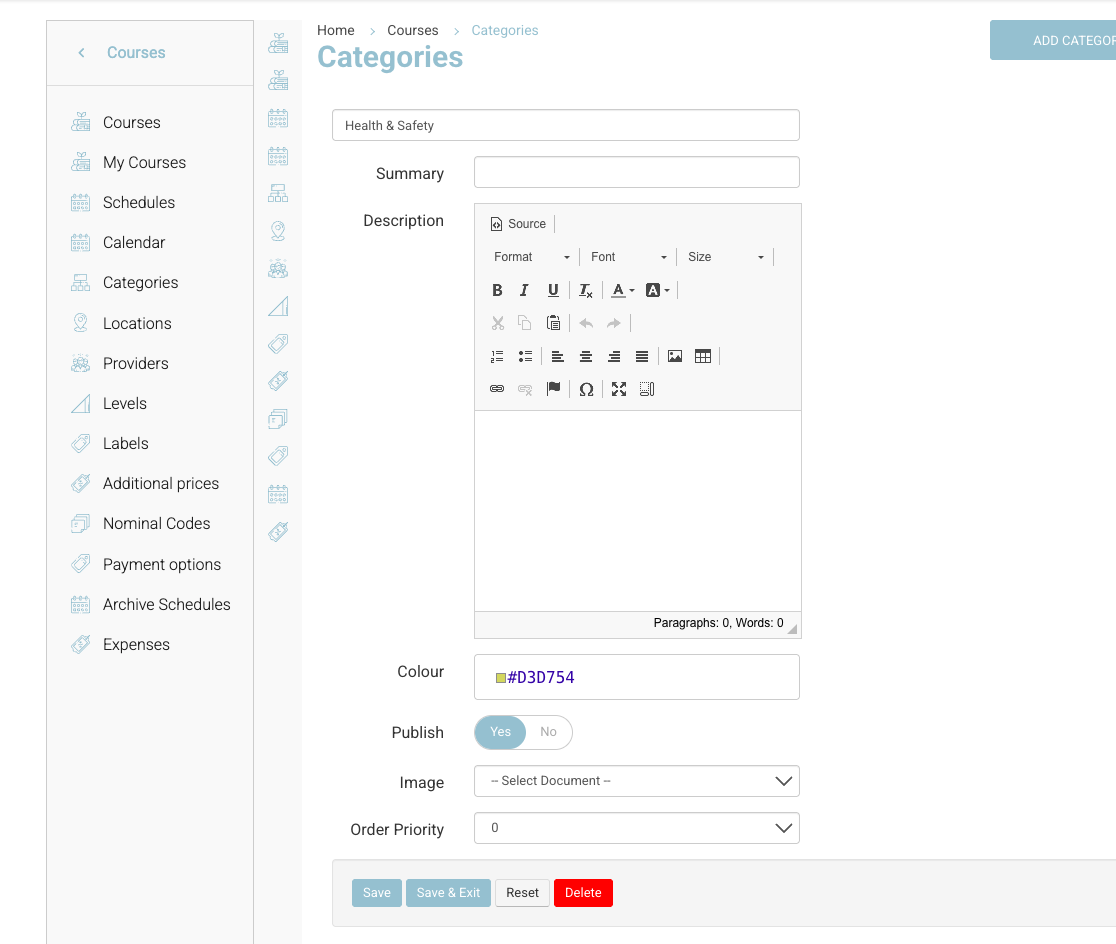
Adding a Category
Categories are used to group and organise courses.
-
Log in as an admin
-
Navigate to Courses > Categories
-
Click Add Category
Enter:
-
Title (required)
-
Summary (optional - for internal use)
-
Description leave blank
-
Colour (optional) - displays on course-list
-
Image - leave blank
-
Order Priority leave blank
-
Set Publish = Yes
-
Click Save
Adding a Provider (Accreditation Body)
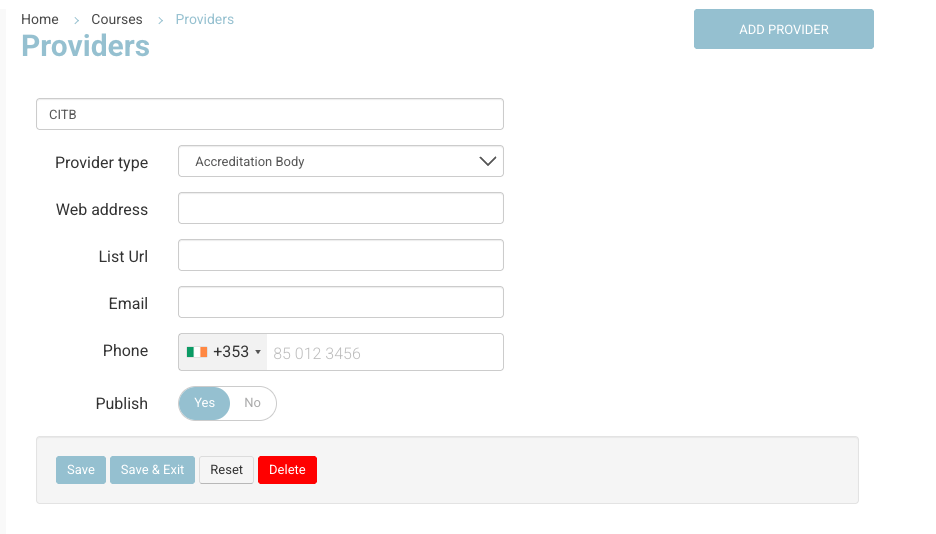
Providers are typically used for accreditation bodies (e.g. QQI, PHECC).
-
Log in as an admin
-
Navigate to Courses > Providers
-
Click Add Provider
Enter:
-
Title (Provider name)
-
Provider Type
-
Select Accreditation Body where applicable
-
-
Set Publish = Yes
-
Click Save
Adding a Level or Type - Optional
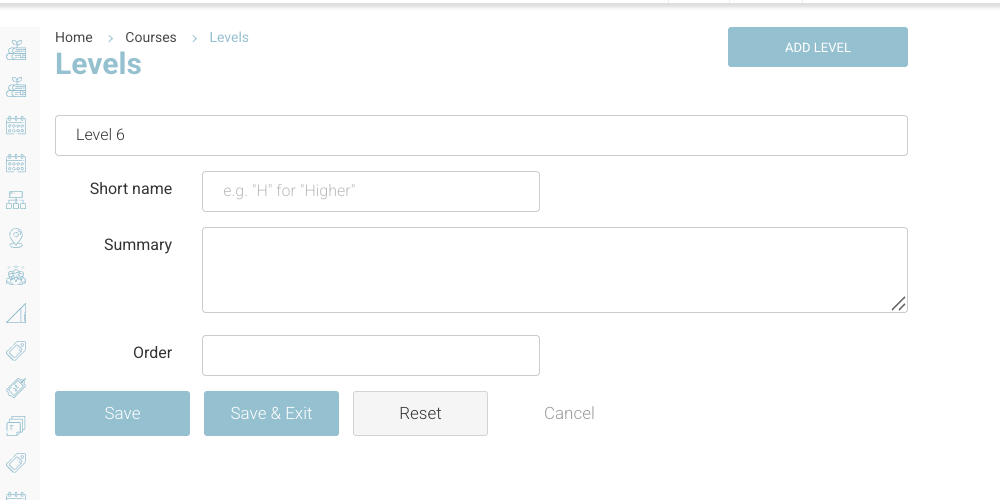
Levels are used to define the standard or qualification level of a course (e.g. Level 6, Beginner).
-
Log in as an admin
-
Navigate to Courses > Levels
-
Click Add Level
Enter:
-
Title (required)
-
Short Name (optional)
-
Summary (optional)
-
Order - leave blank
-
Click Save
What Happens Next
-
These lookups will be available when creating or editing courses
-
You can assign:
-
Category
-
Accredited by (Provider)
-
Level
-
Important Notes
-
Lookups must be created before they can be used in courses
-
Only published categories and providers will be selectable
-
Keep naming consistent to avoid duplicates
Recommended Tips
-
Set up your Levels and Categories before bulk creating courses
-
Use clear naming conventions across all lookups
-
Avoid creating duplicate or overlapping categories