
CourseCo now supports multi-currency pricing at the schedule level, allowing administrators to choose the currency for each schedule instance. This controls how prices display on your website, how payments are taken, and the currency used on invoices and booking records.
Add on Feature, contact us to get a demo!
Overview
With Multi-Currency enabled in CourseCo:
-
Each schedule can be assigned a currency: Euro (€), GBP (£)
-
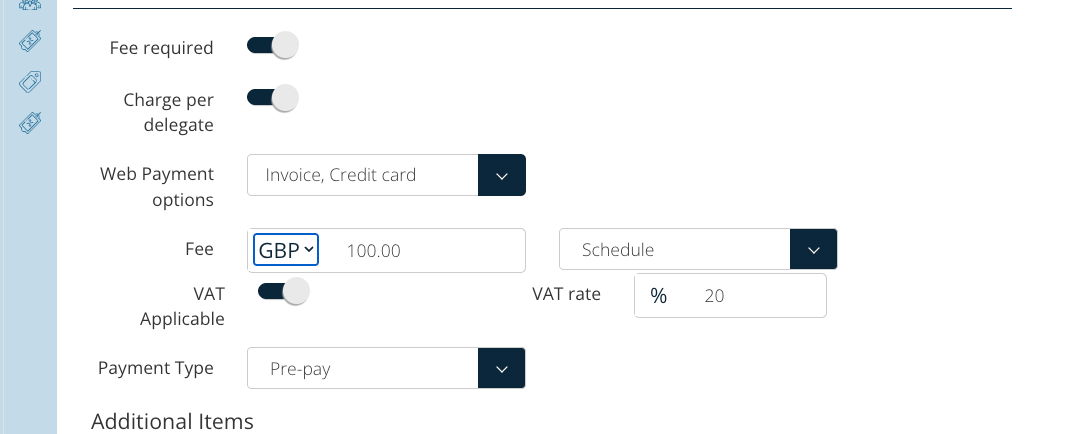
Currency selection happens on the Fees tab of each schedule.
-
VAT applicability and VAT rate are controlled per schedule.
-
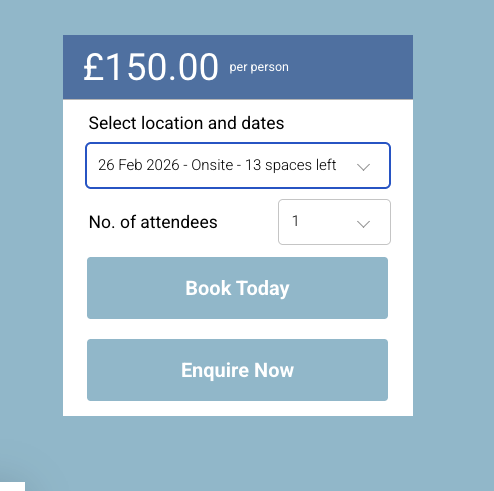
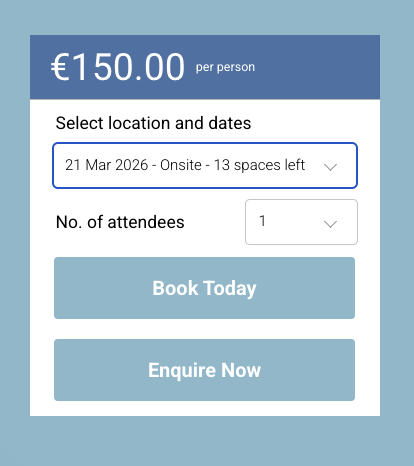
The selected currency displays on the course detail page, checkout, booking, invoice, and Stripe payment.
-
There is no automatic currency conversion in Version 1 — admins enter prices manually.
2. Setting the Currency on a Schedule
Steps to configure currency and pricing:
-
Open the relevant Schedule.
-
Navigate to the Fees tab.
-
In the fee input section, select the currency from the dropdown list:
-
EUR (€)
-
GBP (£)
-
-
Enter the schedule price in the chosen currency.
Managing VAT
Each schedule allows you to control VAT settings independently:
-
VAT Applicable: Yes/No
-
If your project is configured to be VAT-applicable, all new schedules will default to VAT enabled.
-
The default VAT rate is 20%, but the admin can override this if needed.
-
VAT rules apply per schedule, regardless of currency.

3. Website & Customer Experience
When a schedule is assigned a currency:
-
The course detail page displays the price in that currency.
-
The checkout reflects the same currency and symbol.
-
Stripe processes the payment in the currency selected on the schedule.
-
All booking records store the fee in that currency.
-
Invoices are generated in the currency of the schedule at the time of booking.
Important:
There is no conversion between currencies in this version. The admin must decide the appropriate price for each currency.
4. How Multi-Currency Appears to Admins
Booking List Screen
-
The fee column displays the currency symbol for each booking, such as:
-
€150 -
£180 -
$200
-
Reports
-
Reports show values in the original booked currency.
-
There is no cross-currency summarisation or conversion in v1.
5. Editing Currency on an Existing Booking (Admin Use Only)
Edit transaction on a booking must be enabled for you
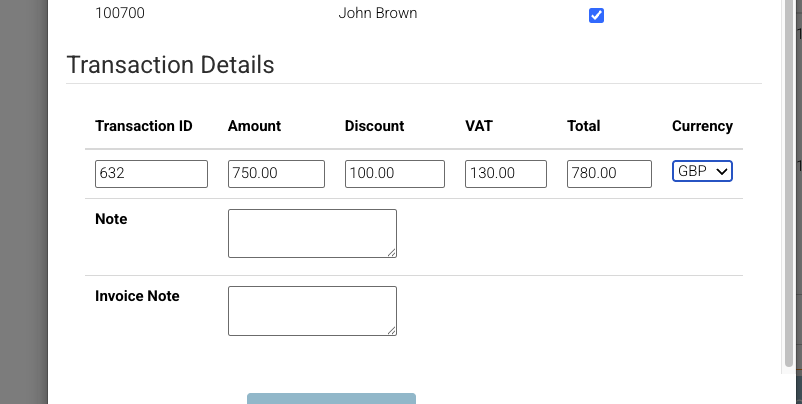
In some cases, an admin may need to update the currency on a booking—for example, to regenerate an invoice in a different currency.
An admin can update the currency after the booking is created:
Steps to edit booking currency:
-
Open the Booking.
-
Select Edit Transaction.
-
Change the Currency (e.g., EUR → GBP).
-
Click Save.
Notes:
-
This does not trigger any currency conversion.
-
This does not reprocess or adjust payments.
-
It simply updates the booking currency for internal admin purposes and future invoice generation.