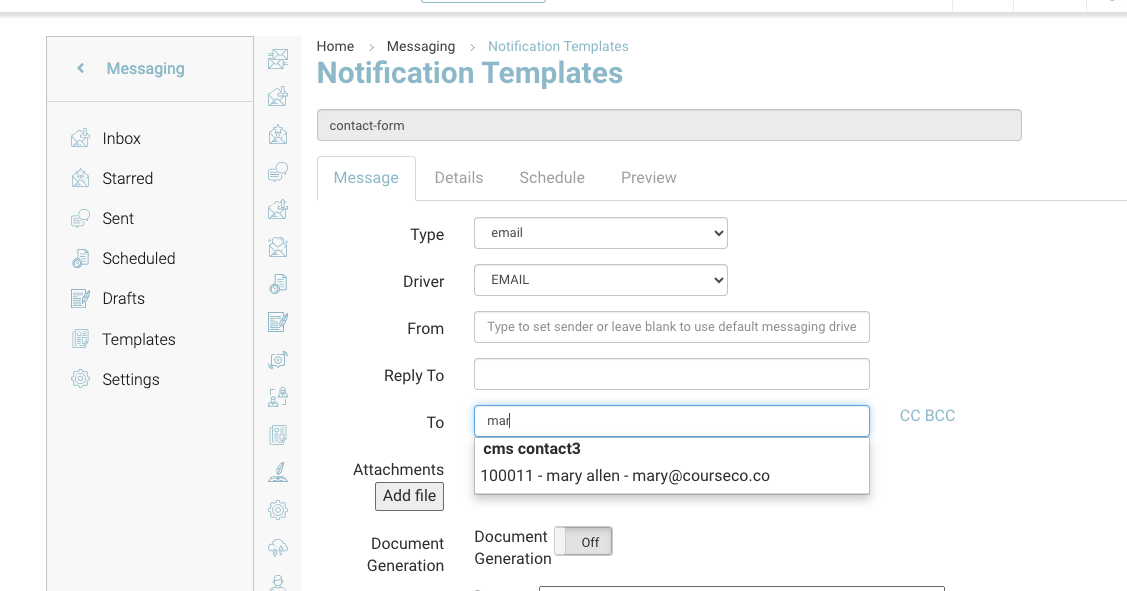
When a website guest completes the contact us / Enquiry form they will receive a ‘Thank you for contacting us’ email. A copy of the entered fields can be sent to the specified admin email also. Below are the steps to check or assign a admin contacts email to receive a copy also.
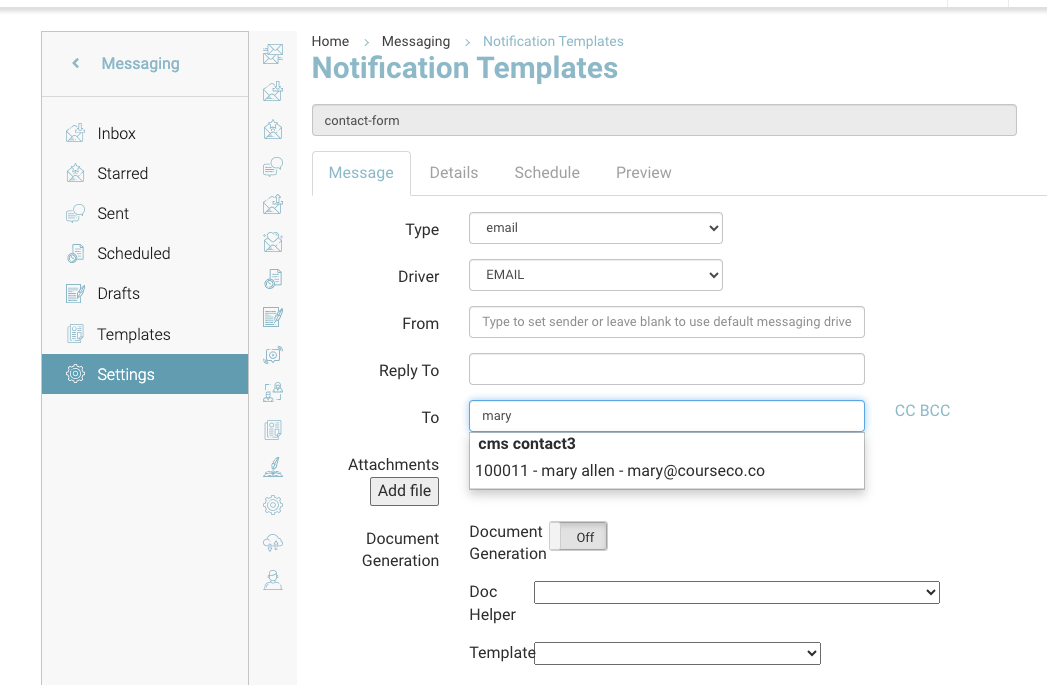
How to assign an admins email to the contact form template
-
Login as admin
-
Navigate to the left menu and select Messaging
-
On the messaging Sub menu, select ‘Templates’
-
Using the global search, enter ‘Contact Form’ (this is the subject line of the admin contact form email)
-
Select the contact form template and within the edit screen navigate to the ‘To’ input\
-
Use the search to enter the contact name
-
Select the correct name and Save
The contacts email must exist in your contacts. You can’t add an email that is not a contact on the system.
Outcome:
When a guest submits a contact form, the assigned email will receive the confirmation.
The information populated in the template comes from the data entered in the contact us for
Fields in the form - Name, email, phone, address and message.
When a guest submits a contact form/enquiry, they will also get added to your CRM.