With CourseCo’s Advanced Booking features, trainers on your platform can add, remove and edit delegates on an in-company / private training bookings. This article is a detailed guide on how trainers can perform these actions in their own portal.
This feature is an add on, please contact support@courseco.co or contact your CRM Lead within CourseCo to learn more.
Trainer: In-company / Private / In-House bookings
A trainer linked to an in-company booking can view their bookings on the portal. Additionally, they also get features where they can add a delegate, remove a delegate and mark their attendance status.
You can find more about the workflow of an in-company booking in our user guide.
You can find more about how to mark attendance as a trainer in our user guide.
Advanced Trainer Bookings Management
To view bookings where you are a trainer, follow the steps below:
-
Log in as an admin
-
Go to ‘My account'
-
In the left menu, click ‘Bookings’
-
You will be redirected to bookings list view
-
Trainers can view all bookings for schedules where they are a trainer
-
Trainers can only add/remove delegates for an in-company booking
-
Trainers can update Attendance for all the delegates booked on their schedules
Viewing Todays Booking and Adding a new Delegate
Note: In-company / In-house / Private training bookings are created for schedules which have ‘Charge per delegate= OFF’
To add a delegate to an in-company booking where you are a trainer, please follow the steps given below:
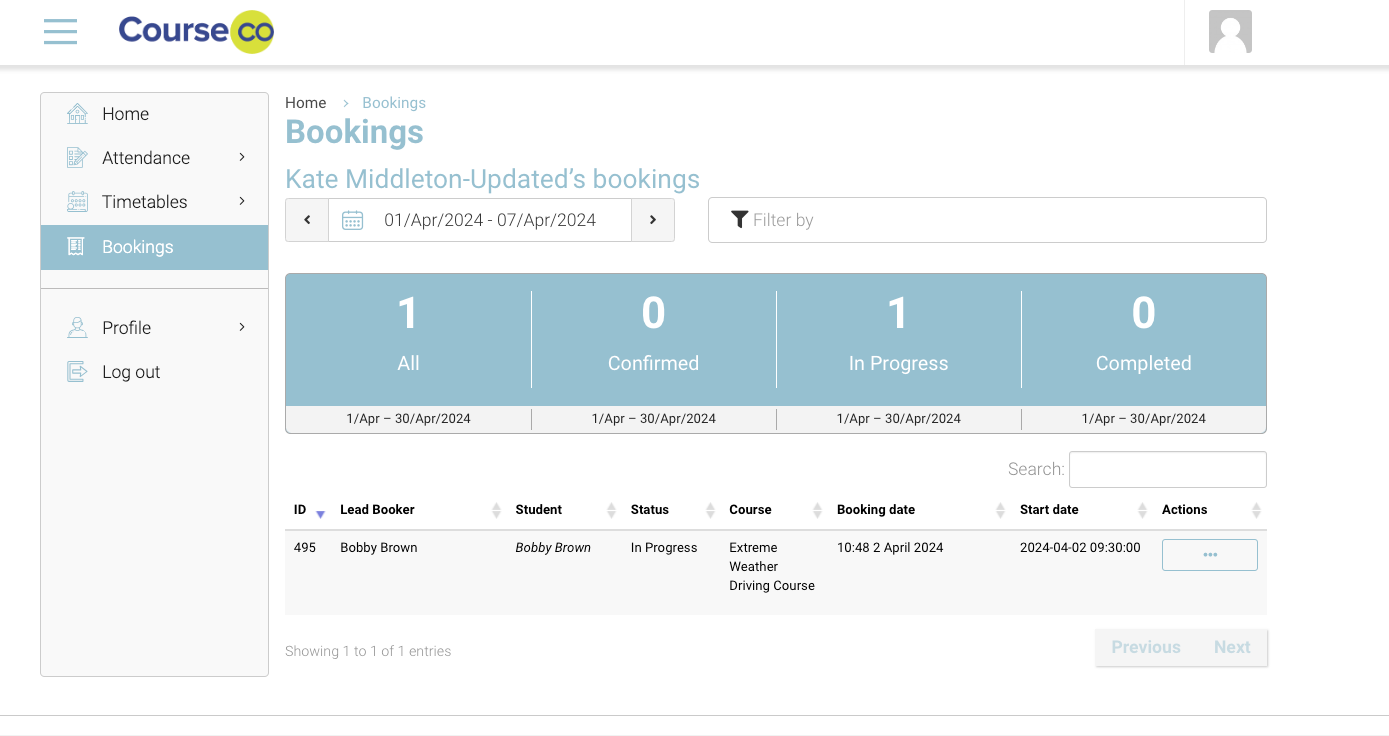
By default, the trainer will see todays bookings. They can change the filter to see other bookings (based on time slot date)
-
In bookings, you can see an ‘Action’ option for when it is an in-company booking
-
Click the ‘Action’ option
-
Select ‘Add delegate’ from the dropdown presented as shown in the image below
-
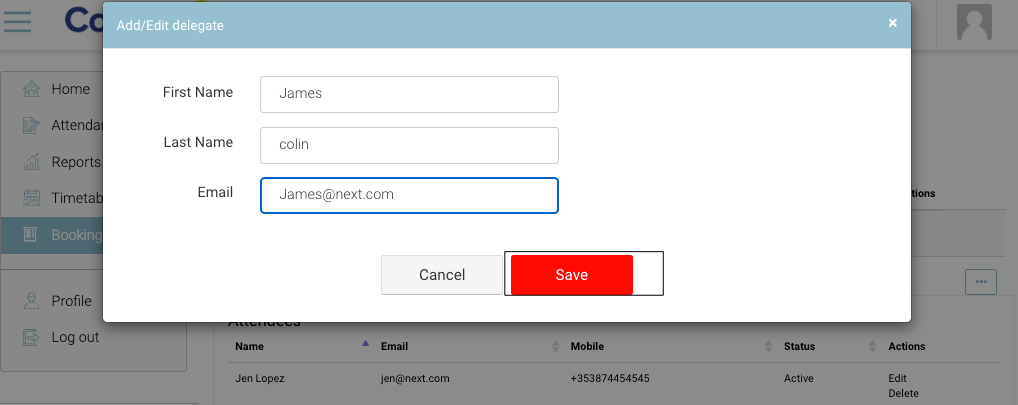
Enter the first name, last name and email in the pop-up form
Please note that: First name, last name and email are mandatory fields and must be entered
-
Click ‘Save’ to add the delegate to the booking
Outcomes
-
Delegate’s information will be saved in Admin Contacts.
-
Delegate will be added to the booking
-
Trainers can take attendance for the added delegates
-
Admins can send a login invitation to the newly added delegate
-
Delegates can login and view their bookings and courses
-
Delegates will be added as a student and linked to the organisation which has this booking
-
Delegates will be added to the automated emails eg Course ended, send cert automation..etc
Duplicate detection alert
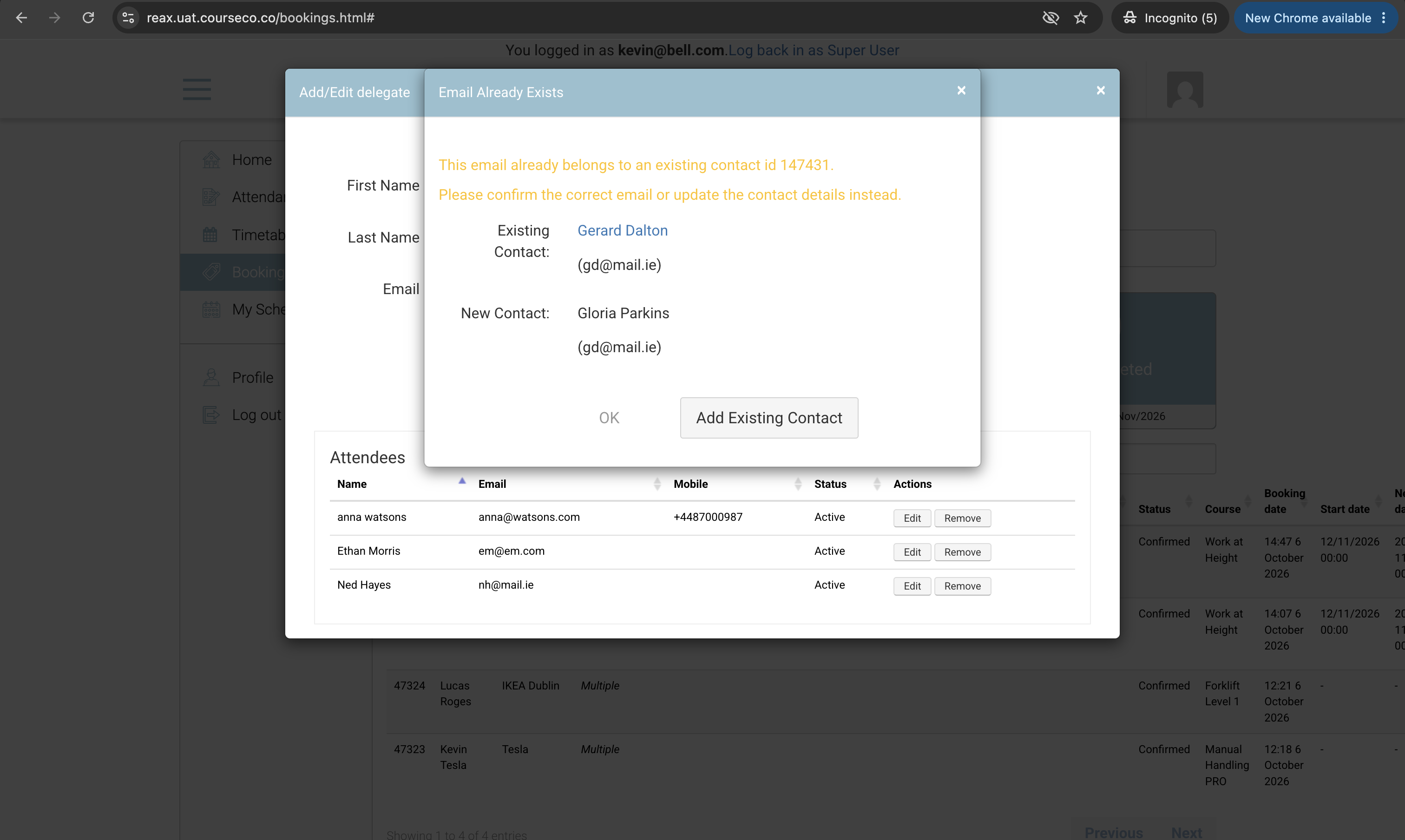
When a trainer adds a delegate, CourseCo checks whether a contact already exists with the same email address.
-
If the email address already exists, but the name entered is different, the trainer will see a duplicate detection alert.
-
The alert confirms that a contact already exists with that email address and asks whether the trainer wants to add the existing contact to the booking.
-
If the trainer chooses to continue, the existing contact will be added to the booking.
-
If the trainer does not want to use the existing contact, they must enter a different email
address, as the email they entered is already assigned to another contact.
Removing a Delegate
To remove a delegate from an in-company booking, please follow the steps below:
-
Login as a trainer
-
In the left menu, click ‘Bookings’
-
You will be redirected to bookings list view
-
Click on a booking to expand and view the list of delegates
-
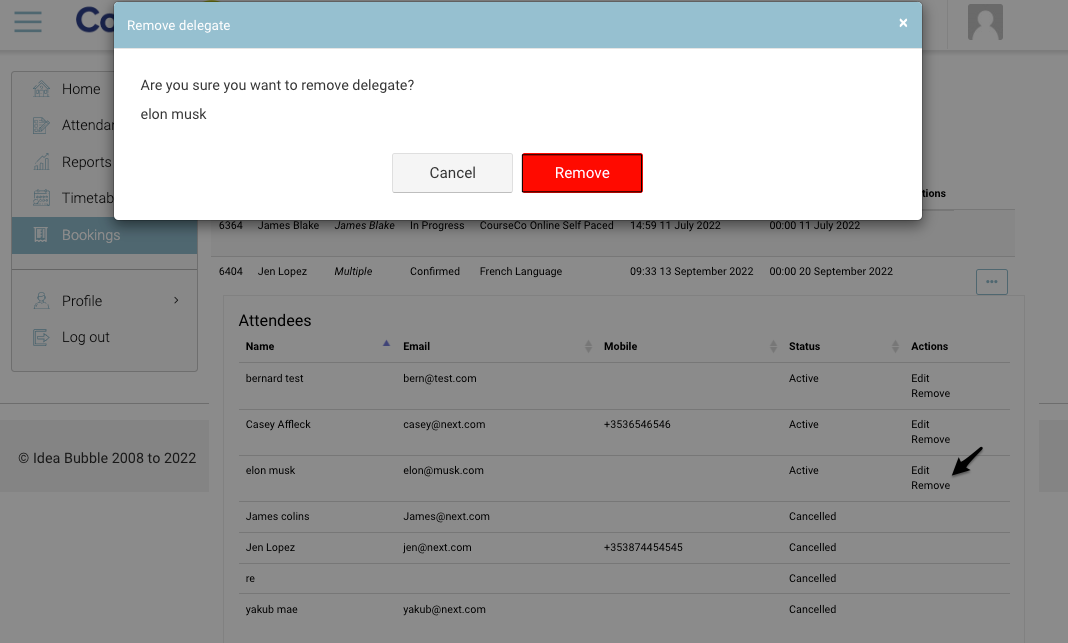
Click ‘Remove’ option in front of the delegate you want to delete
-
Confirm removal by selecting ‘Remove’ as shown in the image below
Outcomes
-
Delegate will be removed from the booking and you can see the status as ‘Cancelled’
-
Admins can view in their portal the removed delegates
-
Removed delegates can no longer view their Online course in their portal i.e. if there was online content on the schedule. This access will be removed from their portal.
-
Removed delegate will be removed from the attendance list
-
Automated emails will not be sent
A delegate is cancelled email will not send when admin or trainer ‘remove’ the delegate
Editing a Delegate
To edit a delegate details, please follow the steps given below:
-
Login as a trainer
-
Go to ‘My account'
-
In the left menu, click ‘Bookings’
-
You will be redirected to bookings list view
-
Click on a booking to expand and view the list of delegates
-
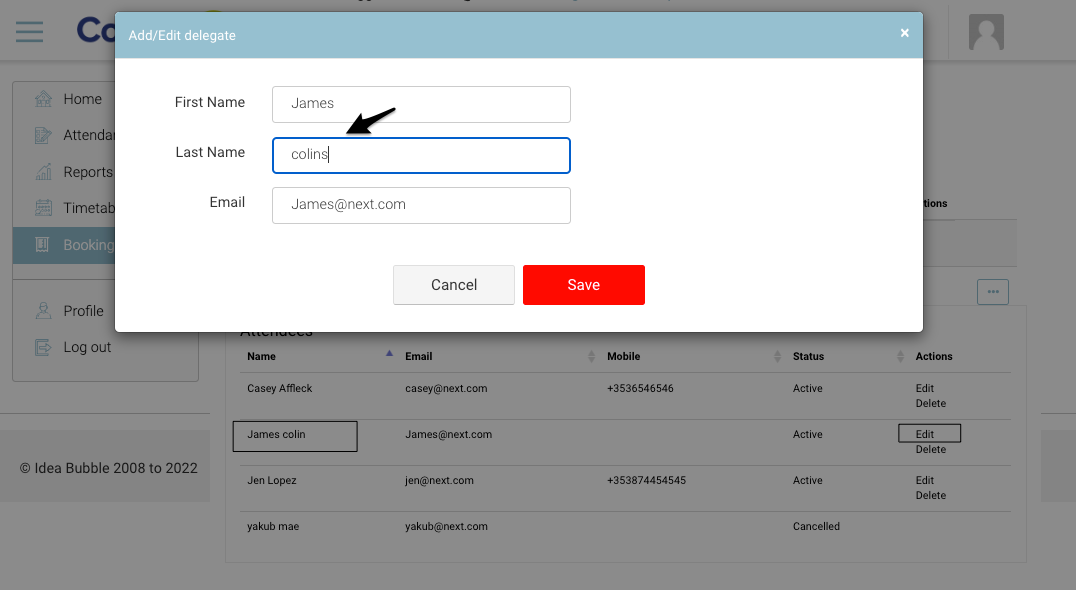
Click ‘Edit’ option in front of the delegate you want to delete
-
Update the details of the delegate
-
Click ‘Save’ to save the updated details of the delegate on the booking
Outcome:
-
Delegate details will be edited and saved in the CRM
-
Admins can view the updates in their portal
Additional Scenario 1
Please note that:
-
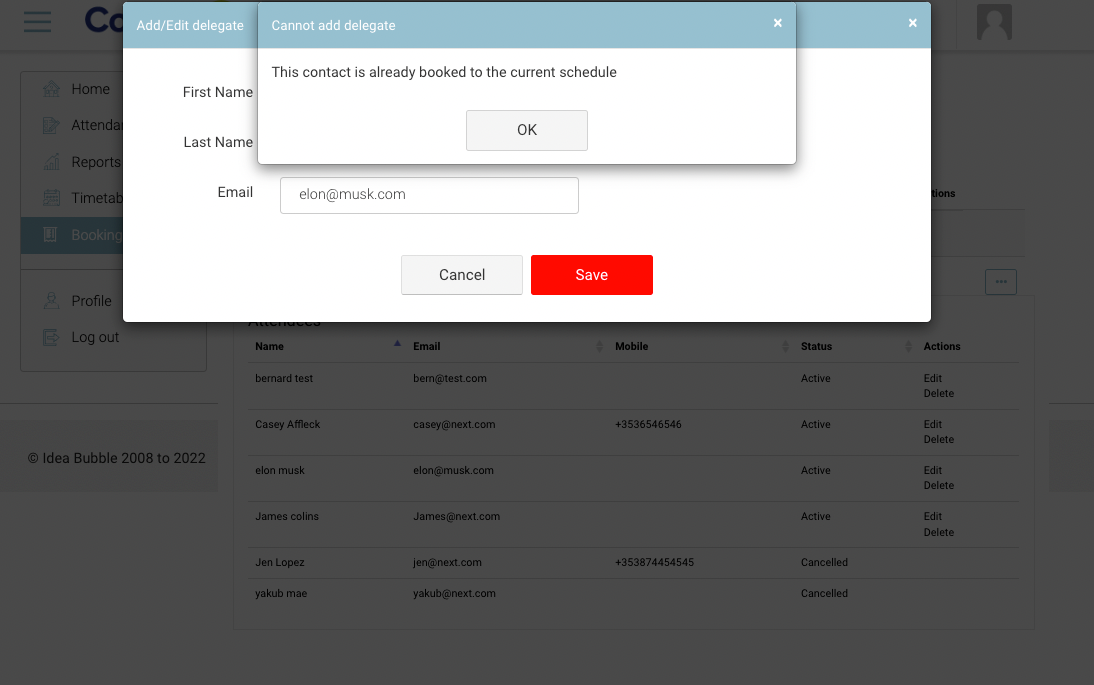
Trainer cannot create a duplicate contact if the contact exists in the CRM. See image for reference:
Additional Scenario 2
Please note that:
-
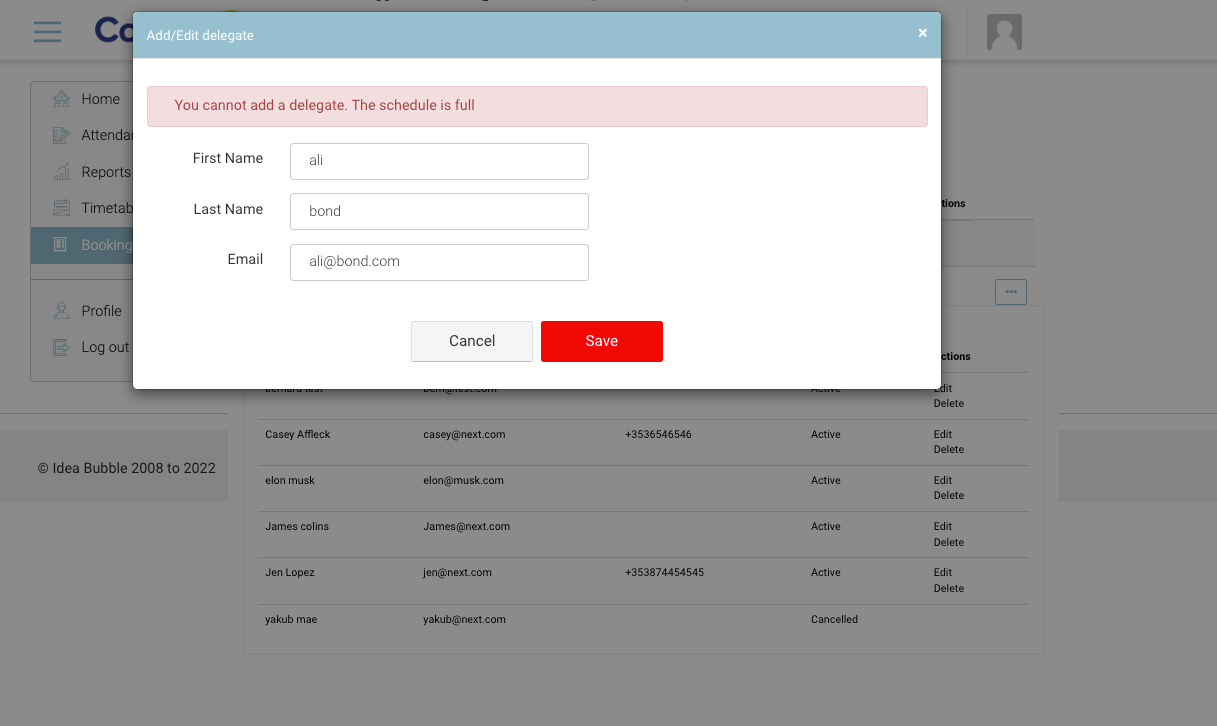
Trainer cannot add a delegate if the schedule capacity is full. See image for reference.