
This is an add on feature and included in Advanced Trainer portal Add on feature.
Trainer | When / How to change a booking from Pending to Complete
Pre-condition | the trainer has been invited to login with ‘Advanced Trainer’ access
-
Login as Advanced Trainer
-
Open Bookings
-
Add delegate names to the booking
-
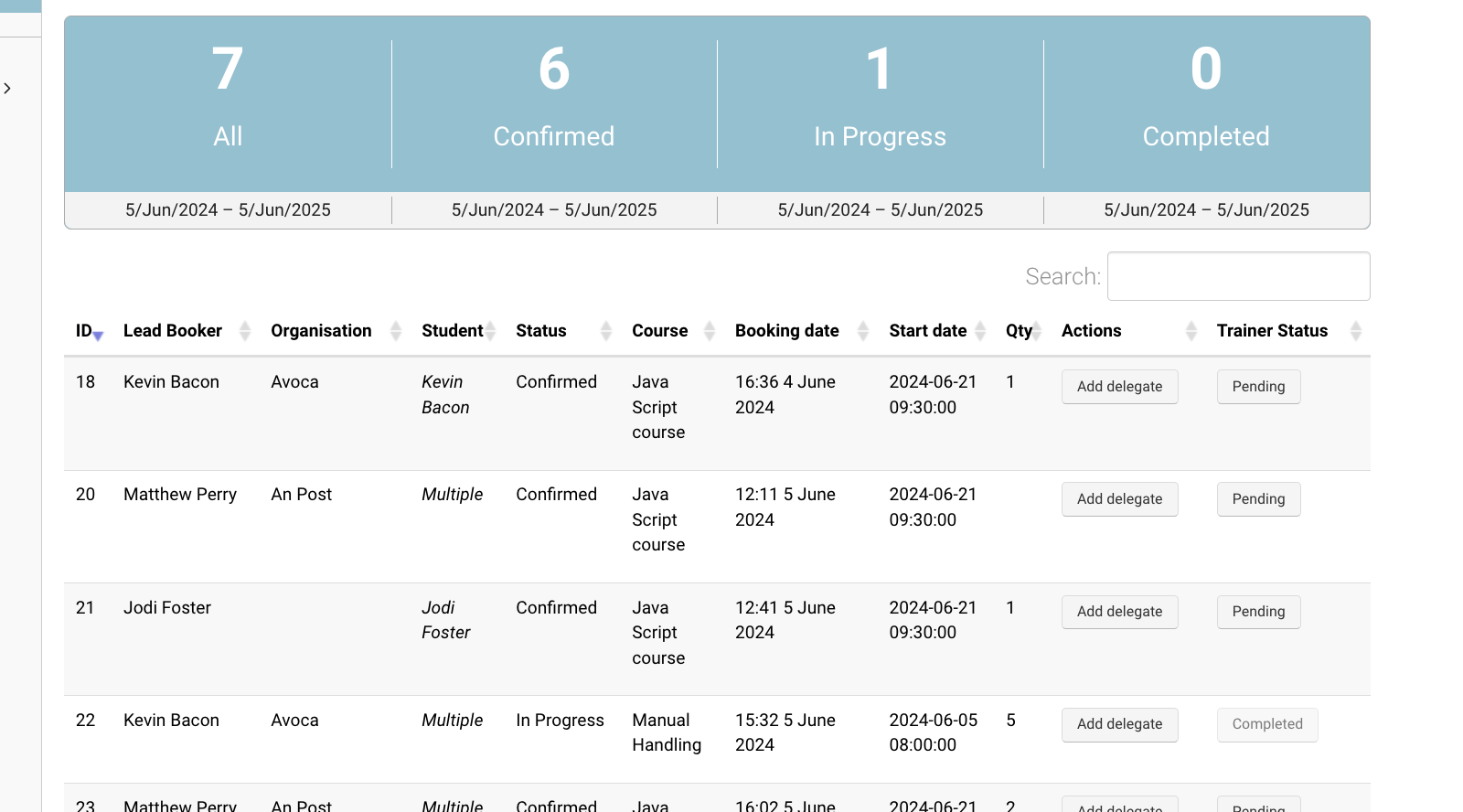
Once all the names have been added, Navigate to the Trainer Status column
-
The Trainer Status Pending will populate on bookings that have not been updated
-
See full user guide on how trainers can add names to bookings here
-
Select the Pending button
-
On the soft warning, they will be asked to confirm
-
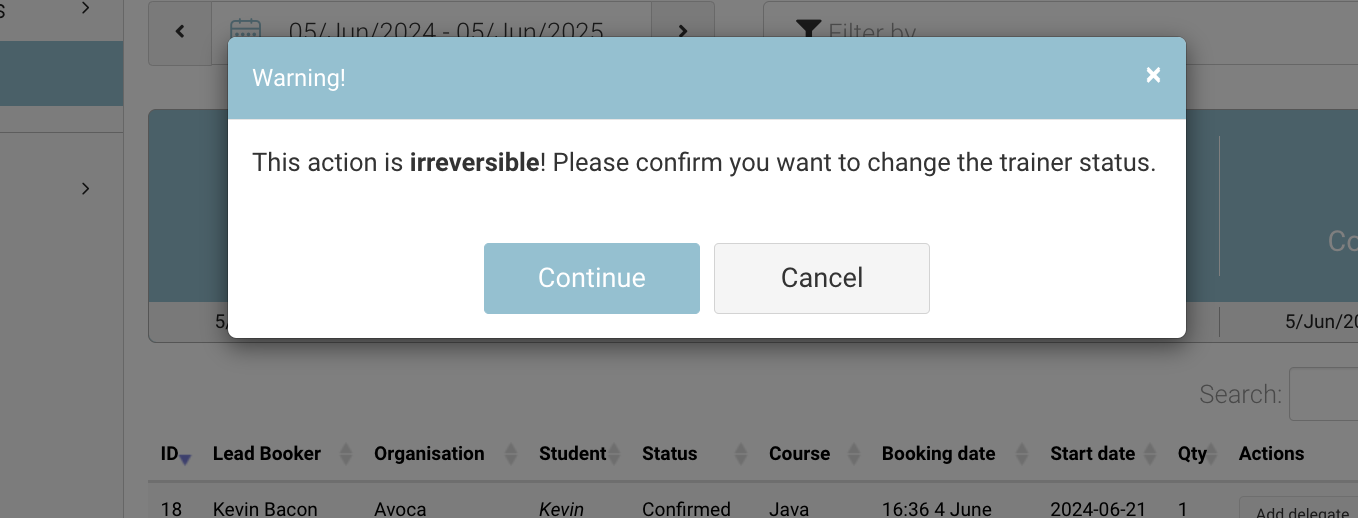
Soft Warning | do you want to compete booking
-
Once Continue is selected, the ‘generate certificate’ automation will start running.
Outcome:
-
The booking has been Completed
-
The ‘Generate Cert’ automation has been trigger i.e. certs have been sent
Admin | How to view Trainer status schedules
-
Login as admin
-
Open Timetables
-
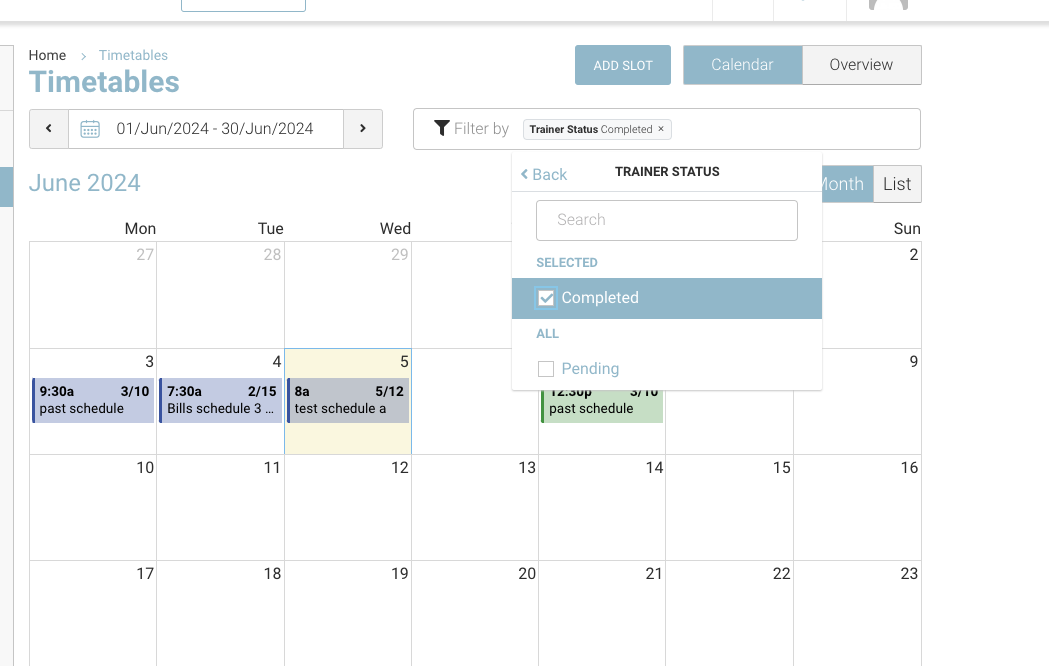
Filter by Trainer Status - Completed or Pending
Outcome:
-
Filtering by Completed, will filter and only show the timeslots where the booking is completed
-
Filtering by Pending, will filter and only show timeslots where the booking is pending
Admin | review Upcoming Bookings report to see Trainer status on a booking