
With CourseCo’s new Trainer portal updates, your contracted trainers can all login to their portal and add their ‘Unavailable’ time. This time will populate on the admin’s global timetable to help them organisation their training calendar.
This is an add on to the Trainer portal. Please contact us to arrange a demo!
Trainer | How to log ‘Unavailable’ time
-
Login as a trainer
-
Open Timetable
-
Select the top right button ‘Add Unavailable Dates’
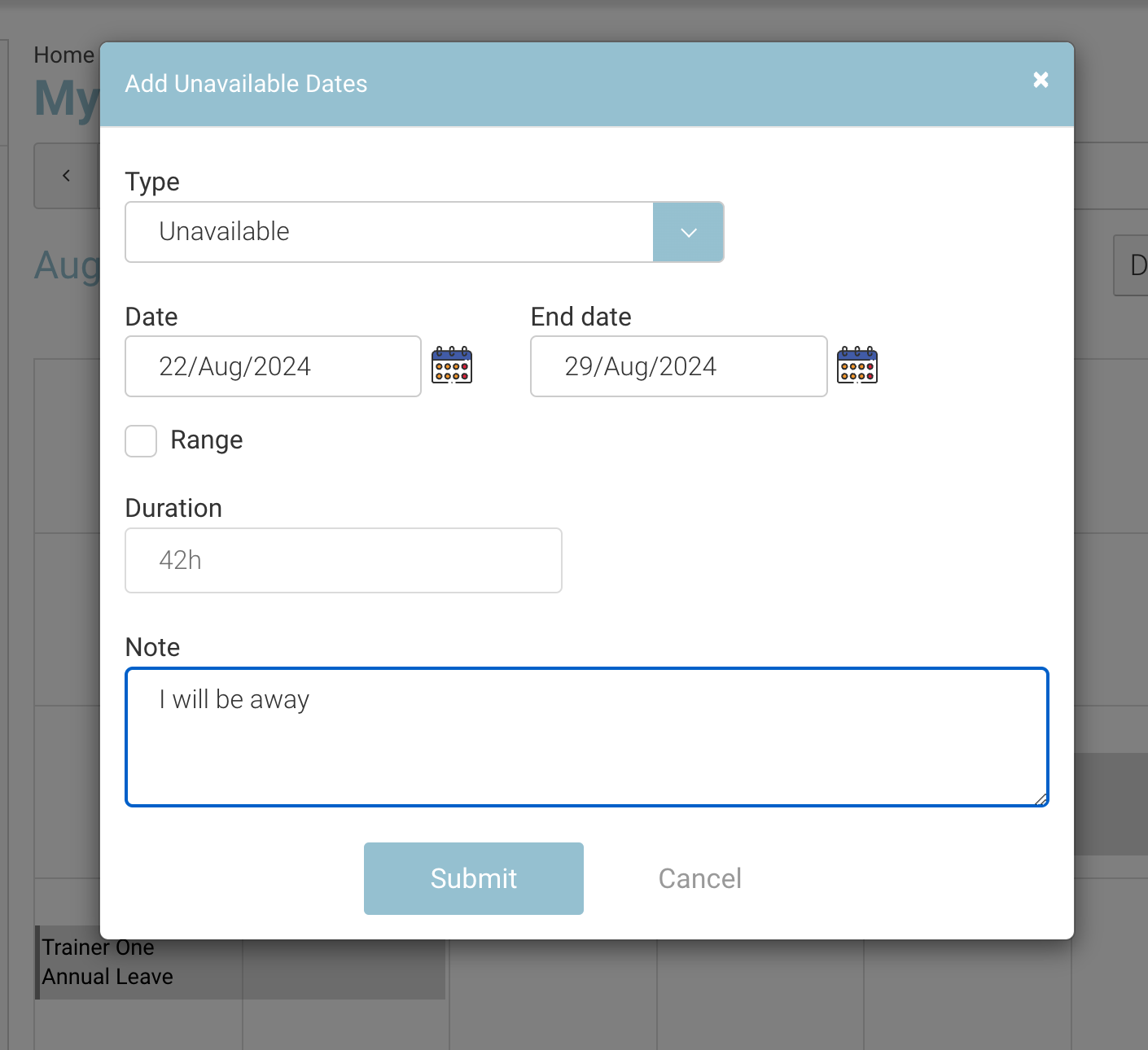
Trainer - adding unavailable time
-
On the popup, add the range of dates or just a start and end time on a specific date
-
Add a note (optional)
-
Submit
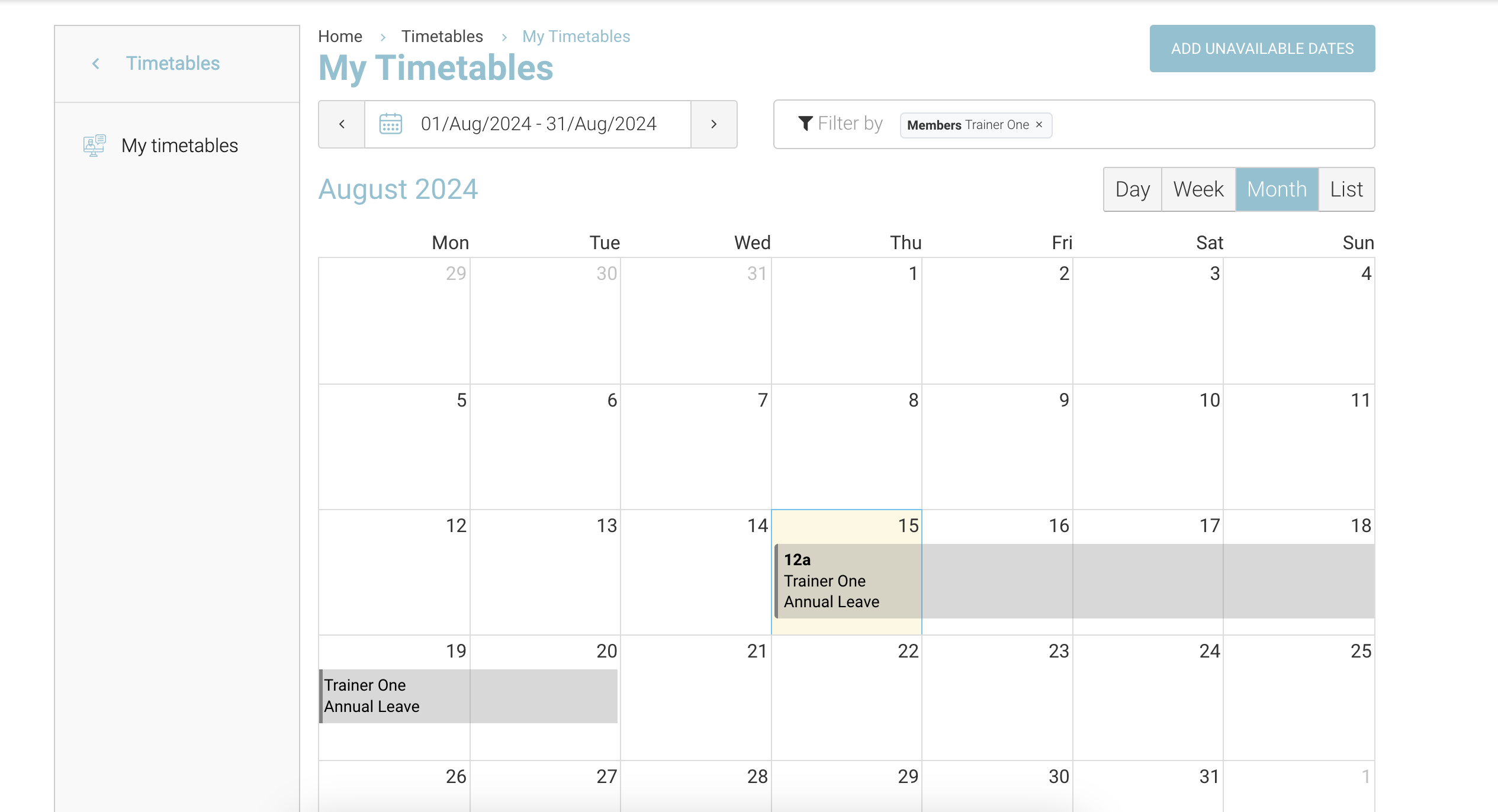
Outcome:
-
A greyed out section will be added to the trainer timetable with the trainer name and note
-
Admin can see this on her timetable also
Admin | Edit Unavailable time for a trainer
If a trainer adds the incorrect dates, admin have the ability to edit or delete it
-
Login as Admin
-
Open timetables
-
Find and select the unavailable time
-
Edit the date or time
-
Save
Outcome:
-
The timetable is updated for admin and the trainer
Admins still have the ability to schedule a trainer who is unavailable. The unavailable time has not link to creating schedules