
Some trainers might not work full time and need to accept training before admin can assume they are available. Admins now have the ability to Add a trainer to a schedule, trainer will save as pending and the trainer must login to their portal and accept or decline the training. The benefit of using this feature means you are not ringing/texting trainers and there is an audit trail in CourseCo i.e. trainer accepted on x date at x time.
Admin | How to send the automated email to request training
-
Login as admin
-
Open an existing schedule or create a new schedule
-
Add the schedule as usual and assign a trainer
-
Save the schedule.
Outcome:
-
The schedule is saved with a ‘pending’ trainer
-
An email is sent to the trainer with the course name and dates of training.
Trainer | Accepting or declining the training dates
-
Once the email is received, the trainer can login to his portal and open My Schedules
-
Within My Schedules, the trainer will see all his schedules listed with a trainer status - pending, approved, declined.
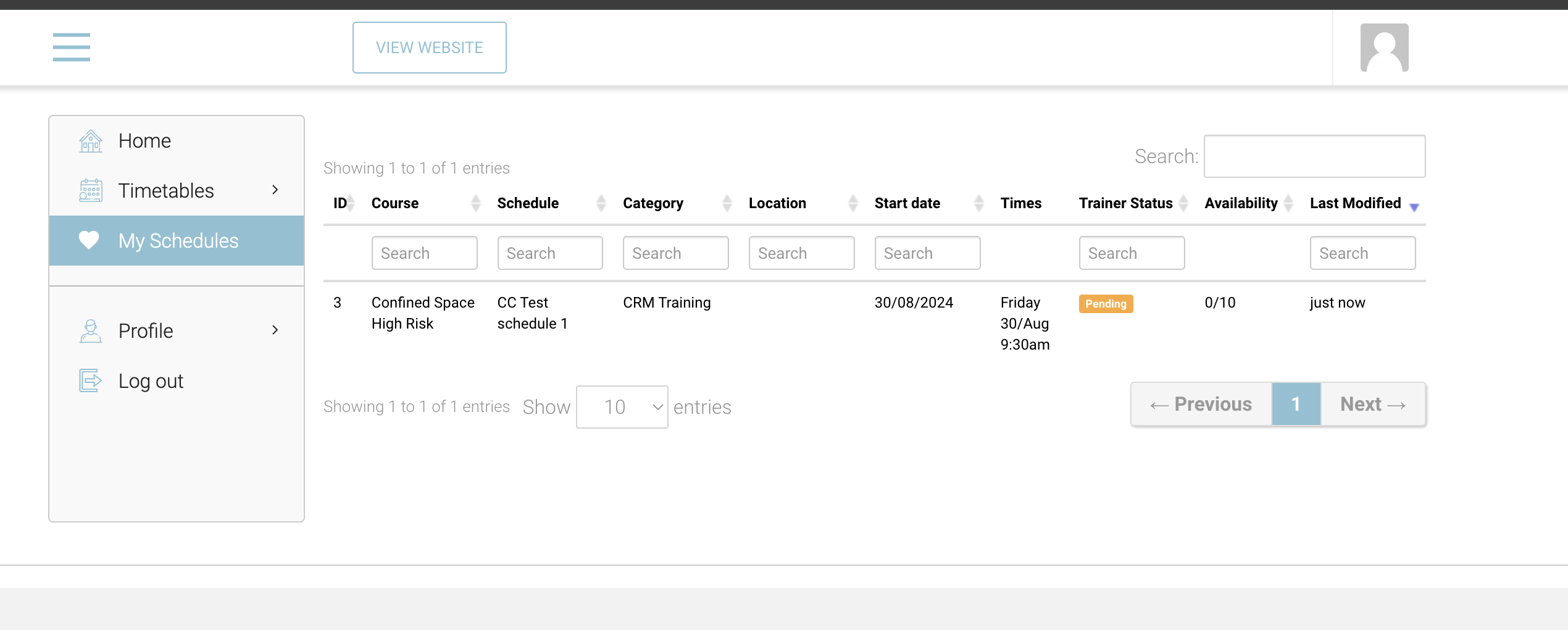
Trainer - view my schedules -
The trainer must select the Pending Schedule
-
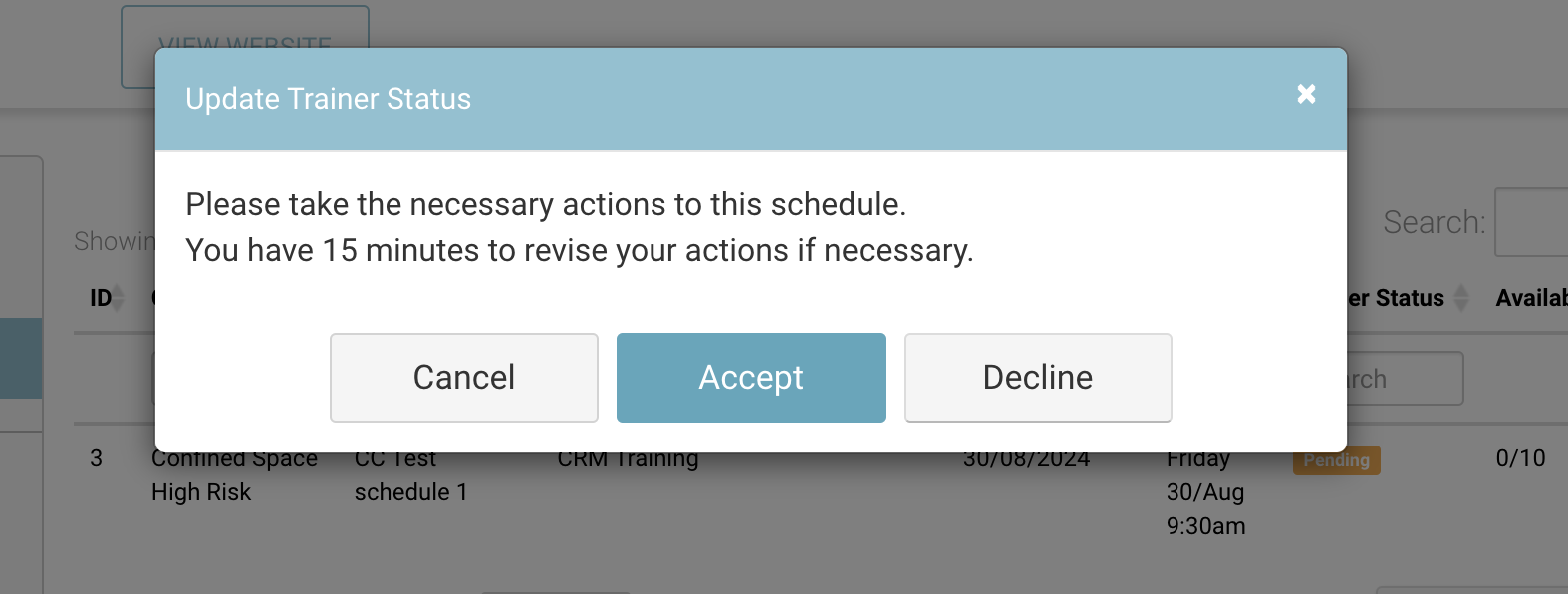
On the Pop Up, the trainer can select ‘Accept’ or ‘Decline’
-
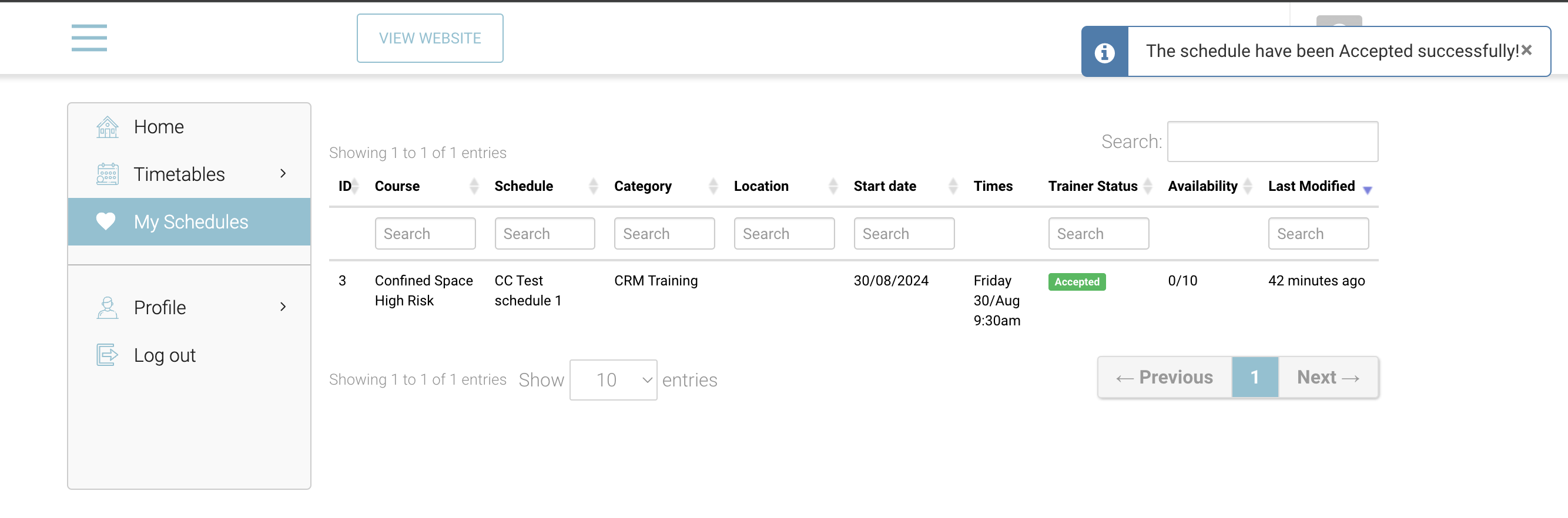
Accepted - the trainer status will turn to Green and say Accepted
-
Decline - the trainer status will turn to Red and say Declined
-
Outcome:
-
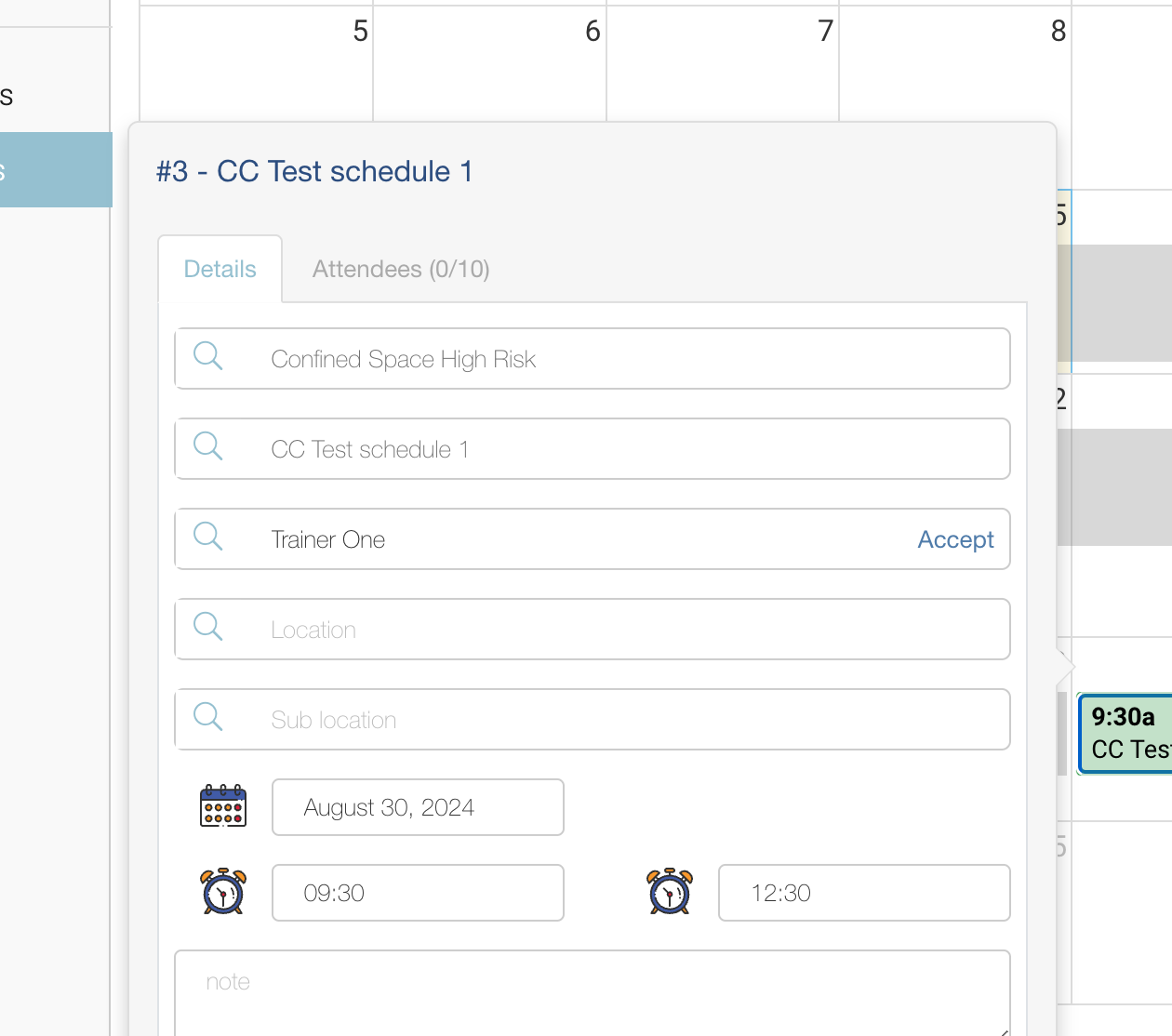
Trainer Accepted - Schedule is now accepted and the trainers timetable populates with the approved schedule dates
-
Trainer Decline - Admin can receive an email to confirm they declined. The trainer timetable will not update with the declined timeslots.
Admin | Re-assigning a new trainer to a schedule, as previous trainer declined or did not accept yet
-
Login as admin
-
Search and select the applicable schedule
-
Edit the trainer and Save
Outcome:
-
The process begins again and the new trainer will receive an email and accept/decline in their portal.