Trainers need to grade an exam when there are Long based answers. Grading is not required for MCQ style exams.
As a trainer on CourseCo, you can grade an exam submitted by the students. To grade an exam where you are an examiner, please follow the steps below:
-
Login as a trainer
-
Click on Todos in the left menu
-
Select ‘My results’ in from the left menu
Note: You can only see Todo records to grade if the students that have submitted the exams.
Submitted exams are automatically available for the trainer to grade.
-
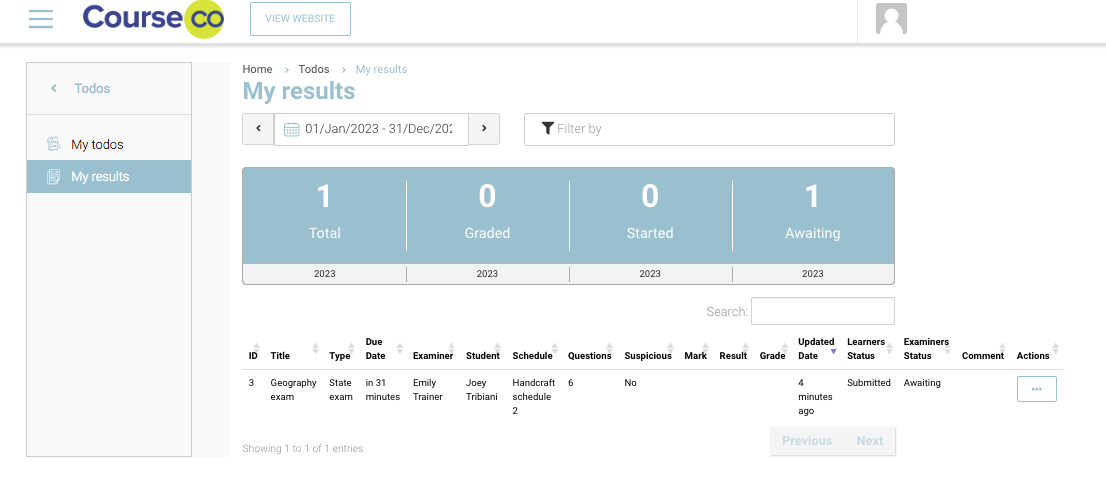
You will be redirected to Todo records for submitted exams. In this image below, only 1 submission is received. It may vary trainer to trainer.
-
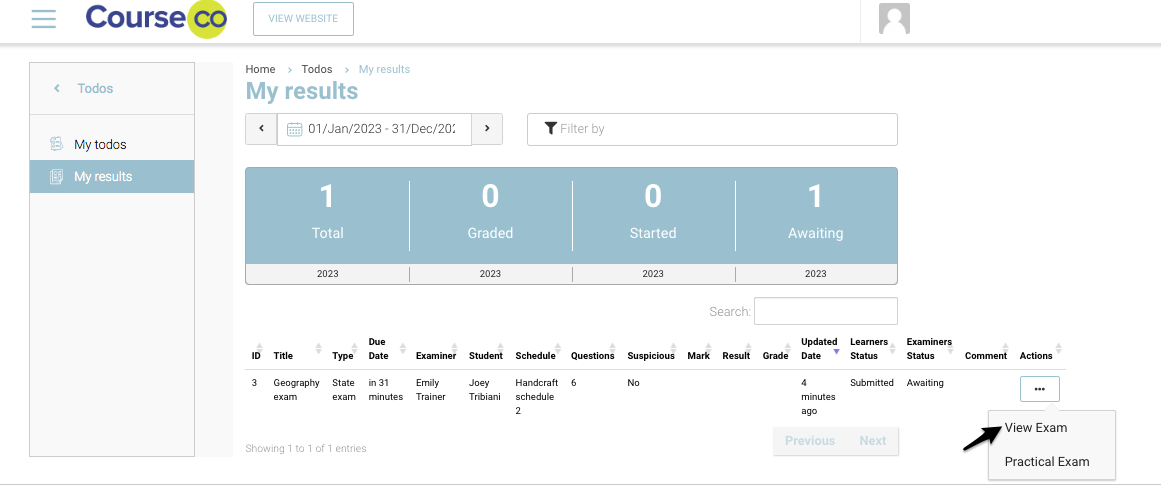
In Actions, select ‘View’ to view the answers submitted by the students
-
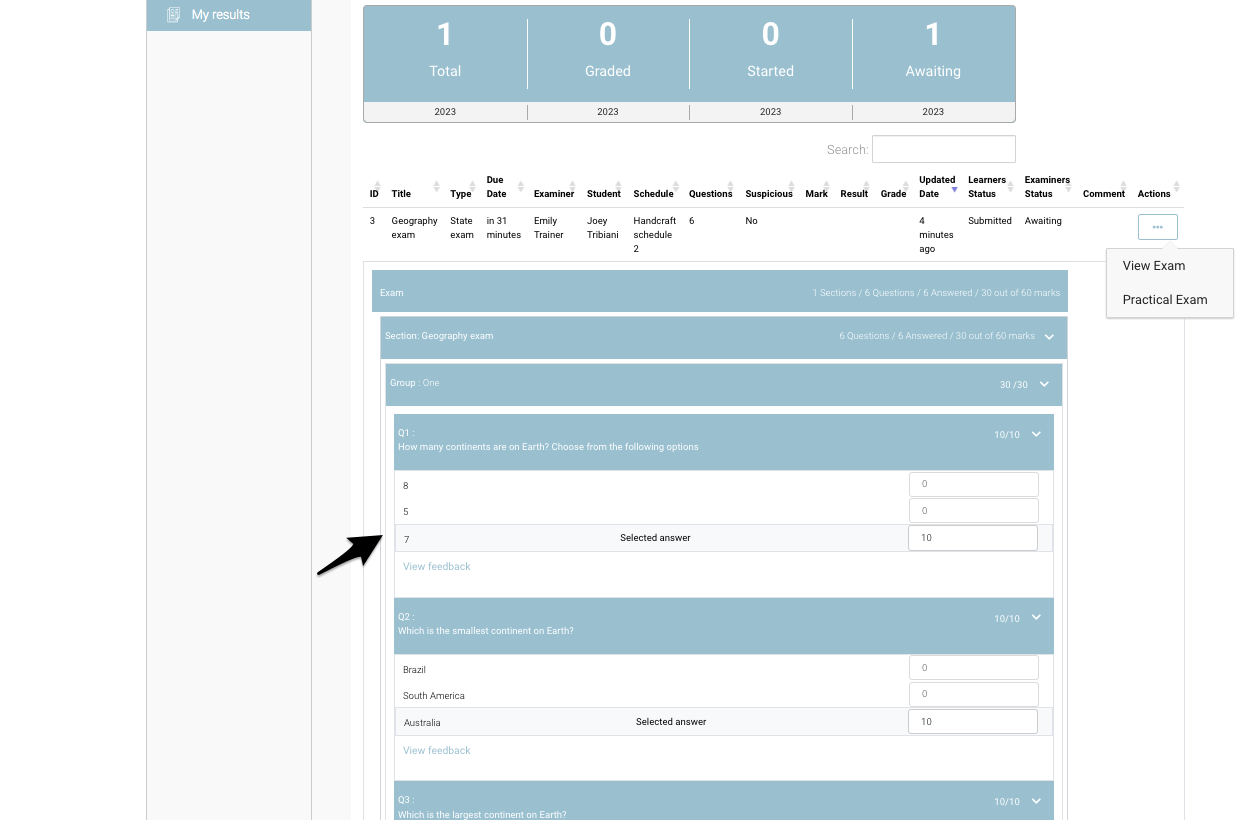
Multiple choice answers will be automatically marked with the assigned grade. Please see in the image below the correct answer is marked.
The grade for correct answer in a multiple choice question is already set when the questionnaire is created.
-
You can view the selected answer by students and the marks received for correct answer
-
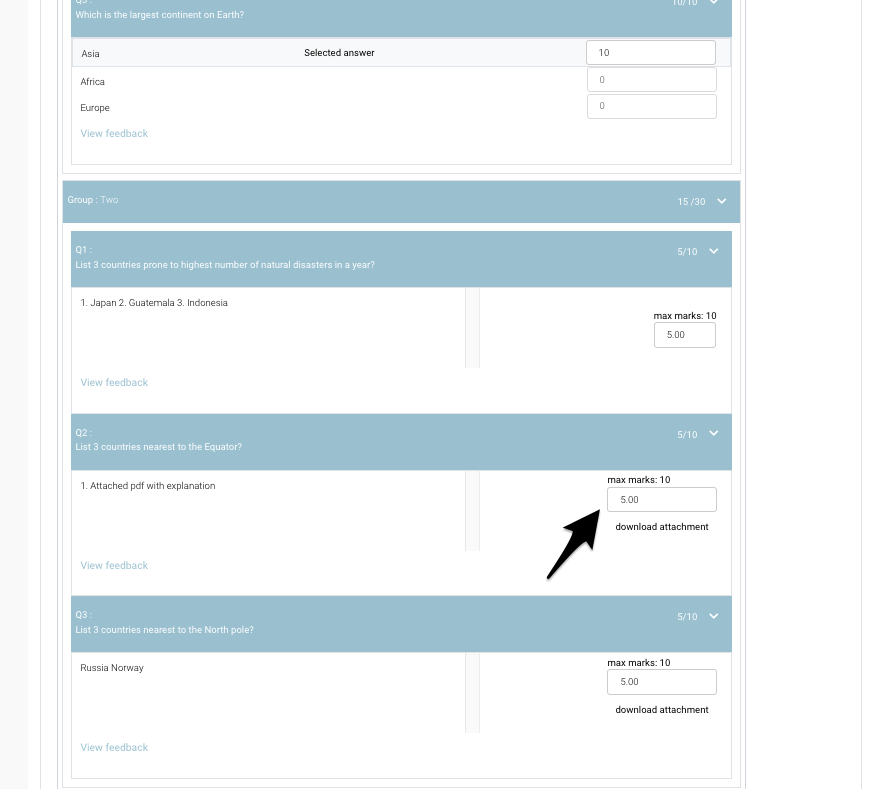
You can enter grade after reviewing text based answers, as shown in the image below
-
Additionally, if a student has attached an answer, you can also download and review it by clicking on 'Download attachment ' below the marks input
-
Once you have graded all answers of the questionnaire, you can either
-
Save result: This will save the marks and grade assigned to the student
-
Save as draft: This will save the result as draft where you can come back later to review again and correct marks if needed
-
-
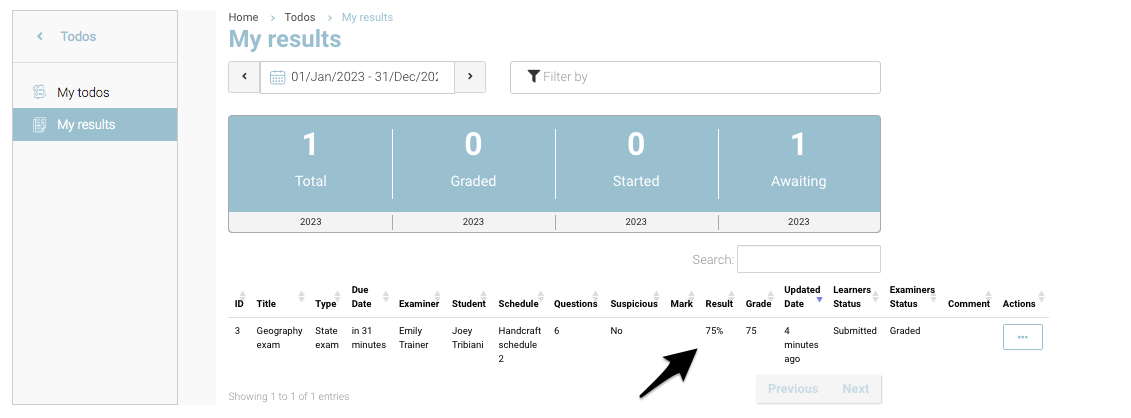
Once you have saved the marks, you can see the grade populate for the respective record.