
A time table conflict occurs when two schedules are set to happen at the exact same day and have the same start time and end time. With CourseCo’s Timetable Conflict Resolution feature, you can easily filter those schedules and resolve the conflict of time for them. To resolve a conflict on timetable, follow the steps given below:
-
Go to the website
-
Navigate to Timetable plugin
-
Click on ‘All timetable’
-
Select the ‘Overview’ Mode on All timetable
-
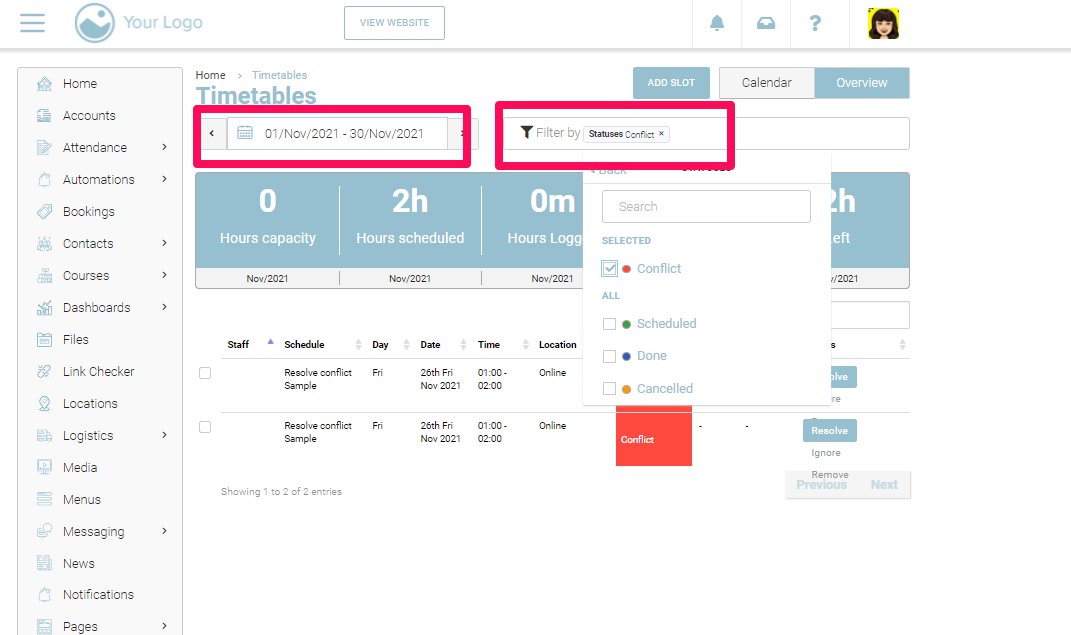
Use the date range input to enter the date range you want to filter
-
In the ‘filter by’ dropdown, select Statuses and Select Conflict within it
-
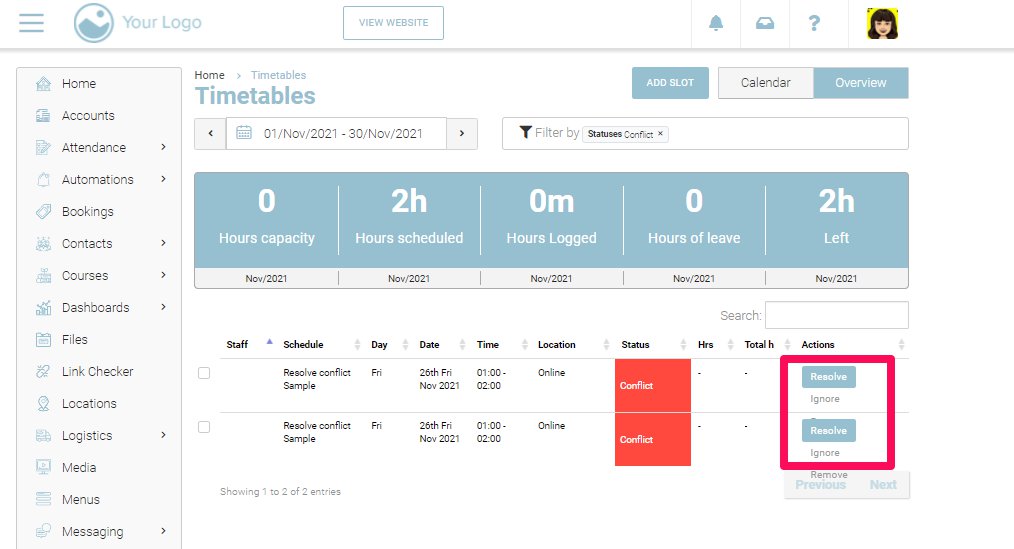
To resolve the conflict, click on the ‘Resolve button’ in front of the schedule in the Action column
-
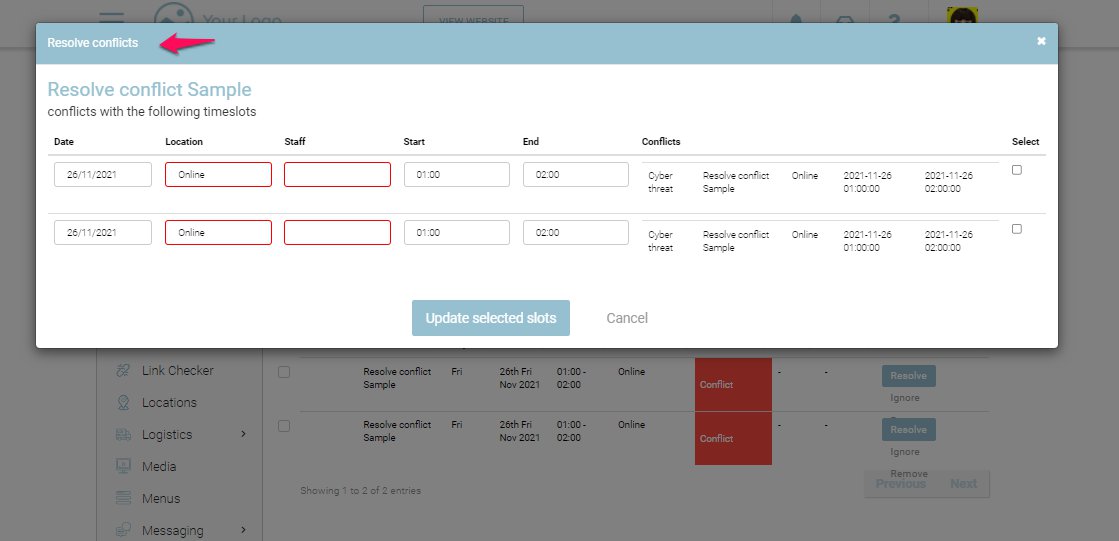
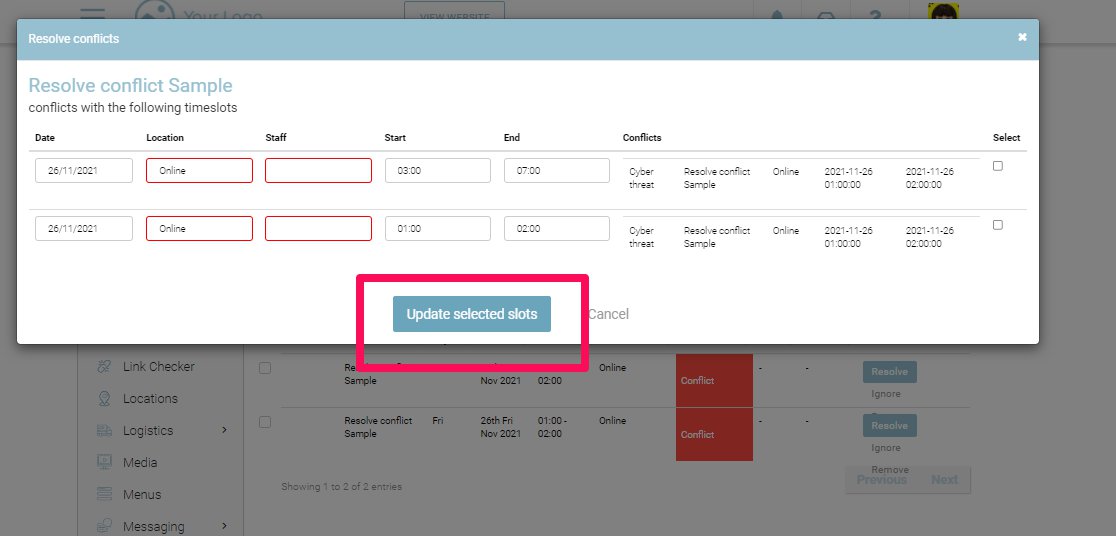
You will be presented with a ‘Resolve Conflicts’ dialog box which will have the schedules that are conflicting
-
Select the timeslot that you want to change the time for to resolve the conflict
-
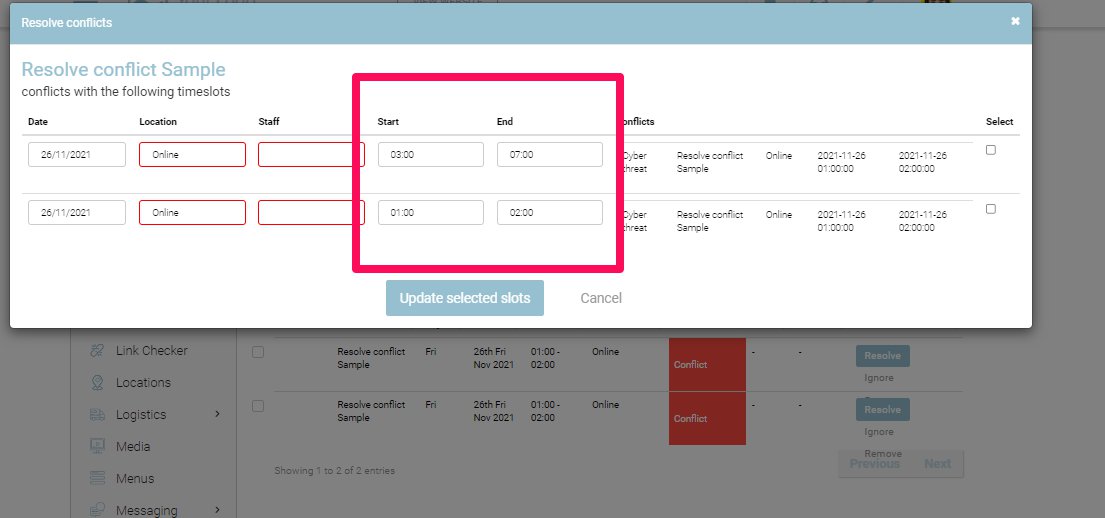
You can change the start time and end time accordingly for the schedules to resolve the conflict
-
Once you change the start and end time, click on ‘Update Selected Slots’
-
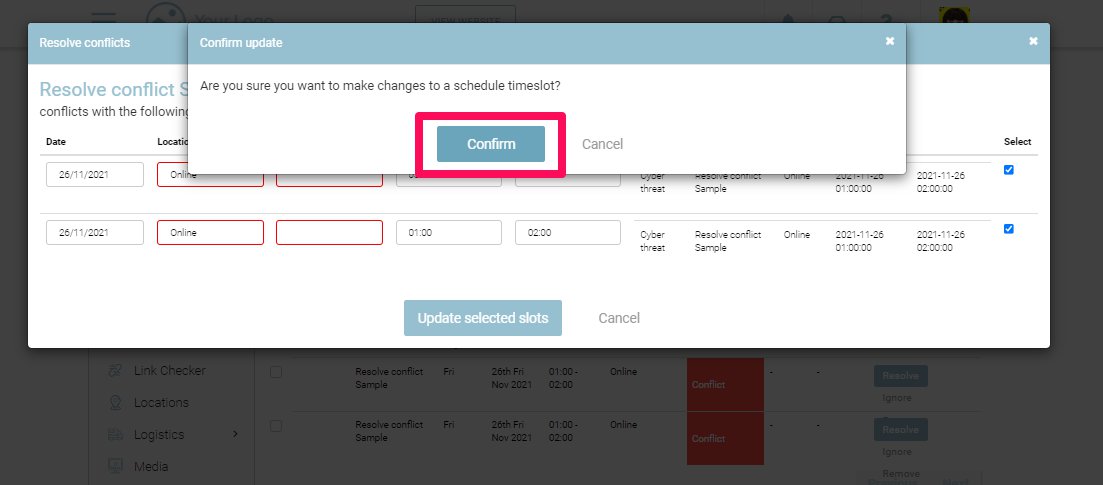
You will be presented with a dialog box to confirm the update. Click on Confirm
Outcome
-
The Conflict on two schedules will be resolved
-
Both the schedules will have different start and end time as per your update
-
Their status will be changed from conflict to scheduled
Ignore Conflict
Additionally, you can also ignore the conflict by click on the Ignore button just below the Resolve button in the Action column. This will ignore the conflict arising in the schedules and the status of the schedule will change from conflict to scheduled.