
If an admin cancels an upcoming schedule it is marked as ‘cancelled’ on the timetable planner. This cancelled schedule will appear in orange on the timetable
How to cancel a schedule
-
Login as admin
-
Open courses > schedule
-
Refine your results to find the correct schedule
-
Do not open the schedule edit screen
-
Instead, while in schedule list screen, navigate to the actions column
-
Select the 3 dots and select Cancel
Outcome:
-
The schedule will be cancelled and will no longer display on the website
-
The cancelled schedule report will report this schedule
The cancel button will not be available if the schedule has active bookings, please cancel the bookings first, then the cancel option will display on the schedule
To filter cancelled schedules
-
Log In as an admin
-
Click on Timetable plugin in the left menu
-
Go to All timetables
-
Enter the date range from calendar input
-
In filter input, select status = cancelled
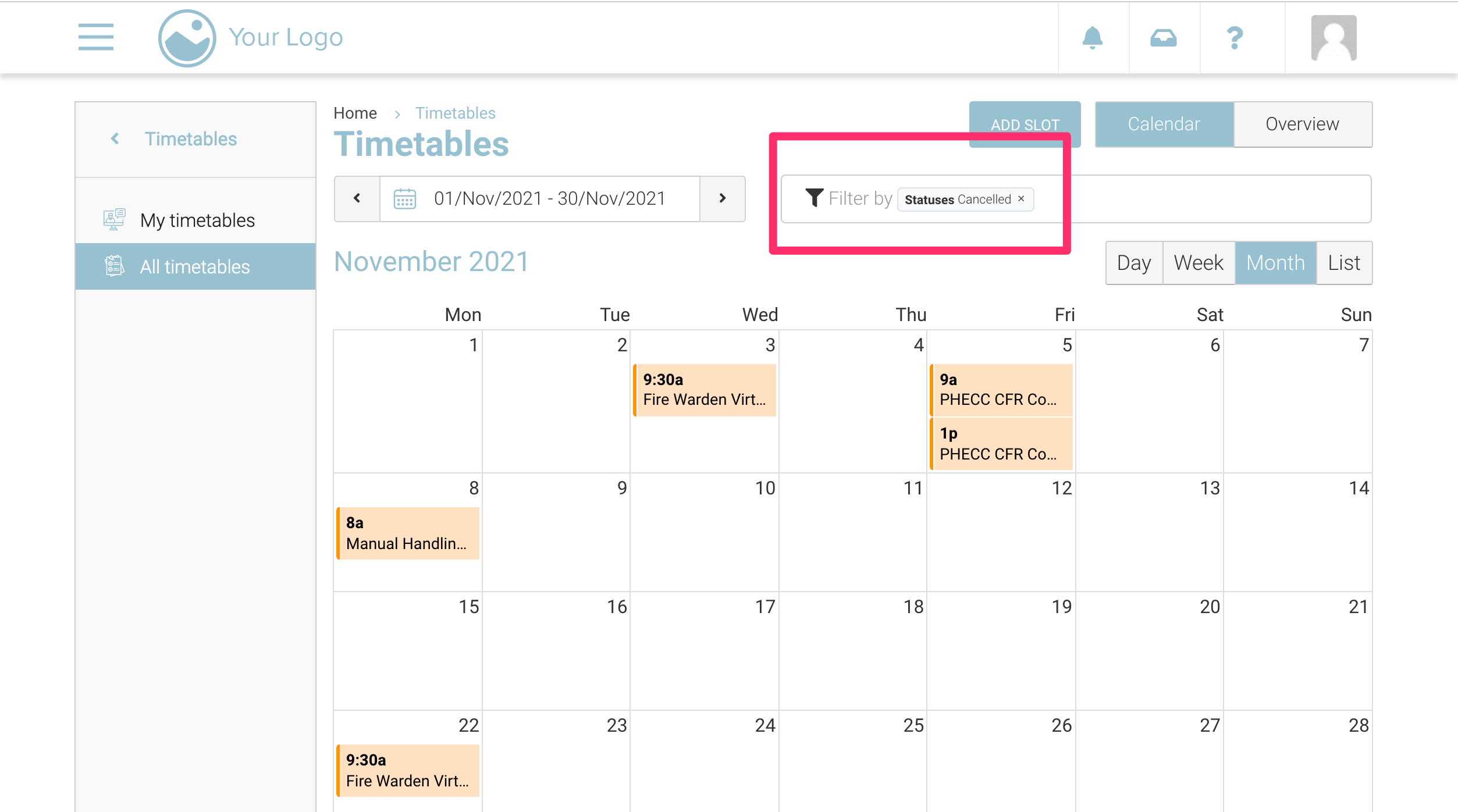
Outcome:
-
You will see cancelled schedules in ‘orange’ colour