
The Trainer Colour Coding feature allows you to visually identify trainers in the Global Timetable using custom colours. This makes it easier to scan schedules and understand trainer allocations at a glance.
What This Feature Does
-
Assign a custom colour to an individual trainer
-
Automatically apply that colour to all timetable slots where the trainer is assigned
-
Fall back to existing system colour rules if no trainer colour is set
How to Set a Trainer Colour
-
Go to Contacts
-
Open the Trainer contact record
-
Locate the Colour field
-
Enter a hex colour value (for example:
#4CAF50) -
Save the contact
✅ The colour is now linked to that trainer.
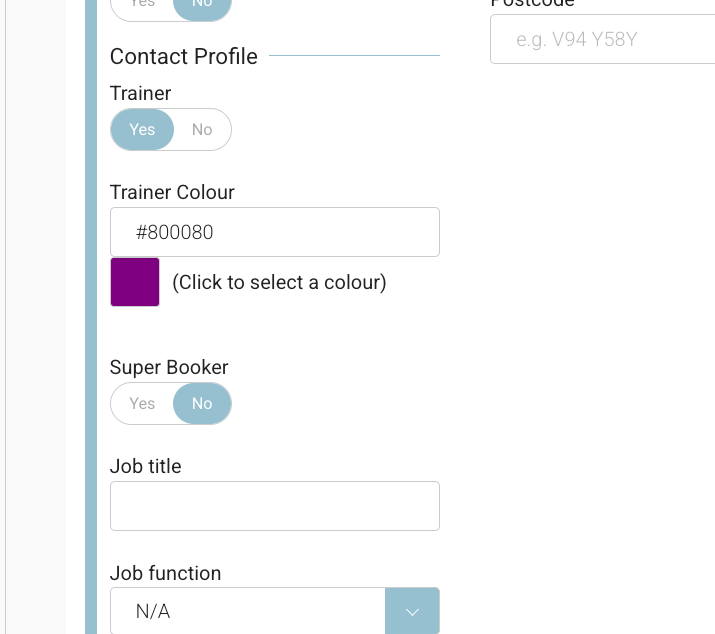
How Trainer Colours Appear in the Timetable
-
Open the Global Timetable
-
Any timeslot assigned to a trainer with a colour will display using that colour
-
This applies across all views of the timetable
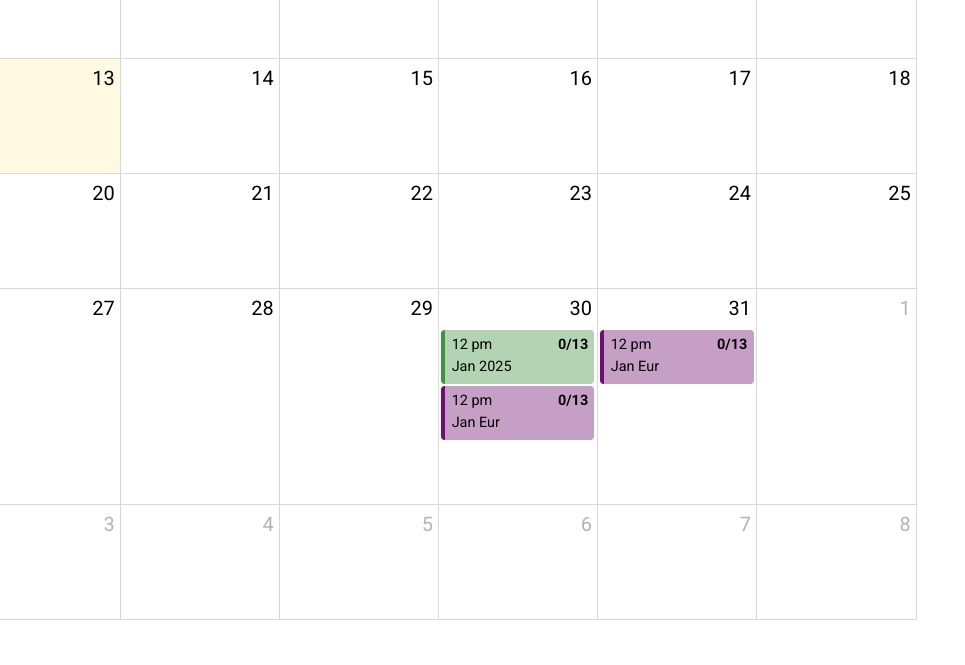
Default Colour Behaviour (When No Trainer Colour Is Set)
If a trainer does not have a colour assigned, the system’s existing colour coding will apply:
-
Green – Upcoming timeslot with no conflict
-
Red – Conflict with another trainer or location
-
Blue / Navy – Completed timeslot
Important Behaviour to Be Aware Of ⚠️
-
When a trainer colour is applied, it overrides conflict colouring
-
This means red conflict indicators will not be visible for that trainer’s slots
👉 Best practice:
Always use the Status filter = “Conflict” in the timetable to ensure no conflicts are missed.
Recommended Usage Tips
-
Use trainer colours for visual identification, not conflict management
-
Regularly check the Conflict status filter, especially when trainer colours are enabled
-
Choose colours that are clearly distinguishable from one another