This guide explains how organisation representatives can create an account, book training, and manage their bookings through the training platform.
Organisation users can register their company, book places for delegates on available courses, and manage those bookings through their online portal. The portal allows you to view upcoming training, track bookings made on behalf of your organisation, and access additional training information for your delegates.
Once a booking is completed, both the organisation contact and the delegates added to the booking will receive confirmation emails with instructions on how to access the platform and begin their training where applicable.
Create an Organisation Account
-
Navigate to the website login page.
-
Select Sign Up and choose Organisation.
-
Enter your email address and preferred password, then select Continue.
-
On the next screen, enter your company name and basic organisation details.
-
Verify Your Email
-
A verification email will be sent to your inbox.
-
Open the email and select the verification link.
Create an Organisation Account
-
Navigate to the website login page.
-
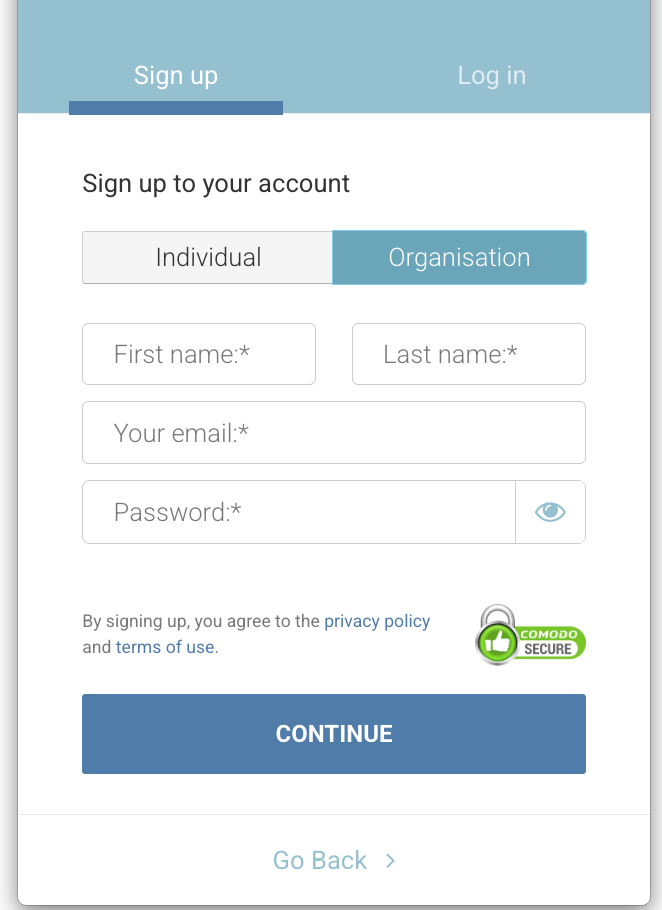
Select Sign Up and choose Organisation.
-
Enter your email address and preferred password, then select Continue.
-
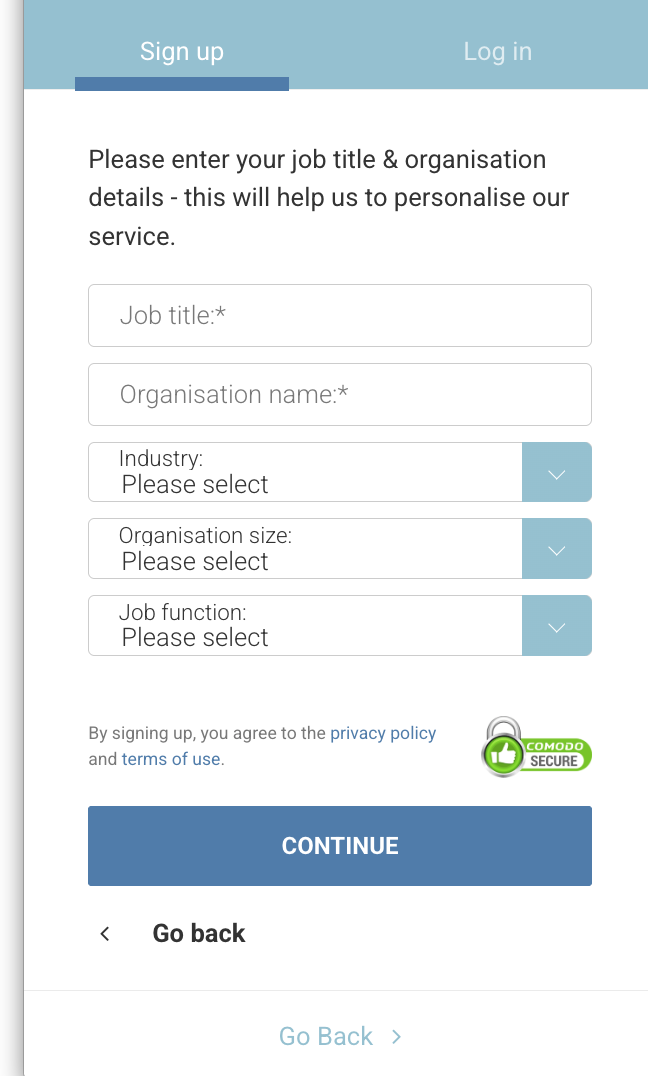
On the next screen, enter your company name and basic organisation details.
-
Verify Your Email
-
A verification email will be sent to your inbox.
-
Open the email and select the verification link.
Complete Organisation Details
-
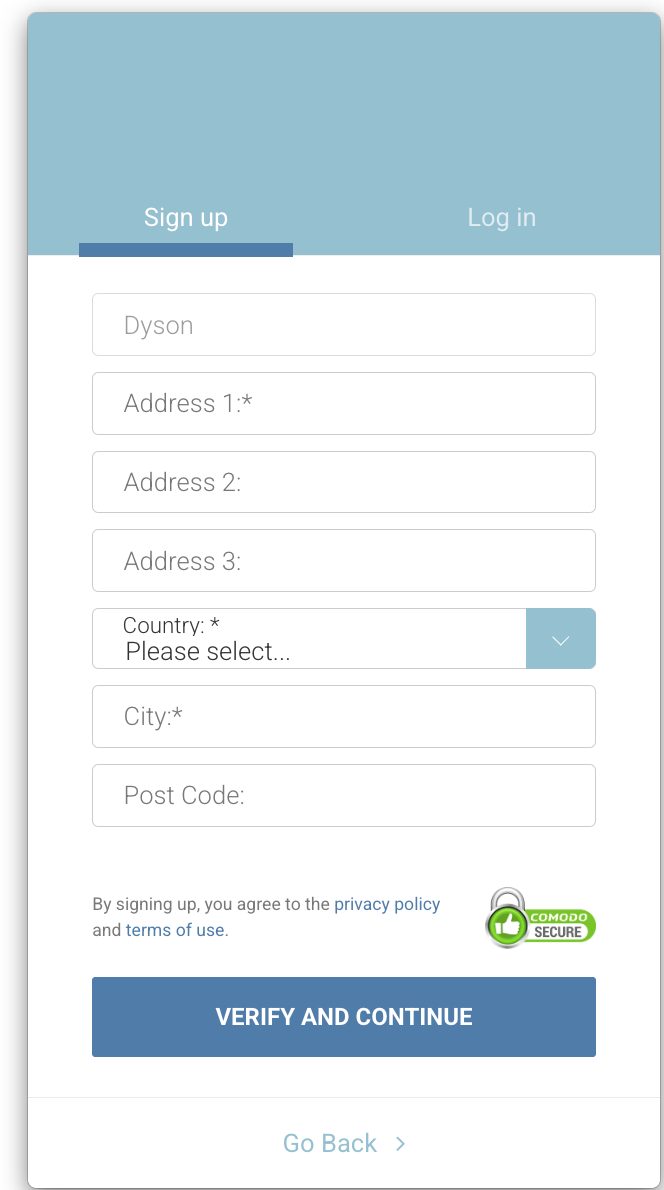
After verification, you will be prompted to add your billing address.
-
You may also see existing organisations suggested based on your email domain (for example, if others from your company have already registered).
-
If your organisation appears in the list, select it. Otherwise, enter the billing address for your organisation.
This address will be used for invoicing purposes.
Access Your Portal
-
Once registration is complete, log in to access your organisation portal, where you can manage bookings.
-
Booking a Course
-
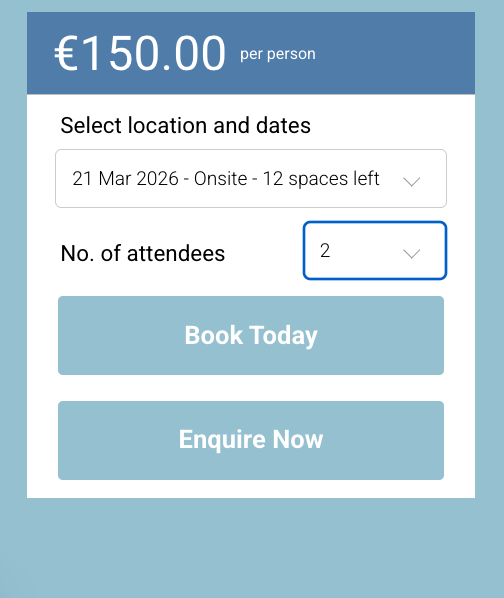
Search for and select the course you wish to attend.
-
Enter the number of delegates you wish to book.
-
Proceed to Checkout.
If you have not yet signed up or logged in, you may be prompted to create an account or log in before completing the booking.
Complete the Booking and Select Invoice or credit card Payment
-
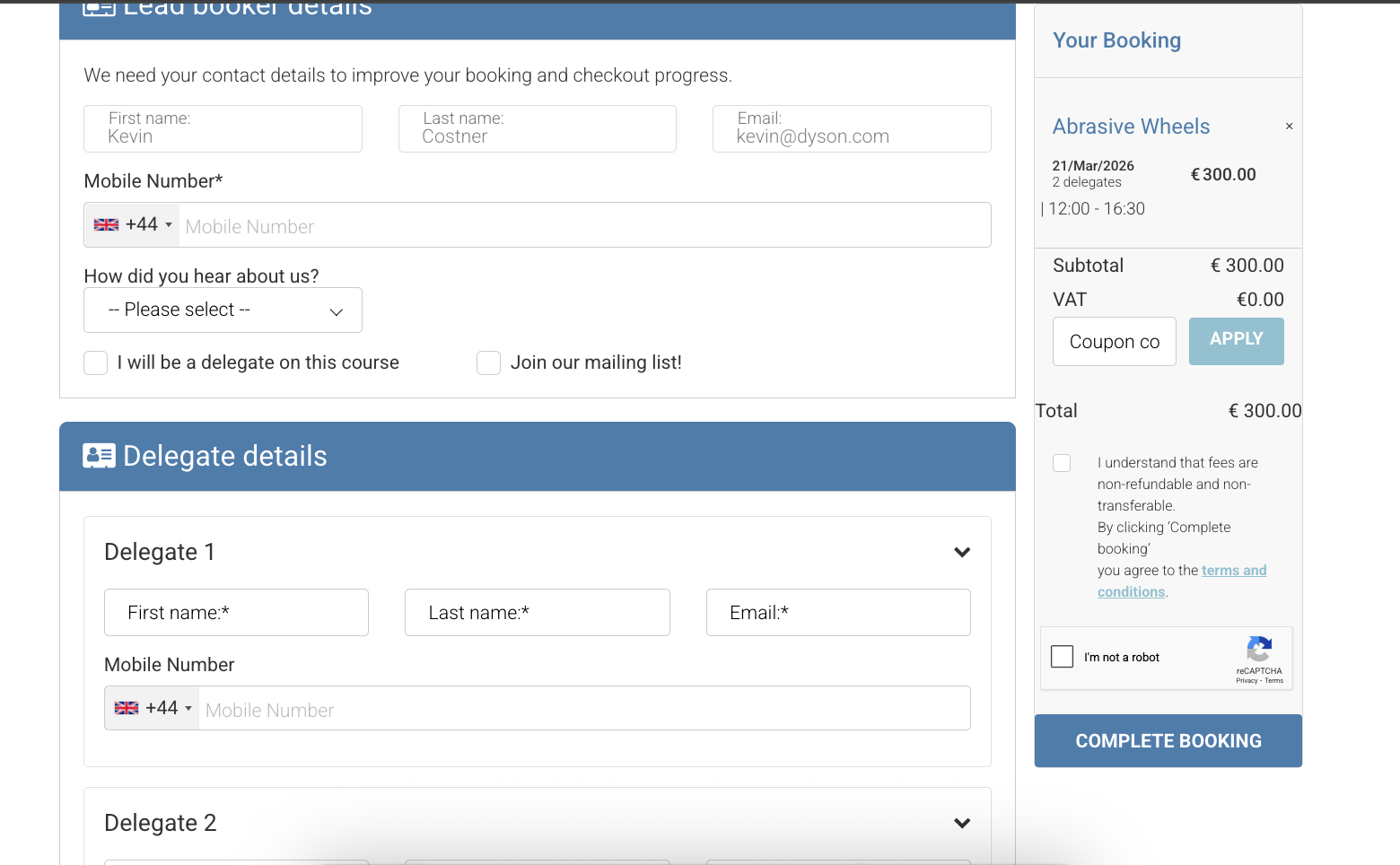
After selecting your course and entering the number of delegates, select Proceed to Checkout.
-
Review the booking summary to confirm the course details and number of places.
-
Enter the required delegate details (name and email)
-
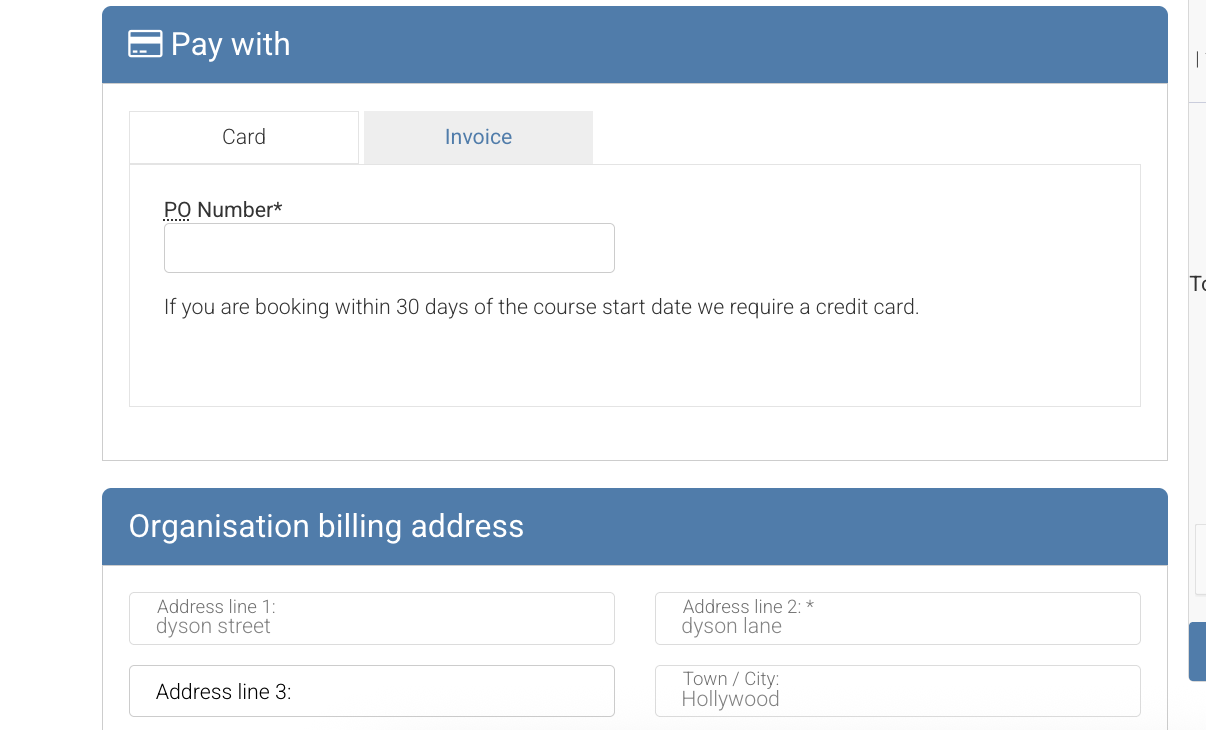
In the Payment Method section, select either:
-
Invoice (an invoice will be issued to the organisation billing address), or
-
Credit Card to pay immediately online via stripe.
-
-
Once all required fields are completed, select Complete Booking.
You will receive a booking confirmation email once the booking has been successfully submitted.
Tip:
Each delegate email address must be unique. This ensures each delegate receives their verification email and login invitation for the platform.
After the Booking is Confirmed
-
The organisation contact will receive a booking confirmation email.
-
Each delegate added during checkout will receive:
-
an invitation email, and
-
a booking confirmation email.
-
Organisation Booker Portal
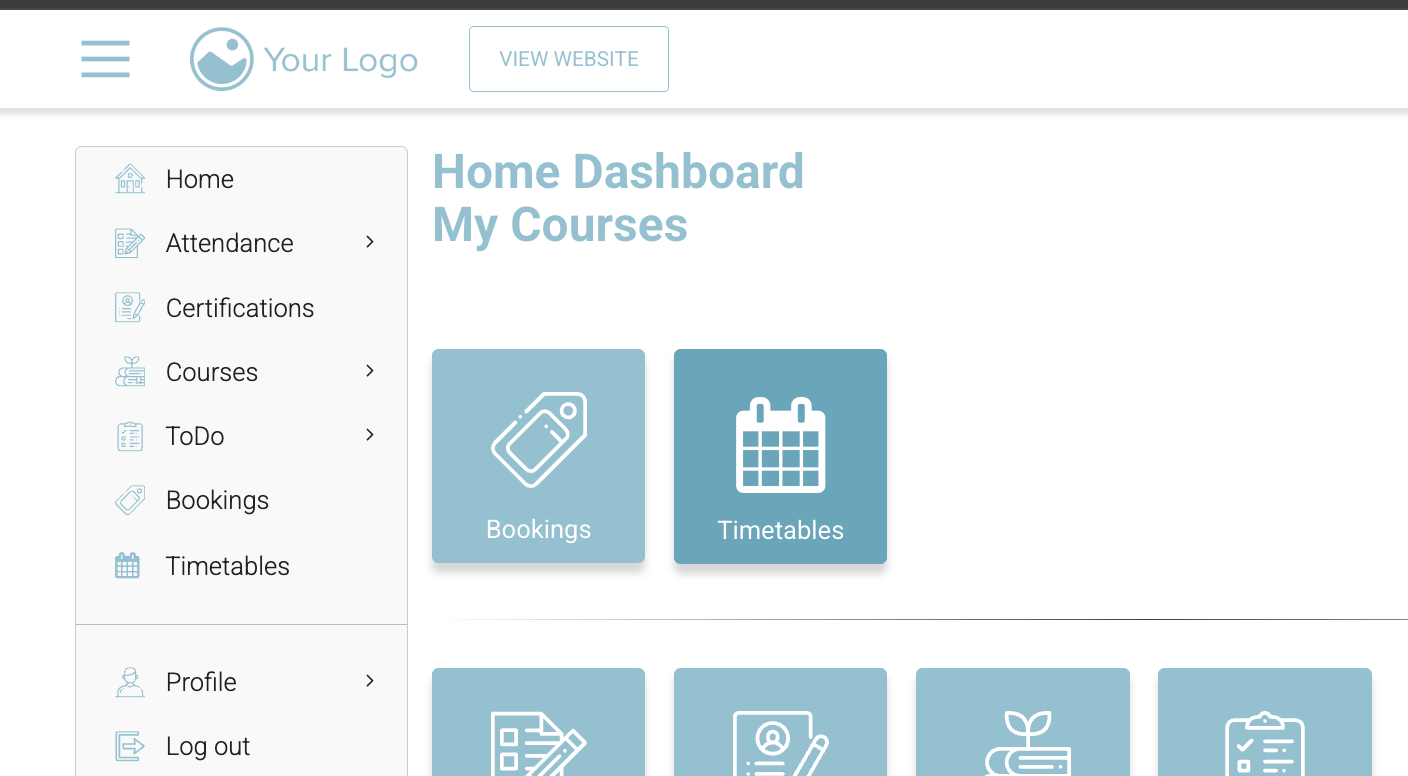
Once logged in, the organisation contact (booker) can access their portal dashboard.
-
The Timetable section shows upcoming training that has been booked for your organisation. This allows you to quickly view the scheduled dates for your delegates.
-
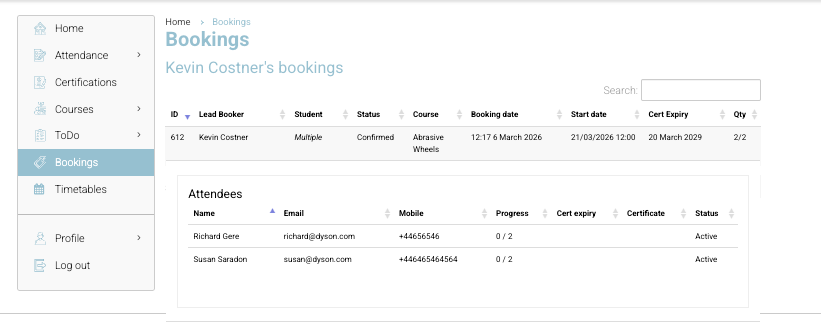
The Bookings tab displays all bookings that have been created on the platform under your organisation account.
-
Selecting a Booking ID will open the booking details page, where you can view the list of delegates assigned to that booking.
Additional Portal Features (Optional Features)
Some organisations may also have access to additional features within the portal. These options are not always enabled by default, but may be available depending on the configuration of the platform.
-
Attendance
View attendance records for your delegates once attendance has been updated by the trainer or platform administrators. -
Certification
Access the training matrix, where you can track your delegates’ training history and any certifications they have achieved. -
Courses
If you have personally been booked onto a course, you can start and access your online learning from this section. -
To Do
If your course includes scheduled exams or assessments, these will appear in the To Do section along with your results once completed.