
Step 1: Open the Questionnaires Section
-
Navigate to the left menu.
-
Click on "Questionnaires" to access the questionnaire management section.
Step 2: Add a New Questionnaire
-
Click on the "Add New" button.
-
Organize your questionnaire by groups to help administrators keep their questions structured and easily manageable.
Step 3: Add Questions
-
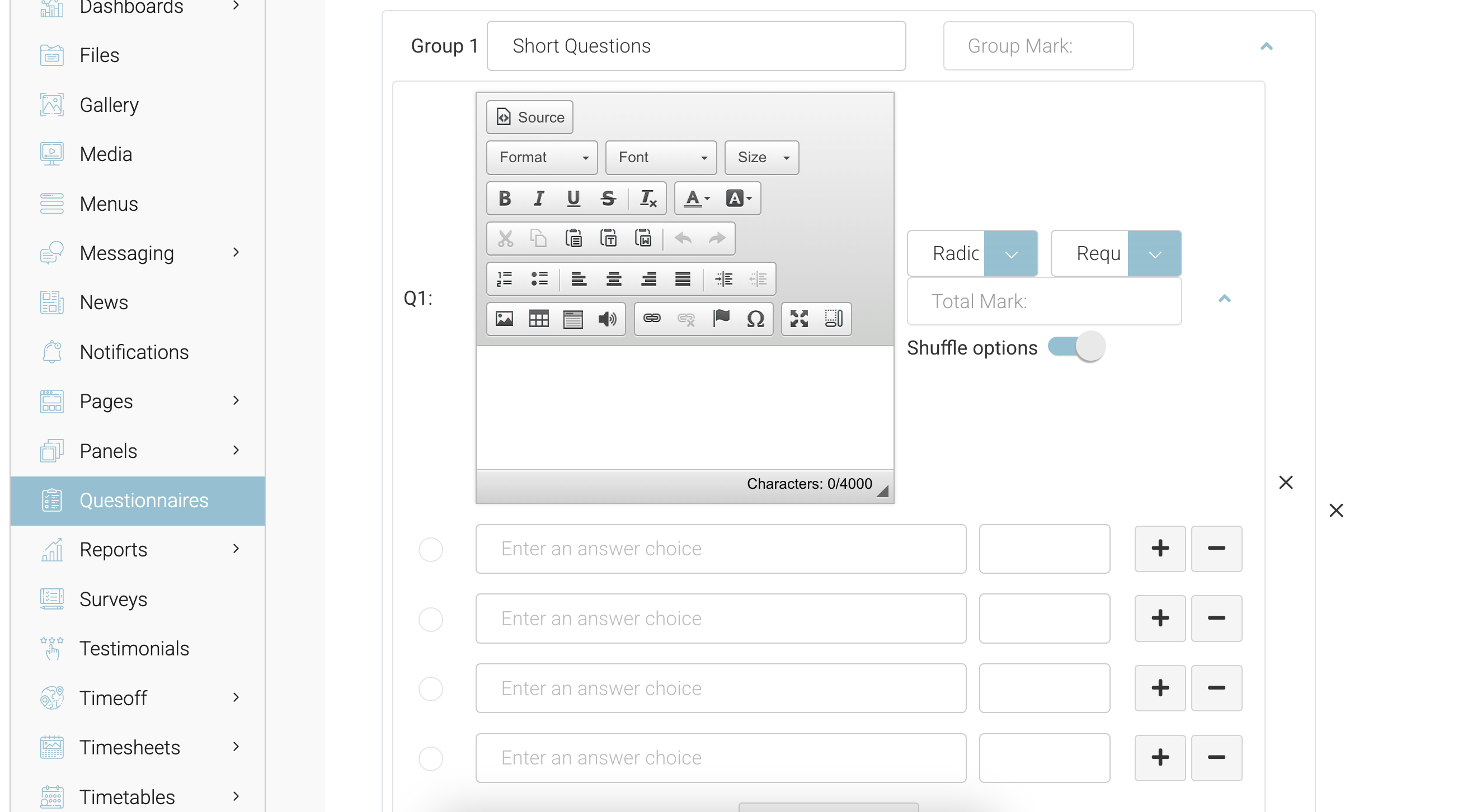
Inside your newly created questionnaire, start adding questions.
-
Use the edit form to format text using bold, italics, or to insert images for better clarity.
Step 4: Set the Correct Answer
-
For each question, select the correct answer by marking it on the right side.
-
Note: The system only supports a single correct answer; multiple correct answers are not allowed.
Step 5: Save the Questionnaire
-
Click "Save" to store your questionnaire.
Outcome
-
Your questionnaire is now created and can be edited if needed.
-
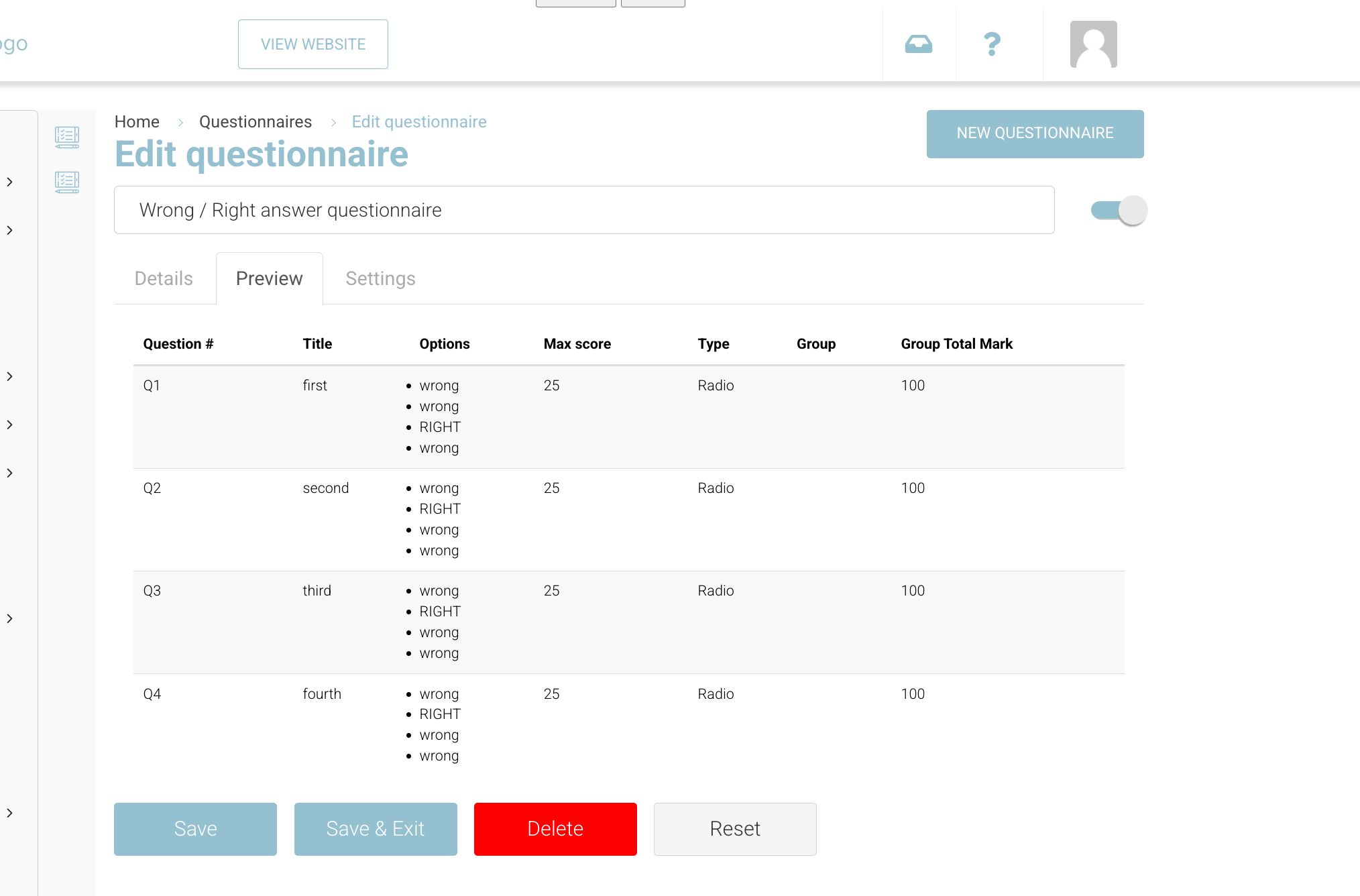
To review your questions, go to the "Edit" screen and navigate to the "Preview" tab.
-
This will display all questions in a list format with the correct answer visibly marked.
-
Next Steps
-
Once your questionnaire is complete, you can add it to a schedule by navigating to:
Schedule > Content Section
Your questionnaire is now ready for use! 🚀