
Learner/Examiner status breakdown
Learner status - UPCOMING = Assigned but not started yet
Learner status -STARTED = Student has selected start and is in-progress
Learner status - SUBMITTED = Student competed their exam by select SUBMIT at the end of the exam
Examiner Status - AWAITING = Submitted by student and ready for examiner to start correcting
Examiner Status - Started = Examiner has began correcting the exam (they have have saved as draft)
Examiner Status - Graded = Examiner has finished correcting this exam and result is final
User Guide: All Results Page
This page allows you to view and manage learners’ exam results within a selected date range.
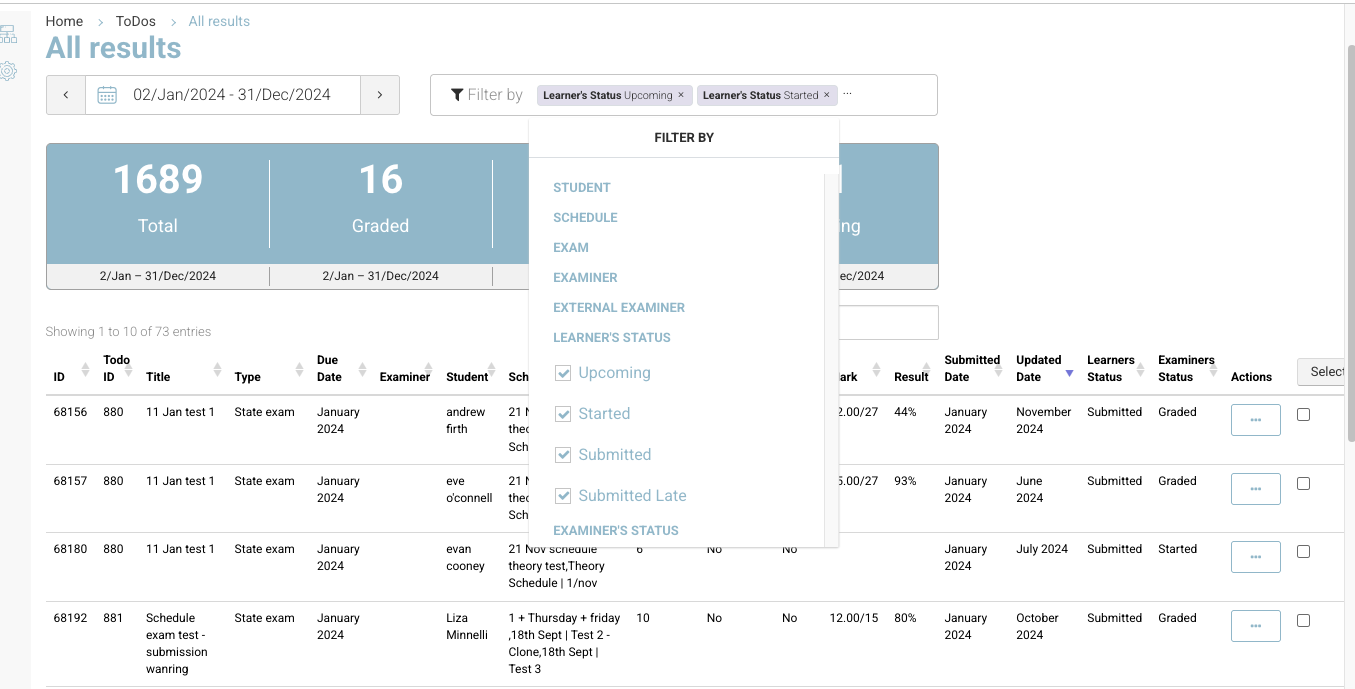
1. Date Range Selector
-
Located at the top left under the page title.
-
Use the calendar icon and date fields to select a date range (e.g.,
02/Jan/2024 – 31/Dec/2024). -
Click the left/right arrows to move the range backward or forward.
-
The results list will refresh to match the selected date range.
2. Filter Options
-
Click Filter by to open the dropdown menu.
-
Filter categories include:
-
Student – Filter results by learner name.
-
Schedule – Filter by scheduled exam date(s).
-
Exam – Filter by exam title.
-
Examiner – Filter by assigned examiner.
-
External Examiner – Filter by external examiner.
-
Learner’s Status – Filter by the learner’s progress:
-
Upcoming
-
Started
-
Submitted
-
Submitted Late
-
-
Examiner’s Status – Filter by grading progress (e.g., Graded, Started, Awaiting).
-
-
Selected filters are shown as tags above the results table.
Example:
Learner's Status: UpcomingandLearner's Status: Started -
To remove a filter, click the x on its tag.
3. Summary Cards
Below the filters, four large summary cards display key stats for the selected date range:
-
Total – Total number of records (e.g.,
1689). -
Graded – Number of exams graded (e.g.,
16). -
Started – Number of learners who have started but not completed their exam (e.g.,
1). -
Awaiting – Number of learners awaiting grading or completion (e.g.,
41).
4. Results Table
The main section lists individual exam entries with the following columns:
|
Column |
Description |
|---|---|
|
ID |
Unique record identifier. |
|
Todo ID |
Links the record to a specific ToDo/exam task. |
|
Title |
Name of the test/exam. |
|
Type |
Indicates if it's a State exam or another type. |
|
Due Date |
Month/year the exam is due. |
|
Examiner |
Name of the examiner. |
|
Student |
Learner’s name. |
|
Schedule |
Scheduled exam date(s) and details. |
|
Questions |
Number of questions in the test. |
|
Suspicious |
Shows if suspicious activity was flagged (Yes/No). |
|
Cheat |
Shows if cheating was detected (Yes/No). |
|
Mark |
Raw score (e.g., |
|
Result |
Percentage score (e.g., |
|
Submitted Date |
Month/year the exam was submitted. |
|
Updated Date |
Month/year the record was last updated. |
|
Learners Status |
Status from the learner’s perspective (e.g., Submitted, Started). |
|
Examiners Status |
Status from the examiner’s perspective (e.g., Graded, Started). |
|
Actions |
Three-dot menu for additional actions (e.g., view, edit, download). |
5. Search
-
Located above the table on the right-hand side.
-
Type in a keyword (e.g., learner’s name, ID, or title) to quickly find results.
6. Actions Menu
-
Click the three-dot icon in the “Actions” column to see available options for that record.
-
Common actions:
-
Viewing details
-
Editing the record
-
Downloading results
-
7. Selecting Records
-
Use the checkboxes in the right-hand column to select one or more records for bulk actions (if available).
Tips for Use
-
Apply filters before scrolling for quicker navigation.
-
Use Updated Date to monitor recent grading changes.
-
The Suspicious and Cheat columns help maintain exam integrity.