
Creating an Online scheduled Exam Exam
To create an exam, please follow the steps given below:
-
Navigate to Todos > All Todos.
-
Click New todo and then select Exam.
-
Enter or select the required field values in the respective fields. There are four tabs namely
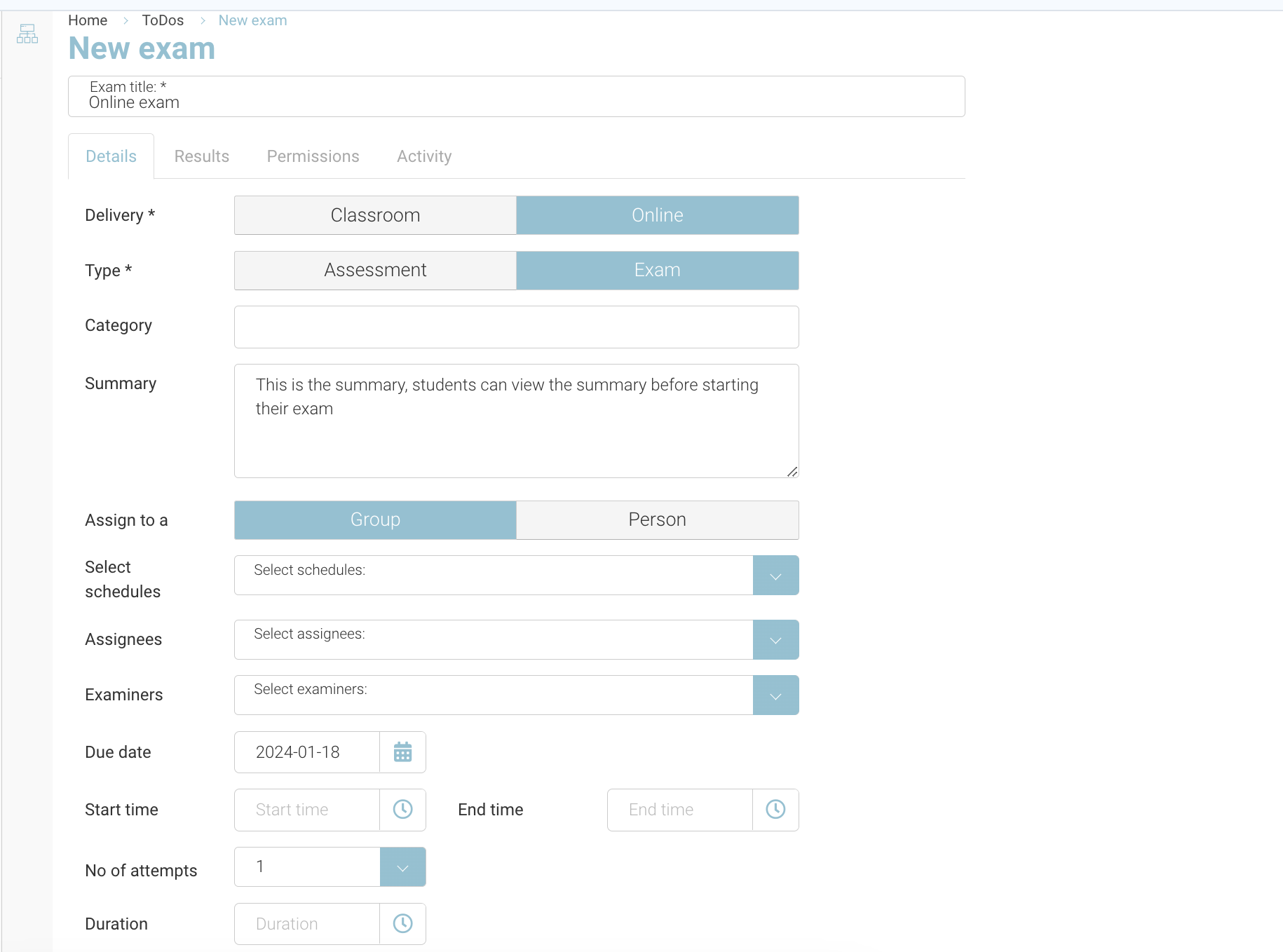
Details Tab: For field/section description, refer to the table below:
|
Field/Section |
Description |
|---|---|
|
Delivery |
It is the location where the exam is held. The available options are Classroom and Online. Online will be selected in most cases |
|
Location |
Select the location where the exam is held from the Location dropdown list. Applicable for Classroom exam only |
|
Type |
Select the type of the exam > Exam, the other option is assessment |
|
Category |
Enter the category of the exam - help organisation your exams eg Summer/Winter |
|
Summary |
Enter the summary of the exam - this will display in the student portal |
|
Assign to a |
Select to whom you want to assign the exam. The available options are Group i.e. schedule |
|
Select schedules |
IF Group selected > Select the schedule(s) of the exam from the Select schedule dropdown list. |
|
Examiners |
Select the examiners to examine the answer sheets from the Examiners dropdown list > Applicable for text based question exams only |
|
Due date |
Select the due date of the exam from the calendar dropdown. |
|
Start time / End time |
Start time of the exam, and end when the student can’t access any longer. |
|
No of attempts |
Select the number of attempts to get through the exam - typically used for MCQ Exams |
|
Duration |
Select the duration of the exam to complete filling the answer sheets i.e. the timer displayed to the student |
|
Questionnaire |
Search and select the questionnaire. This was previously created in the questionnaires plugin |
|
Enable cheat detection |
Fraud detection enabled on/off |
Results Tab: Enter or select the required field values in the respective fields. For field/section description, refer to the table below:
|
Field/Section |
Description |
|---|---|
|
Grading schema |
Select the grading schema from the respective dropdown list. |
|
Grading |
Select the mode of grading the exam results. The available options are Automatic and Manual. |
|
Results published |
Select the Date and Time to publish the results in the respective fields. |
Permissions Tab: Select the people who want to share the exam.
Activity tab: No data.
-
Click Save.
Outcome: A new exam will be created.
Scheduling Exam results Publish Date
To schedule exam results to display in the student portal, please follow the steps given below:
-
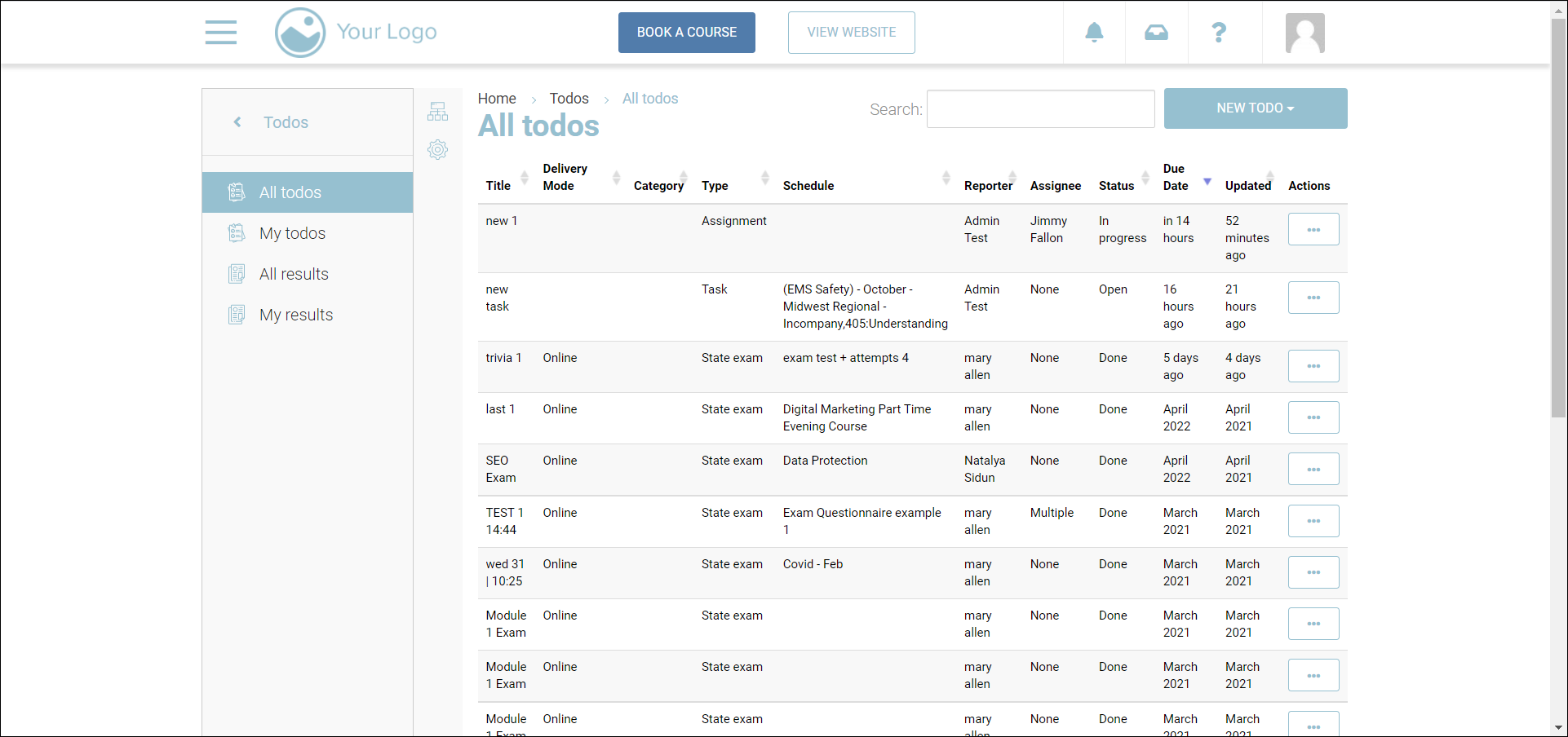
Navigate to Todos > All todos.
The All todos page will be displayed.
-
Select the exam for which you want to schedule results for.
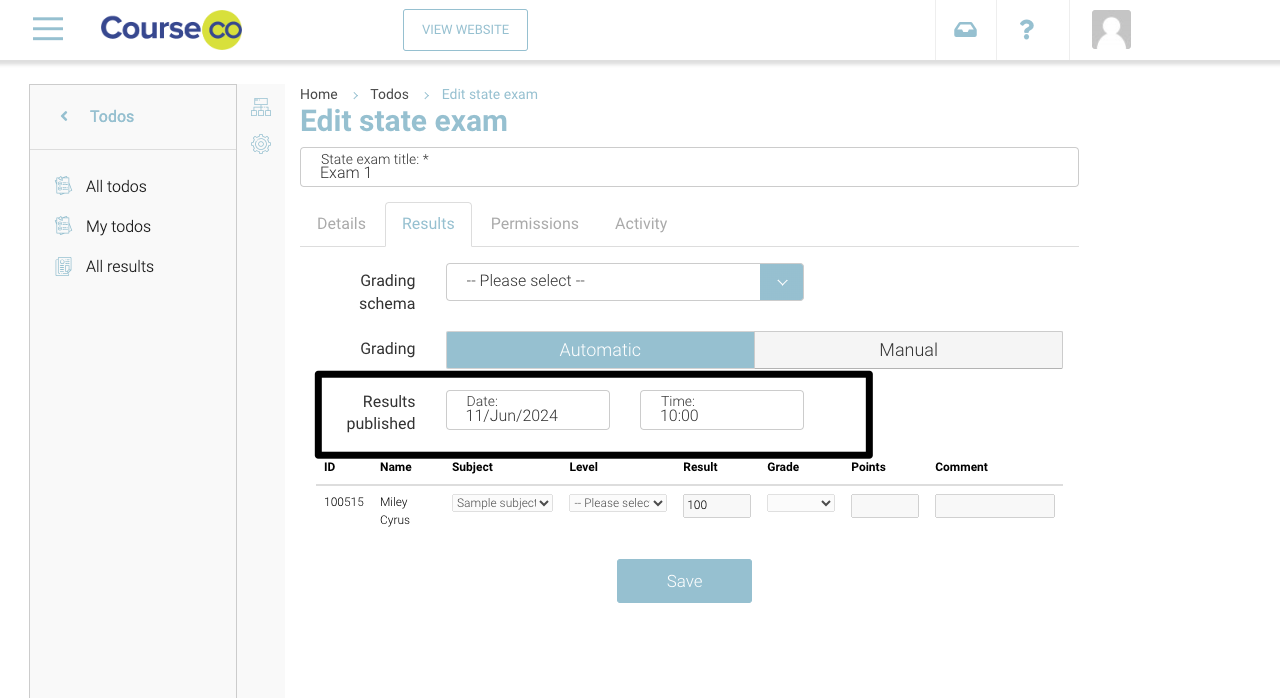
The exam in editing mode will be displayed.
-
Click the Results tab
-
Bypass/Ignore the Grading schema of the exam.
-
Bypass/Ignore the mode of grading whether it should be Automatic or Manual.
-
Within Results Published, Select the Date and Time on which the results should be published in the respective fields.
-
Click Save.
Outcome: The results will be shared to the portal on the specified date and time to the student.