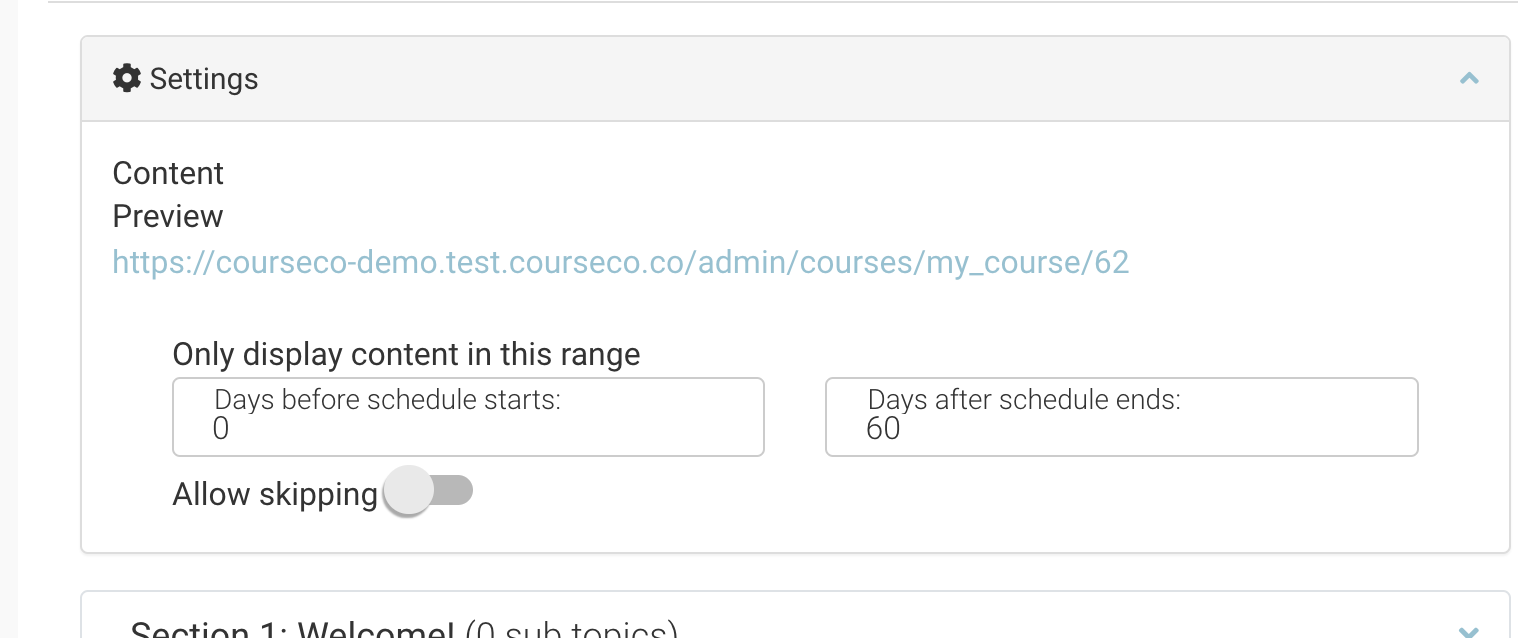
Admins can configure how long the student has access to the content for. There are x2 variations
-
Setting access length for Trainer led schedules
-
Setting access length for Self paced schedules
Setting access length for Trainer led schedules
-
Login as Admin
-
Open courses / schedule
-
Create a trainer led schedule i.e. schedule has dates / times / location
-
See user guide on how to create a general trainer led schedule see here
-
-
Navigate to the content tab on the schedule
-
Review the Settings section
-
You will see heading ‘Only display content in this range’
-
Days before schedule starts = share the content x days before the start date of the schedule
-
Days after schedule ends = Remove access from the content x days after the last timeslot on the schedule
-
Setting access length for Self paced schedules
-
Login as Admin
-
Open courses / schedule
-
Create a self paced schedule i.e. schedule with no dates and online content only
-
See user guide on how to create a general online self paced schedule see here
-
-
Navigate to the content tab on the schedule
-
Review the Settings section
-
You will see heading ‘Only display content in this range’
-
Days before schedule starts = set this to 0, this means, they user will have access to content from the booking date.
-
Days after schedule ends = Remove access from the content x days after the last timeslot on the schedule
-
Not adding this access length means the student can’t start the content!
-
-
Days after schedule ends = Most important to set! failure to set means booked students can’t access/ start the content