
This guide explains how an admin can open an existing schedule and copy the eLearning content from a different schedule.
Before you start
-
Identify the source schedule ID for the schedule that already contains the eLearning content you want to copy.
-
Open the destination schedule where the content should be copied to.
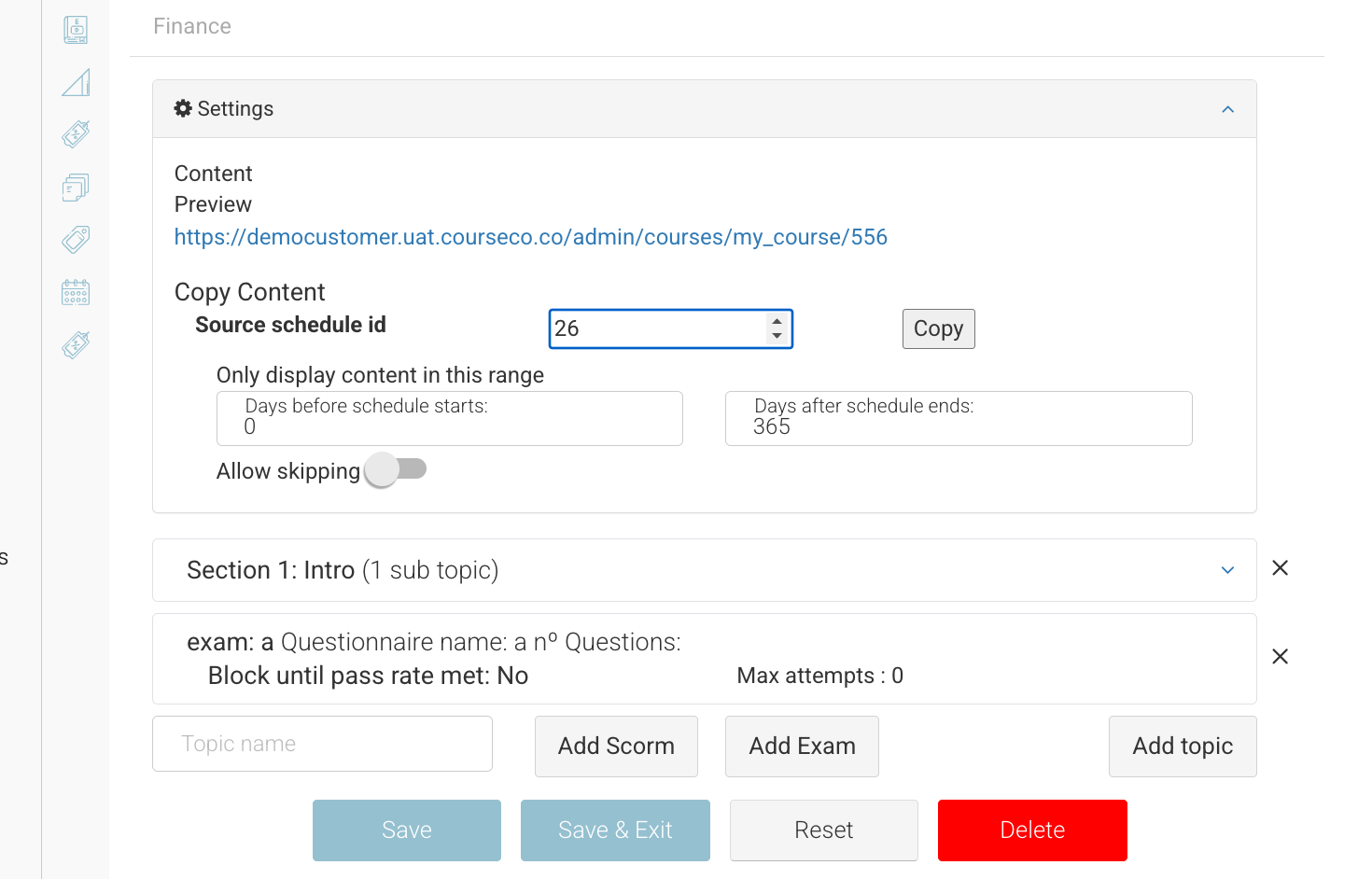
Schedules content | copy content
Steps to copy eLearning content
-
Open the existing schedule you want to update.
-
Select the Content tab.
-
Go to the Settings section.
-
Find the Source Schedule ID field.
-
Enter the schedule ID for the schedule that contains the eLearning content you want to copy.
-
Select Copy.
Result
The eLearning content from the source schedule is copied into the current schedule.
The exams will also be copied.
Note: Check the copied content after the copy completes to confirm it is correct before saving or publishing any schedule changes.
Disclaimer: After the eLearning content is copied, it becomes standalone content in the current schedule. You can make updates to the copied content as needed. Any changes you make will not update or affect the original source schedule or its content.