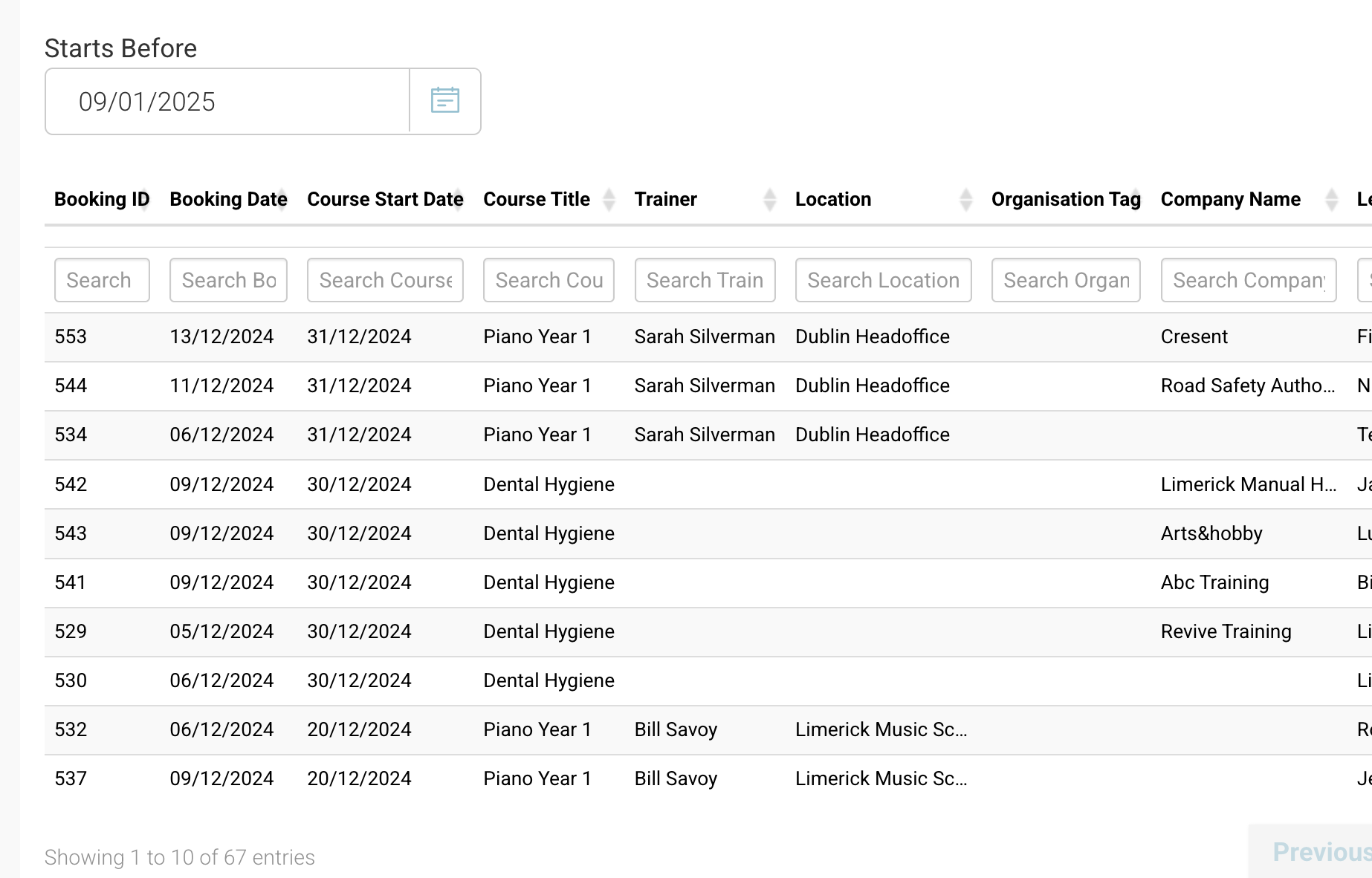
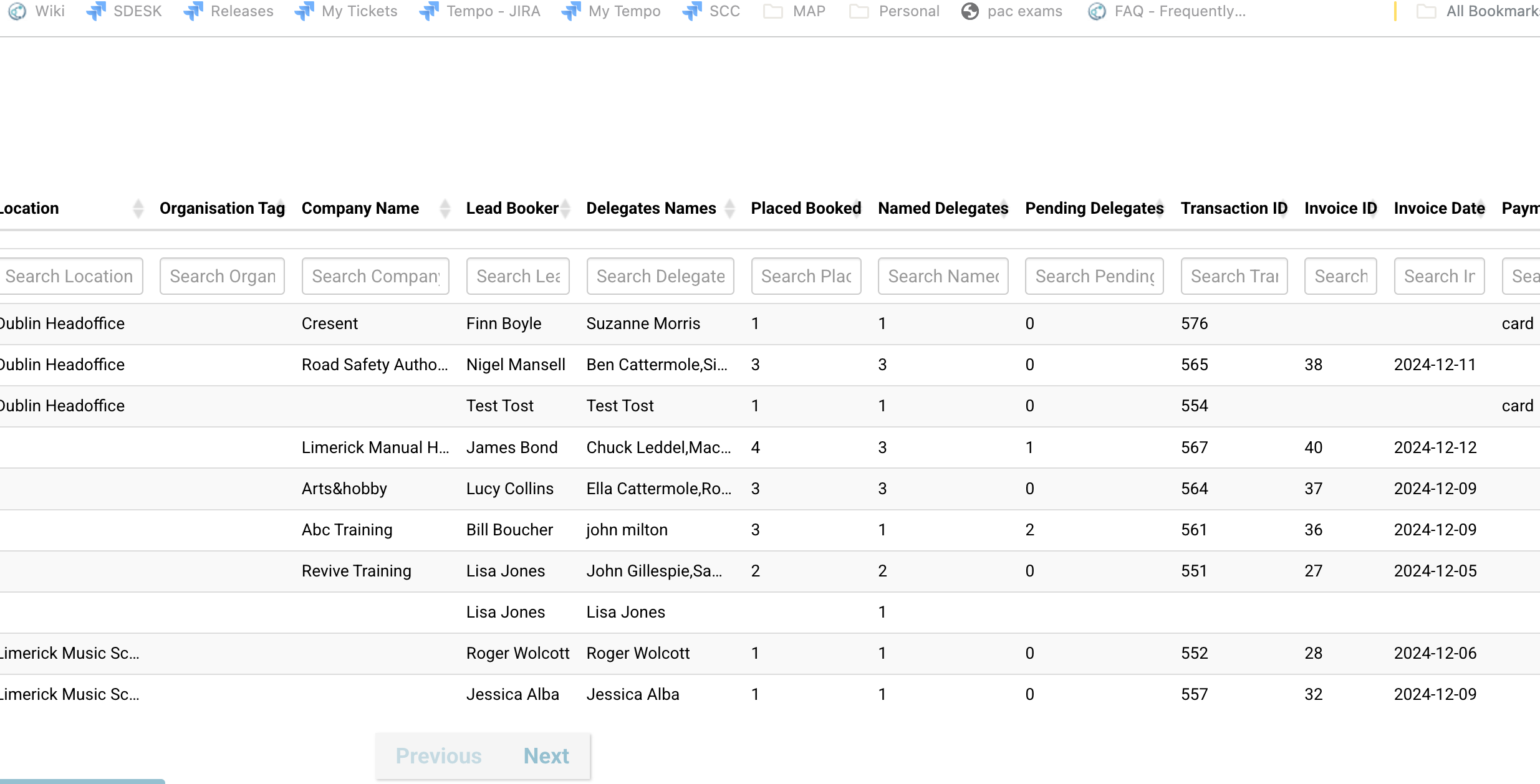
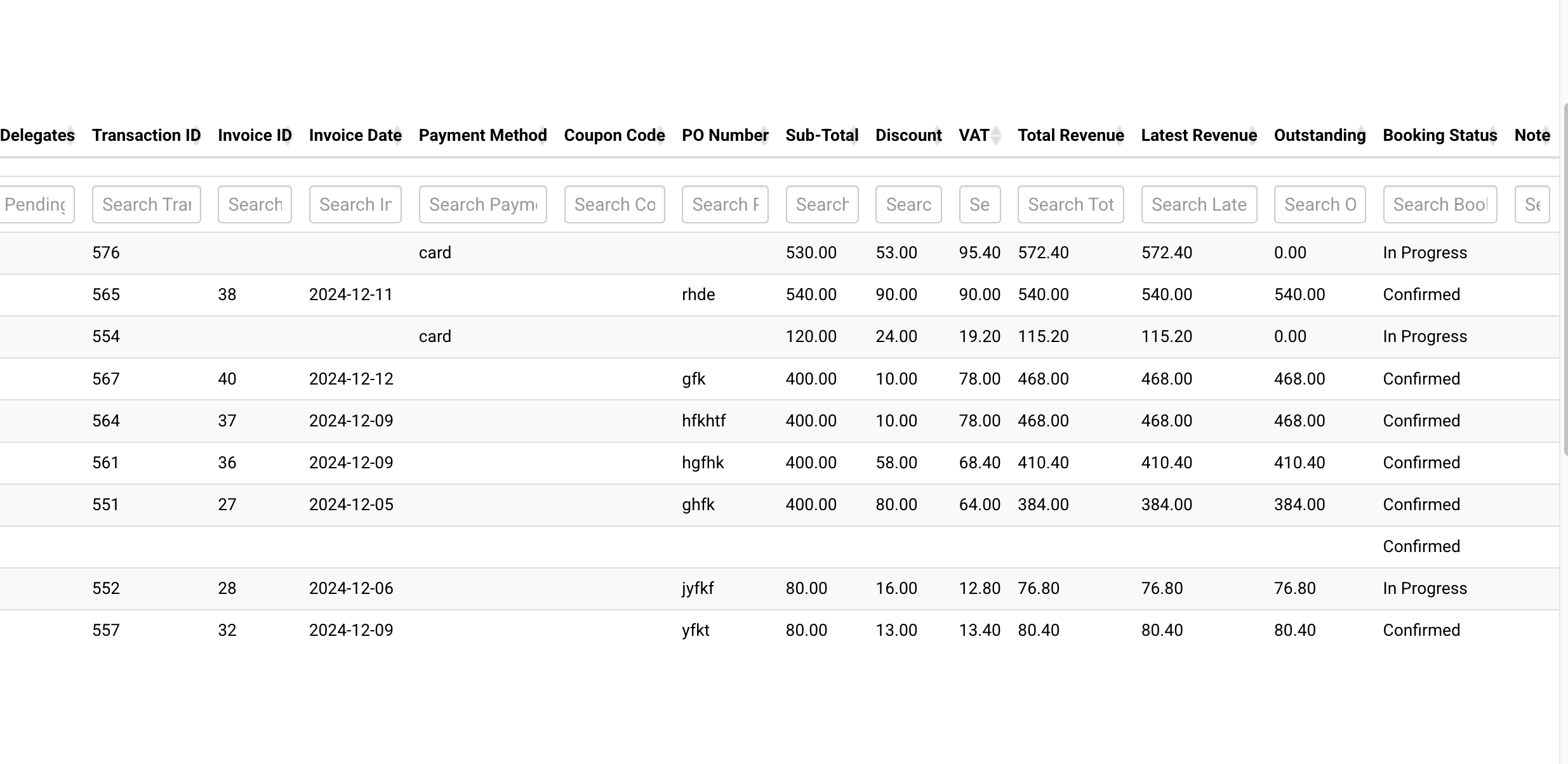
This is a very popular report on CourseCo and can be used in multiple ways for multiple different users.
⭐Tips on how to Upcoming Booking revenue report ⭐
Below, you’ll see some scenarios on how this report assists your team
-
Upcoming attendees about to start a course - Use the schedule ID to filter by schedule or start date and see all the names of the incoming
-
View trainer schedule / email to the trainer - filter by date range eg 1 month and filter by trainer column
-
Note: this is based on bookings, not schedule, so ‘Upcoming Bookings’ report might be a better report for trainer schedules
-
-
View total income for the month - filter by date range - download as CSV and then total the ‘income’ column
-
Review bookings with a pending PO - scan to PO column to identify missing info
-
Review bookings with pending names i.e. admin must chase for the attendee (admin can also backdate the report to review bookings complete with pending names)*
*Pending names relates to the add on ‘delegate allocation’ -
Filter by organisation name to send this information to an organisation account.
How to run and download as CSV the Upcoming booking revenue report
-
login as admin
-
Open reports
-
Using the top right search, enter ‘Upcoming bookings revenue’
-
On opening, you will need to filter by date range
The date range is based on the schedule start date - use the ‘booking revenue report’ to see bookings based on booking date (not start date)
-
Select run
-
Now, using the column, enter key word to refine your results
-
When ready to download as csv - navigate to the top right - actions button
-
From the dropdown, select ‘Download as CSV’
Outcome:
Your report is downloaded locally