Additional Cost Items (Optional Add-Ons)
Admins can configure optional additional cost items on a schedule (for example: books, printed materials, lunch, or travel costs).
When enabled, bookers will see these options during checkout and can add them to their order.
Additional cost items:
-
Are optional and enabled per schedule
-
Appear during checkout for the booker
-
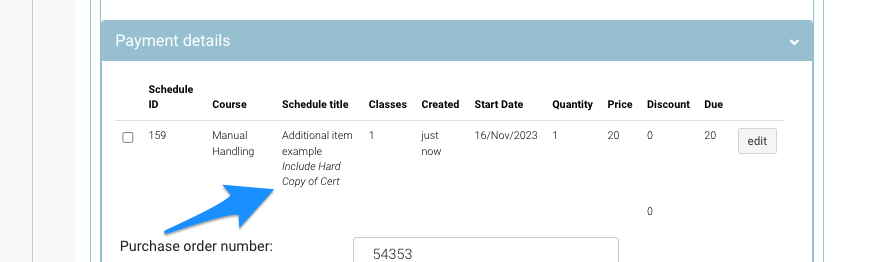
Are visible to admins on the booking and in confirmation emails
Admin | Set Up Additional Cost Items (Lookup)
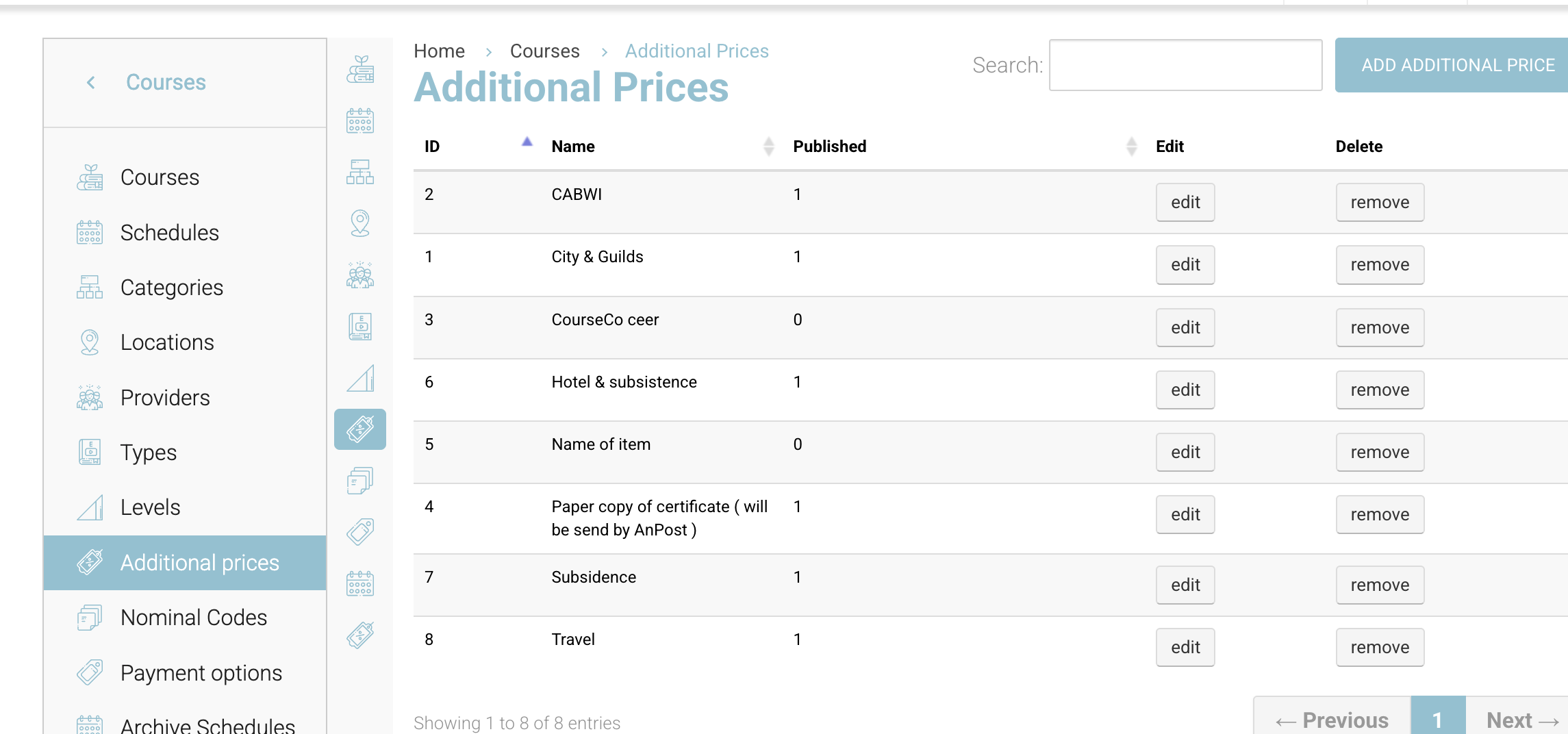
Before assigning additional costs to a schedule, you must first create the items.
Steps
-
Log in as Admin
-
Open Courses
-
From the left-hand menu, select Additional Prices
-
Add your additional cost items (e.g. Book, Lunch, Printing)
These items will now be available to assign to schedules.
Admin | How to assign additional cost per schedule
Add On: This is an add on feature, please contact us if you would like a demo / pricing
Steps
-
Log in as Admin
-
Go to Courses > Schedules
-
Select Add Schedule (or edit an existing schedule)
-
Complete the schedule setup as normal
-
Open the Fees tab
-
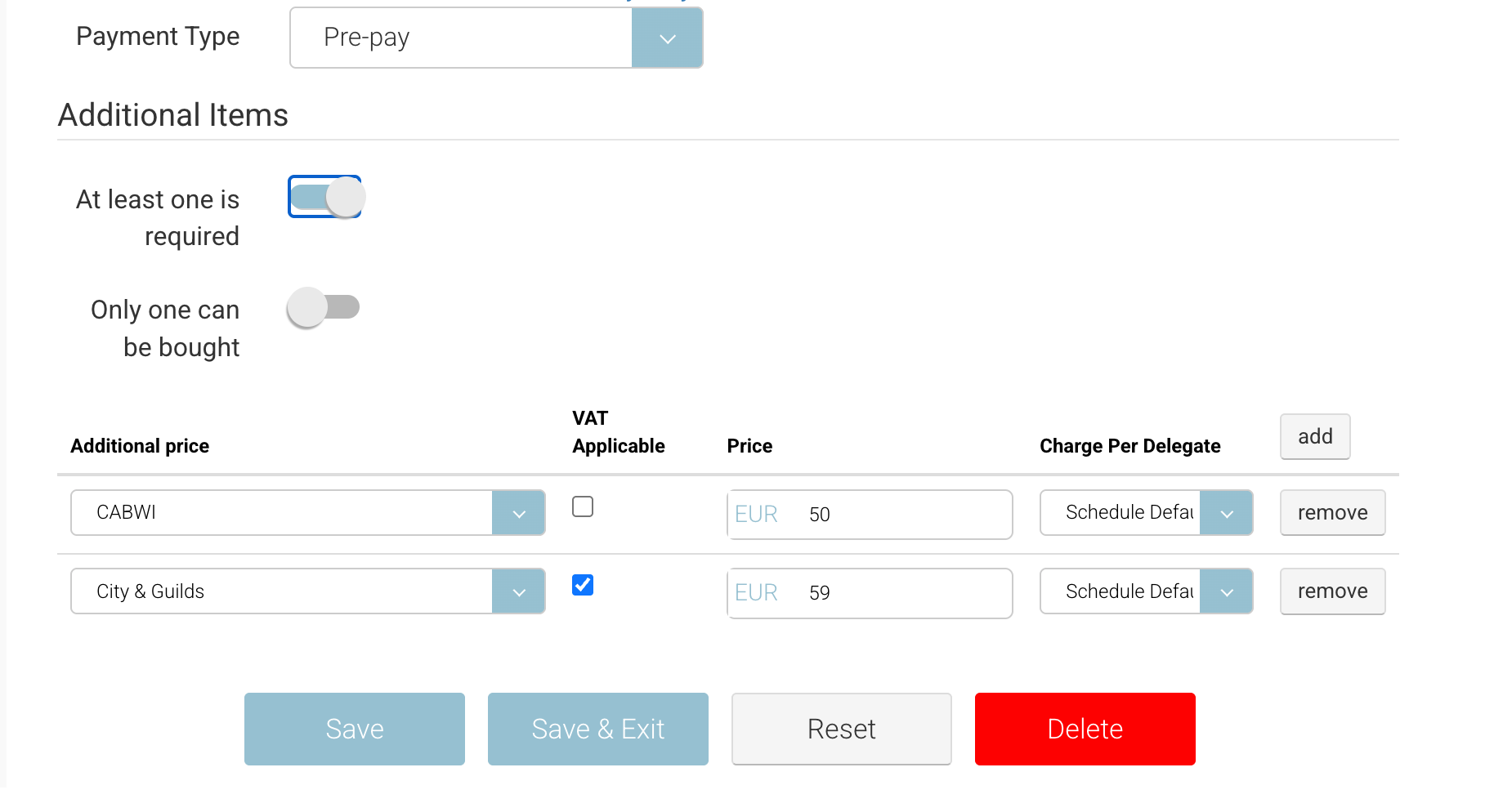
In the Additional Fee Items section, click Add
-
Select the additional item and enter the price
-
Click Save
Additional Configuration Options
-
At least one required
Makes the additional item mandatory for all bookings on the schedule. -
Only one can be bought
Limits the booker to purchasing a single unit of the additional item.
Booker | Adding an Additional Cost at Checkout
Steps
-
Log in as a Booker
-
Add a course with an additional cost to the basket
-
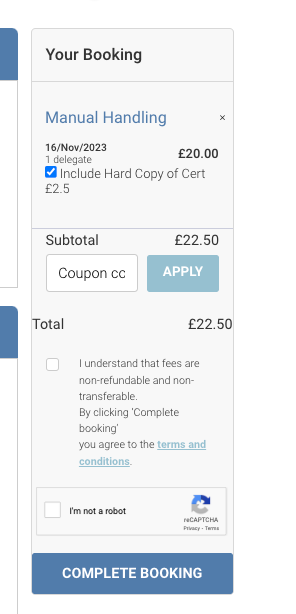
In the mini cart, tick the checkbox for the additional item
-
Proceed to checkout
Outcome
-
The additional item is added to the booking
-
The total cost updates accordingly
-
The additional item is VAT applicable (if VAT is configured)
-
The additional item is not included in discounts
-
The booking confirmation email includes the additional item name and cost
-
Admins can view the additional item directly on the booking