
Admin can access the forum just like students, trainers and guests but they will have more control over the topic and replies posted. Below is a guide on the controls that an admin will have on Forum Back-office:
Creating Categories
Admin access means you control the categories and responsible staff. You can add a category and assign a responsible staff member to the category.
Adding a category as an admin
-
Login as admin
-
In the left menu, navigate and select the forum feature
-
In the left menu select ‘Admin Categories’
-
Select Add Category button
-
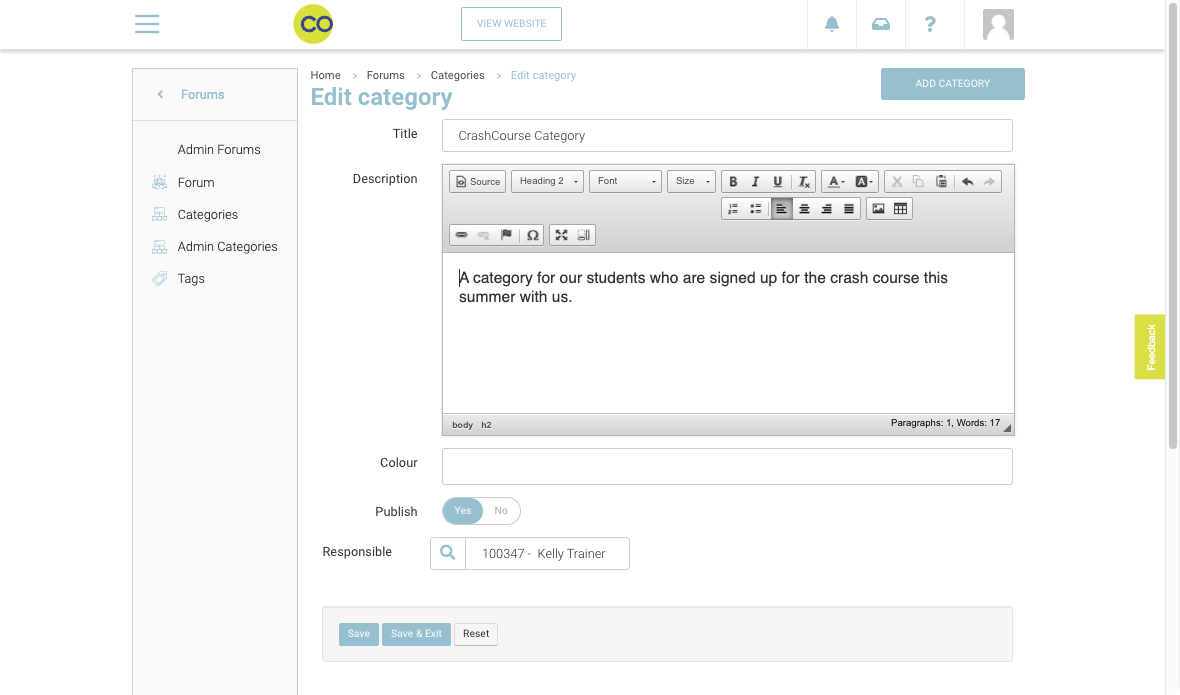
Add a title for your category
This is the title displayed on your forum
6. Add a short description about your Category
This will be displayed on the forum list public page on the website
7. *Optional - Add colour in RGB code
8. Search and select responsible contact from your staff in Responsible input dropdown
This contact will receive email alerts when a topic is posted and linked to this category
9. Click Save button
Outcome: Admin, students & trainers must select a category from the list before posting a new topic
An image is shown below displaying the screen when an admin adds a category
Creating Tags as an admin
Admin access means you control the tags that are available for selection when creating a topic. You can also create these tags that you would like your students to use.
To create a tag, please follow the steps given below”
-
Login as admin
-
n the left menu, navigate and select the forum feature
-
In the left menu select ‘Tags’
-
Click on the ‘Add tag’ button
-
Input the tag name
-
Turn ON the ‘Publish’ toggle
-
Click on Save button
Outcome: Admin, students & trainers can select multiple tags when they are posting a new topic.
An image is shown below representing admins view of adding a tag:
Viewing Forum as an Admin
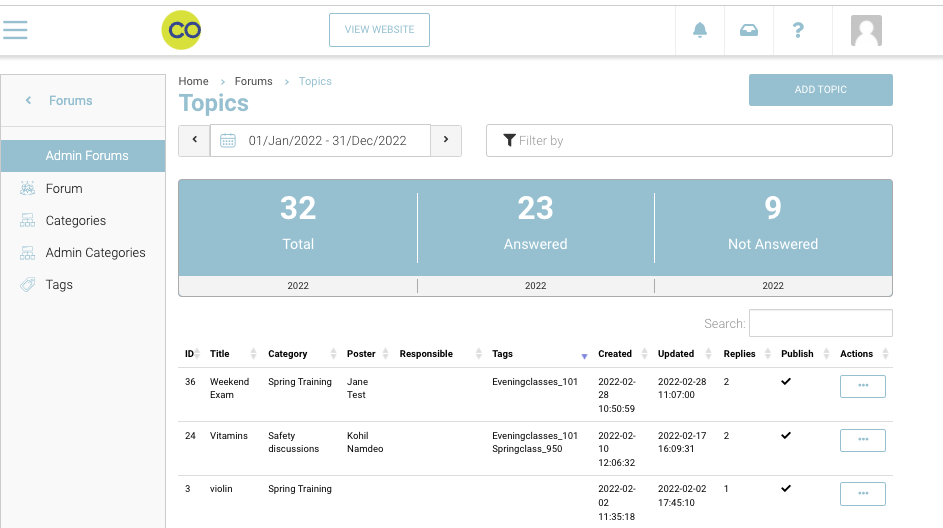
Forum Statistics page is useful to filter results and see high-level stats on a category, tags or posts by specific students. With admin access you can filter results, view and edit posted topics and replies.
An image of Admin’s Forum list page with Statistics is shown below:
Adding a topic as an admin
Admin can add topics so that students can engage in conversations about them and clear their doubts using Forum.
To add a topic as an admin, please follow these steps below:
-
Log in as an admin
-
In the left menu, please select ‘Forum’
-
Click on ‘Admin Forums’ in the left menu
-
Click on ‘Add Topic’ Button to add a topic
-
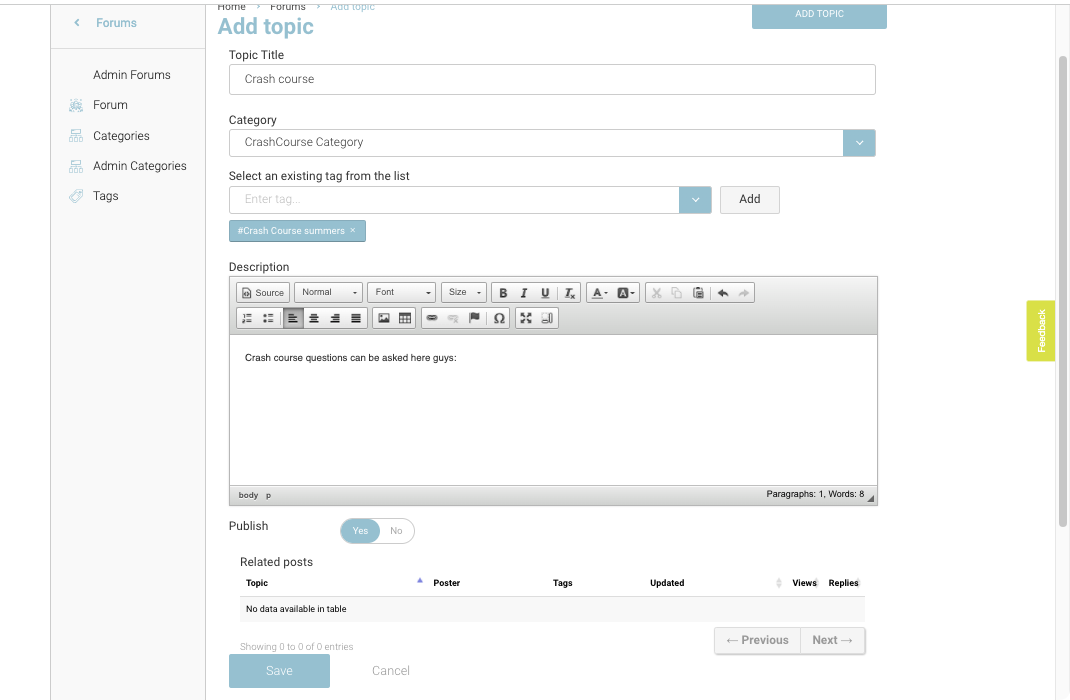
Input your Topic title
-
Choose a category from the category dropdown
-
Choose tags from the tags dropdown
-
Input your descriptions about the topic
-
Turn ON the ‘Publish’ toggle
-
Click Save button
If you have existing topics that are related to this topic, you will see them in the ‘Related Topics’ list below
Outcome: Your topic with description will be posted and open for discussion to students
Below is an image of Admin’s screen adding a Topic:
Adding reply as an admin
To add a reply as an admin, follow the steps below:
-
Log in as an admin
-
In the left menu, please select ‘Forum’
-
Click on ‘Admin Forums’ in the left menu
-
In the forum topics list, select the topic you want to add a reply to as an admin
-
In the topic details, click on ‘Reply' button
-
Input your reply and save it
Outcome: Your reply on the topic as an admin will be posted and available for students to view
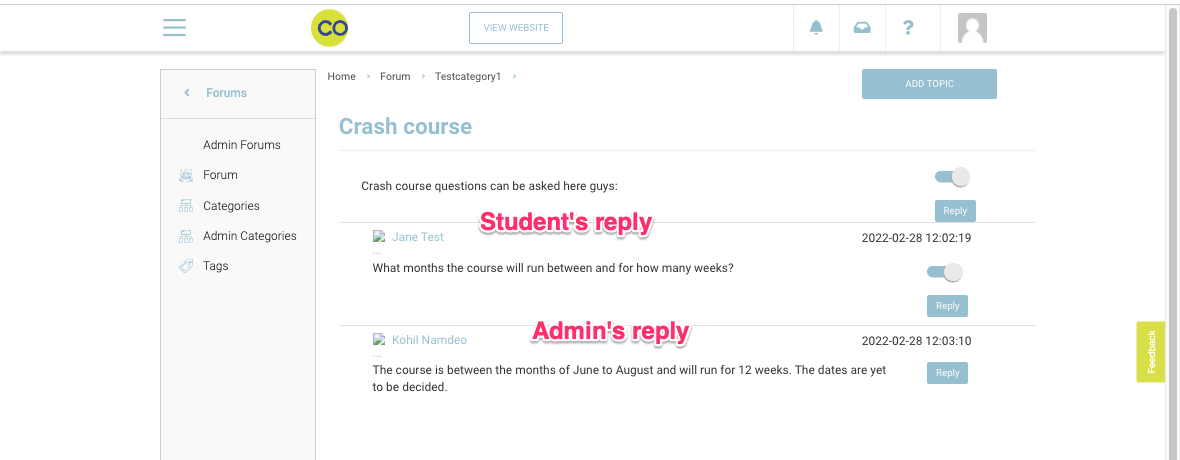
An image of how an admin’s screen of reply looks like is shown below:
Editing a topic as an admin
As an admin, you can edit a topic posted. To edit a topic, please see the steps given below:
-
Login as an admin
-
Navigate and select the ‘Forum’ in the left menu
-
Select ‘Admin Forum’ in the left menu
-
Search and select the topic you would like to edit
-
In the actions column, select edit to edit and save the topic.
-
Alternatively, select the Topic title so that you can do the following actions when in ‘Edit’ mode:
-
Unpublish the topic by turning the toggle as OFF for the topic
-
Unpublish a reply by turning the toggle as ON for the topic
-
View all replies posted on the topic by students and admins
-
View poster & replies names on the replies posted on the topic
-
Reply on Students replies with relevant information
-
Outcome: Your topic will be edited and saved according to the actions performed
Forum Notifications
Automations can be set up for the forum activities based on these two actions:
-
A topic is posted
-
A reply is posted
The email notification will be triggered to the responsible staff or students.
These can be set up by your CourseCo CRM lead. To get these automations set up, contact your CRM lead for the project.